Tag Archives: Review

BlackBerry Passport – Compass, Weather and Maps

The BlackBerry Passport includes a wealth of software as standard. Today I am going to look at the compass , weather and maps apps.

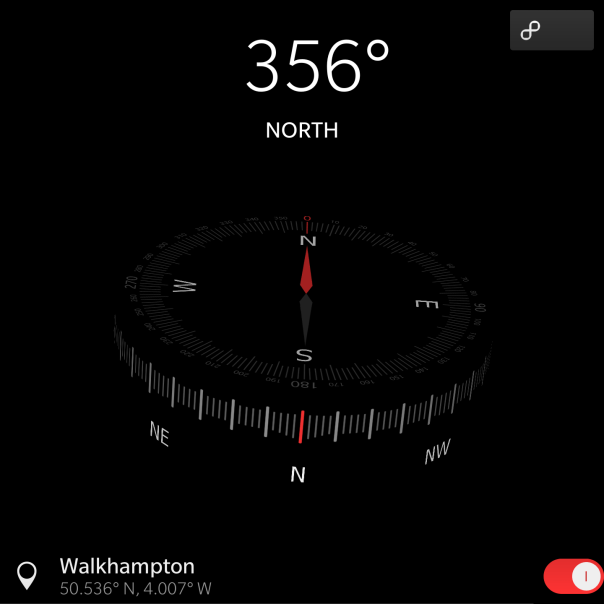
First up is the Compass app. It is a simple app that displays a 3D compass that moves dependant on how you hold the Passport. It is rather cool to look at actually.

IMG_20141004_182423

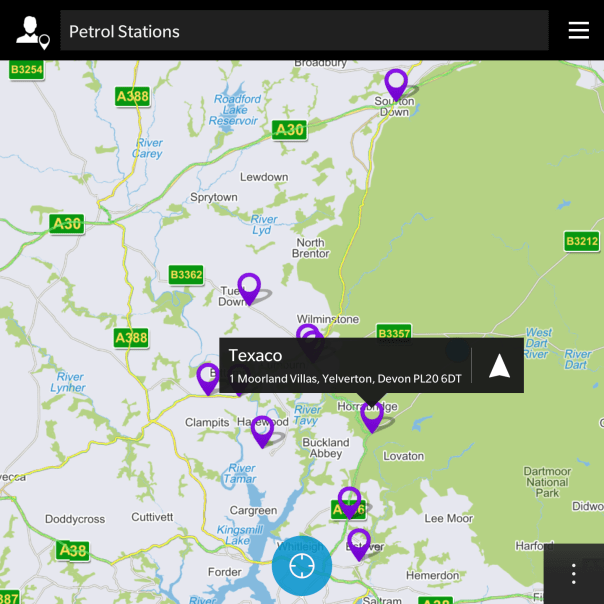
Next up is the BlackBerry Maps application. This provides a basic but reasonable solution if you need to find a place or type of place, or need turn by turn directions.

IMG_20141004_182502

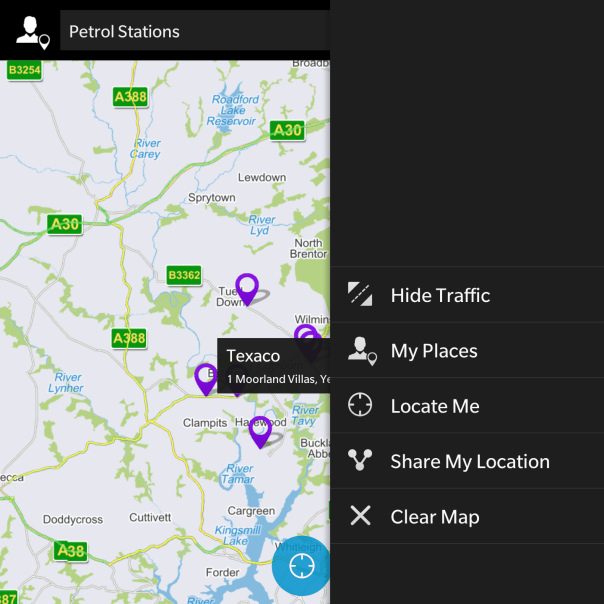
There is no street and terrain views like that found in Google Maps, but you can share your location with ease. Not shown in the screen shots, but the turn by turn directions are really clear and accurate in my testing so far. I gather the mapping data is provided by TomTom which explains why the turn by turn directions are quite good. Also live traffic information was overlaid. Overall, I was quite pleased with the mapping solution. I have used more advanced solutions but I would be happy using Blackberry’s own solution.

IMG_20141004_182559

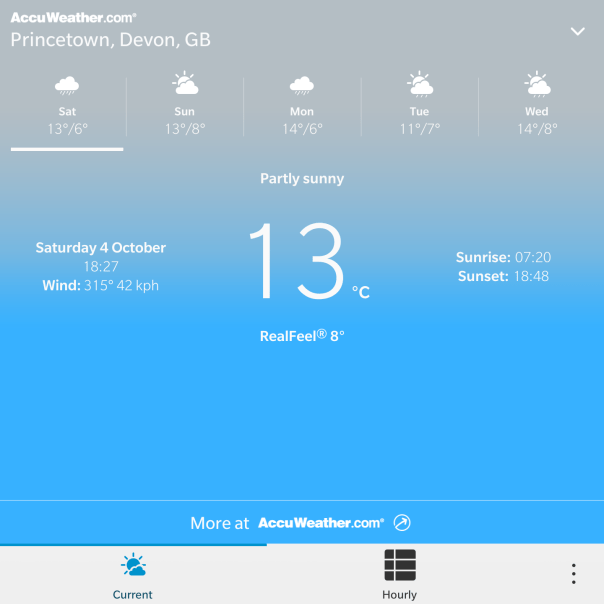
Finally, every phone needs a weather app and the BlackBerry Passport is no exception. Data is provided by Accuweather and you are shown the weather is a perfect 4.5 inch square 🙂

IMG_20141004_182725

After updating the inbuilt apps using BlackBerry World, my Passport did receive a new app which provides analysis of the phone. Like a diagnostic app. This and all the over aspects of the software will be covered next week along with my views.

In the few days I have owned this phone it does get more impressive as time moves on. However, it does have its weaknesses but I feel at the moment the positives outweigh any negatives. More on that next week.

For now, have a good weekend.

BlackBerry Passport – Impressions part 2 – will it bend?

IMG_2818.JPG

This question has been asked by so many people.

“BlackBerry Passport, will it bend”

“Answer – not even Superman can bend the BlackBerry Passport”

Next week starting on Monday, I will give me views on the software, audio quality, camera verdict and much much more.

The Passport is in a live battery test. So far at 6.30am it’s managed 24 hours and has 10% battery left.

BlackBerry Passport – First Impressions

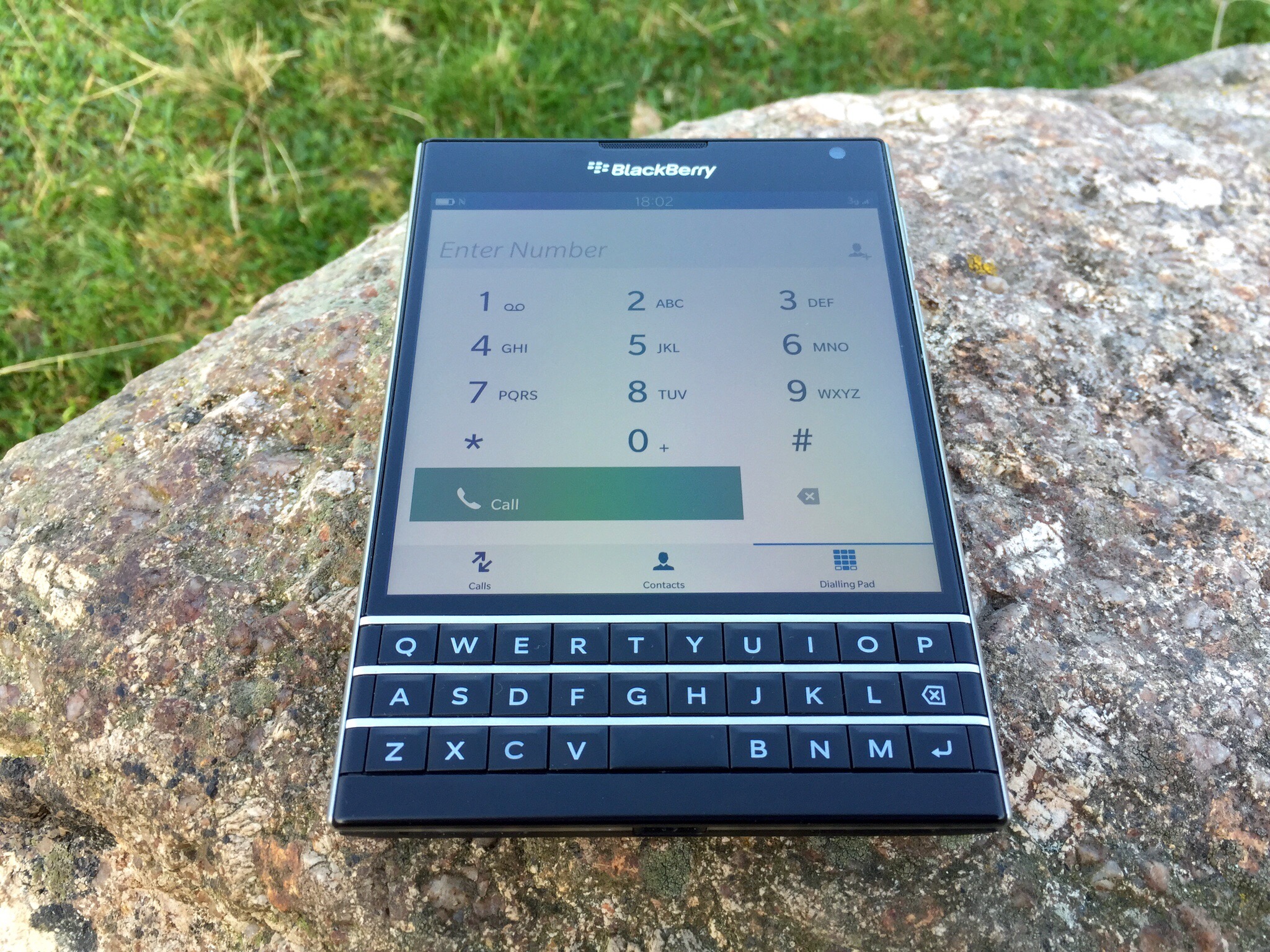
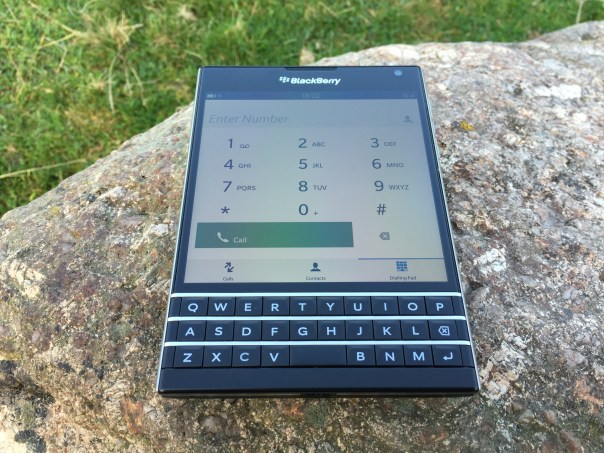
My BlackBerry Passport has arrived. Lets cut to the chase but before I do have a look at the hardware photos below –

IMG_0294

IMG_0296

IMG_0302

So as you can see the hardware is gorgeous. Every person who has been shown the BlackBerry Passport has been intrigued and been very praise worthy of quality and look of the hardware. This ranged from tech geeks all the way through to my wife. Clearly, there is still a lot of love for the BlackBerry brand. Also if you look at the first photo, sunlight visibility is not an issue whatsoever. In fact the Passport is a whole 100+ nits brighter than an iPhone 6. From my point of view the hardware looks like a ÂŁ600 smartphone. It looks and feels substantial, yet fits in all my pockets including front shirt pockets with ease.

The Passport is fitted out with some excellent hardware specifications from a Snapdragon 801 processor, 13mp camera with optical image stabilisation, 32gb storage plus 128gb micro SD card slot and so much more. If you need to know about the top flight specifications head over to BlackBerry here http://uk.blackberry.com/smartphones/blackberry-passport.html.

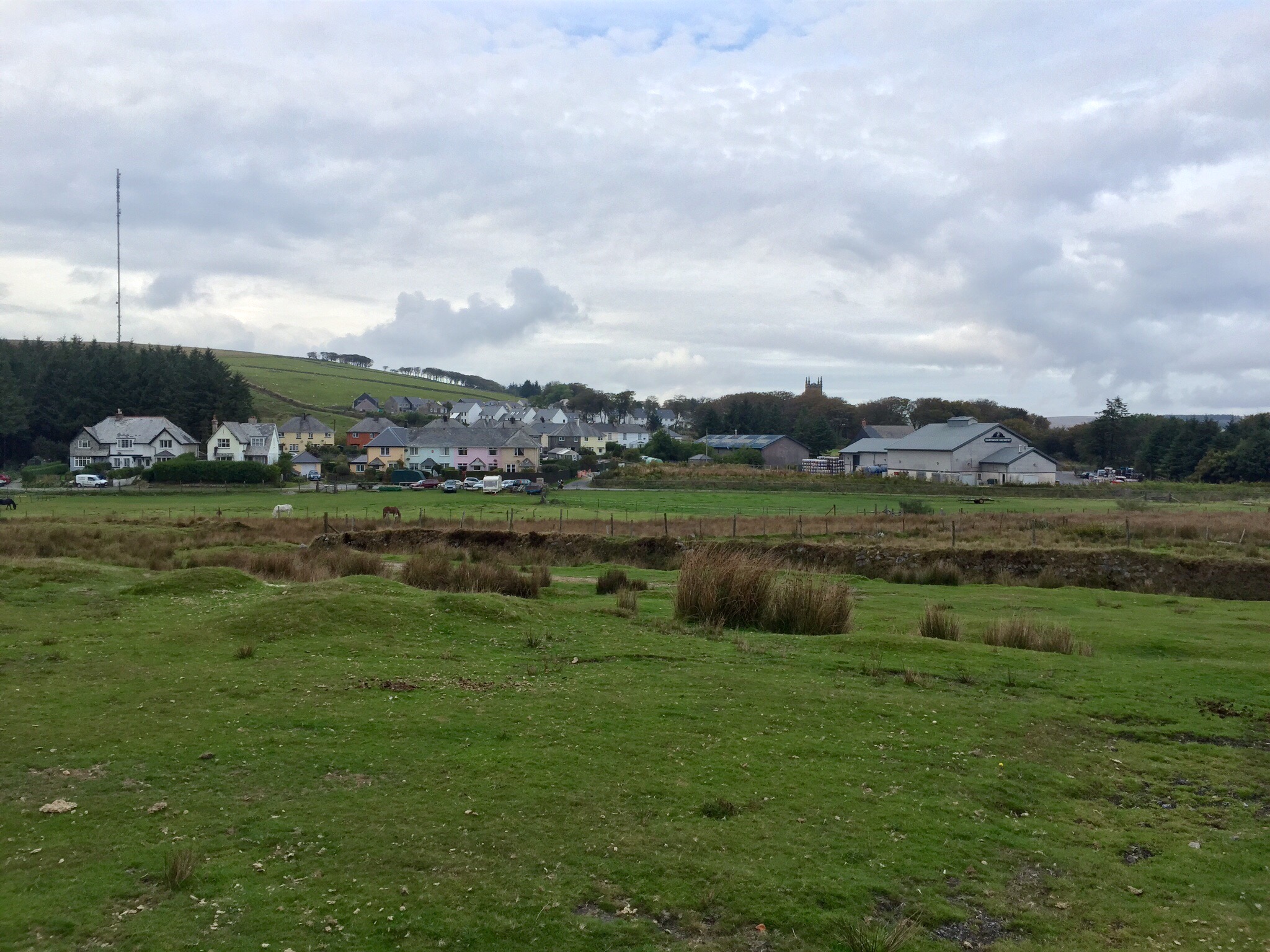
To give you some idea of my first two shots from the camera, see below –

Stunning Dartmoor Landscape #BlackBerry #Passport

And another of a random street .

Random Street #BlackBerry #Passport

I have not had much time with the BlackBerry Passport but I wanted to give you a quick heads up. The BlackBerry OS is brand new to myself so I am also learning as I go along. The 4.5 inch screen is ideal for viewing emails and web sites and other office or business documents. The Passport also does a whole lot more too of which I have to explore.

I will leave you with this one thought. Whatever your preconceptions of this phone until you have held it and used it, that is the only time you will be able to pass judgment or comment.

My next step will be to explore the software in more detail over the weekend, so expect part 2 next week. Once again, keep the questions flowing.

Apple iPhone 6 Plus – more impressions part 4

So another day has passed and to be honest it has all been rather hassle free.

I have created an album now on my Flickr account for my favourite iPhone 6 Plus photos. Click here to view https://www.flickr.com/photos/gavinfabl100/sets/72157647679181549/

I have been using Apple Maps again and it has on the whole been stellar. The spoken turn by turn directions are so clear that you really don’t need to see the screen. However, it suddenly stopped speaking the directions, instead opting to make a weird doorbell like sound. Sounds like a bug.

Below are two photos I’ve had taken with many phones. I just can’t get over the clarity, true to life colours and detail achieved by the iPhone 6 Plus.

IMG_2811.JPG

IMG_2810.JPG

Daylight was disappearing at the time so rather good to be honest. I also took some random burst mode shots of cars travelling at speed. The results were excellent but boring to show. When I get some more exciting photos using burst mode I will upload these.

Overall the 6 Plus is my favourite smartphone of all time. I am very happy with the larger display and size and in no way would I want a smaller 4.7 inch iPhone 6. The extra benefits in battery and camera and screen are well worth it !

LG G3 – Review – Highlights 9 weeks later

It seems a miracle that I still have the LG G3 after 9 weeks. Below are my key highlights of the device.

1) Design. Often overlooked but I really like the buttons on the back of the phone. The curved back. And the headphone jack on the bottom. All of these design choices make the phone despite its size so much more comfortable to hold. And being nearly all screen on the front makes such a great bold design statement.

2) Keyboard – not only is the LG keyboard adjustable in every way conceivable, it has themes and is accurate too. In landscape I pull the keyboard to split it which makes text entry simple. It is the first phone whereby I have not changed to swift key or something else.

3) LG launcher. It’s just clean and simple yet offers excellent customisation. The on screen menu buttons for example. Defaults to 3. But you can add up to 5 and change the order. So bringing down the notification shade can be done from the bottom menu. Simple idea but just works. And then you have Knock On and Knock Code.

4) Camera. It is as easy as the iPhone. It never fails to take a great shot. And truth be told it’s better most times than what can be snapped on the iPhone 5S. Maybe the iPhone 6 will change that balance. Yes the G3 has laser focus but it means it just works. I also like that fact it’s just press and shoot. It also has voice control which seems to work really well. I have at least 5 other camera apps installed but haven’t really used them. The default camera app just works really effectively.

5) QuickCircle case. This is one of the coolest cases for a phone I’ve seen at the moment.

6) Qi wireless charging built in. I’m not a mad person who says it’s the only way to charge a phone but at night, I simply rest the G3 on the qi stand and that’s it.

7) Screen. It’s a good screen and is ideal for my photography. I have tweaked the colour gamut in the screen accessibility options to make it more vibrant.

8) The infra remote software is detailed and offers more buttons than other default phone software provided by other companies.

9) FM Radio. Often overlooked but it’s handy at times.

And finally, it just works. I have had no issues with it whatsoever. LG have updated the firmware and for the life of me I cannot tell what’s been improved.

With all the new phones that have been announced and are still to be announced this month, I am still being held by the G3. Only the Note 4 or Note Edge are tempting me but after I realise I will lose certain features and it will be more uncomfortable to hold than the G3 due to the Note’s wider girth, I keep wondering maybe I’m best staying put.

Time will tell of course 🙂

LG G3 – review – Hello Genie and Google Voice Commands

I really thought I had covered off everything to do with the LG G3 but alas there is another world of operation when it comes to voice control.

LG has their own piece of software, activated from the lock screen simply by saying “Hello Genie”, in the settings quick toggles by switching voice on or from the home menu button swiping it to the left.

As a side point if you swipe straight up or hold the home button, Google Search/Now is activated. If you swipe the home menu button to the right quick memo is activated.

So what can the voice control manage on the LG G3? Sending emails, texting, schedule a new meeting, cancel a meeting and show meetings, tasks creation, show map of an areas or place, navigation to, browse a web page, create new memos, open apps, play music or an album or a song, turn settings on or off and find weather information. You can also look up info on a contact. I will come back in a minute to the finer points of this voice control.

Now let’s move on to Google Voice control. It is what you would expect on any other android phone. Once in the search screen you can use OK Google to start the voice operation. But it is not always on in the home screen. It works as advertised but does not add the granular control of the in built LG system.

With the LG voice control you have more finer control, similar to Siri on the iPhone. So for example, on the LG voice control I can ask it to move an appointment forward by an hour. More of a personal assistant.

As another example, if I asked Google Voice to turn off wifi it just brings me to the wifi settings. If I ask LG Voice to turn off wifi, it turns wifi off!

A word of warning, all of the above voice control operation is dead in the water if you haven’t got an internet connection.

ViewRanger – one cool piece of software

Viewranger GPS Trails and Maps is a cool app that will probably soon rank as my favourite app ever.
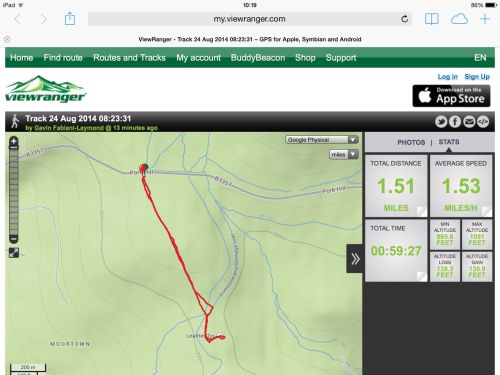
IMG_2176
Above screen shot shows a track route that I walked and then shared. When the recipient opens the link the above is what they will see. They can also change the map overlay from Open Street Map to a number of drop down menu options and even change miles to kilometres. If you want to see the above shared map on your own computer or mobile phone then click below –

“I’m sharing my #walking trip with you. Total distance 1.52mi, http://my.viewranger.com/track/details/MTA4MjA1OA== . Via @ViewRanger”

ViewRanger is the complete offline mapping, navigation & guided trail service for Outdoor Enthusiasts. The app & free web tools will help you at every stage of your adventure, so it’s easy to plan trips, gives you peace of mind when you’re out on the trail and helps you to store & share your experiences. Perfect for exploring mountain ranges or simply days out in the countryside. In my case, ideal for exploring Dartmoor and the coastal paths.

ViewRanger was voted as one of the best apps in 2013 on “Google Play” .Used & trusted by over 150 Search & Rescue teams across Europe and the North America. And after using the app, I can see why this software is used by the search and rescue teams.

Now ViewRanger is just a glance away on Android wearables.
——————————-
FEATURES INCLUDED
â—Ź GPS mapped location, even without mobile signal
● Offline map mode* – store in advance using “Create Saved Map”
â—Ź Access to 10,000’s of route guides and trails
● Track recording – view your path on map to keep or share, even add Flickr photos
● Sports computer stats – view distance, speed, etc.
● Real time location sharing** – BuddyBeacon (requires data connection)
â—Ź Active Route Navigation***
â—Ź Powersave mode in the GPS settings
â—Ź Synchronises with web account for route planning, publishing and sharing.(http://my.viewranger.com)
â—Ź Share tracks via Facebook and Twitter
● Record a track, navigate and view track stats on Android Wear™
——————————-
FREE MAPS INCLUDED
● OpenStreetMap© & OpenCycleMap
â—Ź Bing Ariel Imagery, Ski map, Transport map
â—Ź GB Road Atlas from Ordnance Survey at 1:250.000, map for England, Wales & Scotland
Download Great Britain Ordnance Survey Explorer 1:25,000 & Landranger 1:50,000 maps via in-app purchase (ViewRanger Store). Licensed maps from other national mapping agency’s are also available for over 21 countries.

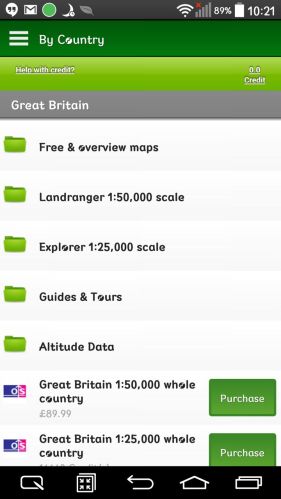
Below are some screen shots from the ViewRanger store giving you a tiny insight into the maps available. The app is free to download, and as mentioned above a number of the maps are free too. But the detailed Ordnance Survey maps are chargeable but well worth it if you walk off road.

IMG_2178

There are many ways to search for a map type, by country, type and so on.
IMG_2179

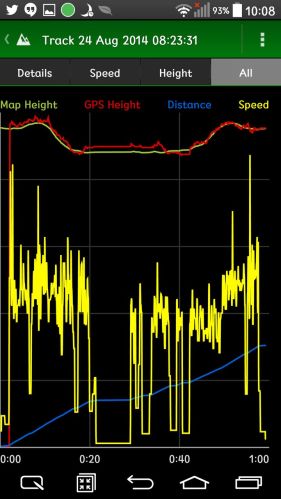
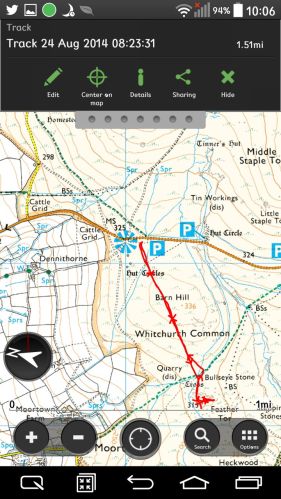
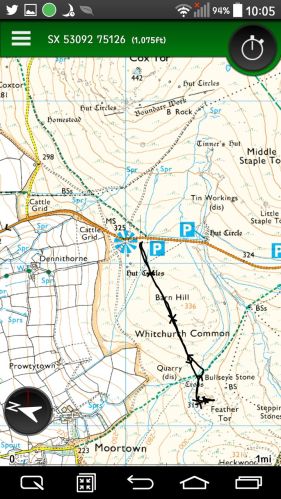
The track that I shared above provides the additional data as shown above and below. You can also see the detailed OS map screen shots below.
IMG_2181

IMG_2182

In use you can zoom in and out with ease. In fact there are many options including a live buddy share when walking.
IMG_2183

Another screen shot providing information on the route.

IMG_2184

I am only just beginning to learn how to use this app and service, but so far have been blown away at just how useful it is. For the first time, I have real time information on my Dartmoor wilderness walks.

The app is available on iOS and android. It is also available on Symbian but not on Windows Phone. I have tested the app on my LG G3 and my wife’s iPhone 5S. Very impressive on both.

Links –

Google Play store – https://play.google.com/store/apps/details?id=com.augmentra.viewranger.android

Apple App Store – https://itunes.apple.com/gb/app/viewranger-outdoors-gps-os/id404581674?mt=8