Category Archives: Tech News

Nexus 6P – First Impressions

IMG_0743

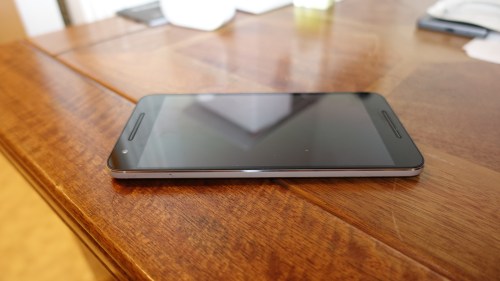
So my Nexus 6P 128gb Frost White arrived yesterday. It is a big device.

IMG_0741

From left to right, Huawei G8, Nexus 6P, iPhone 6S Plus, Sony Z5 Compact and a BlackBerry. I do wonder if we have lost the plot on screen sizes now?

The Nexus 6P has stereo front speakers and a new USB C cable.
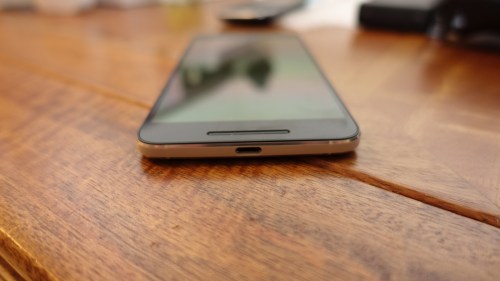
IMG_0748

IMG_0749

I was disappointed to find only 111gb free of the 128gb model. Clearly despite being hardcore android the firmware is large. As a comparison the 128gb iPhone 6S Plus has 113gb free out of the box but does include loads more apps.

Screenshot_20151105-180431

Despite the space available, I can’t see myself running out any day soon. So what do I like and what don’t I like ?

As first impressions, the frosted white is fantastically beautifully amazing choice of colour. I am so pleased I didn’t opt for aluminium or black. There are 2 cables in the box, one is USB C to USB A but so short it is a joke. The USB C to USB C cable is an ideal length. Suddenly, I realised I have no compatible cables and charging in the car and around the house is an issue until I get more USB C cables. I found a good selection of USB Type C Cables and Adapters on Amazon

The phone feels premium but is not that comfortable to hold as it is big. The Nexus 5X was much easier and more comfortable to grip in the hand. The fingerprint sensor works really well, but when the phone is face up on the table, its no use at all. Apple and Samsung and even Sony have the sensor is a more suitable location.

The camera. I have tried some random shots just to get an idea of its standard. It takes good shots but as to how good the quality of the camera is will only be established after I have had and more time and dry weather to take more photos. So far it took 3 indoor low light shots to get 1 shot to be better than that from the iPhone 6S Plus. My iPhone only needed one shot to get it right first time. The Sony Z5 Compact also only needed one shot. However, don’t read too much into this at the moment, as I need to understand the quirks of the phone and I will also see what can be achieved using third party camera apps. More soon.

Screen. I don’t like the screen. It feels muted except for watching films etc when it looks great. Add to the fact there are stereo speakers and it is a lovely media player. I will test for audio quality later as well.

And before I sign off, the highlight of the phone is its running pure android. That is a benefit to ensure you get the latest updates to the firmware, but it is also bland. Huawei’s EMUI and Xiaomi’s skins do add a lot of extra features. So it ultimately boils down to what your preferences are.

Sony Xperia Z5 Compact – Superior Auto vs Manual – You Decide! – UPDATED with Results

This is a simple test. Below are several shots of the same church using Superior Auto Mode is 23mp and 8mp and also manual mode is 23mp and 8mp variations. Except the order is all mixed up. No cheating by looking at exif data allowed. So name your top 3.

Before we get to the test shots, this is manual mode, 8mp, backlight scene. It is a cracking shot too.

Haunted #SonyZ5Compact #Atmospheric

Right onto the test. I am going to label each photo 1 to photo 6. All you have to do is say which is best, or name your top 3. I am going to say this that IMO, I believe the best shot was taken in Superior Auto.

As you all have had a chance to ponder which is which, here we go with the results. If you haven’t read this yet, just have a look at how good superior auto mode performs. Photo 1 and Photo 2 are Superior Auto Mode, 23mp and 8mp respectively. All the others are manual, trying little tweaks here and there. However, my first choice is Photo 1. What this goes to show is we all have difference reasons for liking a particular shot or shots, but also Superior Auto mode does a good job now.

Photo 1

Testing Superior Auto vs Manual Mode on the #SonyZ5Compact  see article at http://gavinsgadgets.com for more info

Photo 2

Testing Superior Auto vs Manual Mode on the #SonyZ5Compact  see article at http://gavinsgadgets.com for more info

Photo 3

Testing Superior Auto vs Manual Mode on the #SonyZ5Compact  see article at http://gavinsgadgets.com for more info

Photo 4

Testing Superior Auto vs Manual Mode on the #SonyZ5Compact  see article at http://gavinsgadgets.com for more info

Photo 5

Testing Superior Auto vs Manual Mode on the #SonyZ5Compact  see article at http://gavinsgadgets.com for more info

Photo 6

Testing Superior Auto vs Manual Mode on the #SonyZ5Compact  see article at http://gavinsgadgets.com for more info

And while you deciding on which shots are the best, here is a photo from one of the many artificial reality modes.

Rumours of a Dangerous Predator on Dartmoor #SonyZ5Compact

A big thanks to Clove Technology for sending the Z5 Compact.

Apple TV 4th Gen- 30 Hidden Secrets/Tips of the new Remote Control and Box

Apple last week released their new Apple TV. And with the new box came a new remote control. The remote control has many more features than you might have released. Below are a list of them all –

– Unsure what you can ask Siri, press the Siri button and wait and a list of commands will appear.
– Dedicated volume buttons which will work with your TV and / or receiver out of the box. The settings can be tweaked via the settings app, remotes and devices, home theatre control.
– The volume buttons can be programmed using the hidden infra red blaster to control the volume on TV’s and other devices that don’t support the HDMI-CEC protocol.
– To programme the infra red blaster, go to the Apple TV settings app, remote and devices, volume control and learn a new device. Just follow the instructions.
– Double Press the Home button brings up the app switcher / close apps menu.
– Press the Menu button twice to start the screensaver, three times for voiceover.
– Apple TV network strength is displayed in Settings under General, About.
– Move around the screen: Swipe up, down, left, or right on the Touch surface.
– Select an item: Press the Touch surface.
– Return to the previous menu: Press the Menu button.
– Return to the Home screen: Press the Home button.
– Press the Play/Pause button once to change the keyboard between uppercase and lowercase.
– The touch surface can be adjusted for sensitivity in the Settings app under Remotes and Devices, Touch Surface Tracking
– The triple-press Home button accessibility short cut can be changed in the Settings app under General – Accessibility, Accessibility Shortcut.
– The battery level is listed in Settings, Remotes and Devices, Bluetooth.
– Video: Swipe to the right or hold down the right side of the Touch surface.
– Audio: Hold down the right side of the Touch surface to fast-forward. Press right to skip a selection.
– Video: Swipe to the left or hold down the left side of the Touch surface.
– Audio: Hold down the left side of the Touch surface to rewind. Press left to restart a selection. To play the previous selection, press left twice.
– During playback, press the right side of the Touch surface to skip ten seconds ahead. Press left to skip back ten seconds.
– Video: Swipe down during playback, then swipe right to browse available options. If available, you’ll see settings like subtitles, closed captioning, video chapters, audio, and speaker settings.
– Audio: Choose a song and press to play it. Then press the Touch surface to see all of the tracks on the album or playlist. From here, swipe up and select the More icon at the top of your screen. The options you see might vary.
– Restart Apple TV: Hold down the Menu and Home buttons until the status light on your Apple TV begins to flash. Then let go.
– Put Apple TV in Sleep mode: Press and hold the Home button, then select Sleep. You can also go to Settings, scroll down, and select Sleep Now. This can also turn put your TV in standby.
– To move the position of an app, position over it and hold down the touch surface until the icon starts to jiggle. Then using the touchpad area of the remote swipe left, right, up or down to move the app, and press the touch surface once more to finish.
– The touch surface can detect faster swipes, so that a faster swipes results in faster on-screen scrolling.
– Move over any letter on the keyboard and hold down the touch surface to bring up a contextual menu, which includes uppercase letters, accents and a backspace key.
– Move over a song and hold down the touch surface to bring up a contextual menu, which includes various Apple Music options.
– Save money on film and TV rentals/purchases if your select Standard Definition quality in Settings, Apps, iTunes and App, iTunes. You also will suffer less buffering on a slower bandwidth.

I must admit I was quite surprised by all the options I discovered using the new Apple TV and remote. I also have found it annoying as seem to move or pick up the new remote and accidentally press the track pad area, which switches from normal TV to Apple TV when I don’t want it to.

Apple has activated Top Charts section for Apple TV apps and the official Plex app has arrived.

Sony Xperia Z5 Compact – Camera shots from the 23mp sensor

Everybody seems obsessed nowadays with the camera quality from a smartphone. With the Sony Z5 Compact this is even more the case as DxOmark gave it the number 1 rating out of every smartphone. So is the camera really that good?

Well, these are some random shots I have taken over the weekend. These were just quick snaps. Some low light shots as well at the end. If you want to see full size, click on the photo. So are these amazing quality photos?

Finally just a quick thanks to Clove Technology who sent the phone. Currently comes with a free pair of headphones.

DSC_0022

The above shot is at night of the visitors centre in Princetown.

DSC_0019

Even more challenging is the local church as their is no lights to help focus.

My Bone #Tiggy #HappyDog #SonyZ5Compact

Above a portrait of one of my dogs Tiggy.

Below are 3 of the photos using Timeshift Burst.

Timeshift Burst examples from #SonyZ5Compact

Timeshift Burst examples from #SonyZ5Compact

Timeshift Burst examples from #SonyZ5Compact

Greenery Macro #SonyZ5Compact

Above just some random close up of a plant.

Below are random shots of my local church.

Scenes around the Church of St Michaels and All Angels, Princetown #SonyZ5Compact

Scenes around the Church of St Michaels and All Angels, Princetown #SonyZ5Compact

Scenes around the Church of St Michaels and All Angels, Princetown #SonyZ5Compact

Scenes around the Church of St Michaels and All Angels, Princetown #SonyZ5Compact

So what do you think? For some extra background behinds these photos, these are the very first shots I took from the camera so I have not even looked at the manual options yet.

Below are shots from my second attempt at using the camera.

Doggies charging around on Dartmoor #SonyZ5Compact #TimeshiftBurstMode

Beautiful views around Staple Tor, Dartmoor #SonyZ5Compact

Beautiful views around Staple Tor, Dartmoor #SonyZ5Compact

If you want to see all 25 shots taken with the Sony Xperia Z5 Compact, click HERE.

My thanks again to Clove Technology.

Tips on how to get the best shots on your Sony Z3 smartphone

Reader Rockstar2005 posted yesterday some great tips and how he gets the most from his Sony Z3 phone’s camera.

So instead of being lost in the comments, I thought it would be useful to create a separate post.

“I only use Manual Mode b/c Superior Auto Mode (on my Z3) just can’t compete with it. You just have to know which adjustments to make (i.e. White Balance, EV, flash or no flash, etc), and the picture will always come out sharper.

These are the Z3 camera settings I use. You can change the resolution from 15.5 MPs to whatever is the SECOND highest place resolution (21?) on the Z5.

Sony Xperia Z3 (Manual Mode) Camera Settings

Resolution: 15.5 MP (or 20.7 for 4:3)

Focus mode: Face detection

ISO: Auto

Metering: Face

Nighttime Flash: Red Eye (Tell people before you take the shot that it will flash twice. DON’T say anything else besides “TWO flashes” while showing your 2 front fingers as you say it. Or “It’ll flash twice.” Anything else will lose their attention. lol) Or, if Red Eye still produces pics with “red eye”, switch to Auto immediately. (IF flash just isn’t working, day or night, just turn it off.)

Daytime Flash: Whether people are involved or not, enable “Fill Flash”. It’s a lighter version of Flash. (Why Fill Flash? Compare these 2 pics….. 1) Without Fill: http://cdn3.howtogeek.com/wp-content/uploads/2011/08/2704399359_9b254843a9_z.jpg 2) With Fill: http://cdn3.howtogeek.com/wp-content/uploads/2011/08/2704398815_e1f6a9d3b0_z.jpg

EV (Exposure Value): -1 (you can adjust b/t 0 and -2 if you’d like) Higher makes the surrounding lighting brighter, lower makes the surrounding light darker.

WB (White Balance): Auto (except under natural ((day)) light, then use sunny or cloudy option/icon depending on current conditions)

Important Note: You can make Manual Mode (MM) your default setting by simply ALWAYS using the stock camera app to start the camera up, NOT the dedicated camera button on the side of phone. The dedicated camera button will always bring up Auto Mode, which you don’t want. Just make sure you use the camera app to first go into Manual Mode, apply my settings above (which will save them for next time), then exit out. The next time you tap on the camera app, it will take you to where you left off………… in Manual Mode.

More non-people pics: For nighttime outdoor pics with little to no light: Switch to 8 MPs in MM, and select “High (ISO) Sensitivity” under Scenes, no flash. (Night Scene mode for light trails: Be warned it uses a very slow shutter so you’ll need to hold steady by resting your shoulders against your body or supporting the camera against something. It uses low ISO and slow shutter to produce very high quality photos with an artistic flair. Try it out on a busy street at night.)”

Thanks again to Rockstar2005 for such great tips.

The new Apple TV – First Impressions plus Reviews of Apple TV Games

The new Apple TV arrived today and was ready waiting for when I got home from work. The new Apple TV replaces my 2nd generation Apple TV.

Setting up was a breeze. It asked if I wanted to use my iPhone to set up and copied the settings across. However, I decided to start again and proceed with a manual set up as I have both a UK iTunes account and a US iTunes account. The US iTunes account enables me to watch US TV shows and films normally well ahead of the UK releases and also provides a wider selection of media.

This is where the 4th generation Apple TV scores highly in my book. It allows you to log in to iCloud, Game Center with whichever account you want, and then with the iTunes/App Store account you can add more than one account which is what I have done. So I have my UK and US accounts added and can switch on the fly by going into the settings, accounts and select whichever option I require.

For the initial installation, I used my UK iTunes account as I have all my apps associated with this account. It showed 30 apps/games already available for Apple TV. I have decided install the following games – Crossy Road, Oceanhorn, Canabalt, Badlands, Asphalt 8, Jetpack Joyride, Edge Extended and 10 Pin Shuffle Pro Bowling. Apps I have added are YouTube, Flickr, Sky News, Netflix and YouTube. BBC iPlayer is not available yet but the BBC have stated a dedicated app is coming.

I have to say the set up process is a breeze and the layout is great. What is not so great is app discovery and there is no categories. Under app purchases, categories do exist, so I imagine it won’t be difficult for Apple to tweak the app discovery to include categories.

The new remote control is excellent. I would suggest not rushing to buy a MFI Game Controller until you have tried the new remote. Siri on the Apple TV is a bit hit or miss. I asked for the film “The Martians” and it kept coming up with “The Motions”. I then told Siri “You are dumb”. Siri replied “I tried my best”. I laughed out loud! But when it works it really works well but does need some improvement.

Within the settings app, there are loads of other settings which have loads of options for the quality of the audio and video. Neat.

Storage. Now you can buy the Apple TV with 32gb or 64gb storage capacities. To give you some idea of the space taken up by the games, Oceanhorn is top at 185mb, Asphalt 8 is 95mb, so based on that I cannot see the need for 64gb at all. Of course, the extra storage might be used to store films and TV shows which could burn up the space quickly, but seriously 32gb should be fine.

Wallpapers. The aerial wallpapers are beautiful and if opted to use, will need a download of 600mb per month. You can select how often to download these too.

So what are the games like to play?

Oceanhorn – on start up needed to download the game chapter. This took 2 mins. After that the remote was used and worked brilliantly.

Asphalt 8 – took 10 mins to download first part of game which clearly got deleted after playing. You turn the remote horizontal and go off racing. I thought the odd frame got missed, but seriously it was great fun to play. Each level took just over a minute to download.

Games – I have played quickly all the games installed and they all work really well. Canabalt was better on the big screen than my iPhone. Edge Extended applied itself superbly to the Apple TV. Crossy Road is just a ball of fun. Badlands is a good game and adapts nicely to the Apple TV.

So how does this compare to the Amazon Fire TV? Well voice control on the Amazon Fire TV is better and more accurate. Amazon Prime becomes a bonus with the Fire TV along with the content available, but when it comes to apps or more importantly games, I really believe Apple already has the edge and its only just launched.

My final thought. This is a brand new Apple TV which is all about the apps. Based on my initial experiences I do believe Apple has already got the edge on the gaming front, and the potential/future looks even more promising. If you have any other Apple devices, this new box is recommended.

Update – I have been playing Oceanhorn for a while now and this game does work well. In terms of other non gaming apps, there is a shortage versus other systems but I hope this gap is bridged as developers release new apps. If you already have an Apple TV, I don’t see the need to rush out and get one of these unless you like the idea of a new Apple TV and the ability to play games from your TV.

Sony Xperia Z5 Compact – First lmpressions + Low Light Shots


I couldn’t resist getting the new Sony Xperia Z5 Compact, as I had spent an hour or so with the Z5 Compact at IFA and was left somewhat impressed. Clove Technology currently have the Z5 Compact on offer with a free pair of Sony headphones so it was a win win situation.
  
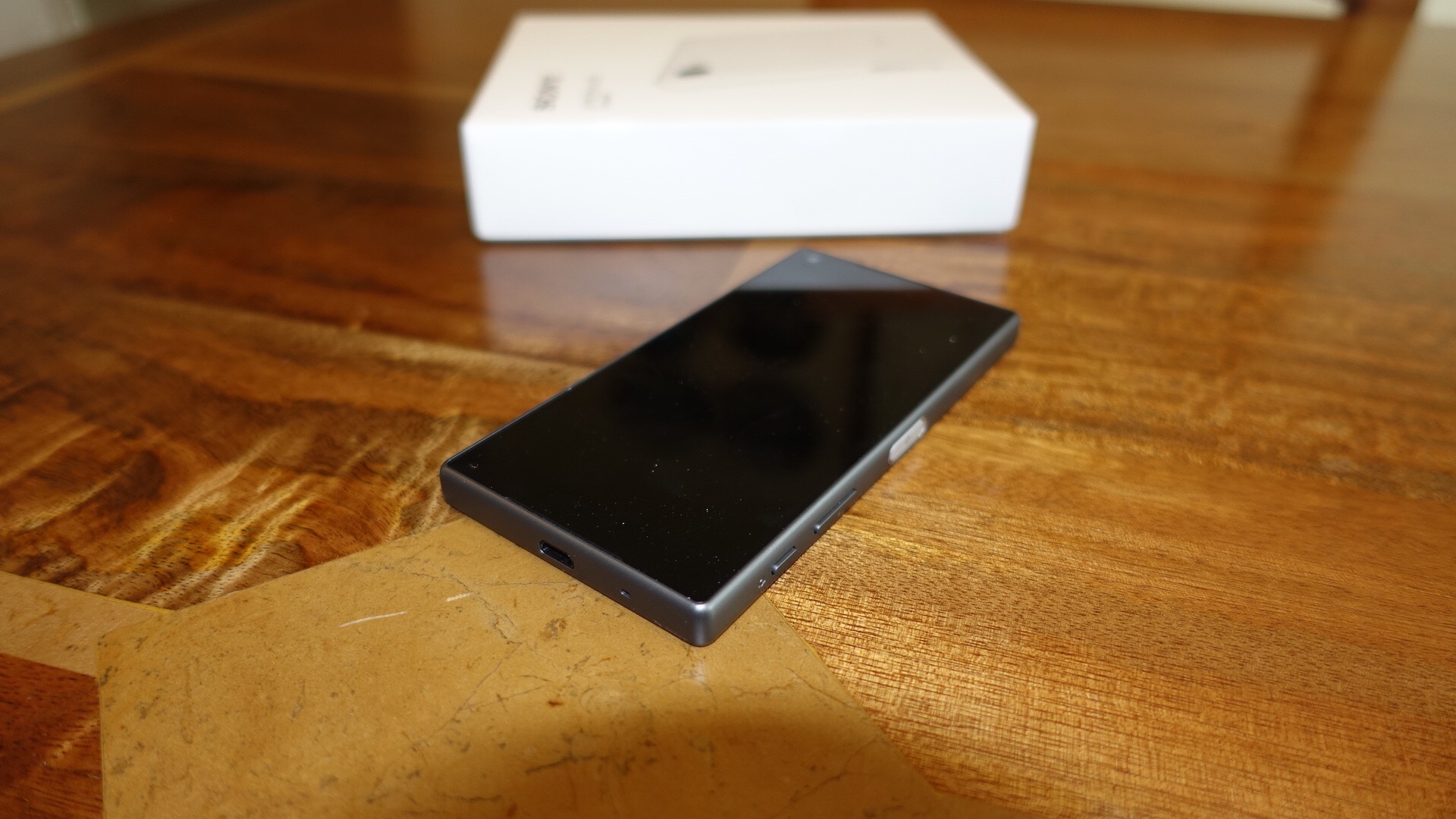
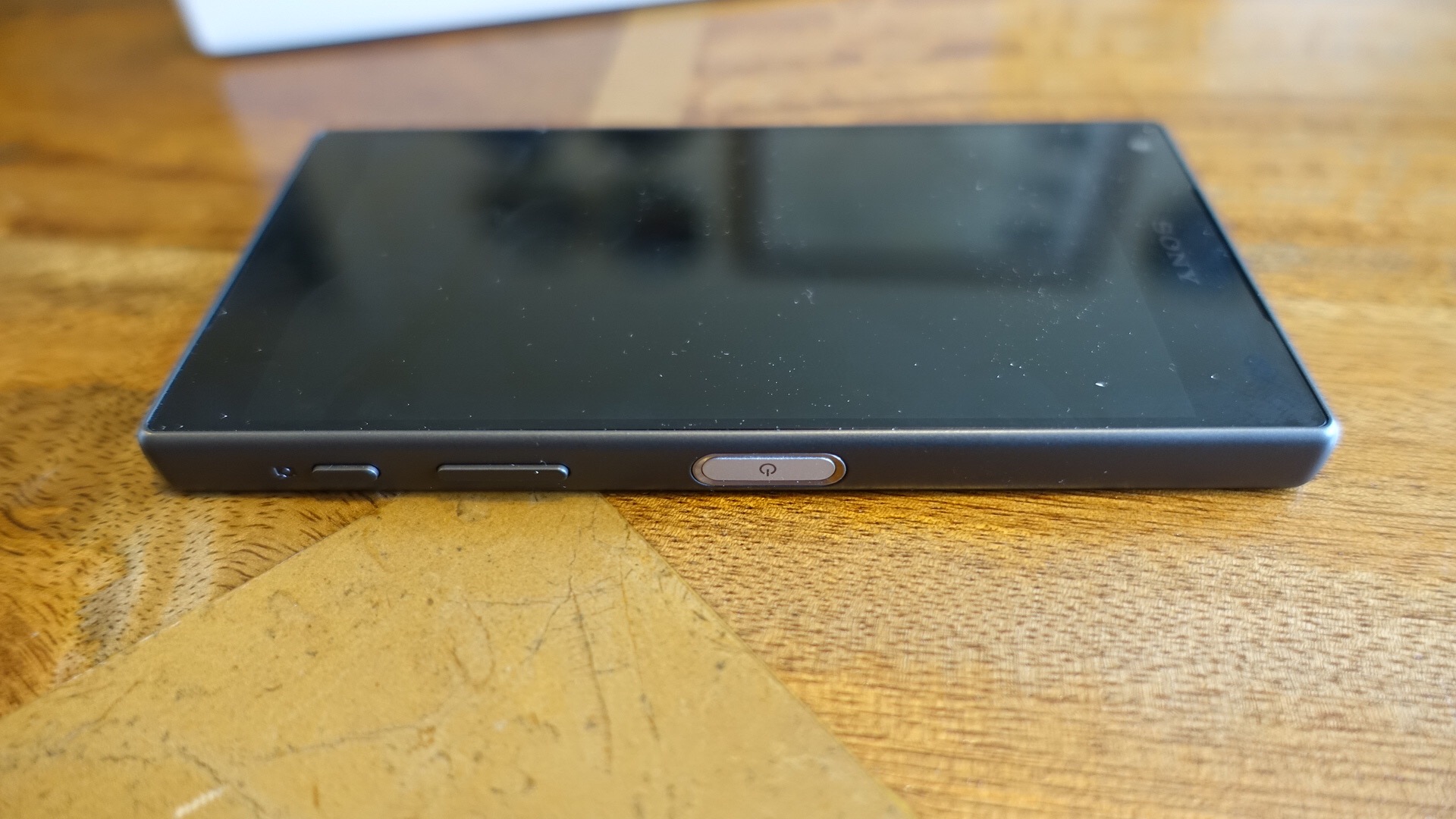
I have the Sony Z5 Compact in black and it looks and feels gorgeous. I already have published a post covering the Sony Z5 Camera with some sample shots – click here . This was with the help from reader Whitehartmart.

  
And back on the 3rd September I took some shots with the Z5, details here.


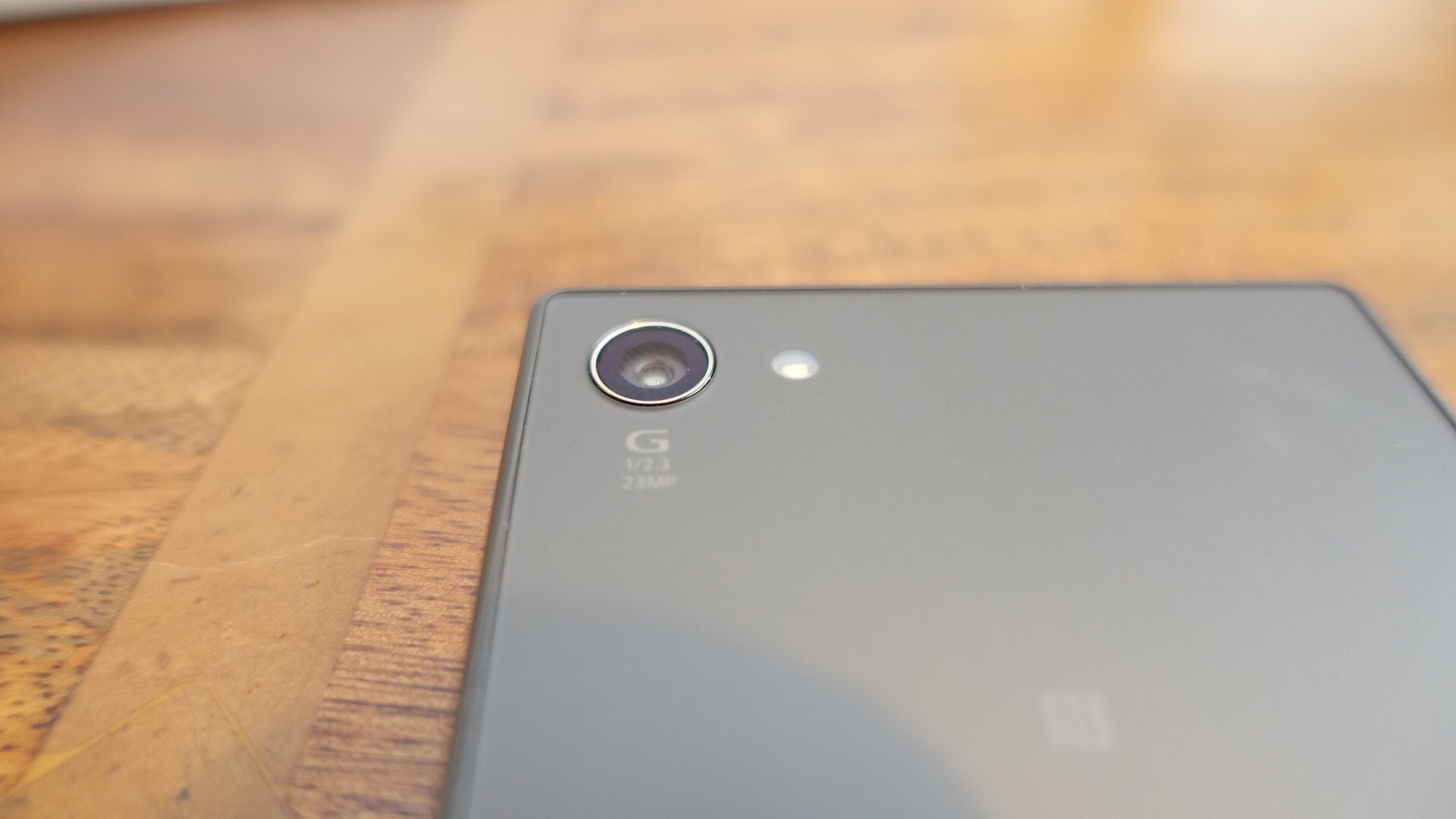
The Sony Z5 Compact improves upon previous versions with an upgraded camera sensor to 23mp. This currently holds the top spot by DxOmark over all smartphones. The power button has a fingerprint sensor too. The other key specs are –

– Android 5.1.1 (Lollipop) OS
– All new 23 MP Sony camera sensor
– Lossless 5x Clear Zoom and <0.1 second autofocus
– 4.6” HD resolution IPS LCD Screen
– 64 bit octa-core processor – Qualcomm Snapdragon 810 & 2GB RAM
– 32 GB storage & micro SD support up to 200 GB

The key aspect is its size versus top end specs. This really is a proper one handed use phone and I intend to check out its performance, camera, audio and other aspects and give you some honest feedback.

My thanks again to Clove Technology for sending the phone. It was here in a flash, such good service!

Update – As the rain had stopped, I went out last night and pushed the Z5 Compact camera to the max in some very low light conditions. What I found was in extreme low light the ISO was so high, the shots became too noisy to zoom in on but were okay to view on the screen and web.

DSC_0019

The above shot is in superior auto mode at 8mp. ISO is this shot was really low at ISO 80 and with a 1/2 second shutter speed. Not a bad shot really. The last shot was taken slightly later, and now it was really dark.

DSC_0022

In this shot the ISO is 800 with a 1/16 shutter speed. Again superior auto. Manual mode was worse in low light conditions as was increasing the camera to picture size to the full 23mp.

I will cover off more on the camera in my full review. Any questions, please ask.

Amazon plays dirty – removes Chromecast and Apple TV – my opinion

Amazon made a promise that it would remove from its website Google Chromecasts and Apple TVs. And true to its word, if you search on any of these you get Amazon Fire TV or Now TV as the top results.

But should Amazon be allowed to do this?

Amazon has grown to become a massive force in shopping, wiping out high street and online stores in the process. It now has a near monopoly on shopping. Amazon has achieved this by not paying tax at the same levels as its competitors and by offering fast class customer service. There are also stories about how it treats staff but that is a post for another day.

I always thought once Amazon had removed the competition it could raise its prices and nobody could stop them. In addition, it could start to decide what it was going to sell. But with such a monopoly and in some cases potentially being the only place to purchase a particular item, should any one company have the power to remove competitor’s products overnight? I think not.

Now it is clear there is more to this than meets the eye and I reckon behind the scenes there is some business fallout between the companies, but even so Amazon has a privileged position, a near monopoly and therefore should not be allowed to remove major products from other companies! I also think the timing is very deliberate to try and damage Apple’s release of their new Apple TV.

But do you agree?

Motorola Moto X Force – Its a Smash Hit – Details

Just when you think you know which Motorola phone to buy, along comes the Motorola X Force. This is similar to the Moto X Style, click here for the review.

The difference over the X Style is the bigger battery and shatter proof screen. How shatter proof? See video and what an iPhone and Samsung get smashed, whereas the X Force screen has no damage whatsoever.

The Moto X Force is a phone I would personally love to own!