Category Archives: Android

Acer Liquid Leap SmartBand – review

image

image

Today I am having a closer look at the Acer Liquid Smartband which retails for £79. If you want to read any of my other wearable device reviews click here – https://gavinsgadgets.com/reviews-accessories/ . The reviews include everything from Pebble, Samsung Gear Fit, LG G Watch (R) to the Samsung Gear S and now the Acer Liquid Leap SmartBand.

The specifications of the Liquid Leap are as follows –

– Screen 1″ OLED Touch Screen, Surface Hardness: 6H ,Screen Resolution: 128 x 32
– Capacitive, Single Touch function
– Waterproof IPX7 – The Liquid Leap can be immersed for up to 30 minutes at a depth of up to 1 meter.
– Weight – 20g
– Bluetooth 4.0
– Up to 7 days battery life
– Processor 2-bit ARM® Cortex™ M0 CPU
– Memory RAM 16 KB RAM + 256kB flash
– Brightness – up to 70LUX (with Touch panel)
– Sensor Type- G-sensor
– Features: Email, Music control ,Camera control
– Compatibility – Android 4.4 eg. Acer Liquid X1 /Jade /E700 /Z500 /Z200, Samsung Galaxy S3/ S4 / S5, Moto X / G, HTC One M7 / M8, Nexus 4/5 – Apple iOS 7 / iOS 8: iPhone 4s / 5 / 5S / 5C / 6 / 6 Plus

As you will see from the last line, the Liquid Leap is cross platform with support for Android and iOS.

The device tracks your steps, exercise and sleep as well being able to glance and read text messages, see who is calling and view all your upcoming events. But lets take a close look at the hardware and the app that comes with the device.

The Acer Liquid Leap uses a charging cradle as shown above which connects with a micro usb cable which is included in the box. The cradle is easy to attach, just means if you are going on a long trip you will need to carry it with you. The battery is meant to last up to 7 days. I have managed 5 days but it has increased on each of the charges. The battery was totally flat when received.

So out of the packaging, the first step is to charge the band. While that is charging download the Acer Liquid Leap app from either the Google Play store or AppStore. When the Leap band first started charging a 4 digit code was displayed on the screen. This is used to setup the device with the app and your phone.

So what does the app look like and what are its features? Below is the home screen menu.

Screenshot_2015-02-07-04-31-43

Below is the main manager screen which looks clear and concise. In case you are wondering why there are no current steps showing for the day, look at the status bar. It is 4.31am when I took the screen shots. The different sections are all self explanatory and tapping on each section reveals more information.

Screenshot_2015-02-07-04-31-57

Here you can see the number of steps taken and below the distance travelled.

Screenshot_2015-02-07-04-32-12

You can also setup Goals in the settings too.

Screenshot_2015-02-07-04-32-23

Another settings options displays the battery and what notifications you would like to see on your Liquid Leap. As you can see the options are limited, so to preserve battery life I turned most of them off.

Screenshot_2015-02-07-04-32-42

In terms of sleep recording, the stats only reveal the total time slept and not any further breakdown of sleep stats.

Screenshot_2015-02-07-04-32-50

In terms of comfort the Liquid Leap was comfortable to wear. The strap securing mechanism is similar to that of the Fitbit Flex. In terms of what you can do with the band itself. A few taps on the device to turn it on reveals the time and date. Swiping reveals steps, swipe again shows distance, then calories and time towards your goal setup. If from the time screen you swipe right instead of left, you get to the apps section. Here you access sleep mode, notifications, settings, and music controls. The settings menus allow for the screen to be flipped, show battery level, restart device and factory reset it. It really is simple to use, one because it is easy to use, and two as the options are not extensive.

The first time you use the app, you setup as user name and password, enter your sex, height, weight and whether you want to use metric measurements or US ones.

In conclusion, this is probably one of the simplest tracking devices I have used. It was also simple to setup. However, in use I found it to track more steps than my other devices attached to my arms which included the Samsung Gear S and Fitbit Charge HR. In a day it showed 10% more steps than the other device, although every device showed a different number of steps.

The wearable space is rapidly increasing, and Acer have shown their hand with their Liquid Leap. It is not perfect but for some its simplicity may be ideal.
Acer Jade S55 – Review – Part 2

Yesterday, I looked at the hardware design of the phone and today I am going to take a closer look at the software package.

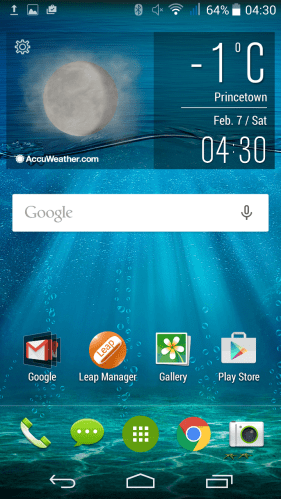
Screenshot_2015-02-07-04-30-59

This is the home screen that you are shown after turning on for the first time. I have installed the Acer Liquid Leap manager SmartBand app.

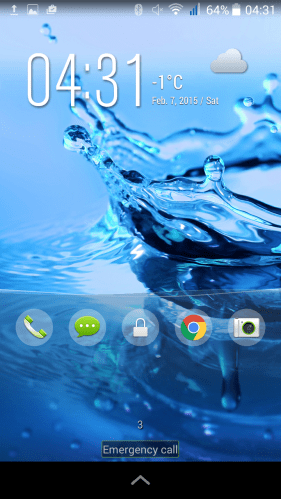
Screenshot_2015-02-07-04-31-13

The lock screen has shortcut options and in practice swiping anyone of them works really smoothly.

Screenshot_2015-02-07-04-31-31

The notification settings options are the usual affair, but with a shortcut for the torch. Always handy to have that option close to hand.

Screenshot_2015-02-07-04-33-10

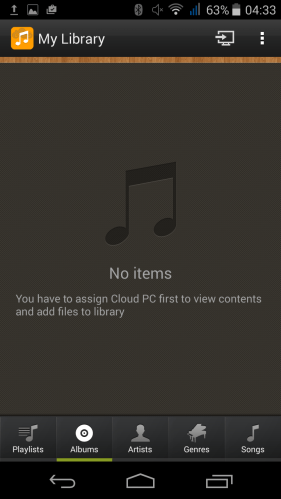
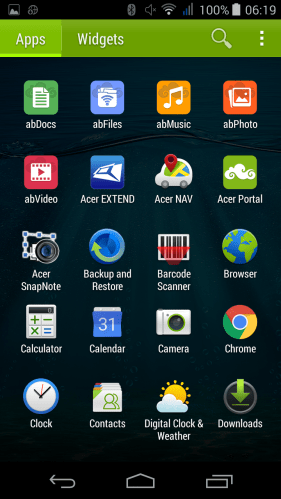
I mentioned yesterday Acer offer BYOC. Bring Your Own Cloud. This enables you to use your own PC as a cloud sycning solution for your music, photos, videos, files and documents. Each one of these options has its own app as you will see below in the screen shots.

Screenshot_2015-02-05-06-19-04

Apart from BYOC apps, Acer also include Acer Nav which is powered by TomTom. Handy.

Screenshot_2015-02-05-06-19-14

Acer do not add much bloatware to the phone. Chrome is the only web browser. Google Play is the music player. Consequently, out of the 16gb storage, just over 12gb is available.

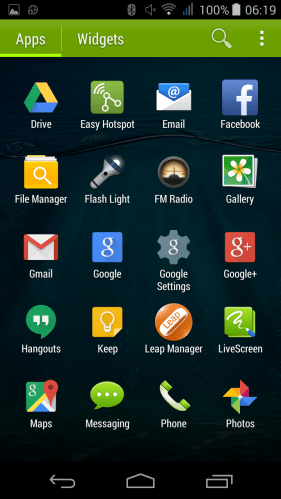
Screenshot_2015-02-05-06-19-21

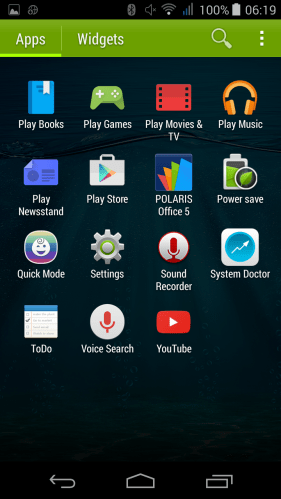
In terms of other apps, a FM radio, Easy Hotspot, File Manager, Livescreen, Polaris Office 5 (editing too), Power Save, QuickMode, System Doctor and Flash Light are added and not much more.

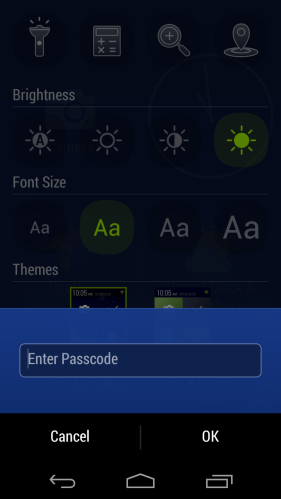
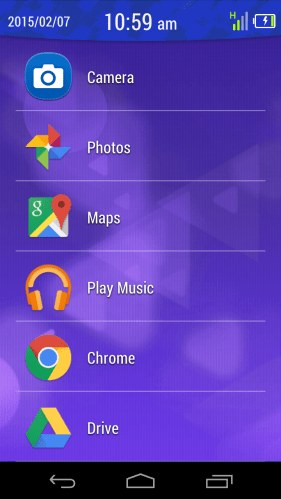
The Quick Mode app is rather good. It allows you to select from 3 easier to use home screen modes. In basic mode you get a list of apps on the home screen maximum. All accessing settings is password protected as it is for the other Quick modes. See screen shot below.

Screenshot_2015-02-07-10-59-11

Screenshot_2015-02-07-10-59-58

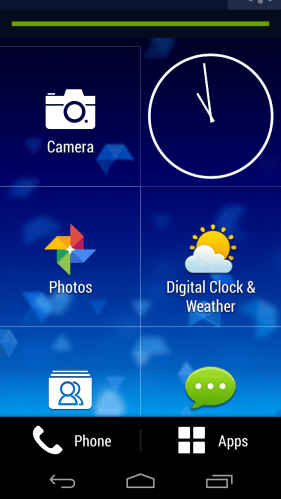
Easy mode is similar but with large icons on home screen that scrolls up and can have more items added.See screen shot below.

Screenshot_2015-02-07-10-58-51

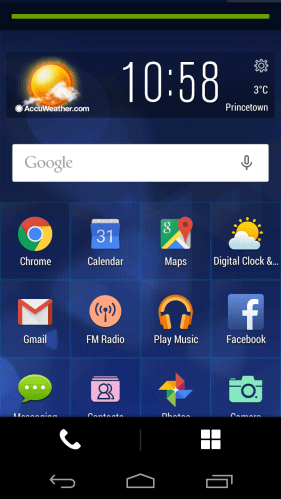
And lastly standard mode makes the icons smaller on the home screen but again with restricted access. All in all, I think Acer did a good job adding just enough, but also creating some easier to use home screen modes.

Screenshot_2015-02-07-10-58-21

Screenshot_2015-02-05-06-19-28

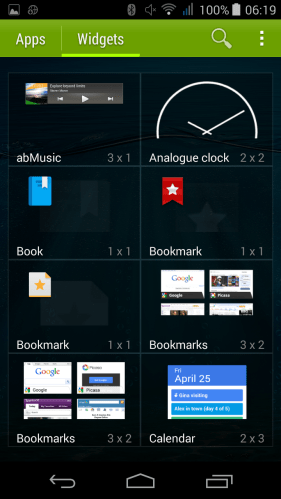
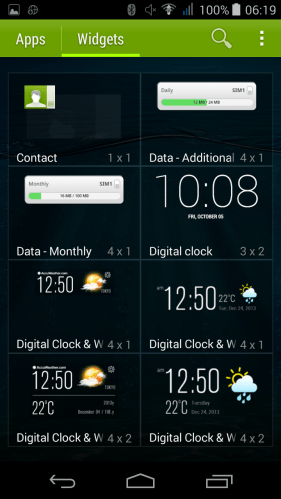
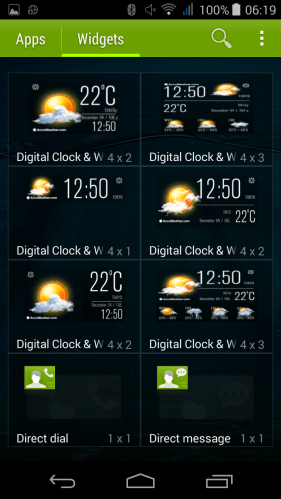
Acer have also add a few of their own widgets.

Screenshot_2015-02-05-06-19-33

With plenty of widgets for the time and weather!

Screenshot_2015-02-05-06-19-39

In terms of operation the processor powering the phone does not seem to impact performance. It is a smooth affair moving from app to app. Antutu scoring revealed it only had one quarter of the performance versus the Note 4. And yet you would not know it in real life. Riptide GP2 played just fine. Call quality was ok too. The power button is on the top of the phone. This is not the best placement due to the height of the phone. The rear of the phone is a fingerprint magnet.

Tomorrow I will look at the camera and audio in more depth. If you have any questions, please let me ask in the comments or on social media in the usual places.

Oneplus One – Available Today without an invite

oneplus

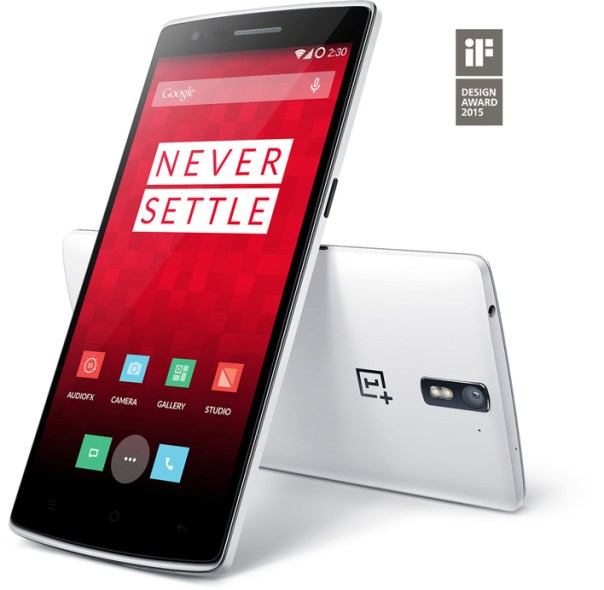
The Oneplus One is now available for 24 hours to purchase without an invite. It is £229 for the 16gb and £269 for the 64gb version.

This represents good value but I do feel that in a months time or so there will be all the new phones and maybe it is worth holding fire.

If you want a Oneplus One head over now – https://oneplus.net/uk .

If you happen to own one of these phones, you will be receiving an OTA update for the Cyanogen rom. This is not lollipop but fixes for kitkat.

Acer Jade S55 – Smartphone Review

image

wpid-20150207_083835 2

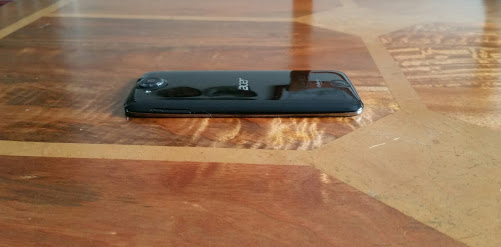
Look above at the photos. What you have is a slim svelte looking device. One of the first things I do with any new phone is pass it over to my wife and ask for her opinion. My wife has no real interest in technology but her first words were “this looks nice and feels comfortable in the hand”.

The official specifications are –

– Processor – MediaTek Octa-core 1.50 GHz
– Screen – 5″ 1280 x 720p
– Camera – 13 Megapixel (Rear Camera) with flash f/1.8, 5 Megapixel (Front Camera)
– RAM – 2 GB RAM
– Storage – 16gb (12gb usable)
– Sensors – Accelerometer, Ambient Light Sensor, Proximity Sensor, eCompass
– Nano sim x 2 (sim 2 can be up to 32gb micro sd card or nano sim)
– FM Radio included
– Android KitKat 4.4
– Radios – EDGE, GPRS,HSPA+,LTE
– Bluetooth – Bluetooth 4.0
– Wireless LAN
– NFC not included
– Battery Talk Time 6 Hour
– Battery Standby Time 250 Hour
– Physical Characteristics Colour Black
– Dimensions – Height 143mm,Width 69 mm, Depth 7.8 mm
– Weight 104g
– In the box – AC Adaptor, USB Cable,HeadSet,Quick Start Guide

The Acer Jade S comes with LTE at a top speed of 150Mbps, its 7.78mm thick, Gorilla Glass 3 and a 13mp f/1.8 rear camera. I actually weighed the phone as it felt really light and at 104g the scales proved that point spot on. Because of its curve the phone looks even thinner than 7.78mm. It fits completely inside my front shirt work pocket which is a bonus. This is also the dual sim. It can either take 2 nano sims or one sim and up to a 32gb micro sd card.

So after a good charge, I powered on the phone. First there was a 50mb software update to improve the camera and some bug fixes. Always a good sign. The next step was asking whether I wanted to use the phone internet connection via wifi or wifi and mobile data. Ideal if this was a Pay As You Go phone. I was then asked to sign into my wireless internet, Google account and offered to create an ACER BYOC account. What is BYOC. Bring Your Own Cloud. More about this over the upcoming days. I will also cover what other apps are added by Acer, but lets put it another way, of the 16gb, 12gb was free and that was after all the Google apps got updated. That translates into hardly any bloatware. There was only one web browser, Chrome and only one music player and that was Google Play Music.

I have in my other post today attached some photo samples. At the same time as reviewing the Acer Liquid Jade I am also reviewing the Acer Liquid Leap Smartband. Over the next few days I will be covering off the overall phone contents, camera, audio and finally concluding my views.

In the usual format, if you have any questions, please ask.

Gav & Dave’s Tech Podcast – Episode 31 is Rocking – Please RT

As you know, I co-host a monthly podcast with David from UKMobileTech called Gav & Dave’s Tech Podcast. It is a light hearted tech podcast broadcast.

To subscribe click here for iTunes or copy and paste this link into your favourite podcast app.

Episode 31, MWC and Apple Mania is now live for your listening pleasure.

If you have enjoyed the podcast, please leave a 5 star review in iTunes. It helps others find our podcast. Go now and leave a review !

If you have any comments, questions or feedback, please drop a line at feedback@gdtpodcast.com or in the comments below.

And finally, our thanks to Audible as today’s podcast is supported by Audible- get a FREE audiobook download and 30 day free trial at http://www.audibletrial.com/GavDave . Over 150,000 titles to choose from for your iPhone, Android, Kindle or mp3 player. No obligation.

It’s a free trial so give it a go if you haven’t already.

If you are buying anything on Amazon, please use the link below. This will help support Gavin’s Gadgets with some of the running costs and using the link won’t cost you anymore. Thanks in advance.

GavGadgets@Amazon

Samsung Note 2 – Review – 8 Part Review

Below are all the review posts I have written covering the Samsung Note 2.

Part 1 – https://gavinsgadgets.com/2013/03/17/first-impressions-with-the-samsung-galaxy-note-2-lte-coming-from-iphone-5/

Part 2 – https://gavinsgadgets.com/2013/03/18/day-2-with-the-samsung-note-2/

Part 3 – https://gavinsgadgets.com/2013/03/19/day-3-with-the-samsung-note-2/

Part 4 – https://gavinsgadgets.com/2013/03/19/day-4-with-the-samsung-galaxy-note-2/

Part 5 – https://gavinsgadgets.com/2013/03/20/im-returning-the-note-2-why/

Part 6- https://gavinsgadgets.com/2013/03/10/iphone-5-vs-samsung-galaxy-note-2-battery-comparisons/

Part 7 – https://gavinsgadgets.com/2013/04/02/htc-one-vs-iphone-5-vs-samsung-galaxy-s3-vs-s4-vs-note-2-vs-nokia-lumia-620/

Part 8 – https://gavinsgadgets.com/2013/02/26/sony-xperia-z-vs-samsung-note-2/

Sony Xperia Z Tablet – Review – 12 Part Review

Below are all the review posts covering the Sony Xperia Z Tablet.

Part 1- https://gavinsgadgets.com/2013/06/16/first-impressions-of-the-sony-xperia-z-tablet/

Part 2 – https://gavinsgadgets.com/2013/06/17/sony-xperia-z-tablet-review-part-1/

Part 3 – https://gavinsgadgets.com/2013/06/18/sony-xperia-z-tablet-review-part-2/

Part 4- https://gavinsgadgets.com/2013/06/19/sony-xperia-z-tablet-part-3/

Part 5 – https://gavinsgadgets.com/2013/06/20/sony-xperia-z-tablet-part-4/

Part 6- https://gavinsgadgets.com/2013/06/21/using-the-sony-ps3-dual-shock-controller-with-the-xperia-z-tablet/

Part 7 – https://gavinsgadgets.com/2013/06/24/sony-xperia-z-tablet-review-part-6/

Part 8 – https://gavinsgadgets.com/2013/06/25/sony-xperia-z-tablet-review-part-7/

Part 9 – https://gavinsgadgets.com/2013/06/27/sony-xperia-z-tablet-review-part-8/

Part 10 – https://gavinsgadgets.com/2013/06/28/sony-xperia-z-tablet-sgp-ds5-official-dock-review/

Part 11 – https://gavinsgadgets.com/2013/06/28/zenus-neo-classic-case-for-the-sony-xperia-z-tablet-review/

Part 12 – https://gavinsgadgets.com/2013/06/28/sony-xperia-z-tablet-review-conclusion/

Samsung Galaxy S4 Zoom – Review – 18 Part Review

Below are all the review posts written covering the Samsung Galaxy S4 Zoom.

Part 1 – https://gavinsgadgets.com/2013/07/28/samsung-galaxy-s4-zoom-first-early-impressions/

Part 2 – https://gavinsgadgets.com/2013/07/29/samsung-galaxy-s4-zoom-review-part-1/

Part 3 – https://gavinsgadgets.com/2013/07/30/samsung-galaxy-s4-zoom-review-part-2/

Part 4 – https://gavinsgadgets.com/2013/07/31/samsung-galaxy-s4-zoom-review-part-3/

Part 5- https://gavinsgadgets.com/2013/08/01/samsung-s4-zoom-review-part-4/

Part 6- https://gavinsgadgets.com/2013/08/01/samsung-galaxy-s4-silicone-case/

Part 7- https://gavinsgadgets.com/2013/08/03/samsung-galaxy-s4-zoom-camera-highlights/

Part 8 – https://gavinsgadgets.com/2013/08/02/samsung-galaxy-s4-zoom-part-5/

Part 9- https://gavinsgadgets.com/2013/08/02/samsung-galaxy-s4-zoom-review-part-5a-disaster-strikes/

Part 10 – https://gavinsgadgets.com/2013/08/03/samsung-galaxy-s4-zoom-review-part-5/

Part 11 – https://gavinsgadgets.com/2013/08/05/samsung-galaxy-s4-zoom-review-part-7/

Part 12 – https://gavinsgadgets.com/2013/08/06/samsung-galaxy-s4-zoom-camera-part-1/

Part 13 – https://gavinsgadgets.com/2013/08/07/samsung-galaxy-s4-zoom-camera-review-part-2/

Part 14 – https://gavinsgadgets.com/2013/08/11/samsung-galaxy-s4-zoom-camera-review-part-8/

Part 15 – https://gavinsgadgets.com/2013/08/13/samsung-galaxy-s4-zoom-versus-nokia-lumia-925-camera-shootout/

Part 16 – https://gavinsgadgets.com/2013/08/13/samsung-galaxy-s4-zoom-camera-review-waterfall-mode/

Part 17 – https://gavinsgadgets.com/2013/08/15/samsung-galaxy-s4-zoom-review-summary/

Part 18 – https://gavinsgadgets.com/2013/10/08/camera-shootout-sony-xperia-z1-vs-nokia-lumia-1020-vs-lg-g2-vs-samsung-galaxy-s4-zoom/