So earlier today you got to see some camera samples from the OnePlus 3. The front and rear cameras take great shots in reasonable to good lighting. The rear camera in lowish light does start to introduce noise but that’s not a surprise considering the 1.12 microns size of the camera lens.
But what is the camera interface like? Lets take a look –
Top right on the camera screen is the menu icon which when tapped reveals all the different shooting modes.
Manual mode introduces control of a number of items with shutter speeds up to 30 seconds. You can also change the aspect ratio from 16:9, 4:3 and 1:1 in most modes. You can also turn on a grid and timer control options.
Above is the shutter speed options.
In any of the shooting modes, if you press bottom left menu you get the 3 extra settings options shown. Grid, timer, aspect ration. HDR is set to auto by default. This can be turned on all the time or switched off. There is a HD mode too for combining photos to create a higher quality version. Each mode has a range of options as follows –
Time Lapse – Grid Lines, 720p or 1080p
Slow Motion – Grid Lines, 720p only
Photo – HDR, HD, Grid, Timer, Aspect Ratios
Video – 4K, 1080p 30fps, 720p
Manual – Focus, Shutter, White Balance, ISO (100-3,200), Grid, Aspect Ratios, Timer
Panorama – no options
Front Camera – Beautify Controls, Beauty On/Off, Grid Lines, Timer, Aspect Ratios.
It is worth noting that double pressing the power buttons opens the camera, in addition to using gestures (if turned on it settings).
I took the OnePlus 3 out on Saturday to test the camera. Its been very good in my testing so far. That includes the front selfie camera and rear camera too.
Unfortunately, the weather yesterday was terrible, so I still have more testing to carry out on the camera, but I like what I see.
Below are a number of shots. Do have a look at them. To view full screen, just click on each photo.
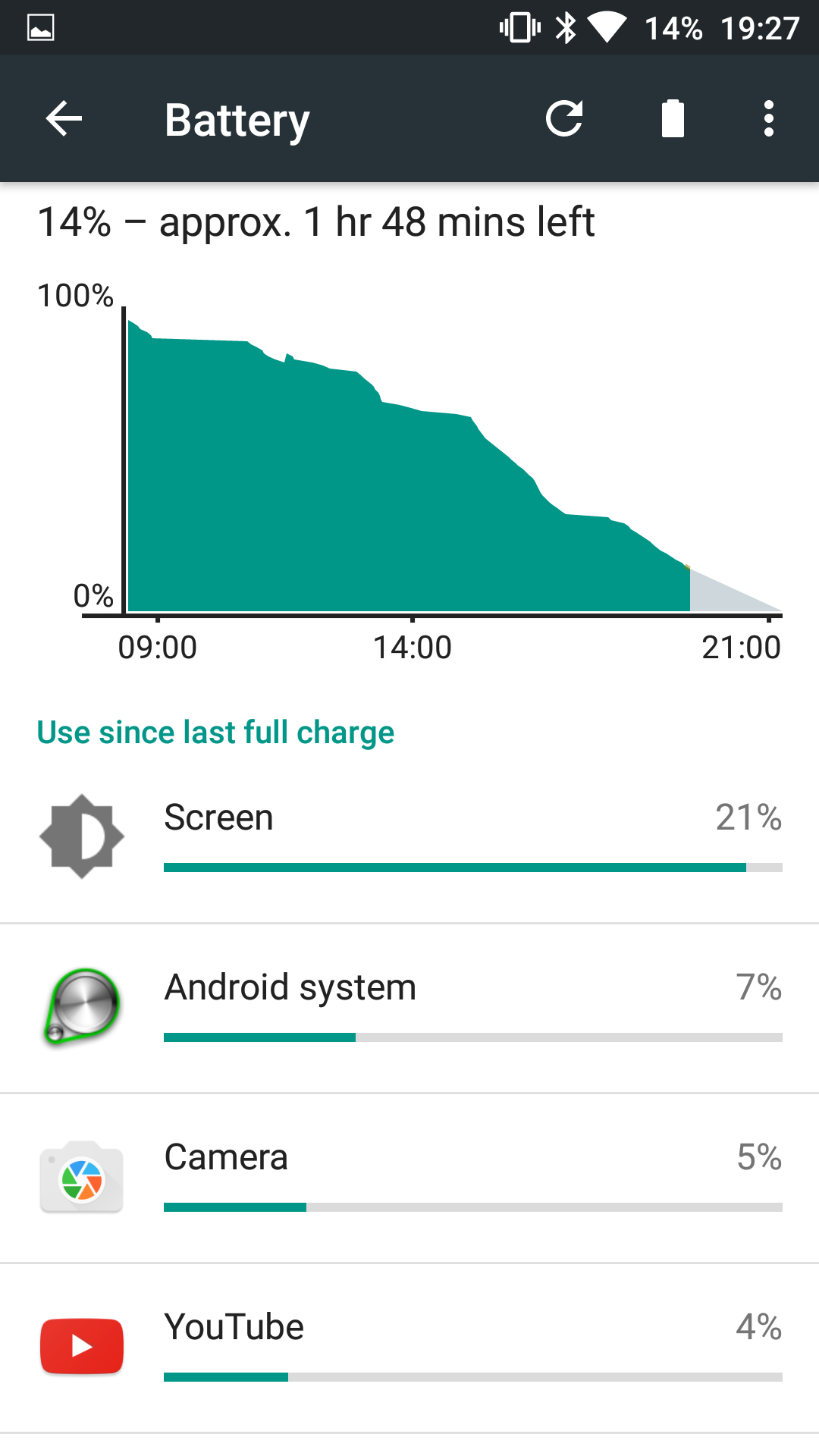
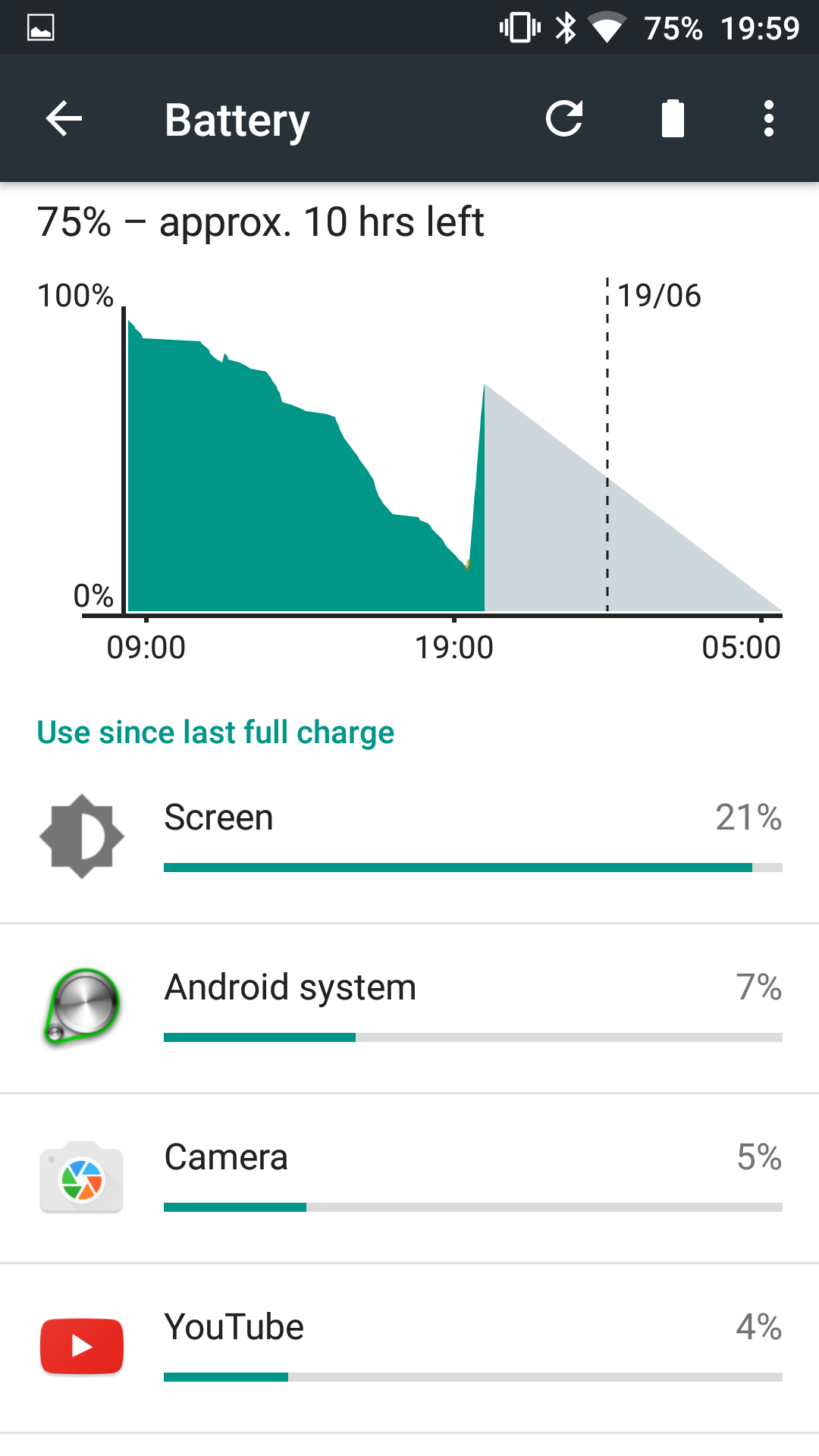
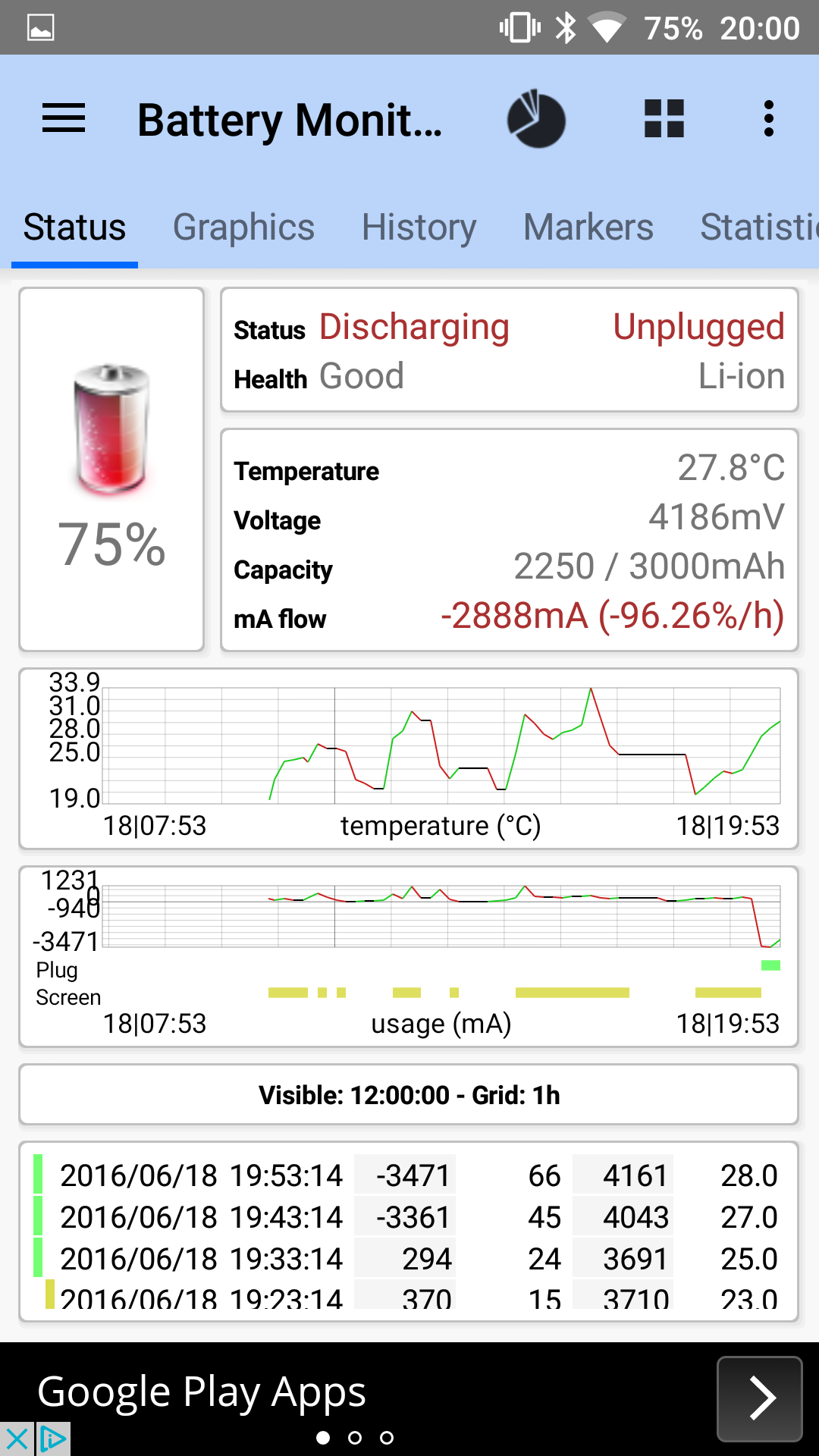
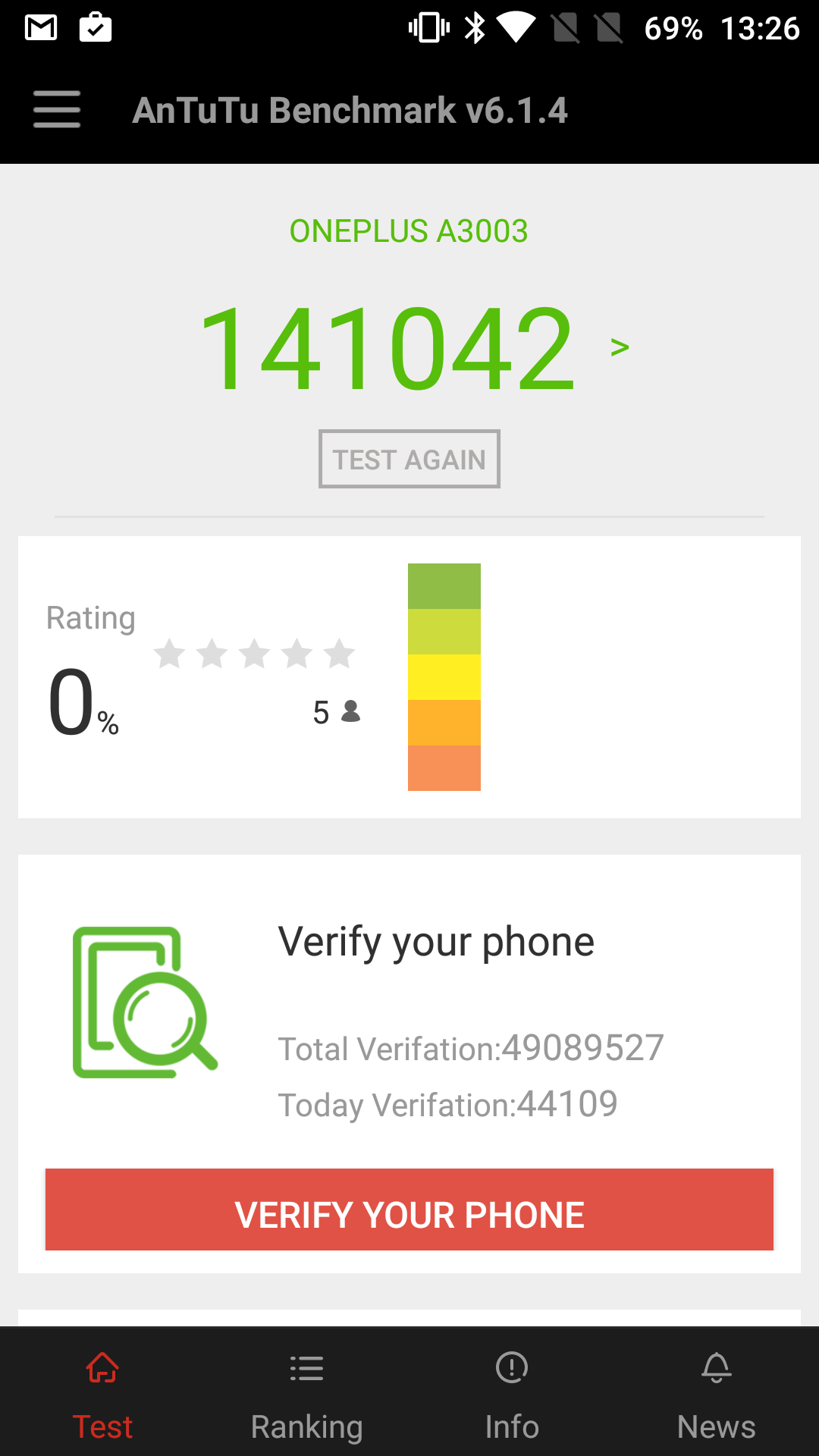
And don’t forget to check out my earlier posts on the OnePlus 3 from the weekend, covering the battery stats and performance.
Taken indoors in slightly dim lighting. Cropped too. In auto mode in dim lighting when the dogs moved the shots were blurred.
A fantastic shot from the OnePlus 3.
Zooming in on the grave stone text and its all clear.
The macro shot here is good too. Focus on the centre.
The cyclist was travelling downhill at 30mph as was meant to be in this photo.
And finally the church without the cyclist.
I also tested the front camera and the results were great too.
I managed to get mine from Everybuying for around £27 plus shipping. I used DHL and it arrived in a few days.
Specifications
– Bluetooth 4.0 v2,
– Languages English,Simplified Chinese
– Waterproof IP67
– Screen type OLED, Touch Screen
– Compatible OS Android,IOS
– Compatibility Android 4.4 / iOS 7.0 and above system
– Battery 70mAh
– Standby time 20 days max
– Charging time 3hours
– Special Features -Call reminder,Measurement of heart rate,Pedometer,Sleep management,SMS Reminding
– Alert type Vibration
– Dial and Band Shape of the dial Elliptical
– 235 mm total length
– 155 – 210 mm adjustable length
– Made of Thermoplastic elastomers, aluminium
– Weight 17g
The Mi Band 2 improves upon the original Mi Band in so many ways. For a start it has a heart rate sensor. It uses a military grade ADI sensor, ADI power efficient accelerometer, ADI heart rate sensor, the screen is resistant to fingerprints and scratches, the button is 0.05mm anodised. The screen is now OLED.
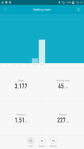
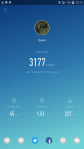
The displays shows Time, number of steps, Heart Rate, distance walked, calories burned, battery info and other data. You can see all these items by lifting your wrist or by using the capacitive button on the Mi Band 2 capsule. You can also customise which data content can be displayed on the Mi Band 2 display.
The Mi Band 2 has new software to calculate the number of steps. Versus my Garmin Fenix 3 HR it counted 200 more steps in a day. The software and design is meant to make the Mi Band 2 55% more power efficient.
Xiaomi state that when you run with Mi Band 2, it measures the pace of your run, monitors you Heart beat and it displays on the screen of Mi Band 2. Mi Fit generates the targeted run, recommends step program, suggests the required weight loss and ultimately increases your health efficiency. This functionality is not available on the Mi Fit app from the Google Play Store. The Mi Fit app (Chinese) version has considerably more functionality with mapping and more. Hence, why if you search on the Google Play Store there are a number of third party apps that fill this gap. These need updating for the Mi Band 2, but several developers are working on updating their apps to work with the new band. However, I have provided details of the Google Play app below.
As the module pops out, different coloured bands will be made available. The module connection is far more securer than the original band.
Mi Fit app.
Screenshot Gallery
The Mi Fit app does display a lot of information and does have auto tracking too which seemed to work ok. Sharing with twitter and facebook and other social networks is possible too. I thought the app notifications was dreadful. The Mi Band 2 displays “APP” and vibrates. Which app is your guess! It allows up to 5 apps to be selected. Samsung Email and Gmail was not showing as an option. In other words, don’t buy this for advanced app notifications.
The Mi Band 2 is new. From my testing the software and firmware need updates to fine tune and improve the tracker. Even so at under £30 it still offers a lot for a lot less than the competition. However, if you don’t want the hassle of software updates to fix, add & improve the new band then I suggest looking at options from FitBit or Garmin which may be a safer and easier option.
Video Review
The video below is an overview and unboxing to give you a better idea of the Mi Band 2.
Conclusion
The Xiaomi Mi Band 2 is a low price fitness tracker. To get the most out of it, you might be looking at using Third Party apps if you are using the Google Play Store app version. App notifications are not its forte. But for under £30 you do get a lot.
As I mentioned at the start, I got my Mi Band 2 from Everybuying for around £27 plus shipping so do check out their store.
Update – Everybuying have offered a discount, if you use this code – EBMIBR2
The Samsung Galaxy S7 and S7 are waterproof and dust proof and on a day like today on Dartmoor, it really is the only phone I would want to use outdoors currently.
It is raining along with thick fog. This is Dartmoor for you and of course its the British Summertime!
So after snapping photos and a load of video clips, Samsung has an app called Samsung Video Editor which is downloadable from the Galaxy App store. It offers a way of creating a mini movie. Options from transitions, titles, music, trimming, 3 speed options, filters, microphone audio, and a load more basic items. The app is free. It does have a big limitation. It works really well up to 720p video. It crashes sometimes using 1080p 30fps. But anything higher it does not work. The video editor is not as good as iOS iMovie but it is better than nothing.
To give you an idea, see the video below, with photos and video from the S7 taken this morning and created and edited on the phone to give you an idea of the final output.
The OnePlus 3 was meant to have arrived yesterday but the Royal Mail didn’t deliver it due to sickness. Or more likely not enough staff due to the football.
Anyway I collected it from my local sorting office this morning, opened the box , turned it on had a little play and immediately I am impressed by what I have seen.
It’s currently downloading a firmware update and I have many tests to undertake.
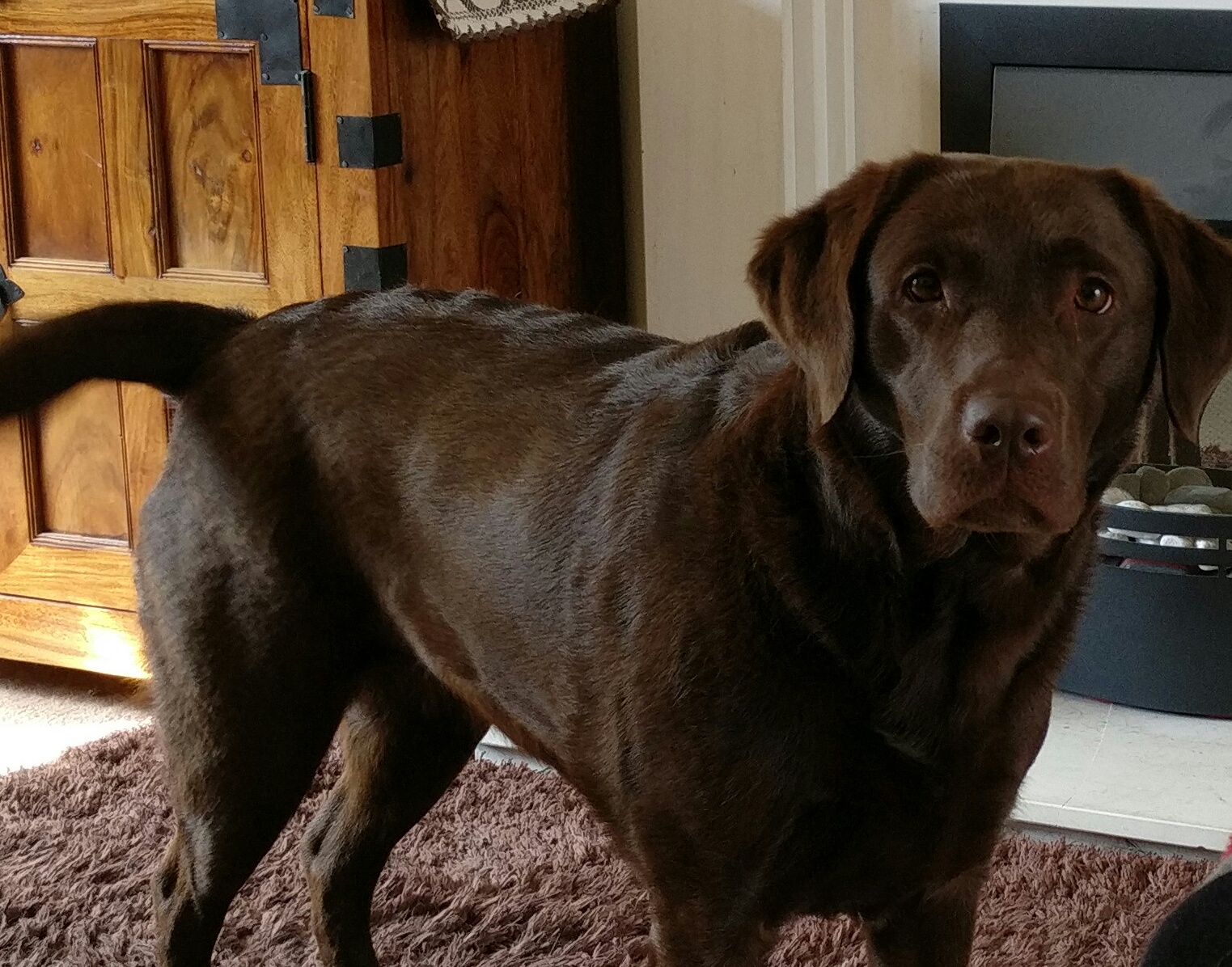
Here’s a first shot (literally) of Tiggy. Cropped in but no other editing.
This and several other items are being reviewed next week so if you have any questions you would like me to answer please let me know.
For now if you are shopping on Amazon UK, you can help Gavin’s Gadgets are no extra cost to yourself by heading over using the link below. Thanks in advance.
Samsung has decided to take a leaf out of Apple’s book and publish a video “Shot on a Samsung Galaxy S7 and S7 Edge”. The selected clip below emphasises the 4K quality from the S7, which is perhaps one of its best features.
In terms of video quality, I too have found the S7 is superb. Consequently, I have been using it for all my unboxing and video reviews for the last month.
You can check out all of these videos by clicking HERE. If you haven’t subscribed, please do so 🙂
I was definitely one of the 1,000+ haters of the stupidly annoying OnePlus invite systems that the company used for all their previous phone launch and methods needed to buy their phone.
However, in advertising there is no such thing as bad advertising and regardless to how much you disliked the system, it did create “brand name” for OnePlus.
It appears the company has grown up a lot. This time with the launch of the OnePlus 3, there is no invite system. Simply go to OnePlus’s website and order. No timed sales, no anything just a good old regular add to cart and buy.
The next surprise is the stock is available immediately. So if you order now, it will arrive in a few days to a week. I received my shipping notice yesterday!
The ordering and delivery timescales are nearly as slick as an Apple launch where a product is announced and then available to order that day for delivery in a week or two!
And OnePlus held pop up shops at several locations across the world.
Let’s face it, the Samsung Galaxy S7 and S7 Edge are beautifully made pieces of hardware. Even the software is the best Samsung has ever created.
But you can actually make it better right now using some of their new “beta” software, which in my testing is fantastic.
First up you can head over to the settings app, scroll down to advanced and select a number of options to improve the phone experience.
One of these options is Game Launcher. Make sure you turn this on. This has options to lock the capacitive menu keys to prevent accidental presses, prevent notifications bothering you whilst gaming, reduce the frame rate to save battery, record your game play and more. It also automatically lumps all your games into the game launcher.
In the advanced menu is a menu for Labs. In here I turned off the app drawer. I have to say that after not using an app drawer for over a month, I can whizz around all my apps twice as quick. I know this won’t be everyone’s cup of tea.
But the best change you can make is going to the Galaxy App store and downloading Samsung Good Lock. This changes the notification centre and lock screen. The before and after is huge and I really can’t recommend this enough.



 Gavin's Gadgets & Photography