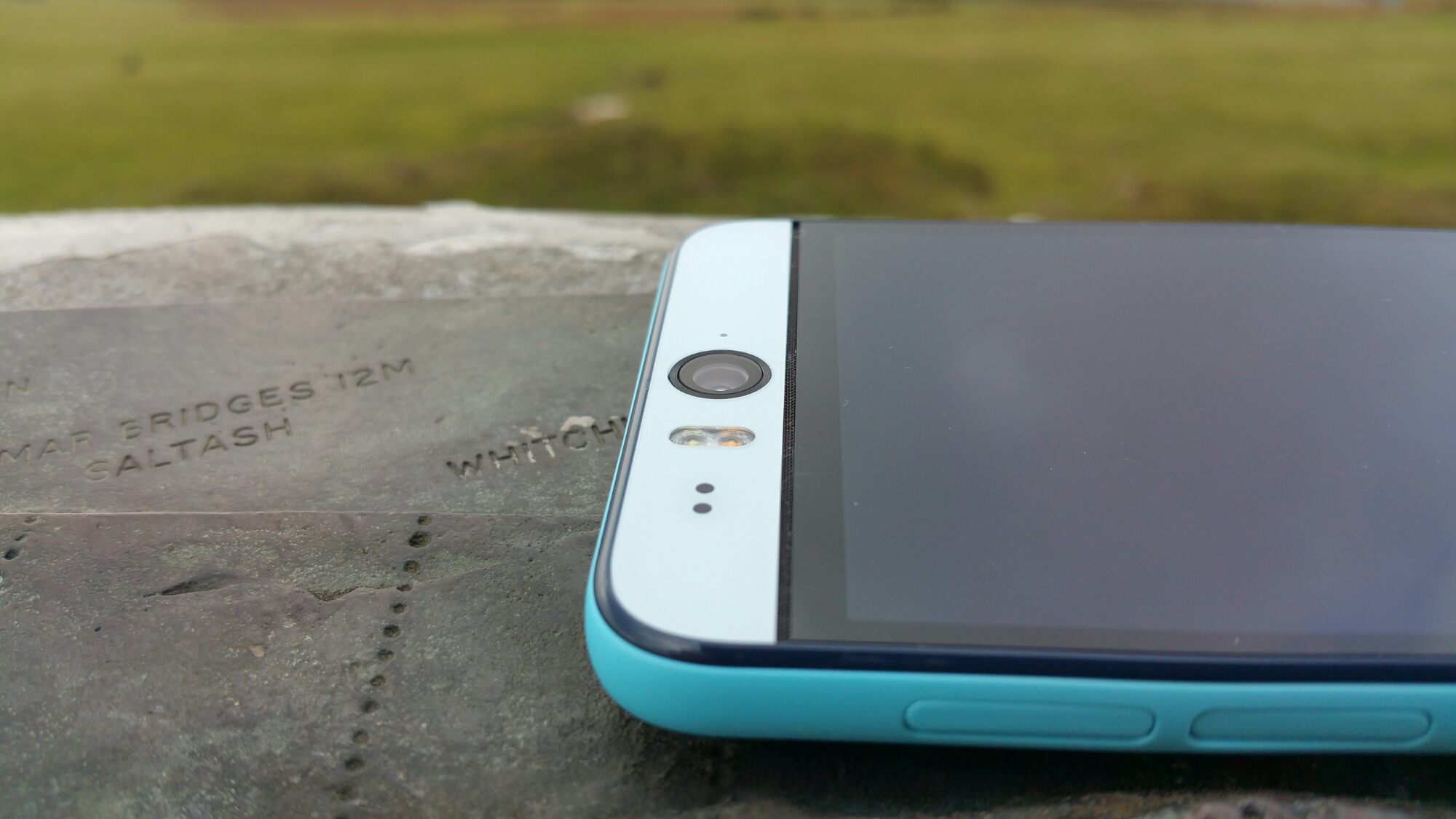
Over the weekend I intend to spend more time with the Desire Eye. But for now here’s a close up of the front 13mp camera which also has two tone flash.
My review will cover the sound, software, hardware and camera.
Over the weekend I intend to spend more time with the Desire Eye. But for now here’s a close up of the front 13mp camera which also has two tone flash.
My review will cover the sound, software, hardware and camera.
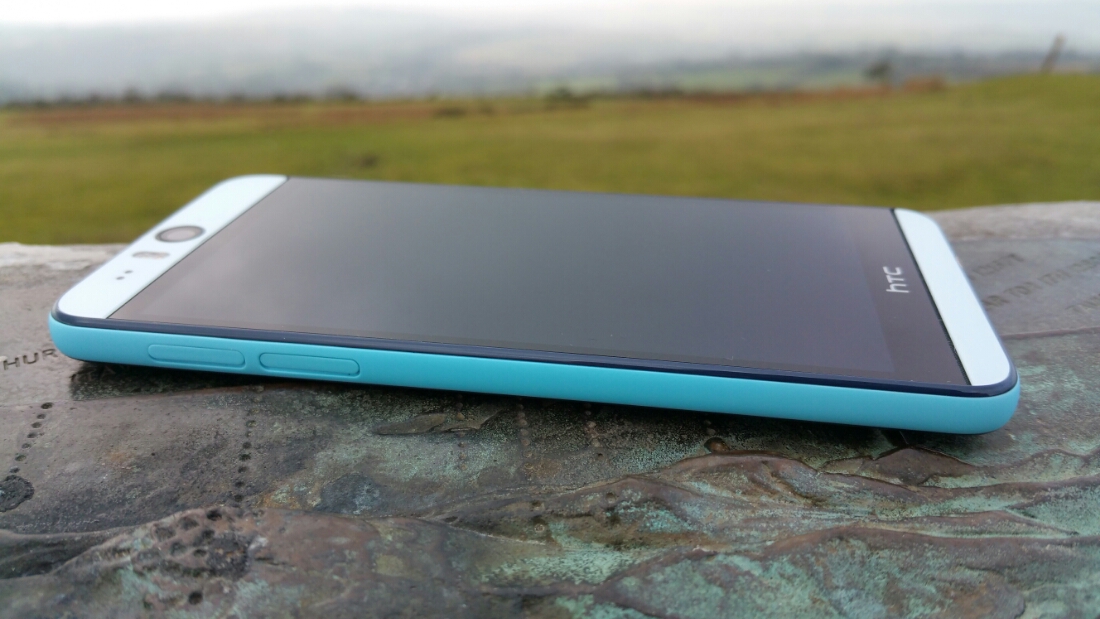
The HTC Desire Eye has arrived in blue. It sure looks good and has a comfy feel in the hand.
If you have any questions for my review please let me know.
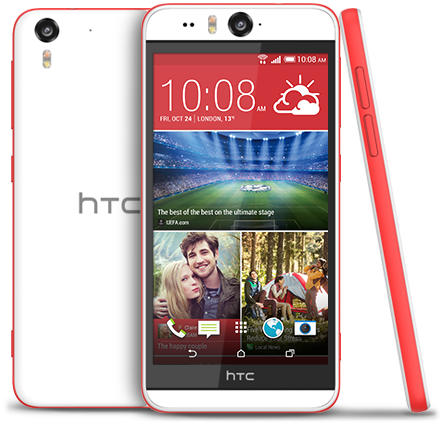
I have the HTC Desire Eye in for review shortly. This is phone looks on paper to be excellent. If you have any questions, please let me know. In the meantime –
The specifications of the HTC Desire Eye –
– Rear Camera -13MP, BSI sensor, f/2.0, 28mm lens, wide angle, with HDR capability 1080p Full HD video recording, Dual LED Flash
– Front camera: 13MP, Auto-focus with zoom capability, BSI sensor, f/2.2, 22mm lens, wide angle, with HDR capability 1080p Full HD video recording, Dual LED Flash
– Dedicated Camera Button
– HTC Eye™ Experience: Face Tracking, Screen Share, Split Capture, Face Fusion, Live Makeup, Auto Selfie, Voice Selfie, Photo Booth, Crop Me In
– Android 4.4.4 (KitKat)
– 5.2″ 1080 x 1920 multi-touch (~424 ppi)
– 2.3GHz Snapdragon 801
– 4G LTE (Bands 3, 7, 8, 20)
– 16GB storage / micro SD up to 128GB
– WiFi / NFC / Miracast / BT 4.0 Apt-x / DLNA / HTC Connect
– 3.5 mm stereo audio jack
– HTC BoomSound™ Dual frontal stereo speakers with built-in amplifiers, 3 microphones,Sense Voice
– Capacity: 2400 mAh with Fast Charge , Embedded rechargeable Li-polymer battery
– Talk time Up to 20 hours for 3G Standby time: Up to 538 hours for 3G
– Sensors Accelerometer, Proximity sensor,Ambient light sensor ,Gyro sensor
– GPS / GLONASS
– 151.7 x 73.8 x 8.5 mm
– 154 grams
If you want to know more or buy the HTC Desire Eye, use my special Amazon link below –
HTC Desire Eye at Amazon
Disclaimer – I am at the early stages of exploring this but so far my results are mixed. This only applies if you are using a snapdragon Note 4.
So here goes the explanation. Samsung use strong processing of any photo taken by the Note 4. Over sharpened and more. It is possible to unlock the potential of the Note 4 camera using a non rooted method and take shots without these effects.
Step 1 – install Snap Camera HDR. https://play.google.com/store/apps/details?id=com.marginz.snap&hl=en . Note most third-party apps can’t make use of the 1/8s (or, in cases, even the 1/15s) shutter speed but max out at either 1/15s or 1/30s, bumping up the ISO used to twice or four times that of the ISO needed at 1/8s. This app according to preview can access the extra control required. It also allows sharpening to be turned off or on the controlled limits.
Step 2 – head over to the developers page on XDA Developers Forum – http://forum.xda-developers.com/showpost.php?p=35633104&postcount=1 and follow the steps to become a beta tester. After installing and paying for the app above, it will be updated to the beta version. None of the magic can occur without the beta version.
Step 3 –
Follow and read the detailed posts on DPReview part 1 . Ultra low light tips and a Nokia Pureview 808 vs Fuju XE-1 and Note 4 – http://www.dpreview.com/forums/thread/3781966
Part 2 – Tips for broad daylight and very high shutter speeds – http://www.dpreview.com/forums/thread/3782300
Part 3 – Tips and tricks shooting HDR – http://www.dpreview.com/forums/thread/3782850
In hindsight, it might be best to start from Step 3 to understand everything.
Happy reading!
So far my results have been mixed. Unsharpened photos do look good but sometimes I prefer the saturated sharpened look from the Samsung app. Also, the default Samsung app has some really good algorithms at play. Snap Camera HDR has some great options but it also seems to have issues focusing at times in poor light. Maybe once the Note 4 gets lollipop the camera and third party apps will be able to have even greater control.
I have also been trying the Google Camera app again with mixed results. I would be interested to see if you are using any other apps yourself. If you are leave a note in the comments.
Yesterday I created 2 posts with some examples of how the Note 4 handles fast moving objects. In my case it was dogs. I have included a few more and some stills. It was sunrise so tricky lighting with some when shooting in to the sun.
Part 1 – click here.
Part 2 – click here.



Camera exif for shot above. ISO 40. 1/461. F/2.2.

Camera exif for shot above. ISO 40. 1/348.

Camera exif for shot above ISO 40. 1/141.
PS. If you are likely to shop on Amazon please help with the running costs and use my affiliate link – details here. Thanks in advance ☺
Part 2 of my earlier post. Part 3 will be tomorrow.
For part 1, click here.
Here’s George showing off the long jump in 5 stages. The photos were snapped using the Note 4 default camera app.





Pretty amazing shots from the Note 4 camera!
Update – exif data for all 5 shots. ISO 40, f/2.2 , 1/400
PS. If you are likely to shop on Amazon please help with the running costs and use my affiliate link – details here. Thanks in advance ☺
.
I took my 3 labradors walking on Dartmoor early this morning. They run like the wind on Dartmoor. So I thought it would be an idea to see how the Note 4 managed to capture some action shots or my dogs. Normally if you take a 100 photos you should end up with a third that are usable. The rest on previous phones are a little blurry. But nonetheless previous phones like the LG G3 and Samsung Galaxy K Zoom have managed to take some decent motion photos.
So when I got home somehow I had 350 photos 🙂 But the crazy thing was most were excellent. I counted 11 blurred shots. So now I am trying to decide which ones to keep and will publish these tomorrow.
In the meantime this is just an example.

The exif data for the above shot is ISO 80, f/2.2, 1/594 , flash off.
Part 2 is live. Click here.
Part 3 tomorrow.
So its 2 months later with my Samsung Note 4. To read the main 17 Part Review click here.
Well there was a period of about 2 weeks when I changed my black Note 4 to the black Samsung Note. I also detailed my views on the Note Edge. To recap on the 14 part review of the Note Edge click here.
The Edge is identical to the Note 4 except for that edge / panel. So even though I had a break of 2 weeks it doesn’t really count as I was in reality using the same hardware and software. As you all probably are aware I moved back to the Note 4 as I could not tolerate the reduced battery life of the Edge over the Note 4. Moving back to the Note 4 allowed me to pick a different colour and I chose white this time. IMO it looks better in white but I’m certain many of you will disagree ☺
So what has it been like using the Note 4 for nearly 2 months. It’s the equivalent of having the best in class smartphone and topping all the categories. It has the best screen. It’s clarity and quality is incredible. It works brilliantly in sunlight and then goes so dark for night time reading. The colour accuracy of this screen is currently the best out there. As this is the Note range it has all the multi tasking options, s pen, infra red blaster, user changeable battery and micro sd card support. It also looks great and has decent battery with 2 battery saving modes ; the standard power saving mode and the life saver mode “ultra power saving mode”. This last mode is so good that one night I was out and about and had 2% battery left. I switched to this mode, got home and forgot to charge the phone. By early evening the next day it was still on 2%. But fear not, the Note 4 has quick charging too. And this is a theme in its spec sheet. It’s a battleship of specs. If you are into health and fitness, it has sensors for its built in pedometer, heart rate and oxygen saturation as well as a UV sensor. This is all integrated in to the S Health app which has even more options. And if you use a Samsung wearable like the Gear range then you have a tightly integrated system.
And the best in class continues with its camera and audio. I am constantly amazed by the photos coming from the Note 4. The audio via the speakers is clear and ideal for voice and podcasts. It’s not boomsound bassy but it’s a clear sound. The audio sound via the headphone jack is very high quality. USB Audio is supported out of the box. Voice recording has support for its directional mics with the ability to separate up to 8 different sources of sound and remove any of them during playback of recording. Adaptive sound support is excellent too as it’s adjusts the sound according to each of your ears hearing abilities. Adaptive sound carries out a hearing test on each ear to set this up. Different adaptive sound profiles can be saved dependent on what headphones or ear you are using for phone calls.
But it’s not just the hardware that’s exceptional. The software package is also excellent.
Samsung has also provided a few small updates to improve performance and remove any early bugs. With android lollipop due in the next few weeks I am excited to see what more can be squeezed from this formidable hardware and software combination.
In case you hadn’t realised I totally love this phone !
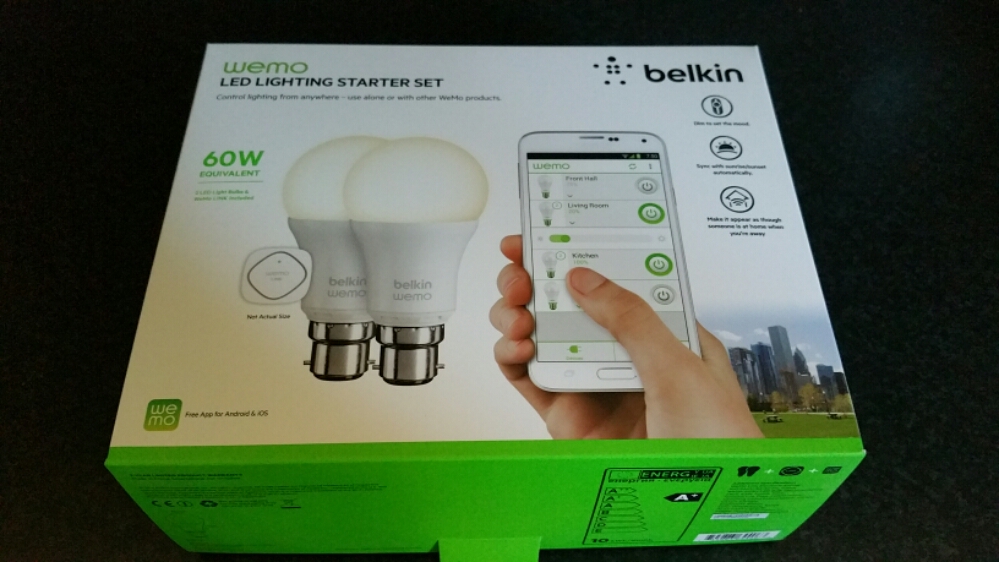
The Belkin WeMo Smart Light Bulb starter kit arrived several days ago. Opening the box reveals 2 light bulbs and a wireless module. See below.
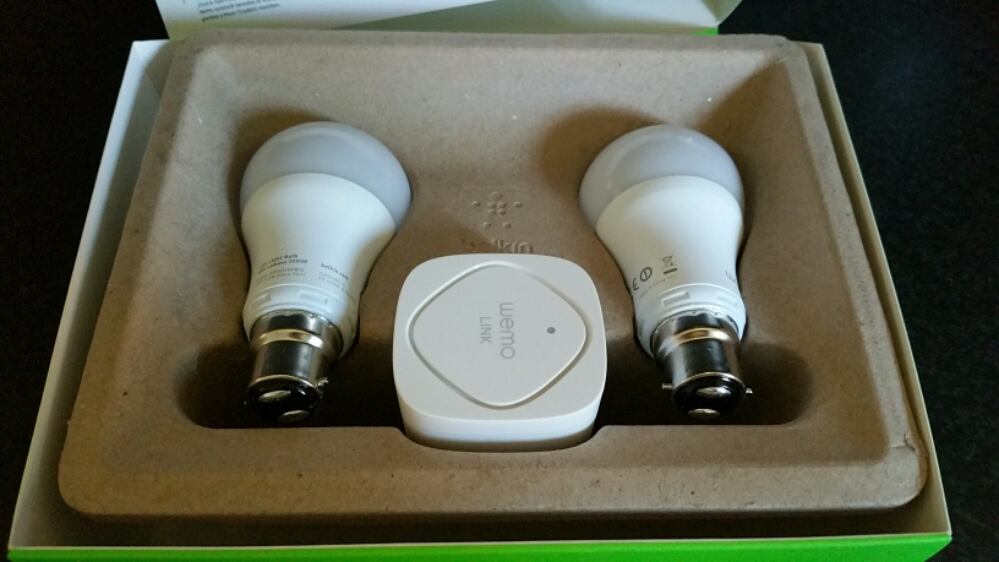
As you can see a fairly minimalistic box. Belkin promote the wireless kit as follows –
– WeMo LED Lighting Starter Set includes 2 x WeMo Smart LED Light Bulbs (B22) and 1 x WeMo Link
– Connect up to 50 WeMo Smart LED Light Bulbs and control them individually or as a group.
– The set works with the entire family of WeMo products.
– Modular system. You can add additional WeMo LED Light Bulbs easily, any time
– Turn lights on, off, dim or create custom schedules.
– Simply plug WeMo Link into a central outlet in your home, replace your old light bulb with a WeMo LED bulb, and download the free WeMo app to any smartphone or tablet
– WeMo keeps you connected to your home lighting anywhere you are over Wi-Fi, 3G, or 4G networks
– Bright, warm light similar to a 60W incandescent bulb. WeMo Smart LED Bulbs have a 23 year life expectancy
Setting up the system is a breeze. First take the WeMo Link and plug it into any electrical socket, preferably centrally situated in your home and where it can get 2 bars wifi strength from your router. Next replace your bulbs with the Belkin bulbs. I bought the Bayonet version but you can also got the screw style bulbs. Turn the light switches on. The Belkin bulbs should turn on. Now keep the bulbs on. Download the WeMo app. Go to your phone’s wifi settings and connect to the Belkin wifi network. A firmware update occurred. This took 5 mins. Next it asks you to select your router and enter its password. The setup completes including remote access over 3g/4G.
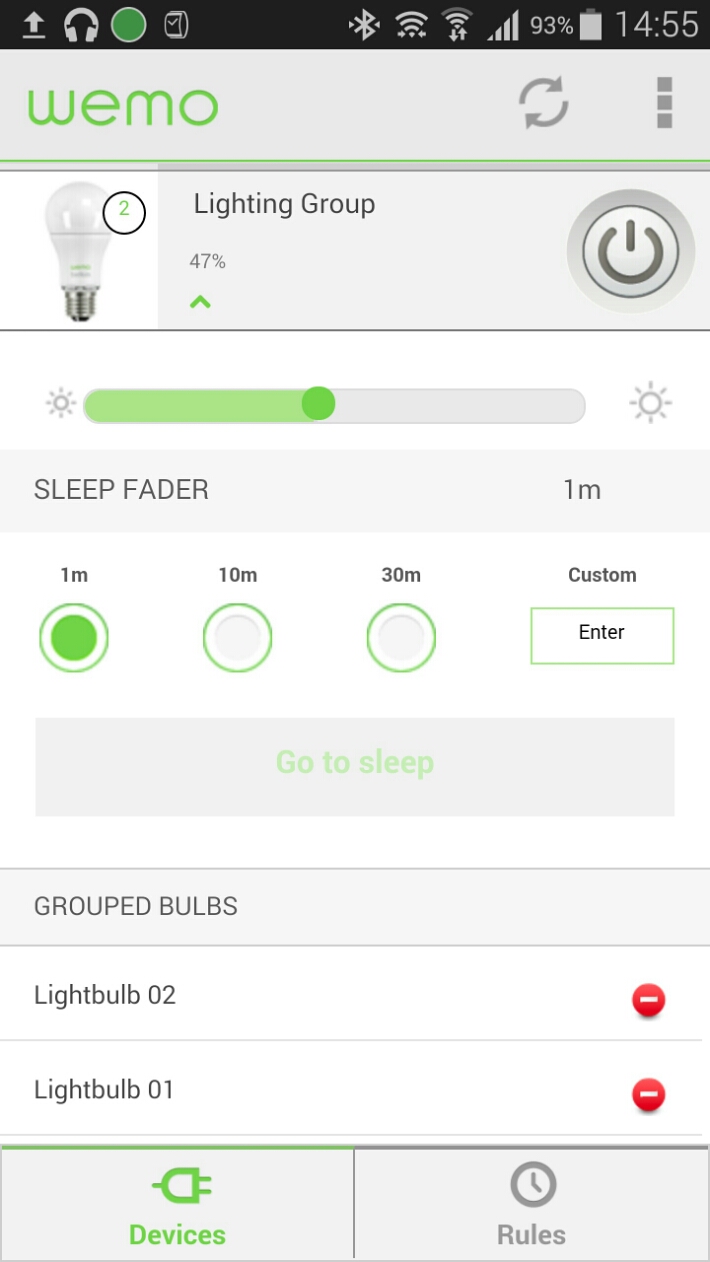
Once the setup is complete the light bulbs show separately. In the edit device menu I just slid one over the other to join them as a group. They are now controlled together. The basic menu gives you an on / off button. Options include brightness and sleep timers. With the advanced settings you can creates rules as to when the lights come on and off eg sunset and sunrise.
The WeMo app also controls my other WeMo products too.
In use. I placed the WeMo Link upstairs and used both Belkin bulbs in the lounge. Now, I can’t walk in and just turn the lights on, I now have to open the app, wait a few seconds for it to register and then I have full access and control. Or so I thought. If your lights are off, if you use your normal light switches to turn them on, the Belkin bulbs will turn on at full brightness. If you turn them off with the wall light switches, you won’t be able to use the app to operate them until you turn the power back on from the wall light switch. So for ease. I find it easier to remember to turn them on from the wall light switch, sit down and then adjust the brightness or even use the app to switch them off if convenient. The great part is that you have a choice and don’t lose the convenience.
Everything works as advertised but is it worth the £80 and then £25 per bulb? If you like cutting edge, maybe, otherwise it’s expensive. It is worth noting that Belkin sell both bayonet and screw type bulbs fittings whereas Philips Hue light bulbs are screw type only. Another point, once you’ve setup the app on one device, installing the app on another one of your devices, you will find it is already setup for you.
IF you are interested in buying please use the following Amazon affiliate link. Every penny counts <a href="Belkin WeMo Smart Bayonet Fit B22 LED Light Bulb Starter Kit
“>Belkin WeMo Smart Bayonet Fit B22 LED Light Bulb Starter Kit

Below are all the posts written on the Samsung Note Edge.
Samsung Note Edge – Impressions after 4 hours
Samsung Note Edge – Night Clock mode
Samsung Note Edge – Impressions after half a day
Samsung Note Edge vs Note 4 – photo comparisons of their screens
Samsung Note Edge – camera samples
Samsung Note Edge – first battery figures
Samsung Note Edge – my home screens and edge panels
Samsung Note Edge – benchmarks and more
Samsung Note Edge – part 3 and battery stats
Samsung Note Edge – how to buy one from Samsung at £665
Samsung Note Edge – from dusk to darkness camera shots
CNN adds support for Edge Panel – details
Samsung Note Edge selective focus and general update incl battery
For the final part, I recorded my views in my Xmas Special podcast, “Gav & Dave’s Tech Podcast”.
Gav & Dave’s Tech Podcast – Xmas Special with final Samsung Note Edge views


 Gavin's Gadgets & Photography