Tag Archives: Honor 6

Honor 6 – review – conclusion

wpid-20150124_141151.jpg

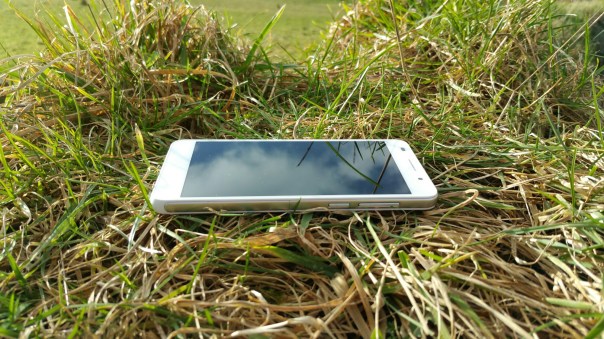
So what do I think about this pocket rocket of a phone. Marvellous. If I did not have my Note 4, I would go for one of these. It is super nimble and has not shown me any issues.

The magazine style lock screen that changes the picture every time with lock screen controls is a neat touch. The settings and options are endless but in turn cater for everything I needed. All my specialist apps worked just fine.

The camera punched higher than I expected and I have taken some great photos. I also like some of the versatility and fun parts of the camera.

The android skin does not bother me whatsoever. I enjoy change and now I have seen the next version of the Emotion UI v3 and it is a much flatter improved design and look.

Using the Honor 6 has also made me wonder if a smaller size phone is a better option. I say this because my Note 4 dwarfs over in size and yet it is so much easier to use the Honor 6.

If you have any questions for me, please let me know. And if you want to know more head over to Amazon.

Amazon UK – Honor 6 deal

Honor 6 – review – audio and more

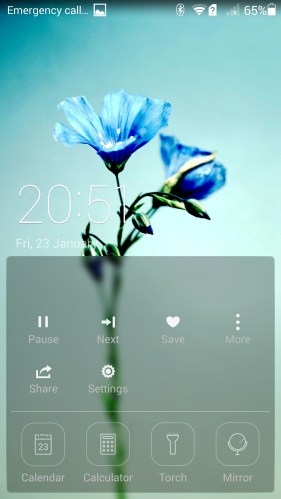
Before I get to the sound and audio quality, lets look at the lock screen shortcuts. Half pull up or full up to see all of the options.

Screenshot_2015-01-23-20-51-15 (1)

Screenshot_2015-01-23-20-51-30

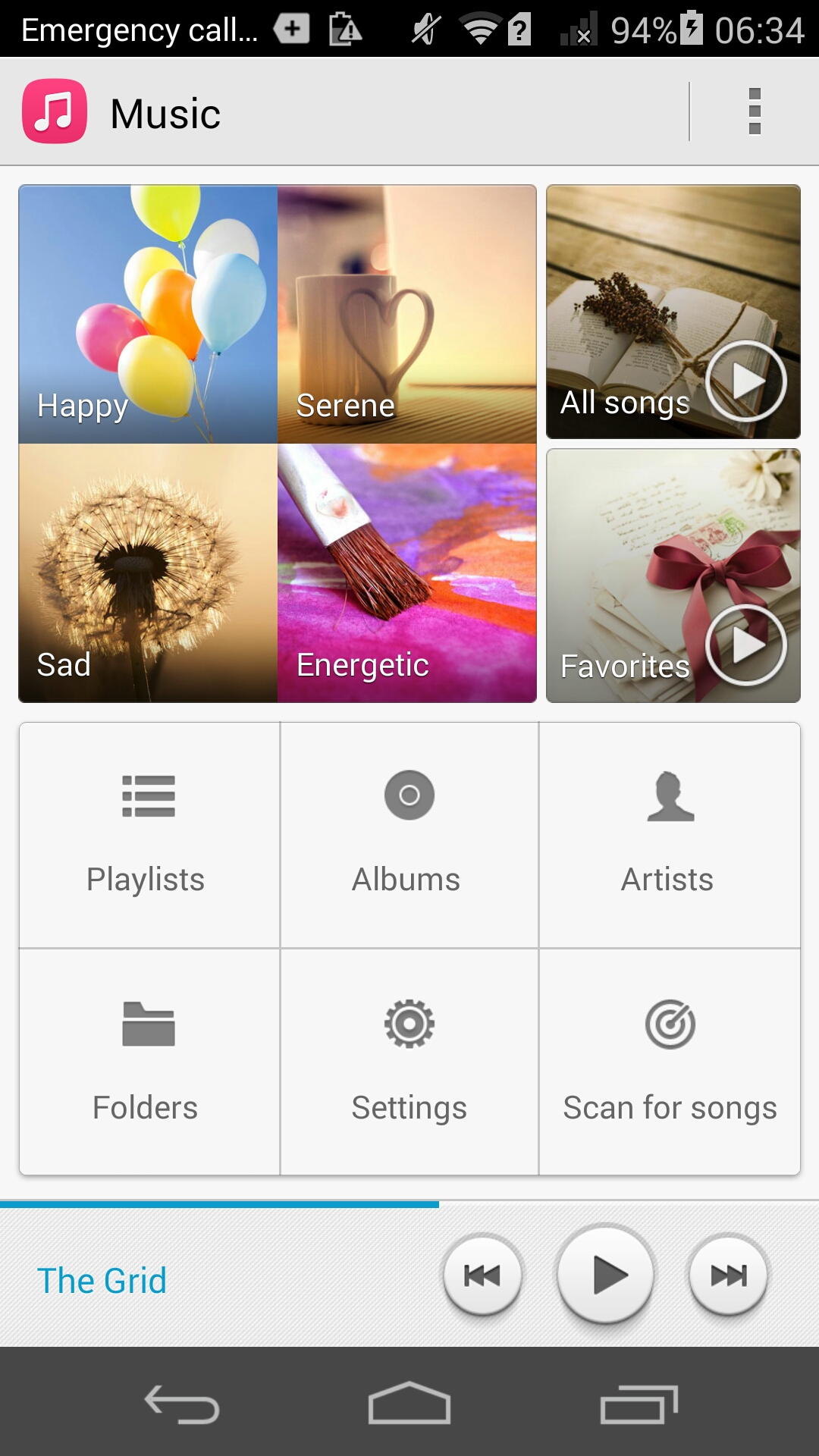
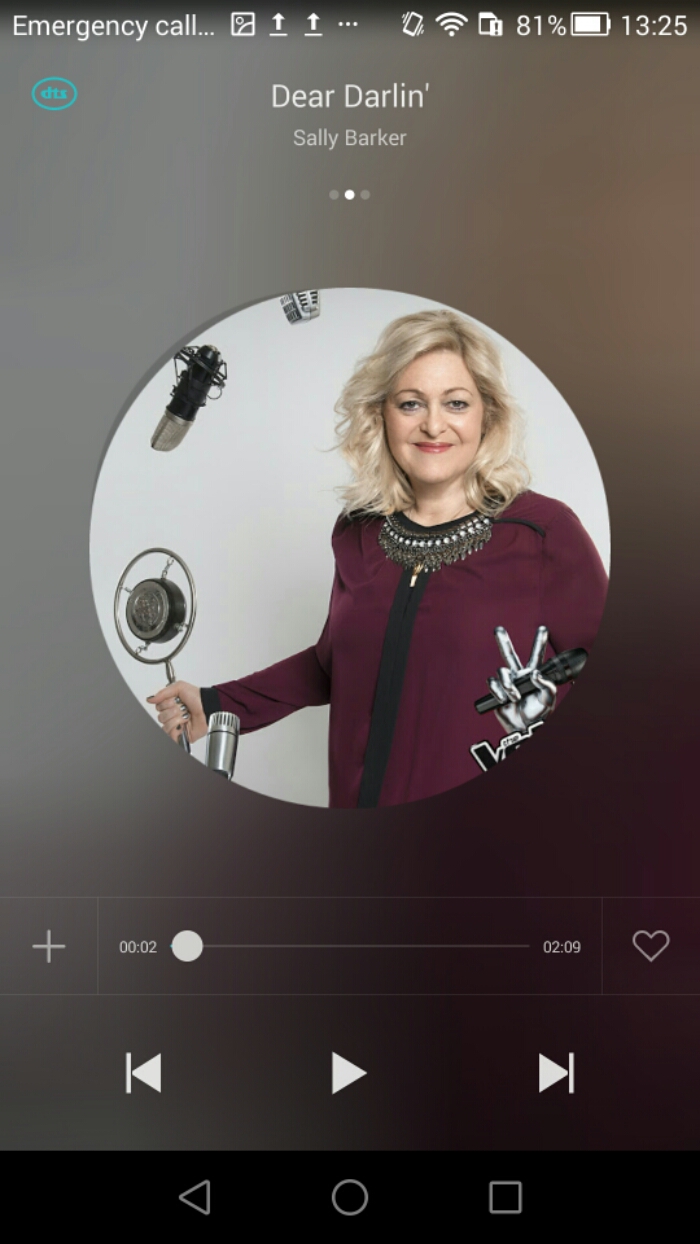
So far I have covered off various aspects of the phone. Now lets look at the music app. If you wanted to use Google Play Music, this app is available naturally and installed along with all the other core Google apps.

image

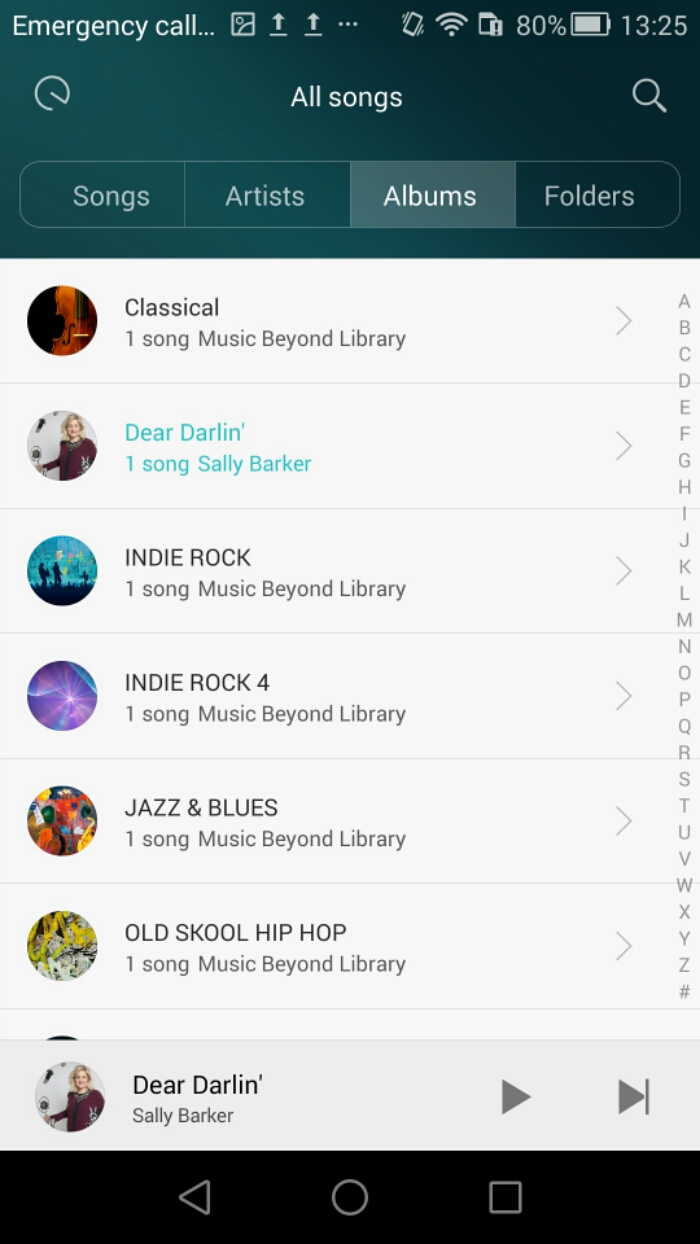
The music app is fairly simple. It allows you to see your music split into various ways, as well as moods.

image

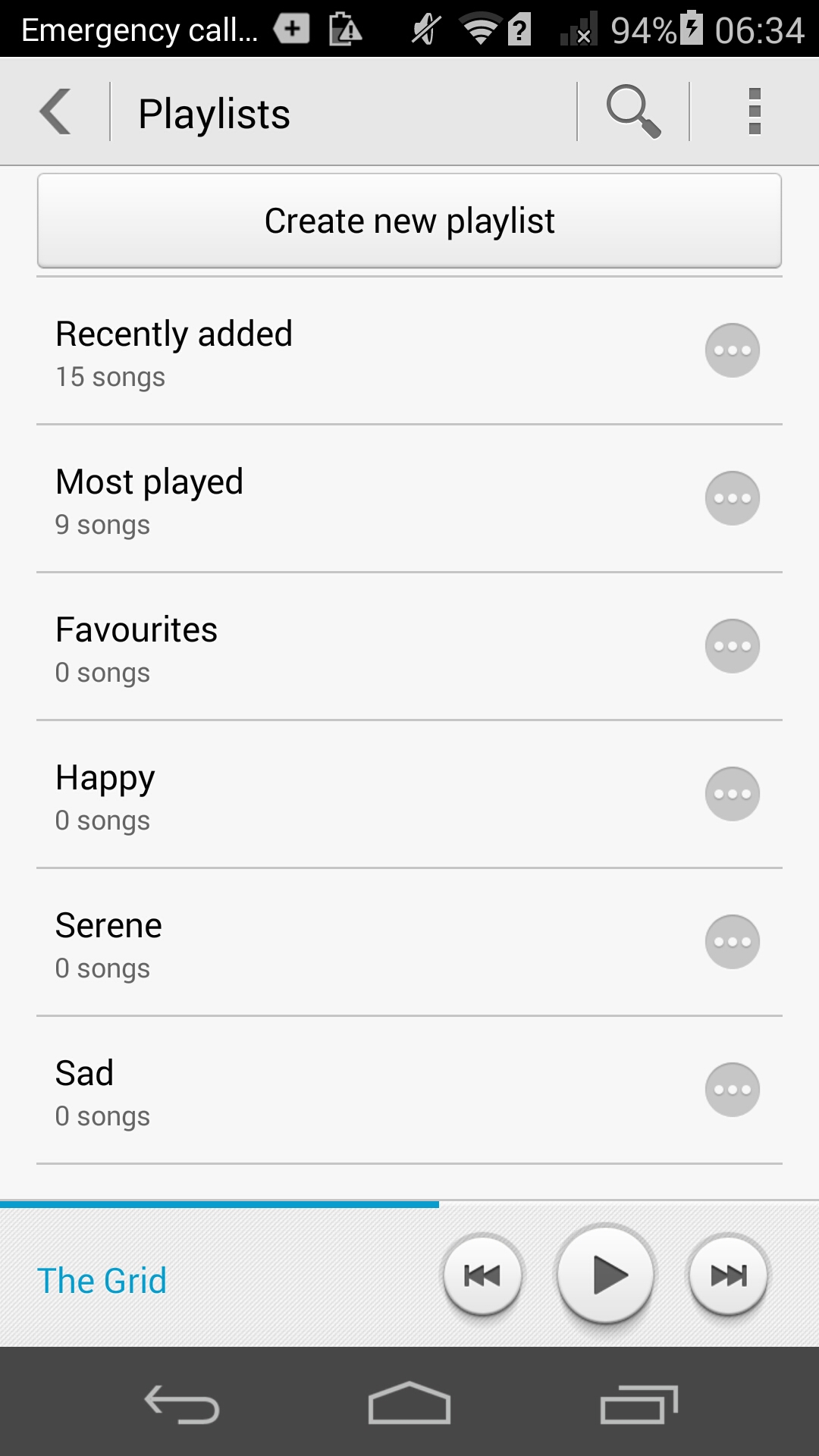
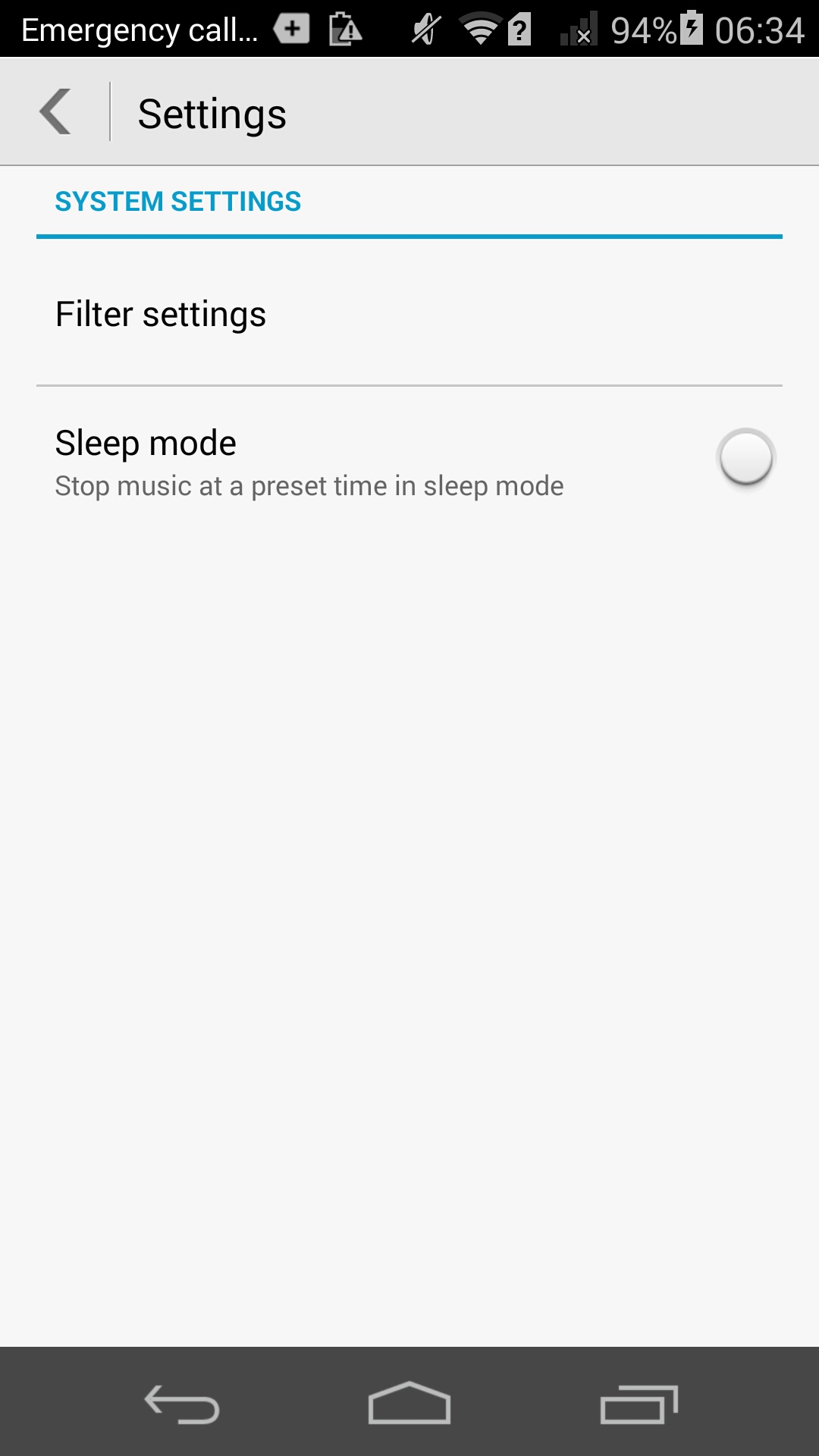
The music app also allows you to create playlists and has a few settings. Otherwise it’s a simple affair.

image

So how good is the inbuilt headphone amp. The sound through the headphones is good and better than I had expected. It is remarkable that the phone costs around £250. In the system sound settings there is a toggle for DTS. It is best to leave this on as it adds some extra oomph, bass and depth but without being overkill whatsoever. I tried the following headphones with the Honor 6. The V-Moda Crossfade M-100s were driven loudly and accurately. I then tried Sennheiser HD518. The Sennheisers needed more headphone amp volume so did not go to a loud level.

Next I connected my USB DAC (Sabre USB Android DAC and Cayin C5 headphone amp). I used an app called USB Audio Player PRO to control everything. This works brilliantly, so USB Audio is supported in this setup. I then connected via Bluetooth and used a pair of Plantronics BackBeat Pro cans. Apt-x bluetooth codec is present and makes a difference too as the sound coming from these was excellent.

Talking of wireless, Chromecast is supported along with cast screen. The Honor 6 has an infra red blaster that is not documented nor does it come with any software installed for it. Yet a quick search on XDA Developers revealed a bespoke app made by Huawei that works a treat. I had tried a few other Infra Red remote apps but none of them worked apart from Huawei’s own app.

The loudspeaker is average, and perhaps the weakest link of the whole package. A bit tiny and does not go that too loud. Acceptable.

Tomorrow I will pen my conclusion.

Honor 6 – review – part 3 – camera

Welcome back to my next instalment of the Honor 6 review. Today, I am going to look at all the camera options.

Screenshot_2015-01-23-20-25-02

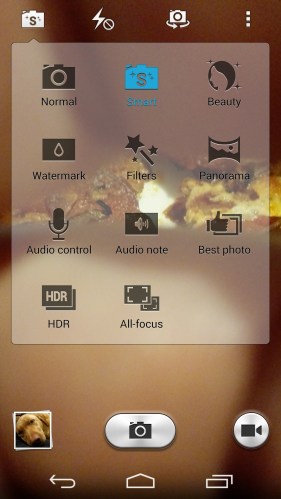
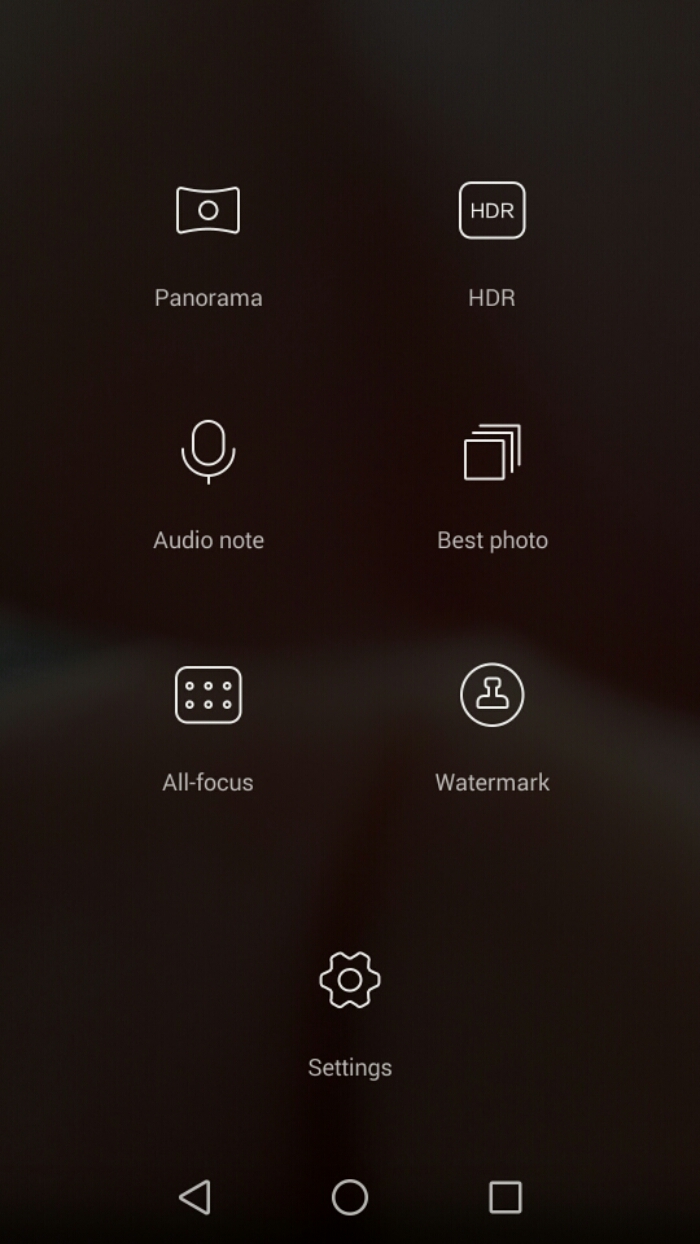
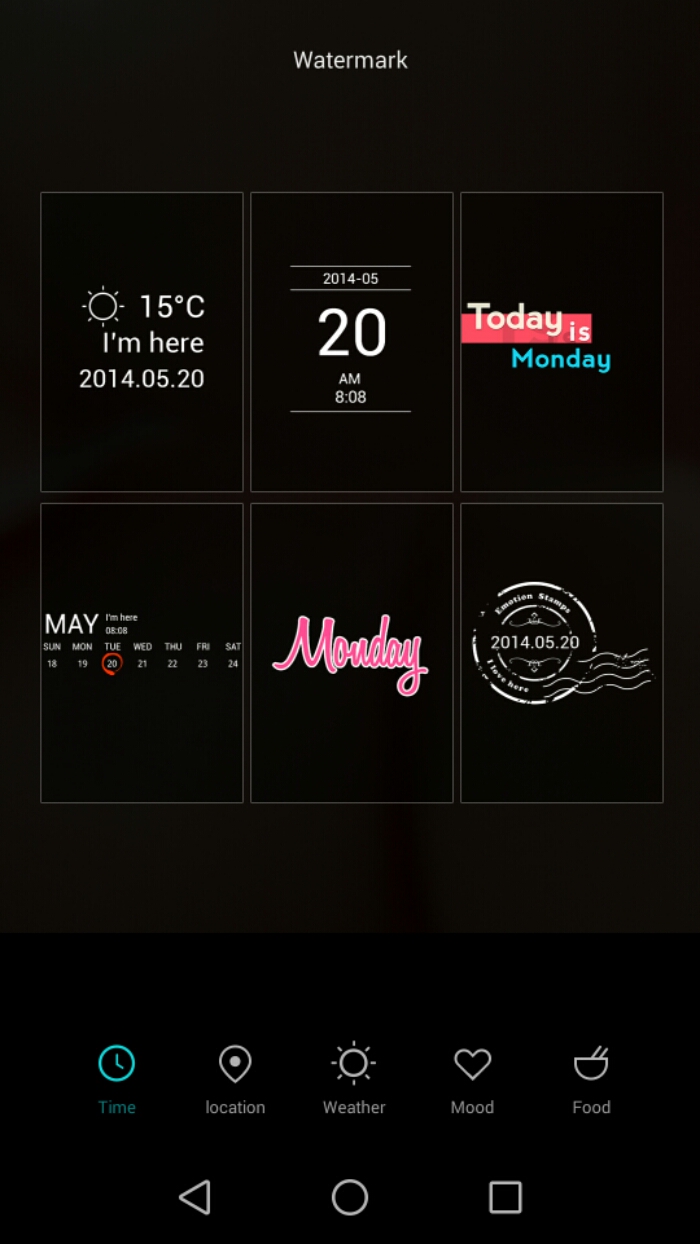
Above is a screen shot of the various shooting modes included. Something for everyone! I will have an additional post with more camera samples using as many of the modes as possible. Panoramic shots can be vertical or horizontal. Smart mode decides which is the best mode to use based on what you are about to shoot. HDR is self explanatory but I have found it is best to keep it in Smart Mode as the Honor 6 really does know when to switch to HDR. Best shot takes 10 photos in an instant and selects for you the best photo. You can override this as necessary. Watermark adds 10 different watermarks over your snap. Some are cute, weather stamp, food stamp and editable too. I will have some sample photos in my other post today. Audio control uses your voice to take the photo and works well. Audio notes allows you to add a little message with each photo. All focus is a selective focus type mode and the others are all self explanatory. I would recommend always using smart mode. It did a superb job.

Screenshot_2015-01-23-20-25-15

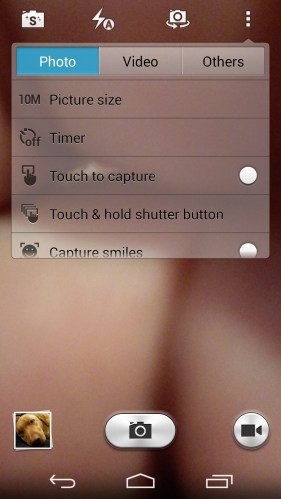
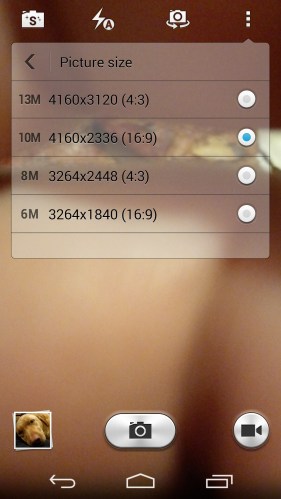
Various options for the picture sizes. Note bottom left George fast asleep 🙂

Screenshot_2015-01-23-20-25-22

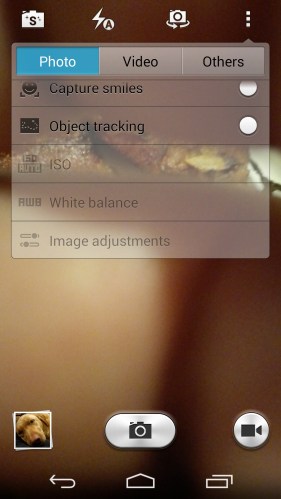
More still photo options from object tracking to smiles. Dependent on the shooting mode, you have control of ISO from 100 to 800, white balance, exposure, contrast, saturation and brightness.

Screenshot_2015-01-23-20-25-33

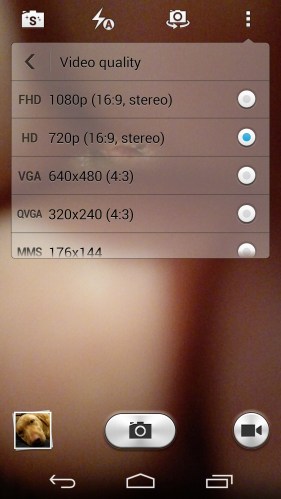
Next up video file options. Note there is no 4k video. Other video options include beauty mode, object tracking, stabiliser and HDR video.

Screenshot_2015-01-23-20-25-43

And finally some other random camera settings.

Screenshot_2015-01-23-20-25-54

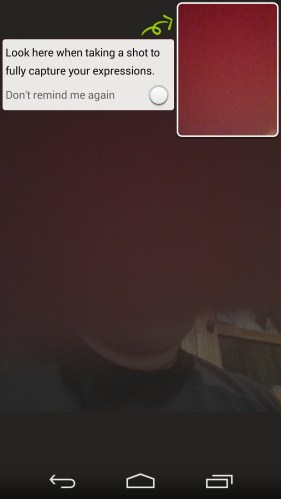
Selfie mode is clever as a box appears. Here you concentrate in getting your face correct. It will then appear correctly and not look odd once the selfie is snapped.

Another smart camera mode is with the device off, double press the volume down. This triggers Ultrasnap. A photo is taken within a second. So that means, phone turns on, camera app opens, shot is focused on and picture taken all in less than a second. And it works. Every time!

Screenshot_2015-01-23-20-26-09

Tomorrow, I will write my final part covering off the audio options and more.

Honor 6 – review – part 2

image

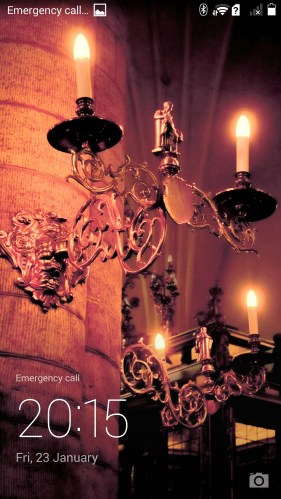
Yesterday, I posted my first impressions on the Honor 6. So today I am going to take a closer look at the software and options. The first view is the lock screen. This has a magazine style photo that changes every time you unlock the phone. It changes instantly too. I tried turning the phone on and off several times.
Screenshot_2015-01-23-20-15-53

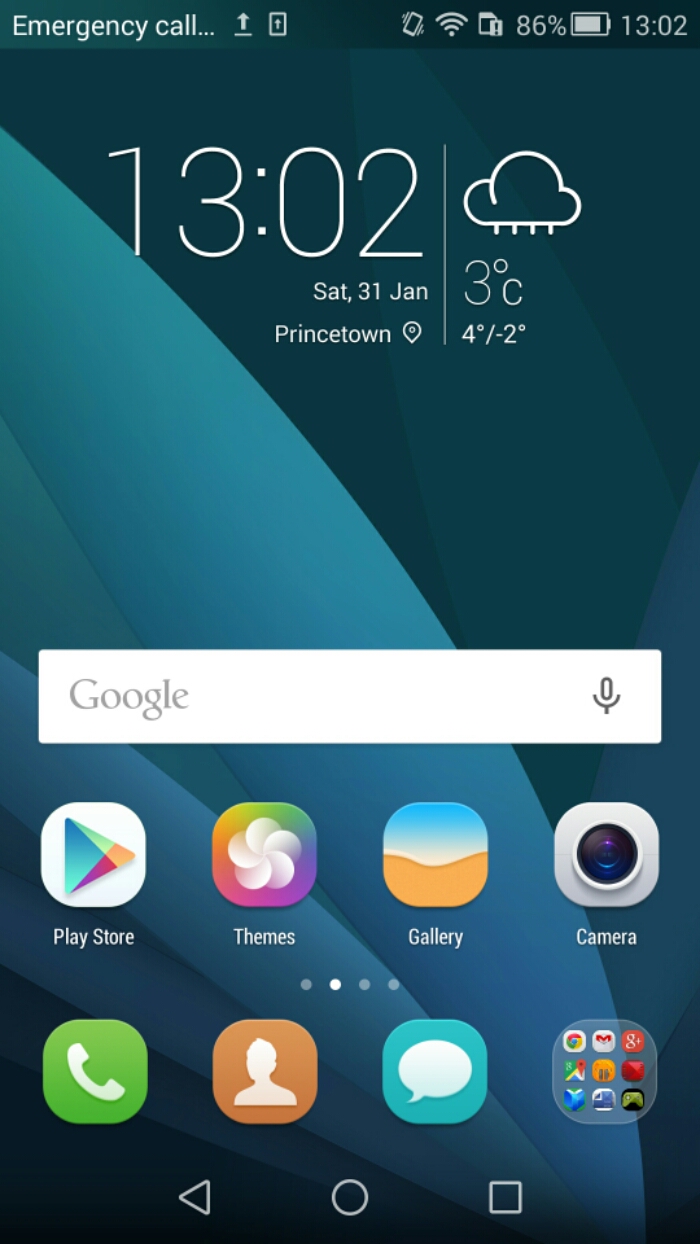
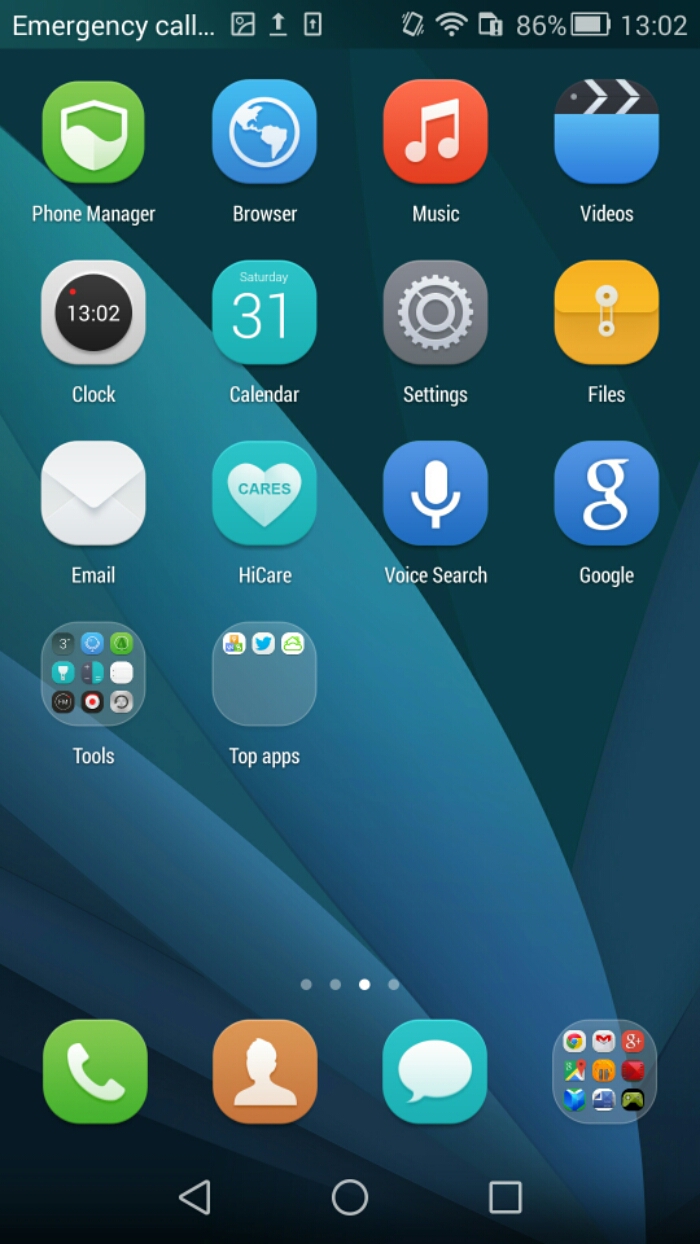
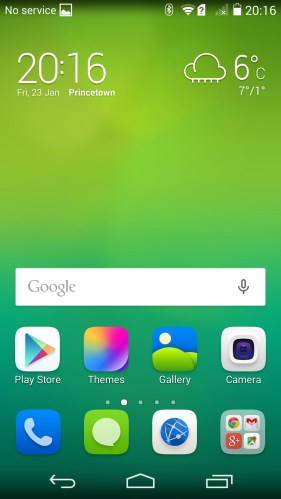
Once passed the lock screen you are taken straight to the main screen. The Honor 6 has skinned icons and a bespoke theme all the way through the phone. This is called Emotion UI. The other aspect of this skin is it removes the app tray. So you will have to use folders on a home screen. Personally I do not see any issue with this. There is a new version of Emotion UI v3 available soon, which offers a flatter and cleaner experience.
Screenshot_2015-01-23-20-16-26

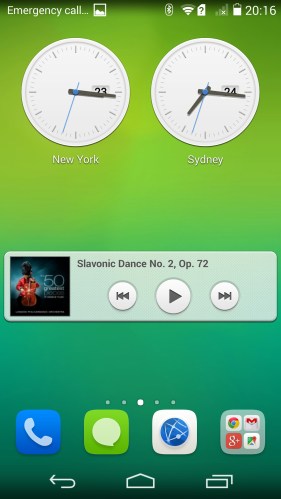
The Honor 6 has its own set of widgets for a number of apps. Here you can see the music player and world clocks widgets.
Screenshot_2015-01-23-20-16-33

I have taken screen shots to show you all the available apps. I have added Speedtest, USB Audio Player Pro and AnTuTu to help with my review. Not shown is Chromecast, Smart Controller and WeMo all of which work just fine. Chromecast screen mirroring worked fine for me too. The Smart Controller app is the only app made by Huawei that operates the inbuilt Infra Red Blaster. I found this app over at XDA Developers Forum. For some reason the IR Blaster is not documented in any of the manuals or quick start guide, but it is present at the top of the device.
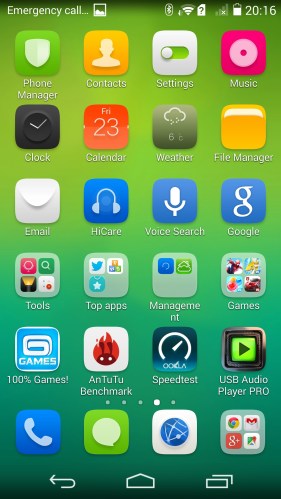
Screenshot_2015-01-23-20-16-41

In the tools folder is a good selection of apps from Torch, calculator and even the FM Radio which is not found on many phones e.g. Note 4.
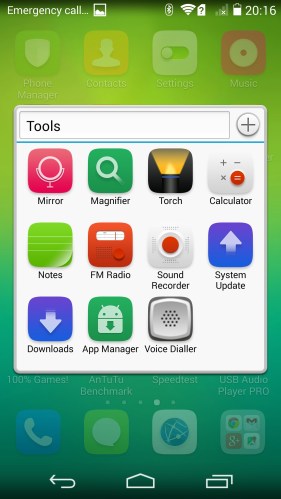
Screenshot_2015-01-23-20-16-49

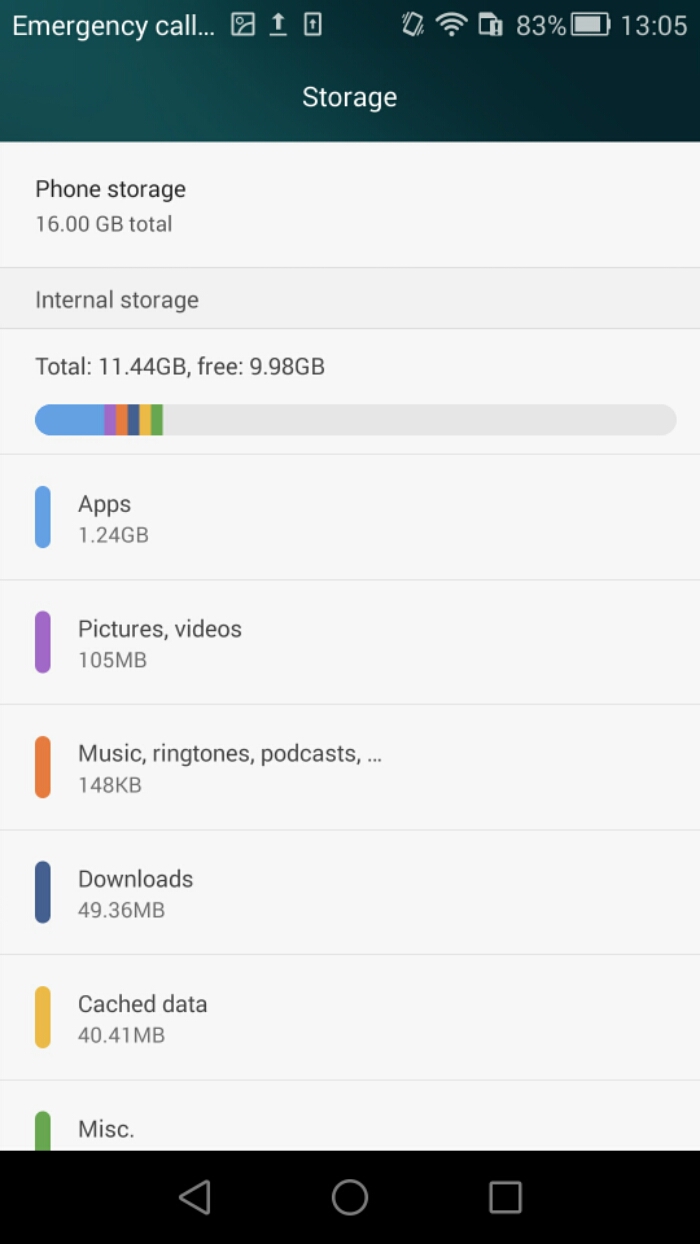
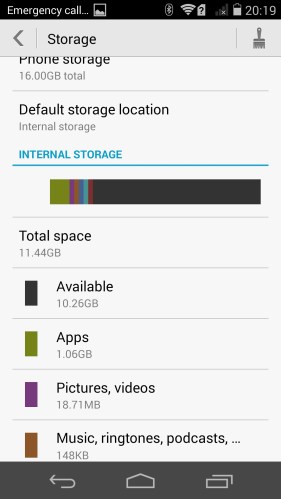
Then there is a games folder which includes trials of a number of Gameloft apps. Best idea is to delete these and create some more storage space. Talking of storage space the Honor 6 had about 10.5gb free out of the 16gb.
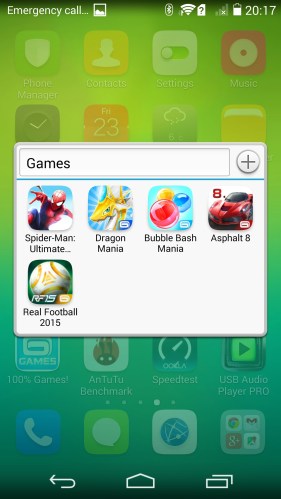
Screenshot_2015-01-23-20-17-22

Again another app for the Backup and Bitcasa which you again might want to uninstall. So apart from Bitcasa and the Gameloft trial games there was no other bloatware.

Screenshot_2015-01-23-20-17-35

So lets go and have a look at the settings. Opening the settings up reveals all the usual suspects. Clicking one more brings up the data usage, default sms app, tethering and portable hotspot and VPN options. Within the mobile networks option is a toggle for LTE Cat 6 CA, network mode selections and a few other standard options. Tapping on wifi brings up all the usual wifi options and a button for WiFi direct. The WiFi direct when turned on brings up a message which then fades away, saying on Huawei to Huawei devices supported for WiFi direct. So I proceed to connect my Note 4 and Samsung Tab S tablet via WiFi direct and send files across with no issues. I have repeated this many times! There is also an option called Networked Apps and this shows you which apps are connecting to the internet and whether they are using wifi or mobile data and the usage for each. You can turn restrict background data on each app too. You can en masse turn off access via wifi or mobile internet.
Screenshot_2015-01-23-20-19-19

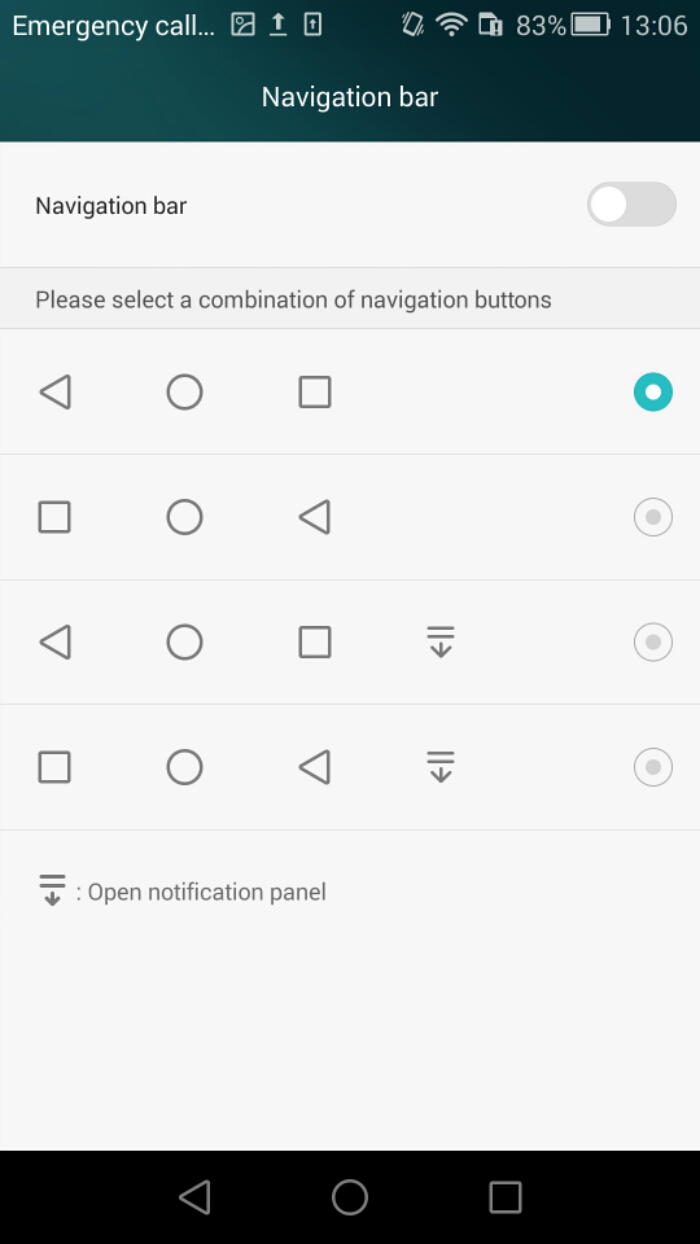
Various screen shots of all the menus below.
Screenshot_2015-01-23-20-19-28

As you will see from all the various menus, the Honor 6 caters for everything.
Screenshot_2015-01-23-20-19-41

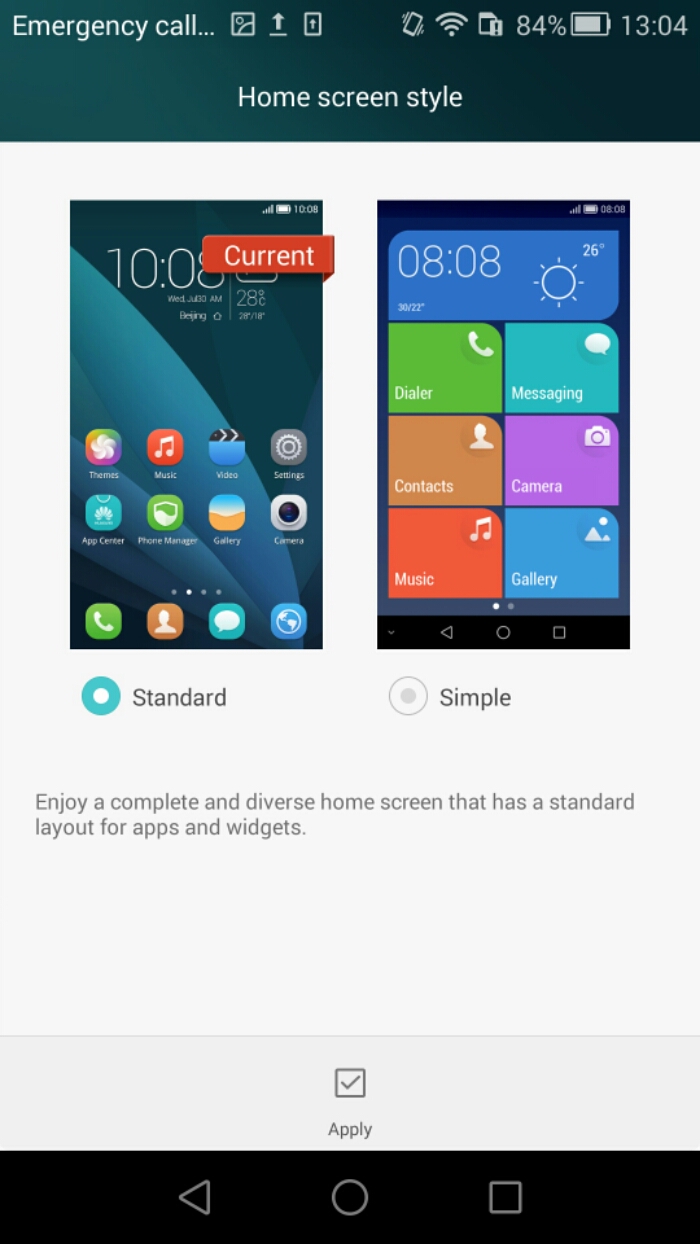
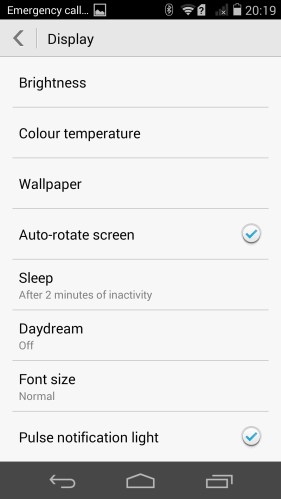
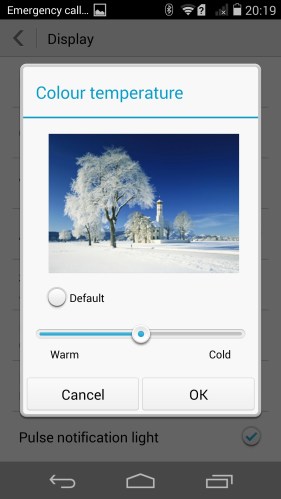
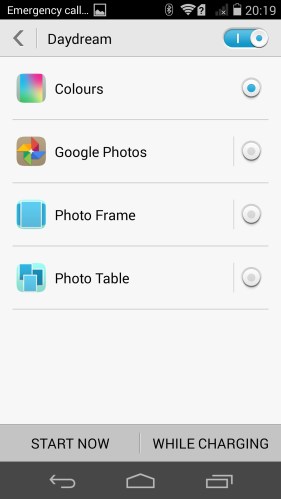
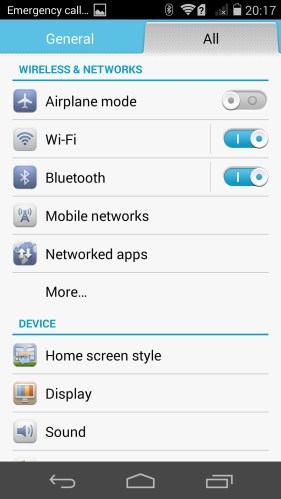
The Homescreen style enables an optionally easy mode with 7 big buttons on the screen. Ideal for some people and fairly well designed too. Tapping on the display menu gives options for brightness, colour temperature, wallpaper, daydream, font size, pulse notification light and more.
Screenshot_2015-01-23-20-17-46

No surprises in the storage menu. Options for SD card, USB OTG storage and option to choose default storage option. The Battery menu shows all the usual stats and has a toggle for the battery percentage on or off for the status bar.
Screenshot_2015-01-23-20-21-24

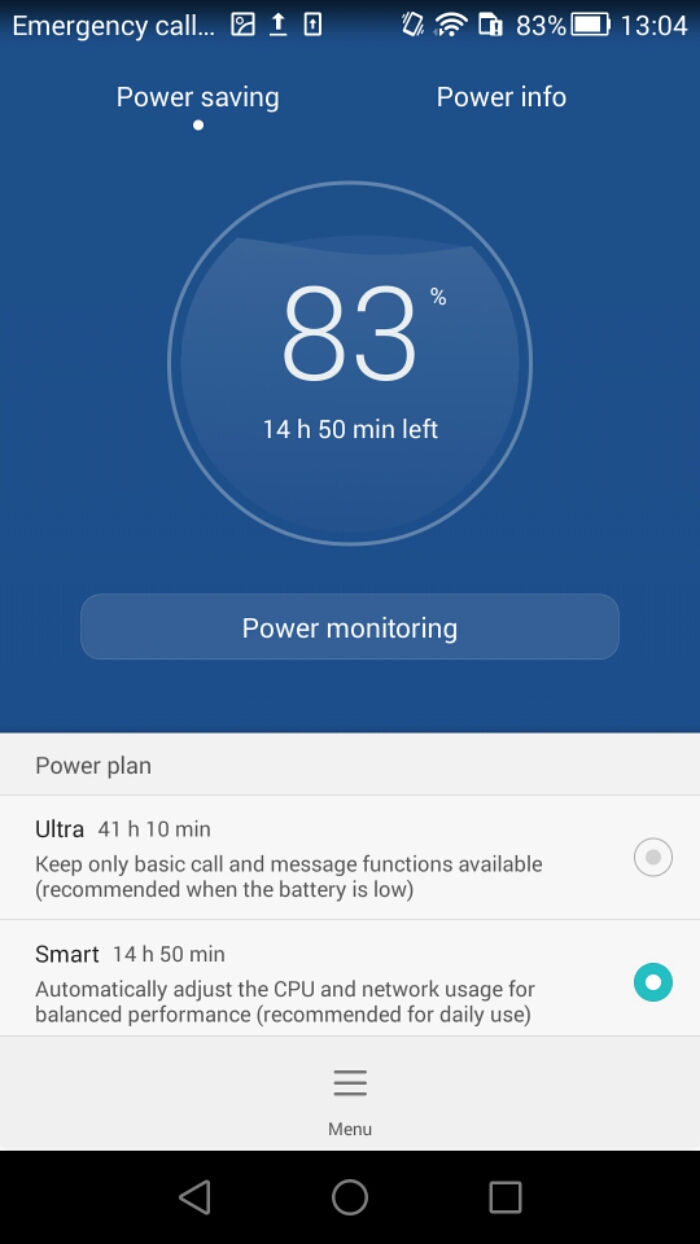
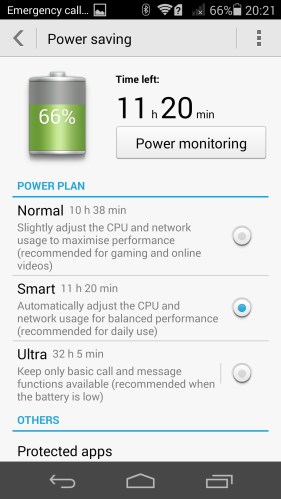
The Honor 6 comes with a number of Power Saving options from normal, smart and Ultra Power saving mode. With 79% battery left, normal was showing 13h 23m, smart 14h 18m and ultra 40h 22 mins. In Ultra mode you basically have a dumb phone. Protected apps allow you to control which apps run in the background. The last option shows you any particular apps that consume heavy amounts of battery in the background. A decent set of options. The Notification manager is another set of controls for each app to restrict, deny or allow the app from sending push messages to the notification panel.

Screenshot_2015-01-23-20-17-54

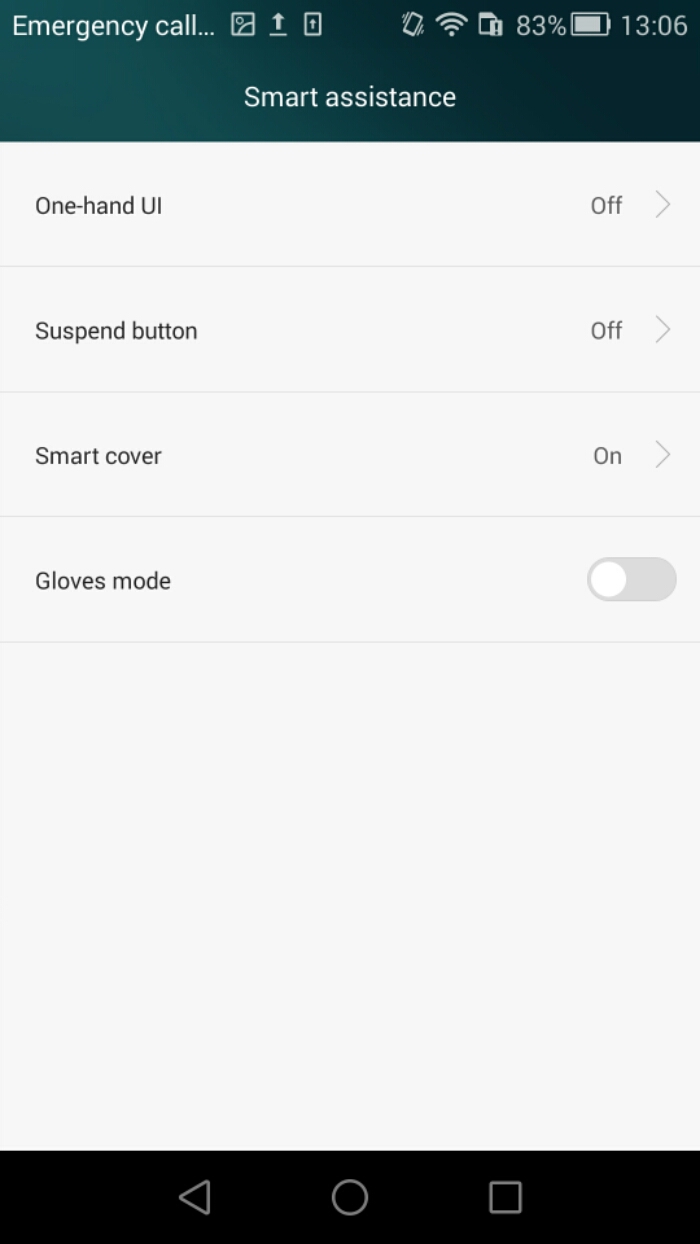
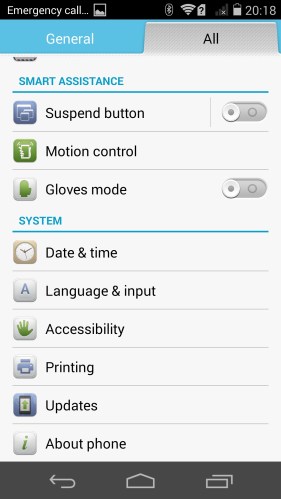
You will see there are motion options from flip to mute, pick up to reduce ring volume, raise to ear to answer or make calls and more. Gloves mode is also included.
Screenshot_2015-01-23-20-18-17

Screenshot_2015-01-23-20-18-55

It may not have lollipop yet, but it does include a Do Not Disturb mode.
Screenshot_2015-01-23-20-19-08

Within the sound menu is the option for DTS. I recommend keeping this on. It adds depth and extra bass to your music but its not overkill either. I enjoyed the sound using this mode.

Screenshot_2015-01-23-20-19-57

Another surprise for me was the builtin keyboard. It is SwiftKey. No pretending to be rebadged. It states its Swiftkey and asks you to sign into your account if you have one. Hence typing is great on this phone.

Screenshot_2015-01-23-20-20-11

The drop down toggles are handy and include a range of useful options.

Screenshot_2015-01-23-20-20-54

All in all, the included apps, settings, software and hardware are all fairly comprehensive. The screen is a decent 1080p affair with an option in the settings to drop it to 720p to save on battery. A soft reset happens every time you change between the resolutions.

Tomorrow is all about the camera. Stay tuned until then.

Honor 6 – review – part 1

image

image

I now have the Honor 6 in my hand. This phone is made by Huawei but they have decided to drop their name on this phone and simply call it the Honor 6.

The key specifications are –

– Processor – HiSilicon “Kirin 920” Hi3630(4x A7 @ 1.3GHz & 4x A15 @ 1.7GHz,Mali T628MP4 @ 600MHz)
– 3gb ram, 16gb storage + microSD
– Display – 5” 1920×1080 JDI In-cell
– Network LTE Cat. 6 300Mbps CA modem
– Dimensions 139.6 x 69.7 x 7.5mm, 130 grams
– Camera 13MP Sony BSI sensor, F2.0 aperture, ISP 5-piece lens
– 5MP front camera
– Battery – 3100 mAh (11.8Wh) typical
– OS Android 4.4.2 “EmotionUI 2.3” -Lollipop coming soon with new EmotionUI
– Connectivity 802.11a/b/g/n Wifi + BT 4.0, USB2.0, GPS/GLONASS,
– FM radio

I have had the Honor 6 for about a week so far and it really has surpassed expectations. To be honest, I was not sure what to expect. But opening the box, turning on the phone, holding it, using it, testing it has revealed a number of unexpected things.

Inside the box you get the USB charger, micro usb lead and stereo wired headset. There is also the quick start guide. As I have been used to the size of the Note 4, the 5 inch Honor 6 felt positively small. Thinner, lighter and so much easier to hold. And yet it still has a decent 5 inch screen so text and media looks just fine.

So the next aspect that strikes you is the custom skin and the lack of an app drawer. More of that next week in my full review. I have been testing the camera and audio, loudspeaker and more. So far, I am VERY impressed by this phone. And at its price point is even more impressive.

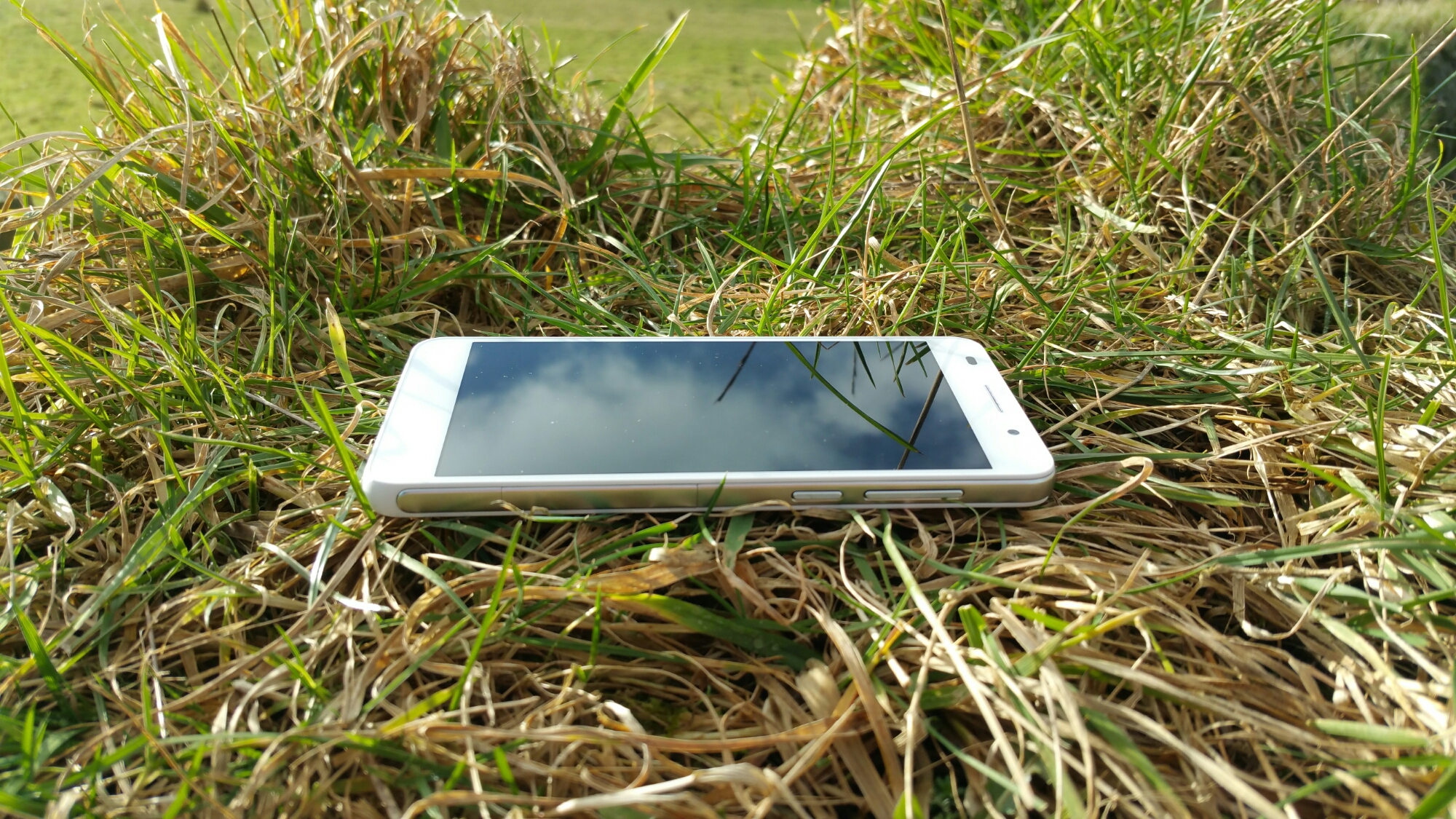
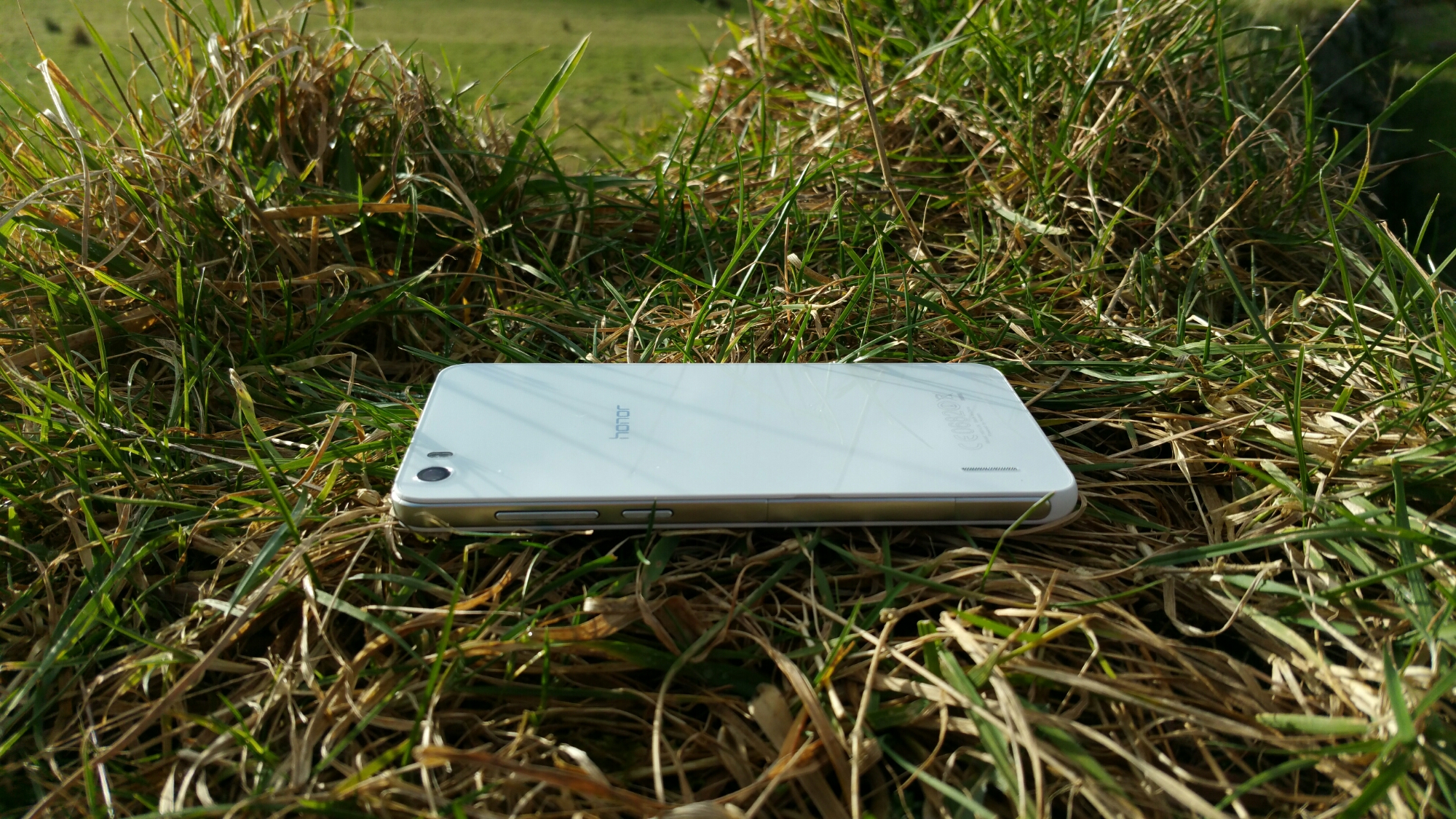
In terms of hardware it is a well made device. Glass back and front with a solid plastic body. In the box were 2 screen protectors, one for the back and the other for the front.

So tune in tomorrow for part 2 which will look at the software in more depth.

In the meantime, if you have any questions, please let me know.