Category Archives: Reviews

My 25 Top Smartphone Reviews – iOS, Android, Windows Phone and more

It is often difficult to find the reviews of devices and accessories I have written about, so below is a quick way to find all the articles for the smartphone reviews. You might have to scroll back a few pages as I have used a generic search on the phone to bring up all the articles written about the phone. This is useful when new information gets added after writing the reviews.

Also check under Menu, Reviews – Accessories for wearables, headphone, portable amps, cases, power, cables and other reviews. Or click here.

Apple Phones

Apple iPhone 6 Plus review

BlackBerry Phones

BlackBerry Passport 10 Part Mammoth review

Android Phones

LG G3 review

Samsung Galaxy K Zoom review You will also need to click this link to pick up the other posts on the K Zoom https://gavinsgadgets.wordpress.com/?s=samsung+galaxy+k+zoom

Samsung Galaxy S5 review

HTC One M8 review

Sony Xperia Z1 Compact review

Samsung Note 3 review

LG G Flex

Sony Z Ultra views and Camera Samples

Motorola Moto X review

Motorola Moto G review

Sony Xperia Z1 Review

Huawei Ascend P6 Review

HTC One

Samsung Galaxy S4 Zoom Review

Sony Xperia Z Tablet

Samsung Note 2 review

Windows Phone

Nokia Lumia 1520 review

Nokia Lumia 820 review

Nokia Lumia 1020 review

Nokia Lumia 925 review

Nokia Lumia 620

Other

ZTE Open Review – Firefox OS

My Reviews on Smartwatches, Wearables, Lenses, App Enabled Accessories and much much more

Below are reviews on a range of accessories that I have written. These are accessible using the Menu above.

Camera Lenses

Shoulderpod S1 smartphone rig review

Sony QX10/QX100 lens review

Olloclip 3 in 1 Lens review for iPhone 5

Glif+ for iPhone 5 review

Wearables

LG G Watch – review – android wear

Samsung Gear Neo Impressions

Samsung Gear Fit review

Samsung Galaxy Gear review

Pebble Smartwatch review

App Enabled Accessories

Imperihome Pro review

Netatmo Urban Weather Station Review

Moga Ace, Moga Pro and Moga Pro Power Game Controller Reviews

Sphero Ball review

Brando Shopping Gala NFC Ring review

Headphones, Speakers and Amps/DACS

Sony SBH80 Bluetooth headphones review

Sony XBA-H1 Headphone Review

Logitech UE 6000 Noise Cancellation Headphones review

Audio Technica ATH-AD900x Headphone review

Fiio E12 Headphone Amplifier

Cellz Bluetooth Portable Speaker review

Cellz In Ear High Performance Flat Headphones review

Cellz Bluetooth Stereo Headset BH-503 review

Cables, Power and Connectors

Samsung Wireless Charging Pad

Brando Shopping Momax Universal Power Plus Battery Charging Kit review

Brando Shopping Portable Power Supply review

Brando Shopping OTG Desktop Connection Kit for Samsung Galaxy S4, Note 2 and Note 3 review

Brando Shopping Short Lightning Cable review

Bluetooth iPad Mini case review

Cellz Ultra Thin Slide Out Bluetooth Keyboard for iPhone 5/5S review

Cellz Power Battery case iPhone 5/5S review

Screen Protection

Brando Shopping Screen Protection review

Cellz Tempered Glass for iPhone 5/5S

Cases

Brando Shopping iPhone Armband case review

Brando Shopping iPhone 5/5S Leather Back Case review

Brando Shopping iPhone 5 / 5S Aluminism Bumper review

Brando Shopping Momax Smart Coat Case for Note 3 review

Trident iPhone 5 case review

Cellz Leather Flip case review

Cellz Premium Metal Bumper for iPhone 5/5S review

Misc

Cellz Non Slip Mat review

USB Fridge Review

USB Rollup Drum Kit

iPhone 6 Plus – camera video samples

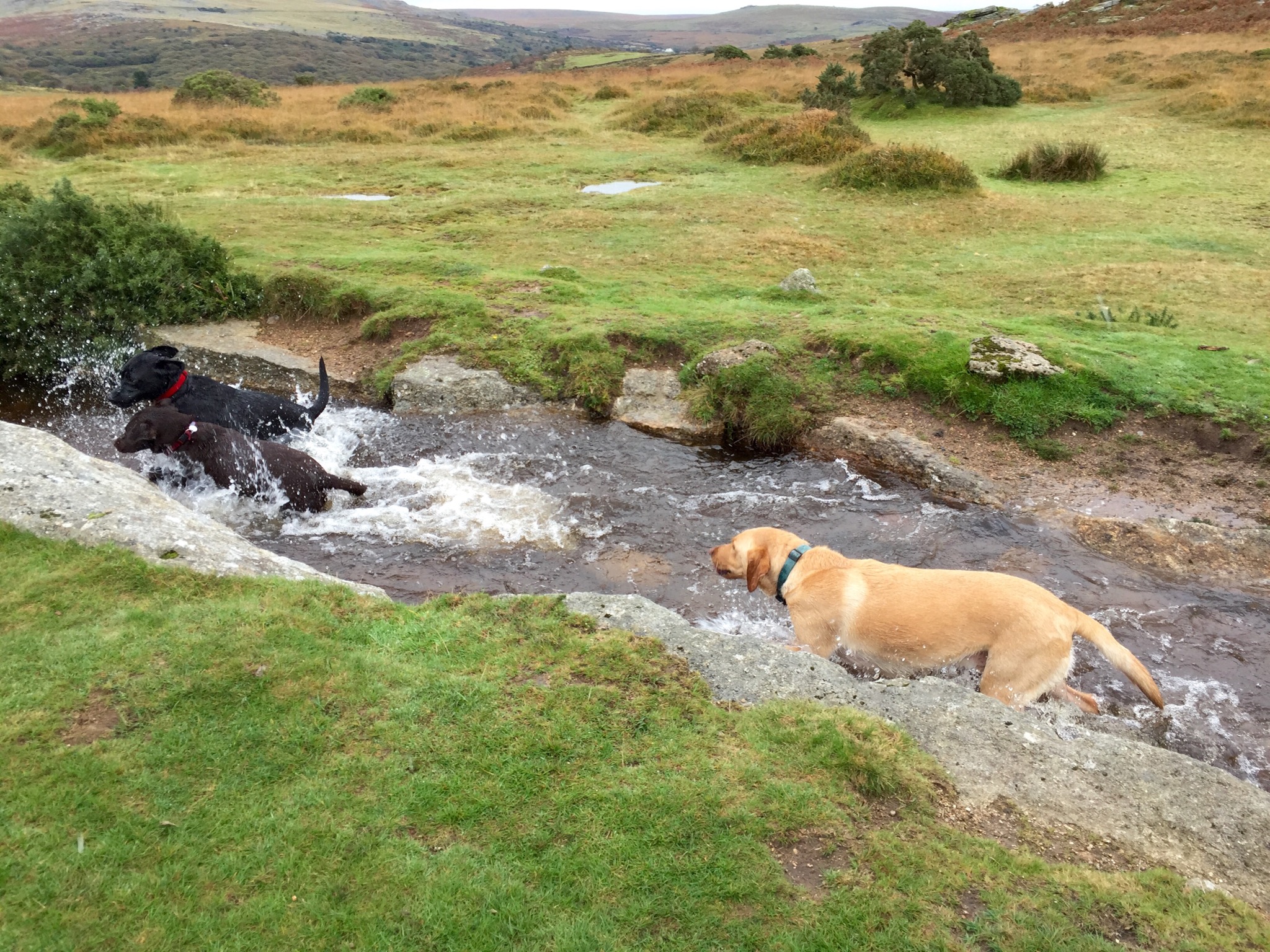
Yesterday I took my dogs for a walk on Dartmoor. I only filmed a few minutes footage, but with the help of iMovie, which Apple include free of charge, I quickly joined a few video clips to make 2 different types of movie memories. All this was produced on the iPhone in a relatively short time.

It has been a while since I used iMovie, but it seems to have a few more effects and even looked simpler to use. iMovie has many different themes, effects, filters, animations and other options but after 10 minutes or so it’s really simple to create a lovely video.

First up I decided to create a film trailer, which is shown below. This is not meant to demonstrate my artistic skills, as it clearly doesn’t, but to highlight what the trailer option does to the video footage. This was produced in 15 minutes. The trailer is just over a minute long. Make sure you see the film credits at the end which all are editable in iMovie. What’s rather clever is that when creating this movie, iMovie tells you the sort of video clip you need to insert into the different slots. It is so customisable and simple to use. And such great fun. It also allows you to select whether you want to use slow motion effects on a portion or not.

Once again video embedded below.

So the next movie is just all the short video clips merged together. This footage has not been edited in any way. I was filming in slow motion at 240fps to see what could be achieved. And I was holding the iPhone, so not using any tripod.

Again be sure to watch the video right to the bitter end to see the last effect. It’s only 2 mins 48 seconds. Certainly a fun way to create a memory of a day out.

Samsung Note 4 – incoming review

I got a chance to spend a bit more time with the Note 4 yesterday and still am left in two minds over this phablet. It is definitely a step up from the Note 3 which I adored, but I feel Samsung’s phablet space is well and truly invaded by Apple with its iPhone 6 Plus.

However, to give the Note 4 a fair crack at the whip, I have one en route which should arrive at some point next week.

So if you have any questions please let me know and I will try and answer them in my review of the Note 4.

Update on my iPhone 6 Plus experiences

So another week or so has passed since owning the iPhone 6 Plus and some more thoughts of mine are detailed below based on my experiences.

IMG_0779.PNG

First up I have included a selection of apps that have been updated specifically for the 6 Plus. Screenshots above and below include apps from Newsify, CNN and Safari. The difference of the apps design after being updated for the 6 Plus is incredible and really emphasise the brilliance of the 5.5 inch screen.

IMG_0777.PNG

I hasten to add that I think these updated apps are better than that found on alternative platforms too.
I just hope that in a few months time a lot more apps take full advantage of the screen real estate. Google+ for example is dreadful in comparison to these apps shown in this post.

IMG_0778.PNG

My 6 Plus is protected by the black Apple Leather case. I noticed tonight that the leather case is not perfectly cut in a straight line along the right edge. So hopefully this can be exchanged at an Apple store. I took the phone out of the case and really admired again the beautifully design. It is a shame that it is too slippery to be used without a case.

IMG_0780.PNG

Bugs. iOS 8 still have bugs. I am hoping Apple will release soon a few substantial bugs fixes. Usage. The audio quality whether via headphones or the inbuilt loudspeaker is amazing. I can listen to podcasts just using the inbuilt speaker in the car as it goes loud enough. Bye bye iPad Air. Just have not really used this tablet since owning the 6 Plus.

Reachability. At first I kept forgetting to use this feature. But now double tapping the home button to drop the lower half of the screen is second nature and makes one handed use a piece of cake.

Overall, I am so surprised how much I am enjoying the 6 Plus experience. I really thought android was first option on a smartphone. Clearly not at the moment.

Apple iPhone 6 Plus – Action shots from the Camera

I’ve been waiting for the weather to improve to take some action shots on my iPhone 6 Plus. Ideally you need bright sunshine but I decided over the weekend I would just try and take whatever shots I could. The light was dreadful. Dull and overcast. All the below photos have not been edited. To give you a better idea of the quality, I used the built in Photos app and cropped in on the movement.

IMG_2870.JPG

So the first shot above is of Fury demonstrating the long jump.

IMG_2892.JPG

And above we have Tiggy chasing Fury. It is worth noting that in real life this was incredibly fast. When Fury and Tiggy chase each other they are like bullets.

IMG_2889.JPG

Now George is about to show off the long jump. The lighting was so poor that if I was not using the burst mode on the default camera app, HDR was often chosen.

IMG_2887.JPG

So the last few are of all 3 dogs racing through the leat. Again in real time this whole sequence was over in seconds. All the shots were taken using the default camera app, just holding down the shutter to activate burst mode which is totally instantaneous. So let me know your thoughts.

IMG_2884.JPG

IMG_2882.JPG

IMG_2880.JPG

IMG_2878.JPG

IMG_2876.JPG

IMG_2872.JPG

Anniversary Special – Gav & Dave’s Tech Podcast – Please RT

As you know, I co-host a weekly podcast with David from UKMobileTech called Gav & Dave’s Tech Podcast. It is a light hearted tech podcast broadcast bi-weekly. To subscribe click here for iTunes or copy and paste this link into your favourite podcast app.

Episode 25 is now live for your listening pleasure.

This is an Anniversary Special. So enjoy 🙂

Our photo contest. First up is Dave’s shot of his dog.

IMG_0555.JPG

Next is mine of the Merrivale Stones on Dartmoor.

IMG_0100.JPG

Neither shot has been edited. Both taken using an iPhone 6 Plus. So choose your winner!

BlackBerry Passport – The Mammoth 10 Part Review

IMG_2818
Over the last 10 days I have written many posts covering my thoughts on the BlackBerry Passport. Below are the links to all the review sections. In addition, Episode 25 of Gav & Dave’s Tech Podcast, live tomorrow, will cover off my final thoughts on this piece of hardware. Link for podcast http://www.gdtpodcast.com or head over to your favourite podcast app or iTunes.

First Impressions – https://gavinsgadgets.wordpress.com/2014/10/03/blackberry-passport-first-impressions/

Part 1 – https://gavinsgadgets.wordpress.com/2014/10/06/blackberry-passport-camera-and-samples/

Part 2 – https://gavinsgadgets.wordpress.com/2014/10/07/blackberry-passport-gaming/

Part 3 – https://gavinsgadgets.wordpress.com/2014/10/07/blackberry-passport-second-impressions/

Part 4 – https://gavinsgadgets.wordpress.com/2014/10/08/blackberry-passport-impressions-part-4/

Part 5 – https://gavinsgadgets.wordpress.com/2014/10/09/blackberry-passport-impressions-part-5/

Part 6 – https://gavinsgadgets.wordpress.com/2014/10/10/blackberry-passport-impressions-part-6/

Part 7 – https://gavinsgadgets.wordpress.com/2014/10/05/blackberry-passport-compass-weather-and-maps/

Supplementary Review Sections –

a) Does the BlackBerry Passport Fit in a Pocket? – https://gavinsgadgets.wordpress.com/2014/10/06/does-the-blackberry-passport-fit-in-a-pocket/

b) Will the BlackBerry Passport BEND – https://gavinsgadgets.wordpress.com/2014/10/04/blackberry-passport-impressions-part-3-will-it-bend/

BlackBerry Passport – Impressions – Part 6 – Keyboard

Today, I am going to look at the keyboard, notes and the settings. First up is the note taking app which does more that just take notes.

IMG_20141004_183837

You can add photos, files, voice recordings and more, and also share with ease.

IMG_20141004_183902

So how does the keyboard work entering text in this situation. I was going to attach some more screen shots and photos, but if you really want to see how crazy clever and complex the Passport keyboard is, look at this instructional video from BlackBerry. In fact, this should be mandatory to watch for all Passport owners.

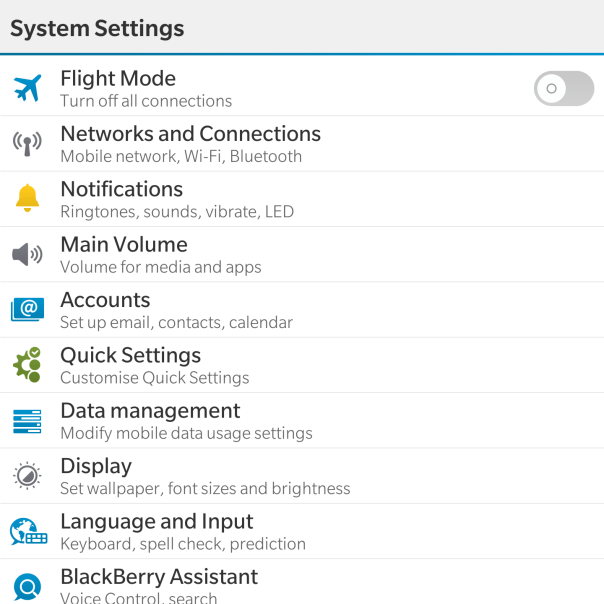
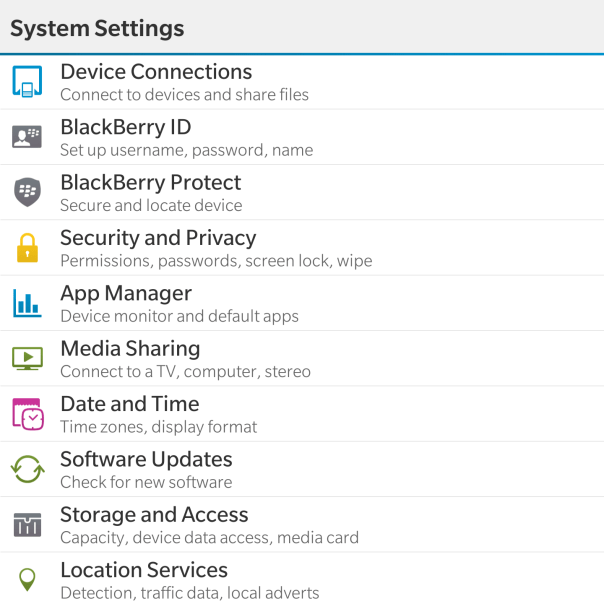
Moving on from the keyboard, lets have a close look at the settings app.

IMG_20141005_080534

Now as the Passport features top of the range hardware it should come as no surprise that the settings menu is rather comprehensive.

With the Networks and Connections settings is options for Mobile Network (mode, data switch), WiFi, Bluetooth, VPN, NFC, Mobile Hotspot and Internet Tethering.

IMG_20141005_080542

Within the Notifications, Main Volume, Accounts and Quick Settings there are no surprises really. Just your standard affair of options for controlling these parameters. Data Management displays data usage, setup for data limits, options to show a setting for email resizing and whether to download images automatically in emails. In fact most of the options are self explanatory and even provide text under the headings to assist you.

IMG_20141005_080548

For my final thoughts so far, don’t forget to listen to the next episode due out on Sunday of “Gav & Dave’s Tech Podcast”.