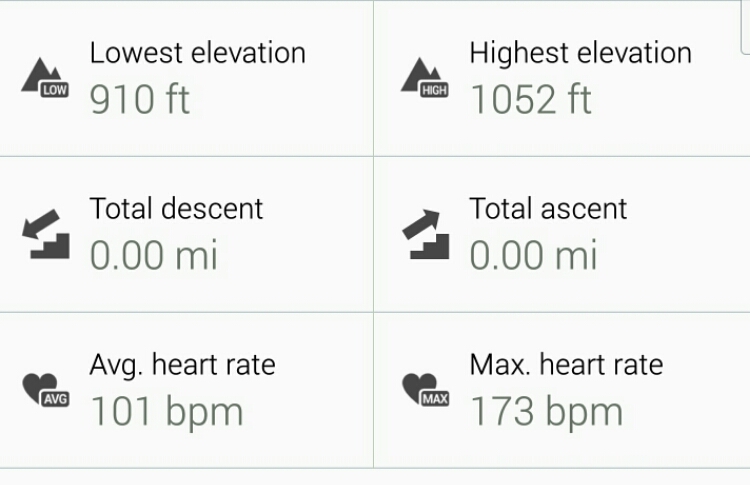
Samsung have already started updating their apps for the lollipop material design. S Health received an update and below are some screen shots from the app.
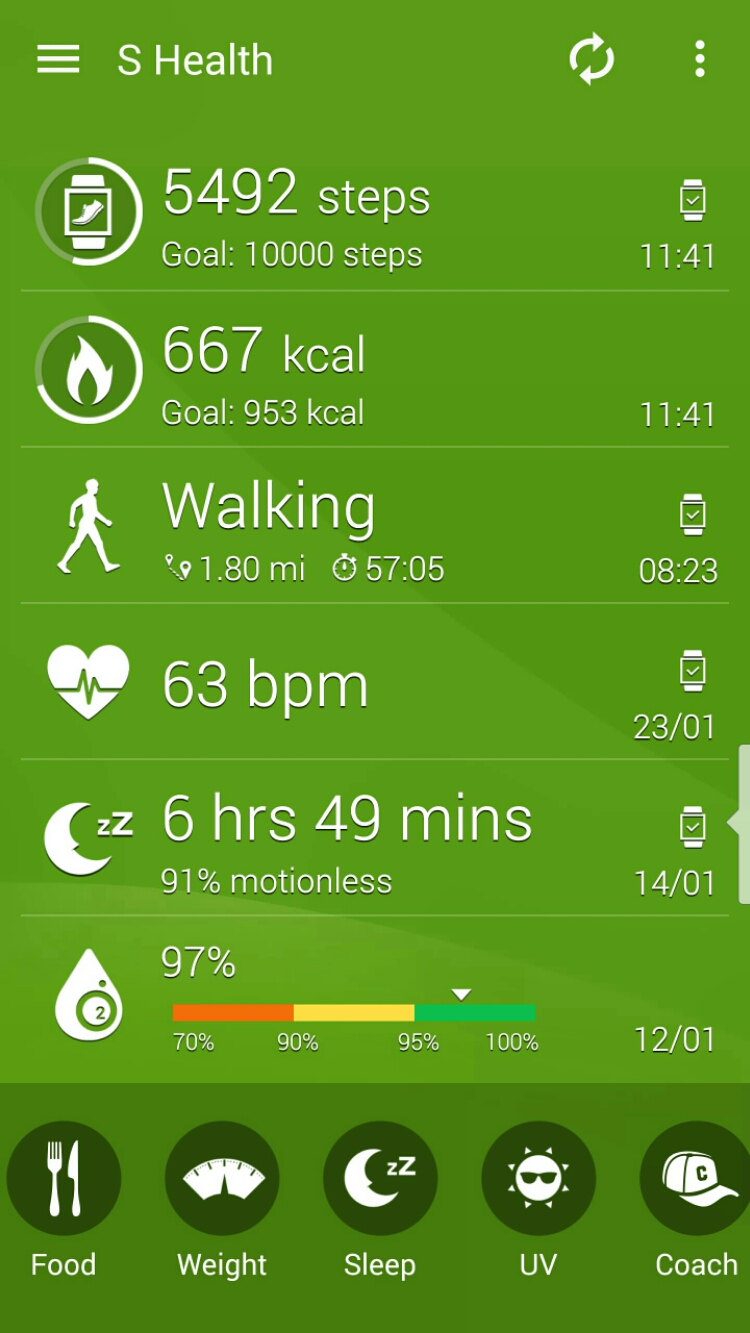
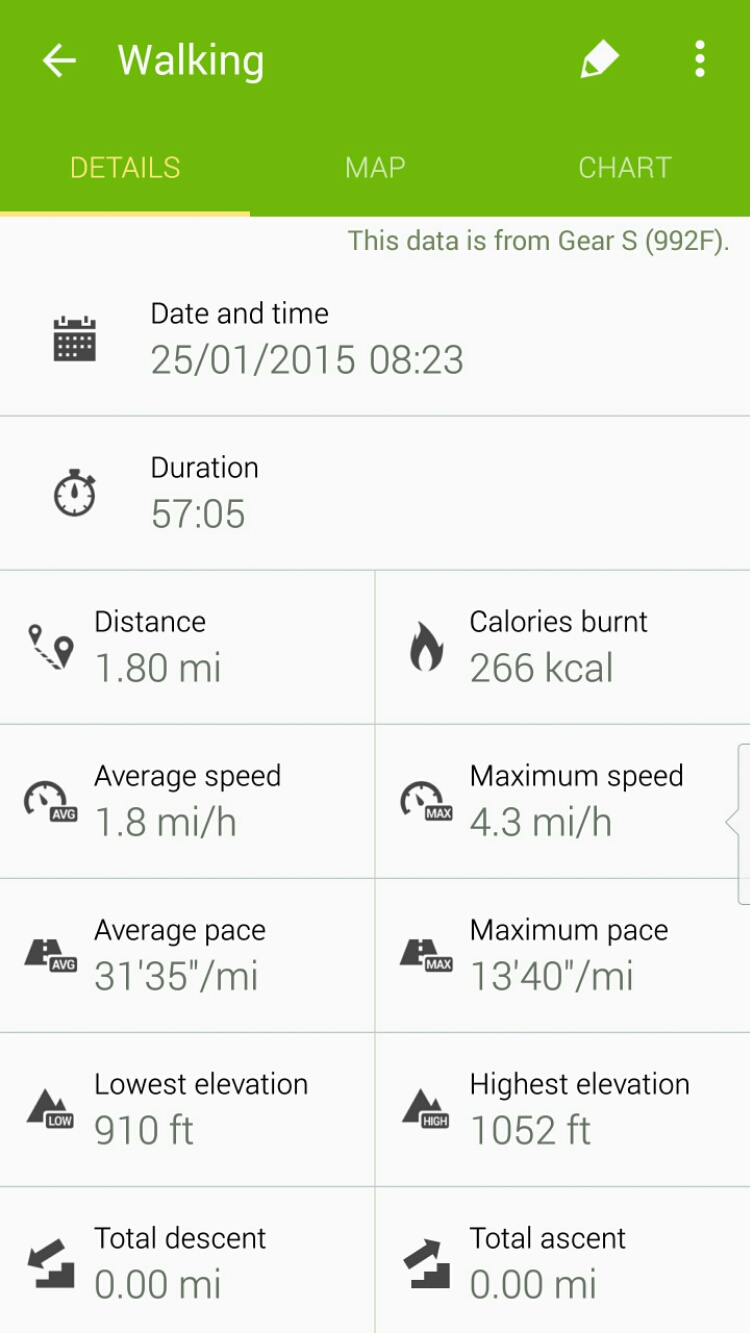
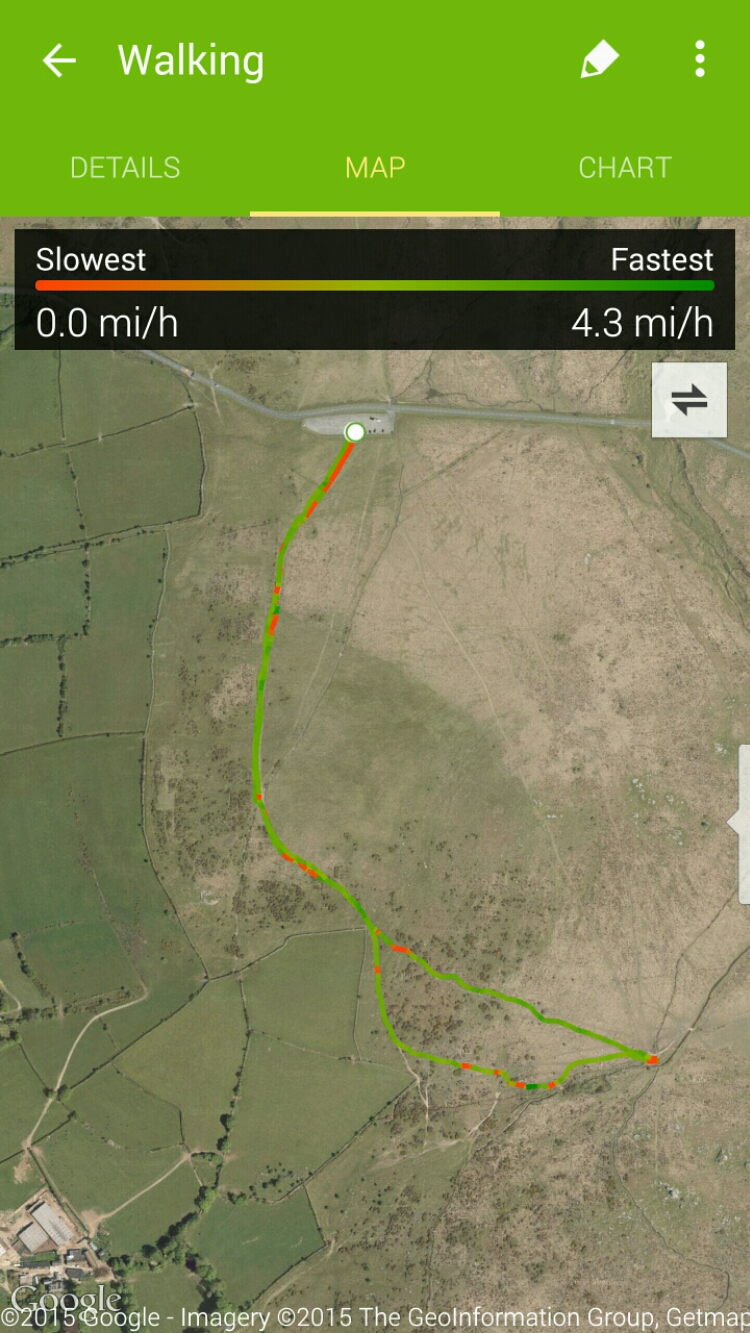
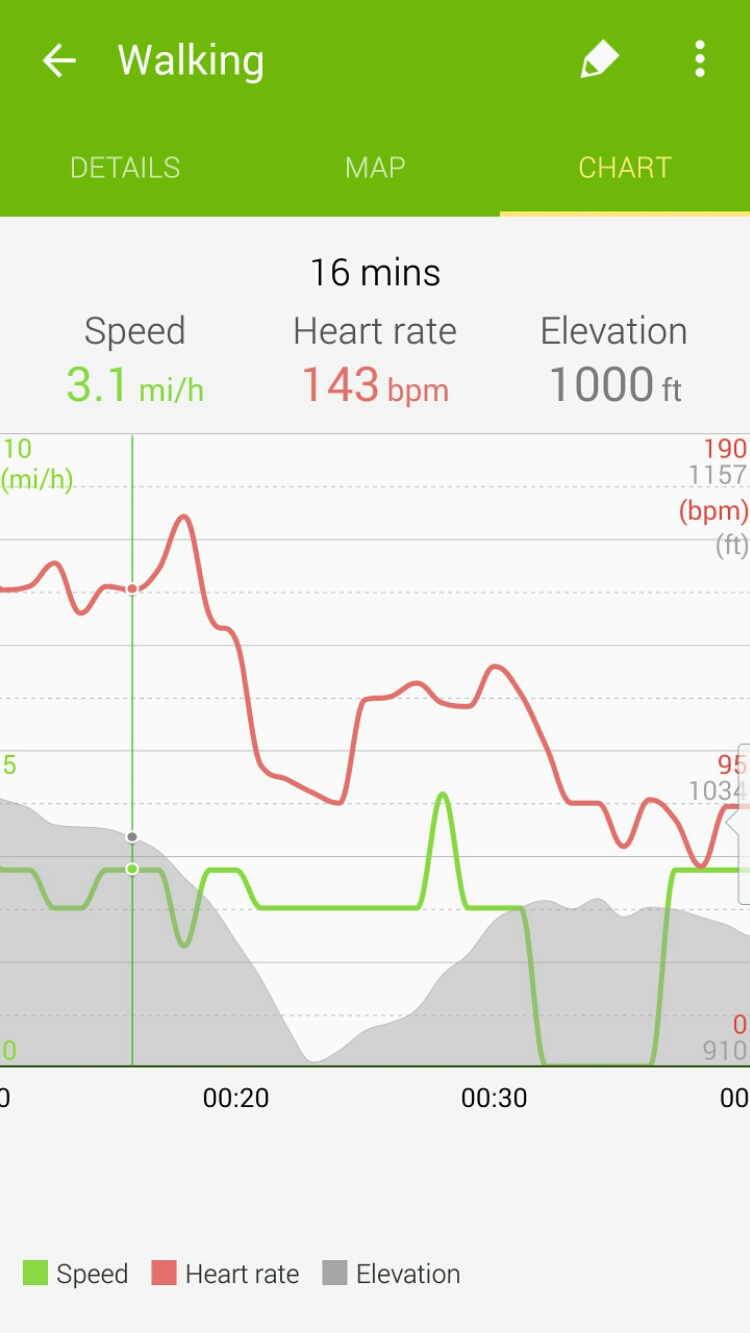
So do you like the new look?
Samsung have already started updating their apps for the lollipop material design. S Health received an update and below are some screen shots from the app.
So do you like the new look?

I have written many posts of the HTC Desire Eye. Below is links to all the content.
HTC Desire Eye – part 1 – https://gavinsgadgets.com/2015/01/26/htc-desire-eye-review/
HTC Desire Eye – part 2 – sound and more – https://gavinsgadgets.com/2015/01/27/htc-desire-eye-review-part-2/
HTC Desire Eye – part 3 – camera and more – https://gavinsgadgets.com/2015/01/28/htc-desire-eye-review-part-2-the-2-x-13mp-cameras/
HTC Desire Eye – part 4 – conclusion – https://gavinsgadgets.com/2015/01/29/htc-desire-eye-review-conclusion/
HTC Desire Eye – more camera shots – https://gavinsgadgets.com/2015/01/27/htc-desire-eye-more-camera-shots/
HTC Desire Eye – Zoe – Video – https://gavinsgadgets.com/2015/01/26/htc-desire-eye-zoe/
HTC Desire Eye – sample action shots – https://gavinsgadgets.com/2015/01/26/htc-desire-eye-sample-action-shots/
HTC Desire Eye – macro shot https://gavinsgadgets.com/2015/01/22/htc-desire-eye-rear-camera-macro-shot/
My Flickr HTC Desire Eye Album – https://www.flickr.com/photos/gavinfabl100/sets/72157650368916456/
My twitter posts of action shots from the HTC Desire Eye –

On Wednesday, Amazon reduced the Fire Phone right down to £99. Across twitter and many forums many opinions raged as to whether it was worth it or not. Well, here are all the orders Amazon received. So clearly a lot of people thought it was worth of shot.

My first chance to use the Amazon Fire Phone was last night. I opened the box and realised that the phone needed a charge as the battery was at 36%. Once it reached 100%, I turned it on and was presented with a video that explained clearly all its main features and how to use the gestures, along with practising them too. Simple idea but genius.
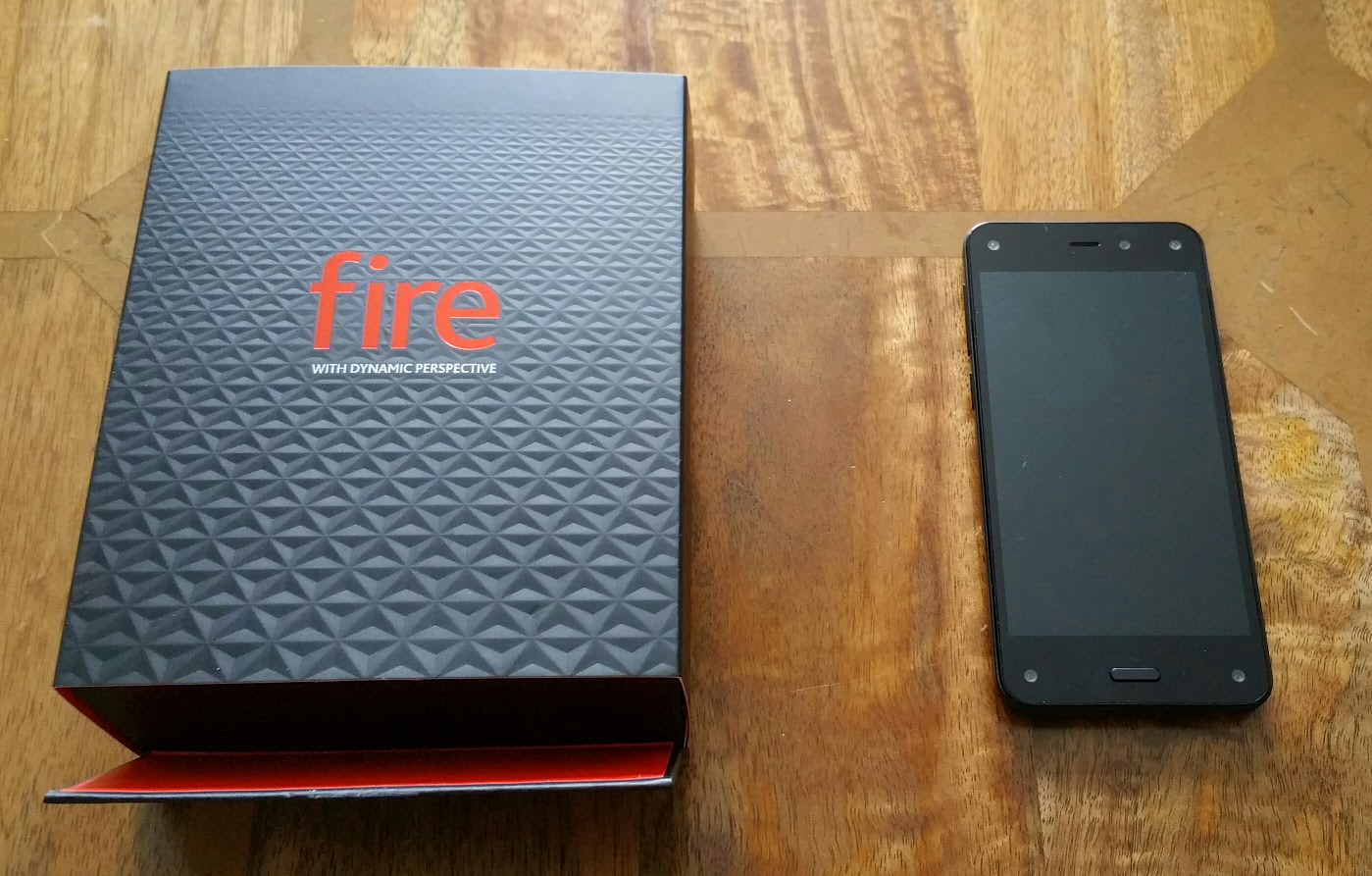
The phone’s hardware feels good in the hand and comfy to hold. But it does seem to pick up fingerprints. The screen is excellent. So a short while later I realised a software update was waiting. This was date 26th August 2014. So this got installed and from there I started to explore the phone further.
The next step afte the video was logging in to twitter and facebook, this is not mandatory. Then I setup my Google account for email, contacts and calendar. Then I explored further. I had heard the headphone audio was outstanding and I can confirm that the sound output via the headphone jack is possibly the best I have ever heard from any smartphone. However, I can not find any sound equaliser. Camera. I have done some limited testing but it appears the camera takes good shots but its operation is both excellent and then at times weird. Again I need more time to explore this feature.
Now I know some of you are screaming “it does not have Google apps or the Google Play store” . Well, I can shout back just as loudly. So what! For most people the world does not evolve around Google. So long as the apps you need are available on the Amazon app store then all is fine. If you are heavily invested in to the Google Play store then this phone is not necessarily for you, but those starting fairly new to the world, or perhaps are invested in the Kindle Tablet eco system, then on paper all should be ok. However, I need more time to assess everything.
Fire OS. Now my thoughts on the Fire OS and its skin and for another day. I will add that I am pleased I bought this phone. Whilst I can see potential areas where it is not perfect, I think I can see what Amazon might have been trying to do. Anyway, more soon when I have had a week or so with it.
One thing I did want to test was the Mayday help button. Video support call worked just fine with on screen guidance. This really was the ultimate support call and shows up so many other companies who provide a poor after sales service.
And don’t forget to “fire” off any questions.
And here are some photos from the Fire Phone. What I have found is that it is able to capture a wider field of view than several other smartphones.


Over the last week I have penned my thoughts on the HTC Desire Eye. It really reminds me of the previous HTC devices that I have owned, the HTC One M8 and HTC One M7 – good design from a hardware and software point of view. I have shown this phone to a number of people and the all have liked the look, feel and speed of the device.
I believe that the HTC Desire Eye has had thought and purpose as to who might use this phone. This is a great social phone. Ideal for content creation and sharing. Cameras back and front to capture that moment, good editing tools with filters and more, video highlights and Zoe, and finally decent front stereo speakers to enjoy that moment even more.
Take all the above, add a water and dust resistant design, Sense UI which has minimal bloat and an easy learning curve, Blinkfeed, good 1080p screen and a fast snappy 801 processor and the Desire Eye becomes a good phone.
I have one last final thought. Some smartphones lack character and feel bland when you hold and use them. For some reason, the HTC Desire Eye makes me feel good when I use it.
If you have any questions please do not hesitate to contact me.
If you are buying anything on Amazon, please use the link below. This will help support Gavin’s Gadgets with all the running costs and more and won’t be any different in cost. Thanks in advance.
One view, 2 photos from each phone, one in auto mode, the other HDR. Auto shot comes first, then the HDR version.
First up Honor 6 –

Honor 6 in HDR mode

Samsung Note 4 Auto mode.

Samsung Note 4 HDR mode.

HTC Desire Eye Auto mode.

And now HTC Desire Eye HDR mode.

These are the full resolution photos uploaded. So which phone or phones do you prefer? Any clear winner?
Yesterday, I wrote about my general thoughts on the HTC Desire Eye. Today I am going to take a closer look at its rear and front cameras, both of which are 13mp.
So below are some example photos. If you want to see the full size version just click on photo to jump to my Flickr account.


I was very pleased with the above photos. However, less explore further. HTC provide a comprehensive camera app that has many options. So first up is the default display on the camera app. To take a photo press the shutter hardware button or on screen shutter icon.
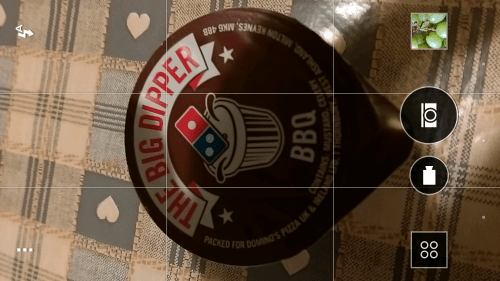
Tapping the 3 dots bottom right brings up the options, which include all the different modes, white balance, exposure, filters and tricks and different camera modes part 2.

So tapping the AUTO button brings up options from HDR, Panoramic, Video SloMo, Macro, Landscape, Full Manual and more.
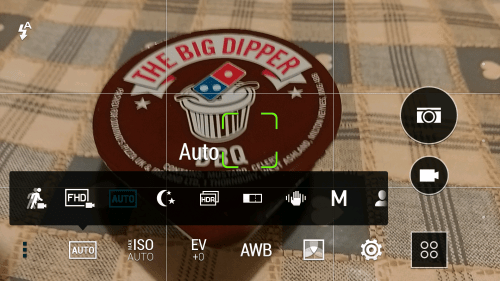
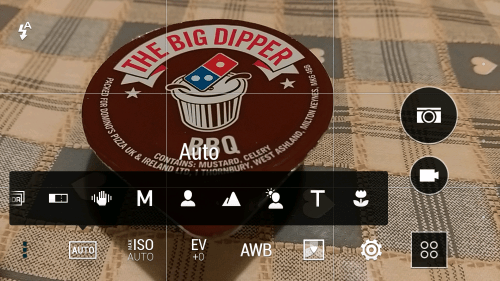
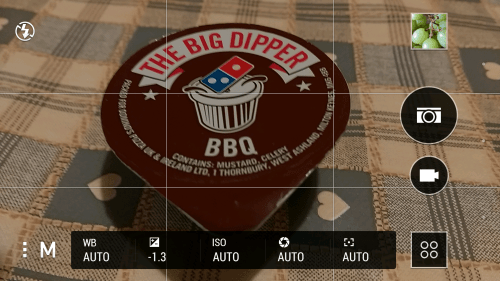
So pressing M for manual provides finer controls from white balance, shutter speed, ISO and exposure. If you create your own manual setting you can save this as a permanent camera shooting mode.
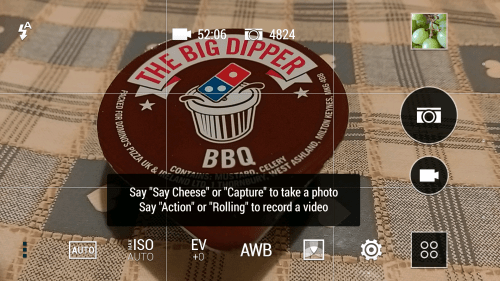
There is also the option of using voice control to take a photo. I found this fairly sensitive and ended up taking a few more photos than needed. But no hardship really.
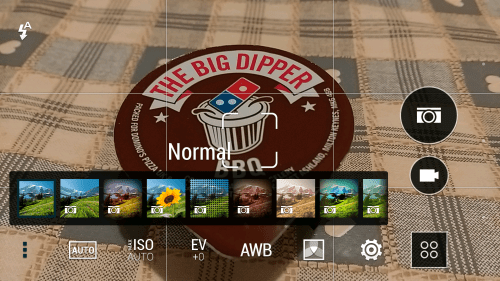
For the more creative type, there is filters to choose before you take your photo. It is worth exploring these as the options are quirky and even have a depth of field filter which works really well.
I mentioned camera modes. HTC include several by default
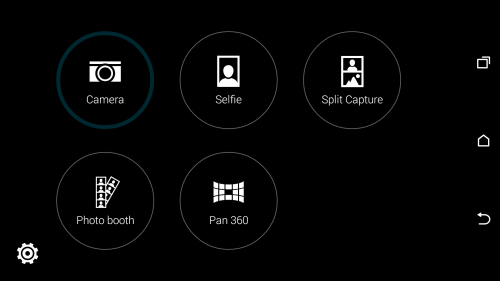
The selfie mode using the front camera, photo booth provides 4 front selfies in one pic, and split mode uses the front and back cameras at the same time. All work rather well and are fun. However, if you have been tweaking the camera settings you could save the setup, and the new camera mode would feature in the list.
So those are all the camera app options, lets look at the editing, video highlights and Zoe.
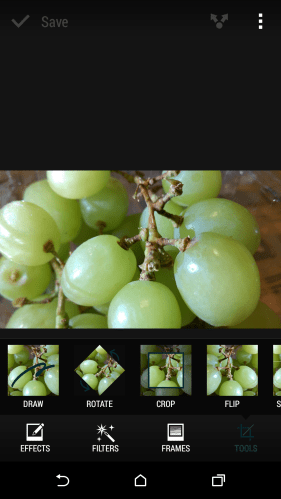
Select a photo in the Gallery app, and then edit. From here you can edit your photo will all the usual tools form cropping, adding text, rotating and more.
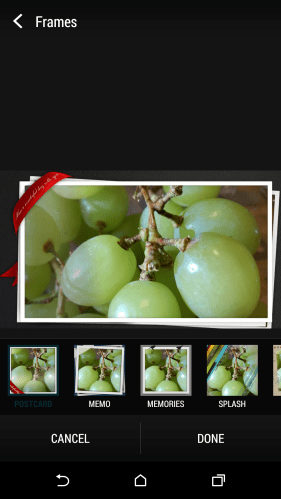
The photo editing app also includes a number of decent frames too.
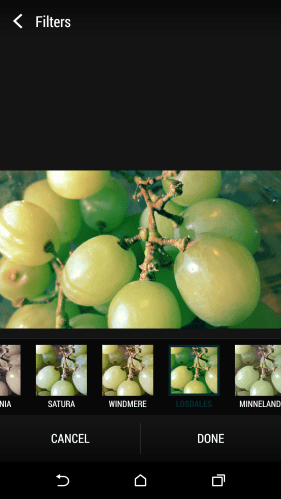
The selection of filters is commendable too. I found I could really personalise my photos and make them shine or stand out before sharing.
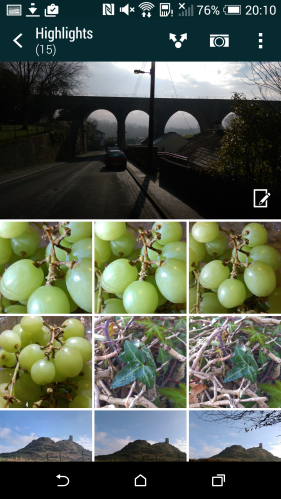
And then you get so a feature that I so love with the HTC Desire Eye. Automatic video highlights. You take video and photos. The phone then collates the events into a video highlight all by itself. Just tap on the top highlight photo and it opens up all the options.
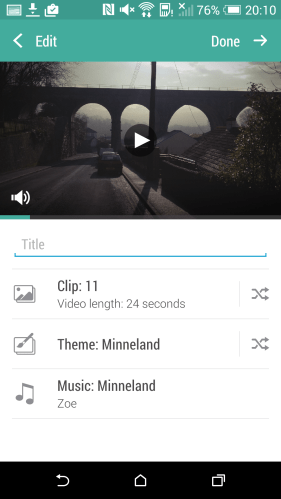
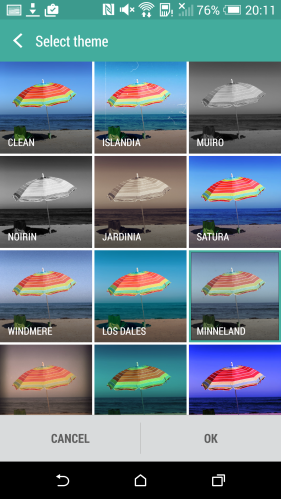
The video highlights section automatically chooses a theme and background music and takes a selection of video and your photos from an event and compiles them into a 30 second clip. The themes add special effects .
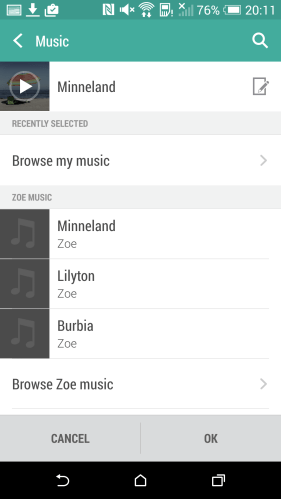
You can add your own music too, as well as remove video/photos or add as well to create your masterpiece.
You can then share these using all the usual methods or via HTC’s Zoe social network. I have many video highlights created on my HTC One M8/M7 phones and to this day they prove great memories. The fact that they were created in the background is a pleasure too. However, it seems with the Desire Eye, you create and save the video highlight. You then have to upload it to the Zoe network and from there you can download a copy. It uses 16 photos maximum to create a 30 seconds clip around 14mb in size. With the HTC One M7 or M8 you could save a video highlight without sharing, so maybe I am missing something here.
So what about the video and photo quality of these cameras. In good light they take reasonable shots. In low light they struggle sometimes. Focusing in low light is not always easy. Selfies shots are good but flash will be needed in low light. In pitch darkness I could still take a selfie due to the front flash unit. But then how many phones do you know that have a 13mp front camera with flash. I would overall describe the cameras as average quality. I have used better and also much worse. However, it is all the photo editing options that compensate and when shared on social networks will looks just fine.
In fact the video highlights being instantly created is pretty cool. On Sunday 25th January 2015, I shared a number of my dogs jumping and leaping on their walk across Dartmoor. Have a look at my twitter @gavinfabiani to see these. To see my HTC Desire Eye Flickr album, click here https://www.flickr.com/photos/gavinfabl100/sets/72157650368916456/

Following a discussion on Twitter at the weekend, I was asked how to I capture moving items like pets, kids, people and such like. There are endless pro photography options but I am going to focus on simplicity.
To illustrate what is possible, I took the above shot using the Samsung Note 4. This was snapped in difficult lighting using the burst mode, and then cropped in slightly to focus on the action. So what else did I do to capture this scene. Well below is my thought process.
Framing. Think about what the scene looks like through the viewfinder (screen). If you are going to want to shoot leaping dogs, try and get in to a position where you know your dog will run or fly passed. In other words set the phone up ready with the view minus the dog or child etc.. Now as you start to see you object move in to the target area, and about 1 sec before, press and hold the shutter button. 30 burst photos will be taken. While this happens do not move the phone. Breathe in, tucks arms in to chest as you take the photos. You can never have too many photos! Simple really, but lets step back. If you see you dog running try and let the Note 4 gain focus and then when scene is in target view, then press and hold on screen shutter button to activate burst mode.
What about indoors in low lighting. Normally the Note 4 tries to avoid using the flash, so use the night mode which needs a longer shutter time. This mode is no good for people and pets normally. However, you might be lucky in night mode. For this you must try and hold phone still to get the best shutter and ISO options using the OIS. IF necessary don’t be afraid of using flash. Sometimes there is no choice. IF you need extra light, use the torch mode on another phone to shine at subjects. Beneath a certain low light, the camera will not perform miracles. Other options at night is trying to shoot with HDR mode. Personally I don’t recommend that. You might find having to use an ISO of 800.
In better lighting, another mode worth trying is either Sport or Shot and More. Both these work really well too. As does 4K video recording, then during playback taking a screen grab which will be a 8mp image. Shot and More only works where the action is going to appear left to right or right to left in a predicable line. Once snapped, you can create some fancy modes. Below is one such effect. Because the horse was always going to jump over the fence, the line and my positioning was straight forward to manage using Shot and More.

Of course, you can always tweak the manual settings on the camera app, but usually by then the moment has been lost. Generally, it is understanding the lighting tolerances of the phone. Bright light, dusk, sunrise, sunset, indoor lighting, snow all impact the shots. It is worth practising without people first in your actual setups to see what works best for you so you don’t spend time trying to guess what mode to use and the miss the moment.
So what tips have you got?
Welcome back to my review of the HTC Desire Eye. Click here to read part 1 – https://gavinsgadgets.com/2015/01/26/htc-desire-eye-review/
In part 2, I am going to look at a few other aspects of the Desire Eye and then focus on the sound and music. Part 3 which will be live tomorrow will focus exclusively on the cameras and software that is included for them. On Thursday, I will pen my final thoughts on the HTC Desire Eye.
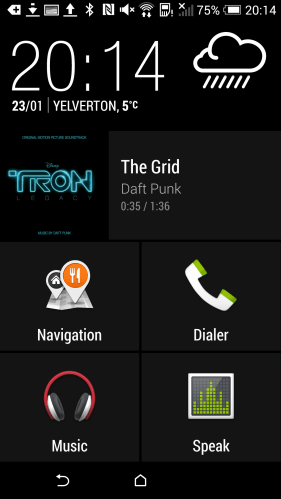
So lets jump back into the review again and look at a few other neat aspects. Car Mode. Simple concept but in this mode you get thumping big icons to press which makes it easier and safer to use, and you can customise the apps you want to see too.
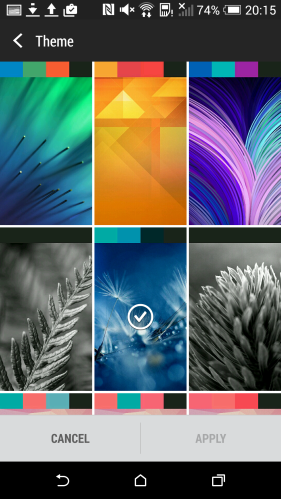
The other aspect of Sense UI is the theme options where you can personalise the look. HTC include a number of themes that tweak the look across the apps and home screen. Again, a simple touch but ideal.
HTC include 2 power saving modes. The standard power saving mode reduces the CPU, display brightness, turns off vibrations and puts data connection to sleep when the display is off. All these options are toggles. There is also a generic sleep mode option to turn off data during long periods of inactivity. And finally there is the Extreme Power saving mode which can turn on automatically when the battery reaches 5,10 or 20%. In this mode many android functions are turned off including the ability to wipe or remote lock the phone.
So what can really add to the experience of a device. SPEAKERS. SOUND. The listening experience. And lets get straight to the point. Decent front facing stereo experiences makes everything from playing YouTube videos to listening to music and podcasts and absolute joy. And thats what the Desire Eye has behind tiny nearly hidden grills at each end on the front – stereo boomsound speakers. These front speakers are not as bassy as the HTC One M8, but nonetheless are still commendable and better than many other phones.
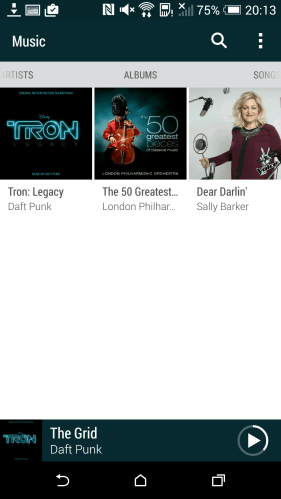
HTC include their own music app which can automatically update the album art, artist photos and lyrics. I copied across initially a few tracks and within a minute all the photos etc were fetched.
So as I started talking about the sound, lets continue. If you plug your headphones in your get a good sound with the emphasis on bass. The headphone amp is able to power the headphones to a loud level, higher than many phones. Boomsound EQ is a setting that can be turned on or off. When switched on ,which is the default setting, the music is slightly bass heavy and not necessarily the finest word when it comes to pure audio analysis. With boomsound off, the music is rather flat. I imagine most people will leave it on, and for modern music boomsound is just fine. But what I discovered is by connecting my Plantronics BackBeat Pro bluetooth headset/headphones, the sound is booming amazing. Again no shortage of bass, but much better than the wired connection. That is because the Desire Eye has APT-X codec for bluetooth music. This is a phone for the trendy modern person, so I imagine most people will enjoy the extra bass. Some won’t. However, you can install a different music app to regain some control over that bass and that is what I did.
I installed USB Audio Player Pro. I then connected my USB DAC (Sabre Android DAC) and Cayin C5 headphone amplifier. I can confirm that the HTC Desire Eye in this setup supported USB Audio. The sound was naturally miles better and totally accurate from an audiophile point of view. The phone did put a warning triangle in the notification bar advising during this mode, the phone could not be charged. Minor inconvenience I would say for the improvement in sound.
Tomorrow its all about the camera, the editing software and video highlights. Plenty to talk about on this subject!
Below are some more photos taken on Sunday. The first shot was taken in manual mode with a longer exposure, and the ones with the dogs were taken in burst mode.


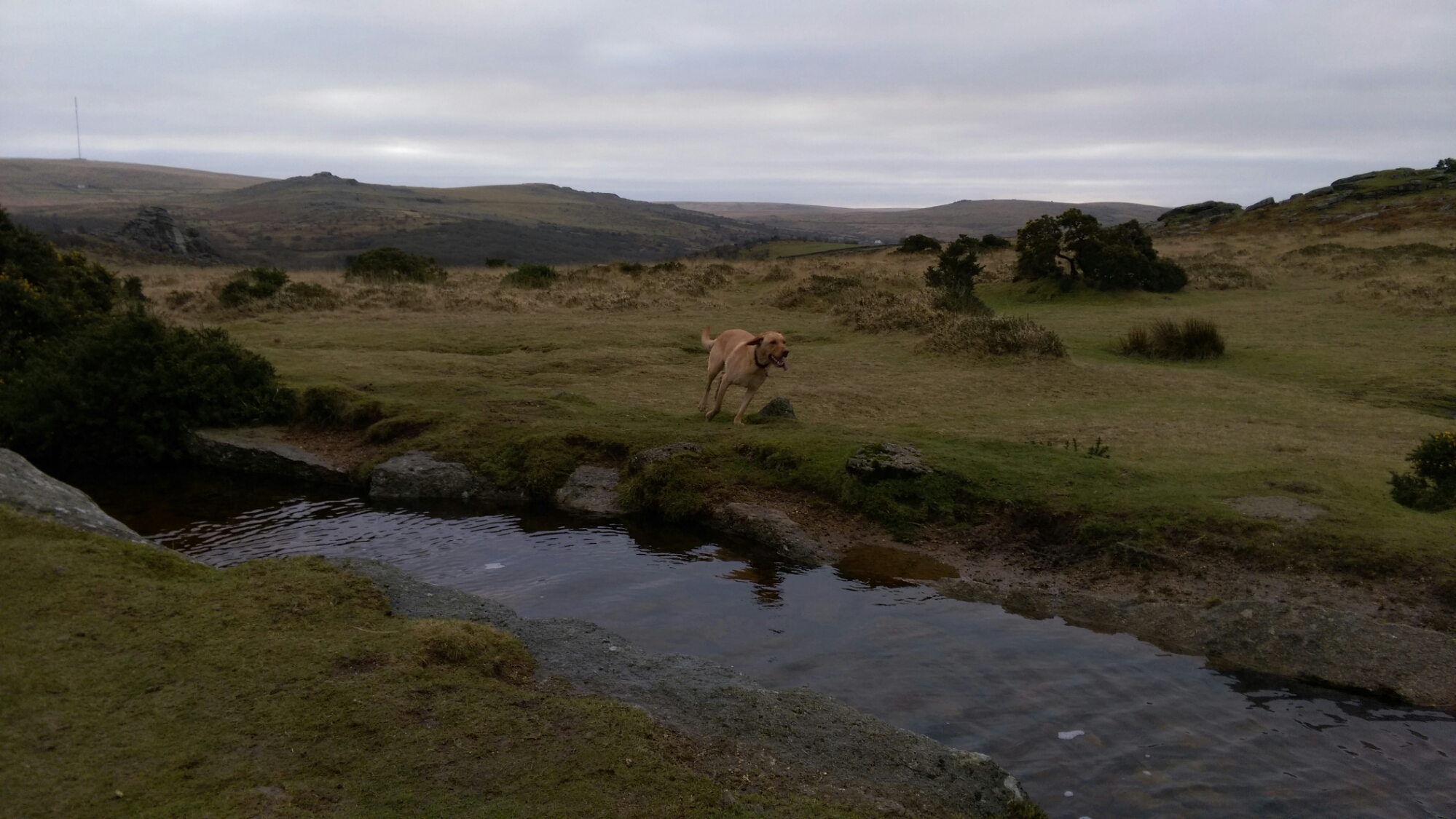
Just another shot from the weekend with the Honor 6 camera. This was at zero degrees, so the cold seem to reflect the colours more.


 Gavin's Gadgets & Photography