Category Archives: Android

HTC Mini+ Review – a phone for your phone

20140402-053911.jpg

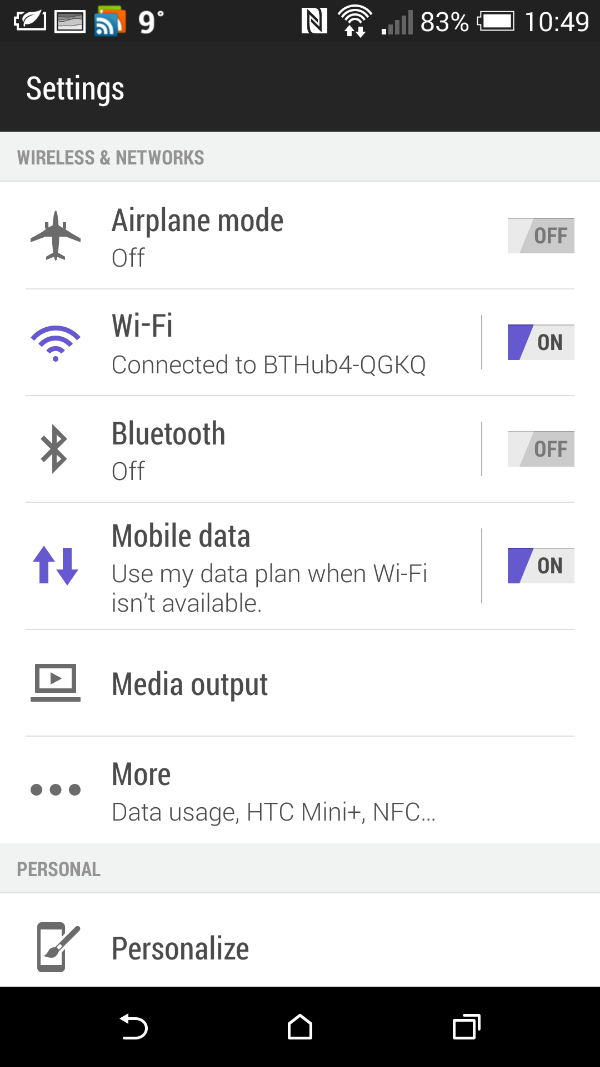
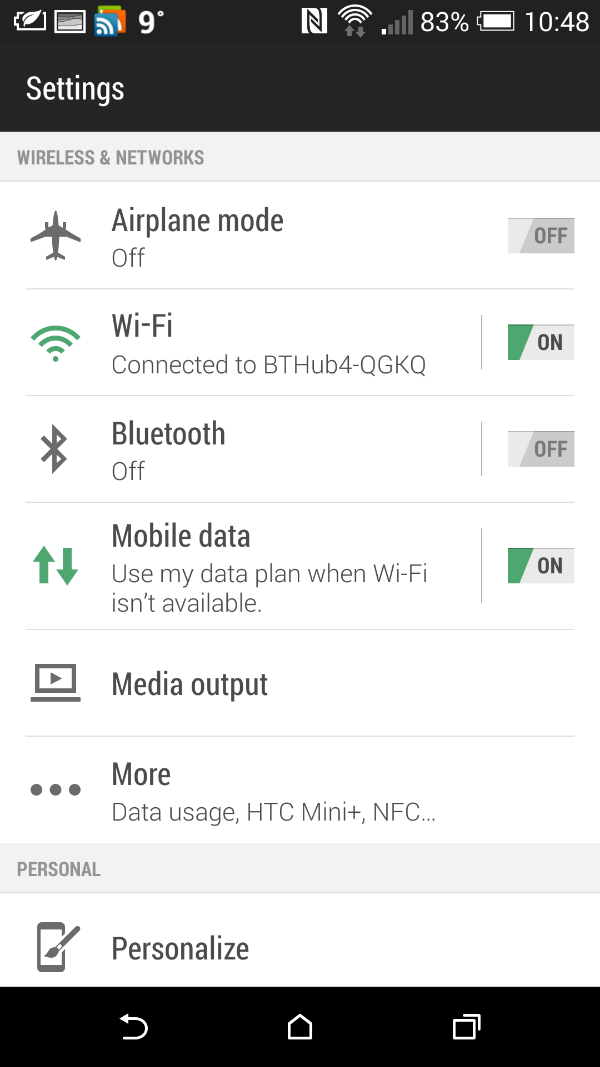
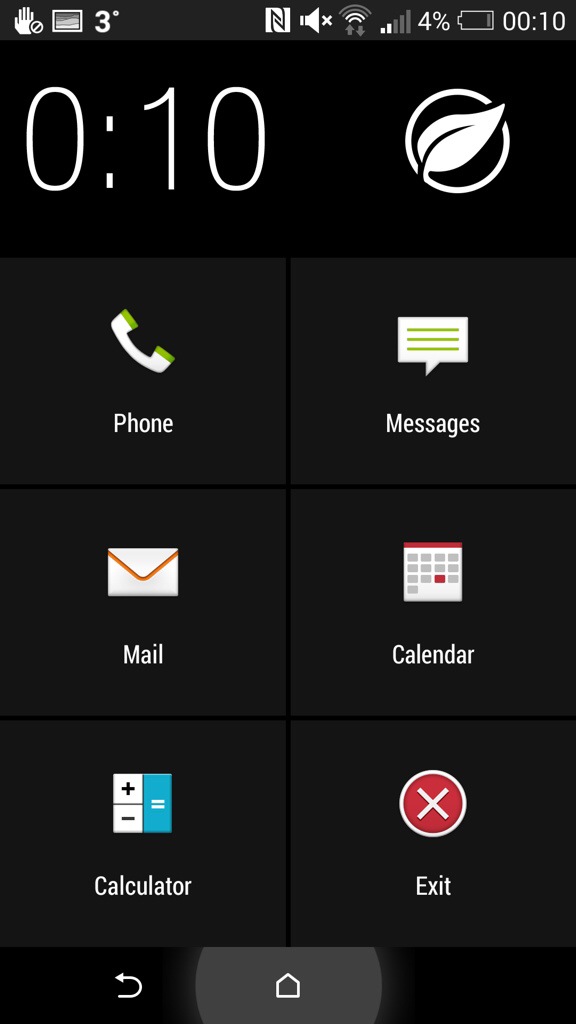
The HTC Mini+ icon and settings options appeared in the HTC One M8 so I was curious about it enough to see what all the fuss was about.

The official specs are –

– Size – 118.7 x 39.8 x 7.15mm
– Display – 1.5” white color 4 gray OLED, 128X128 resolution
– Features – Stay connected with calls, SMS, Notification,
– TV remote
– Facilitate presentation with remote control and laser pointer
Applications
– CIR/Sense TV
– PowerPoint controls
– Connectivity – Bluetooth® 2.1 + EDR and NFC Pairing
– Battery – 320 mAh
– Talk time: 9 hours
– Standby time: 95 hours

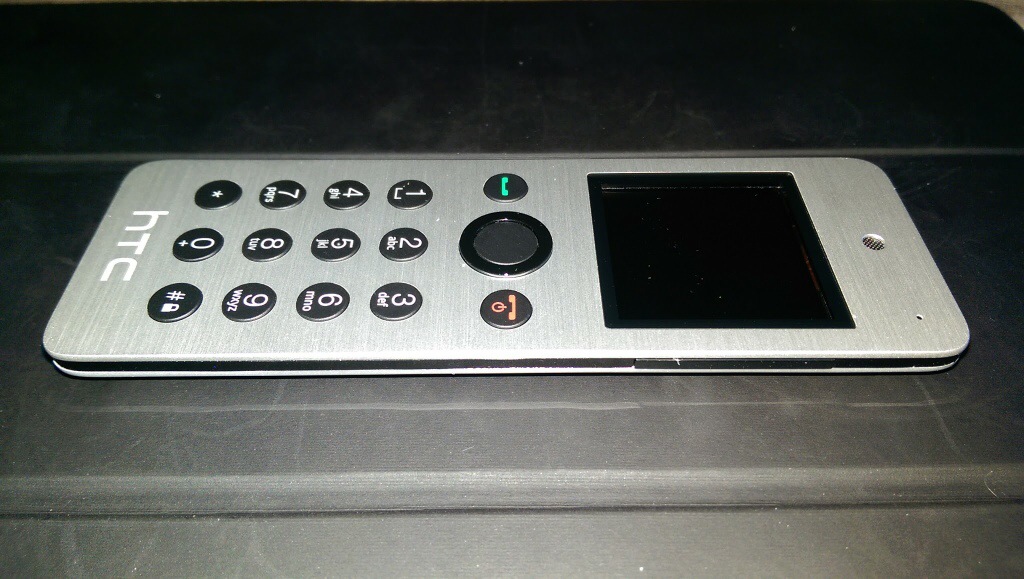
So, it arrives as it is slightly bigger than I thought it would be and not as slim. It has a slightly curved back which has a plastic feel to it, thus ruining the metallic front finish look.

In the box is the instruction, device and micro USB cable. First up you have to give it a full charge. Turn on and pair either via Bluetooth or NFC.

Functions. If a call arrives on your HTC One M8 it displays caller and vibrates but the Mini+ rings with the name in the display. You answer and talk away. Call quality was fine but even at full volume the ring volume isn’t that loud. You can do conference calls on this. This device is very light so if you do lots of calls you won’t end up with hand ache. You can make a call from the Mini+ either by scrolling through frequents or tapping the name out on the keyboard until the name appears on screen. This is actually very intuitive and uses a T9 logic so is very quick with few taps needed for most names.

The Mini+ can act as a remote for the camera shutter, even worked on third party camera apps eg a Better Camera, gallery app ( so if connected to the HTC Media Hub you can use it to remotely show your photos on the TV ), PowerPoint slide remote with laser pointer and TV remote control. You can also use it as a controller for your windows PC. It also acts as a remote for media playing on the HTC One and works for most media apps.

The TV remote option is cumbersome as you have to use text based options displayed on the screen and takes the info from the M8 TV app. It also only has limited options. Better than nothing I suppose.

Find My Phone. Press this and boomsound blasts your ringtone at full volume. You won’t take long to find your phone.

Notifications – shows details of missed calls, readable text messages and replying using the text templates from the HTC One M8 and a number of received emails. However, this is from the HTC Email app only and it’s just says emails with the number received. You cannot scroll to see who they are from. Rather pointless. And that is it for notifications. It does sync notifications so if you read a text it’s marked as read on the HTC One M8. Same for calls. Diary. You can view next events for the day.

But the screen goes black in standby so unless you heard you had missed a text etc.. you wouldn’t know to check the screen.

The HTC Mini+ came with software version 4.0 and according to HTC’s website there is a firmware update but you need a windows PC. Mac is not available.

My closing opinion is it’s cool to look at, a conversation piece, but debatable as to its usefulness.

Available from Clove Technology.
HTC One M8 – Daily Blog – Review – Day 6 – Kid and Camera options

Another day with the HTC One M8.

Screenshot_2014-03-30-14-40-36

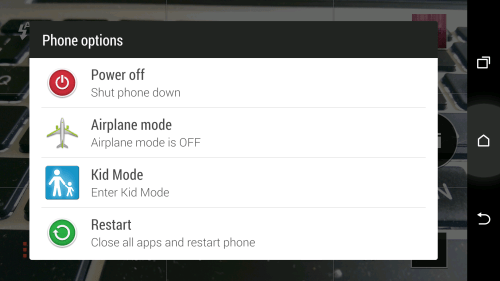
The top power button. If you press and hold this you have 4 options. Power Off, Airplane Mode, Kid Mode and Restart. All self explanatory.

I have had a good play with the camera. There several key ways of using it. One is use it in full auto so you can use the post focus editing effects as detailed yesterday.
Screenshot_2014-03-30-14-39-01

If you want to change from the rear and front camera you can swipe across the width to switch.

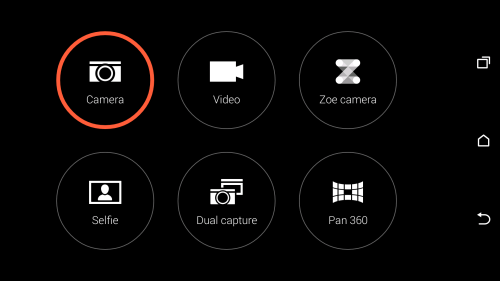
So Camera mode is the simple way to take a photo in full auto. Or you can within that mode adjust the flash mode, ISO, EV, AWB, Camera effects, Camera settings and camera mode. Camera modes are auto, night, HDR, sweep panorama, anti-shake, manual, portrait, landscape, backlight, text and macro. In manual you can also adjust the metering point, shutter duration as well. The camera settings include make up level, image adjustments, crop, grid, geo tag, review duration, self timer, storage, continuous shooting, auto smile capture, touch to capture, shutter sounds, volume button to either be used a volume, capture or zoom, tips and tricks and reset option. The camera effects include normal, distortion, vignette, depth of field, dots, mono, country, vintage, vintage warm, vintage cold, grayscale, sepia, negative, solarize, posterize and aqua. With distortion, vignette, depth of field and dots you can adjust the effect level.

In video mode you have settings from full HD at 1920 x 1080, HD, QVGA and MMS. After recording a video you can trim its down in the editing options.

Selfie mode. Uses the front camera to record photos or even a video. Also has a 3 second countdown.

Dual Capture – a bit pointless but takes a picture uses the front and rear cameras. You can move the front image to wherever you want on the screen.

Manual mode – if you use certain settings on a regular basis you can save your own camera mode that will appear as a new mode in the mode screen.

Zoe – this is slightly improved from the original HTC One. It still takes 1 sec before and you press the shutter, 20 photos but if you press and hold the shutter button for more than 4 secs “locked” appears. You can continue shooting now in video. After recording a Zoe you have additional editing options. These include GIF creator, Sequence Shot, Always Smile and Object Removal.

I will post samples from some of the modes detailed above, but if you have any requests please let me know. Tomorrow I will post my theories on the Ultrapixel.

HTC One M8 – Daily Blog – Day 5 – review – photo editing effects

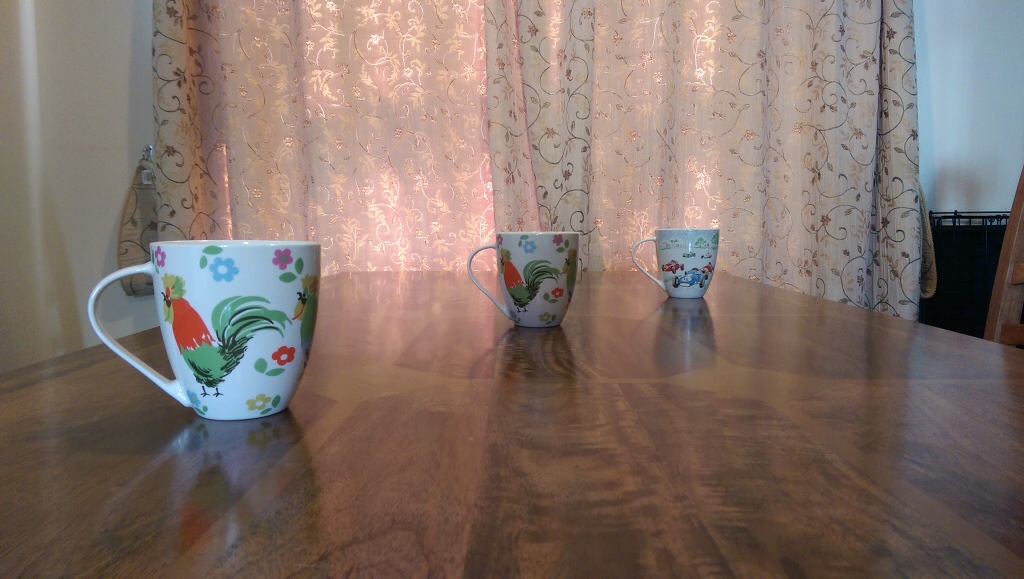
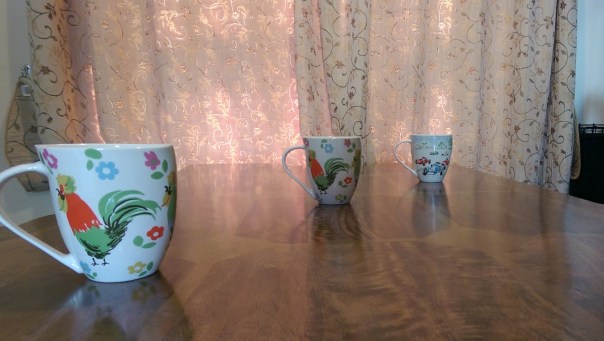
Today I am going to look at the results from the camera and the post editing that is possible. So I took the photo below. This is in full auto using no special photo shooting mode or pre applied effects. It is important to work in this way, otherwise you cannot use any of the fun post editing options. So let’s start.

20140330-133807.jpg

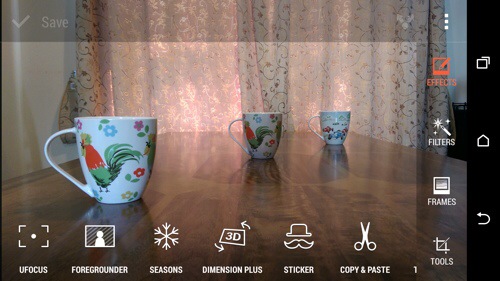
Now with the HTC One M8 and it’s dual rear camera lenses I have a photo with lots of additional exif data that will enable me to continuously re edit the photo as often as I like. So after taking the photo I jump into the gallery app, and hit edit.

20140330-134447.jpg
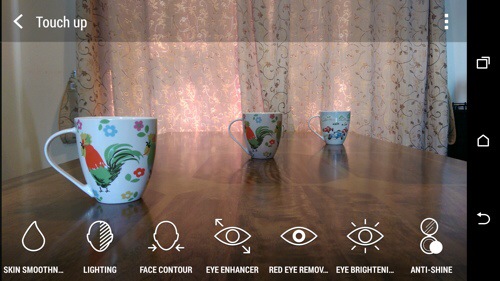
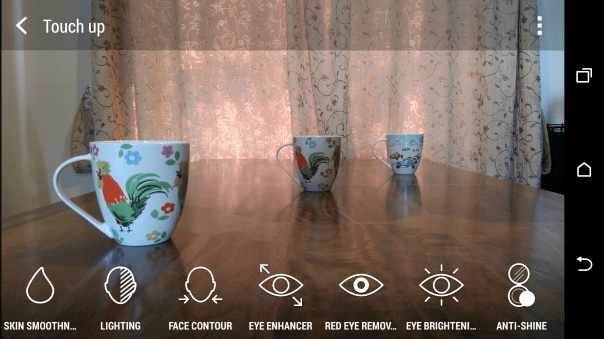
There is one more option for editing peoples faces in the menu.

20140330-134533.jpg
Anyway, first up we will hit in the effect “UFocus”. This allows for the focus point to be changed after the shot has been taken and as many times as required. So first up, I altered the original photo on the front mug.

20140330-134854.jpg

And now by tapping on the mug in the middle the focus point is changed and a new photo is created. It is not perfect but it is great fun.
IMG_0647
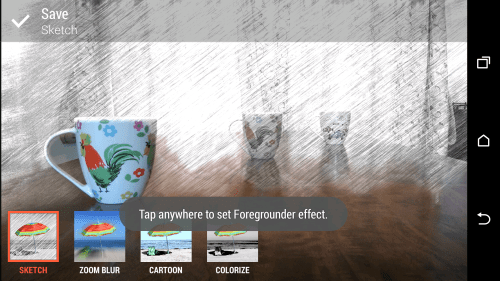
So if we start with the original photo again, effects and select “Foregrounder” we can start to change the effects based on the focus depth point selected. The options within Foregrounder are Sketch, Zoom Blur, Cartoon and Colorize. Using the middle mug as the focus point this is what sketch does. Out of all the effects I was least impressed with this. Maybe over time as HTC tweak the software and the third party developers bring out cool new apps we will see the full potential of this second lens on the rear.
IMG_0662
IMG_0648

And now with Zoom Blur applied with the focus point the rear mug. I quite like this one.
IMG_0649

Next up is the Colorize effect using the front mug as the focus point.
IMG_0650

And finally the Cartoon effect.
IMG_0651

Another one of the effect that uses the data from the second lens is Dimension Plus. From here you rotate or swivel the phone to adjust how the items move around in the photo. You can then save what you see as a fixed photo or a Dimension Plus photo so you can keep playing around moving the mugs into different angles. Below is fixed photo.
IMG_0654

Seasons is another effect. Here you can superimpose snow or leaves onto the photo. You decide when to freeze and save the shot or create a video. Photo below of leaves.
IMG_0652

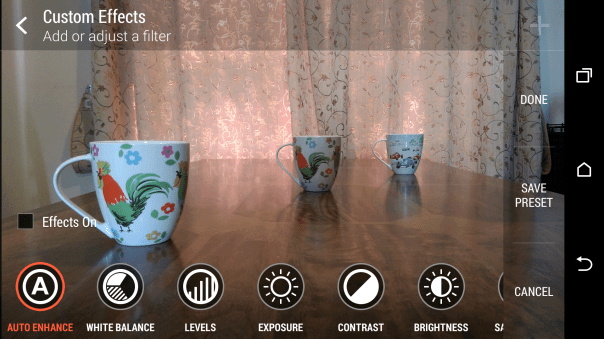
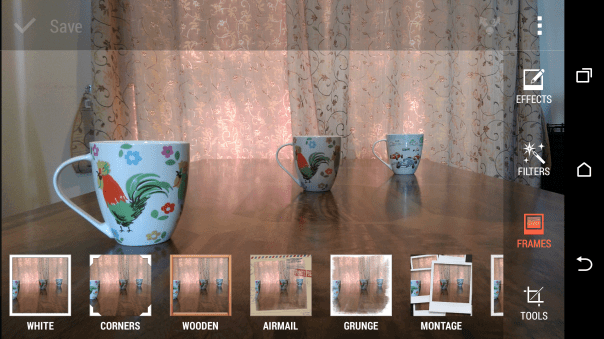
Hopefully, you should be getting the picture that this phone is full of effects. You can adjust peoples faces, add objects like hats or sunglasses to photos, cut and paste people out of one photo and move into another and so on. You also have the normal editing tools like cropping, straighten, auto adjust, exposures, white balance, contrast and so on. There is also a menu for adding frames.
IMG_0660

IMG_0661

IMG_0663

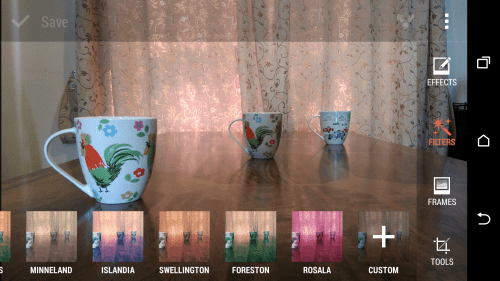
And then there are filters.
IMG_0657

A few examples of the original photo with filters applied.
IMG_0655

IMG_0656

Now you can do all of the above using the original shot, and after the event, and keep editing it to your hearts content. As a mentioned before, if you take a shot using the camera in a different camera mode you cannot use the focus changing type effects.

However, there is still a whole chapter on the camera modes and what can be achieved if you don’t want to use AUTO.

Tune in for more tomorrow.

HTC One M8 Daily Blog – Day 4 – Review

Welcome back everyone. Here I am at day 4. I’ve had the weekend to use the HTC One M8 more as a phone and camera. I’ve also been reading the debate on the internet over the 4.1mp ultrapixel rear camera. And it’s getting boring. HTC take on cameras is most photos never leave the phone or end up getting shared on Facebook, twitter or Instagram. So what you have is a camera that takes photos in all lighting conditions and really fast. It then allows you to worry about the editing effects afterwards with special effects and filters.

So what does that actually mean? Well it equates to me snapping a photo of my 3 dogs so fast I captured the moment all 3 had their heads facing me. It was only a split second. But the M8 captured the memory. It was also a lovely shot and I used some of the editing tricks to make it even better. It was also in low light indoors. I tried to take a similar shot with the Note 3 and every time it missed getting all 3 dogs in the frame or the shot had blurred dogs. I was hoping to upload some more photo samples which use the second camera but man flu and the weather has prevented that.

However, I have had a message pop up in the camera saying it was switching back to using phone storage and not the sd memory card as the memory card was not saving the shots fast enough. And that is with a Class 10 micro sd card. And that gives you an idea as to how fast this HTC camera performs. Fortunately, after shooting photos, I move the saved ones to the memory card, and guess what as the lens is 4.1mp the file sizes are so small using phone storage isn’t a problem.

With previous android phones I normally switch to an alternative launcher like Nova or Apex. If you buy this phone, then it’s important to remember that I recommend you don’t install these. In fact, you need to keep HTC Sense otherwise you will lose too much of the HTC experience. I know some of you will install your favourite launcher immediately. Hold fire for at least a few weeks. What I have found that even after 4 days the user experience keeps improving. The interaction of the software and hardware is phenomenal. It’s better than iOS 7. And that’s a bold statement as iOS 7 is awesome in its own right.

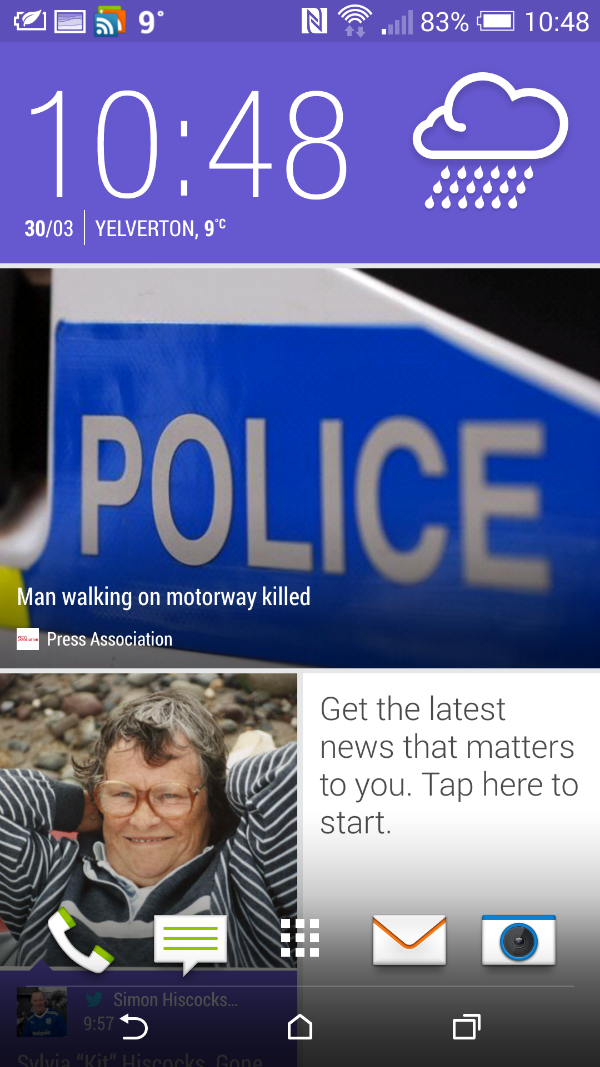
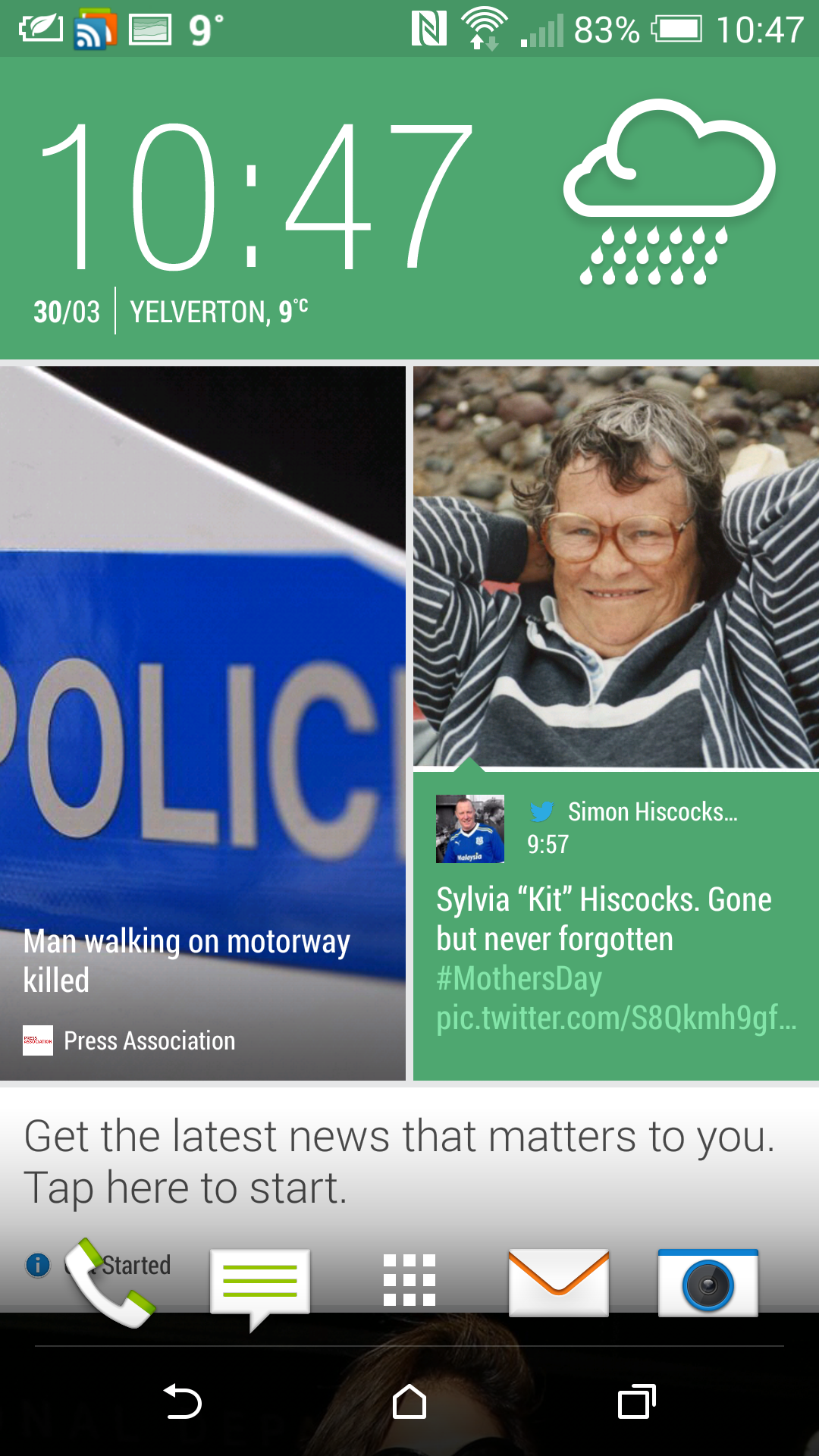
Blinkfeed. For the first time I don’t think I would want anything else as my main home screen. It just keeps impressing me more and more. It combines items of interest I’ve selected from the internet and my chosen social media along with local content on the phone. So on Saturday, at around 6pm when I went to get a pizza from Dominos, Blinkfeed had restaurant recommendations that were within a few miles of my current position. Now I had selected in the options for restaurant recommendations but it was great to see it in action. Information is pulled from Foursquare. I don’t use this service but information was still provided by it. Later my TV reminders were pulled into Blinkfeed. Then yesterday, my calendar entries were showing along with a F1 news item. You can also theme Blinkfeed. Go into settings, personalisation, themes and select one of the current 4 themes.
image

The themes also change everything throughout the device not just Blinkfeed. Some screenshots below of how the changes look.

image

image

And now with a green theme.
image

image

The themes change everything throughout the device. Even the highlights on the keyboard. You can still have your own wallpaper if you don’t like the theme wallpaper.

More tomorrow.

HTC One M8 – Dot View Case – How to recreate the screen effect

htc-dot-view-multi-color-slide-01

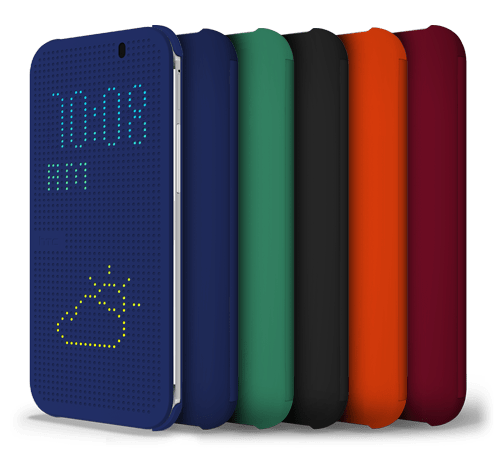
If you have bought the HTC One M8, you can also get a special Dot View case from HTC. It is unique in that it shines dots through the case to bring up information.

So how does it work. Basically with a magnet. So if you got a magnet, a placed it botton left just above the HTC logo you will recreate the dot screen on your HTC One M8.

It looks really cool.

Reminder – Go listen now to Gav & Dave’s Tech Podcast

As you know, I co-host a weekly podcast with David from UKMobileTech called Gav & Dave’s Tech Podcast. It is a light hearted tech podcast broadcast bi-weekly. To subscribe click here for iTunes or copy and paste this link into your favourite podcast app.

Episode 11 is now live.

If you get a moment and have enjoyed the podcast, please leave some feedback in iTunes. Thanks.

All the Latest Reviews, News, Podcasts by Gavin’s Gadgets – Please RT

It’s Sunday, so put your feet up, and catch up on all the reviews of the latest phones.

The HTC One M8 review is already at part 4. Click here for all the sections written so far.

Of course you may be wondering how the new HTC One M8 compares to the original HTC One. Well, I’ve got that covered. Click here for my 20 part review!

Still want more. Well catch up on the reviews of over 25 phones by clicking
here. Reviews include the new Sony Z Ultra, Sony Z1 Compact and Samsung Note 3 and many more.

Still want some more. Click here for reviews on the new wearables – Samsung Galaxy Gear and Pebble Smart watch. Also read the new Sony SBH80 Bluetooth NFC headset review, along with reviews for many other headphones and accessories.

Eyes feeling tired now. I’ve got that covered. Go and listen to all 11 episodes of my podcast I co-host with Dave Rich. Click here.

And if you feel like knowing the weather for Princetown, Dartmoor, Devon then head over to the dedicated weather page. Click here.

And for your tech shopaholics check out a few companies I recommend. Click here.

So I hope you had a good weekend. See you all tomorrow.

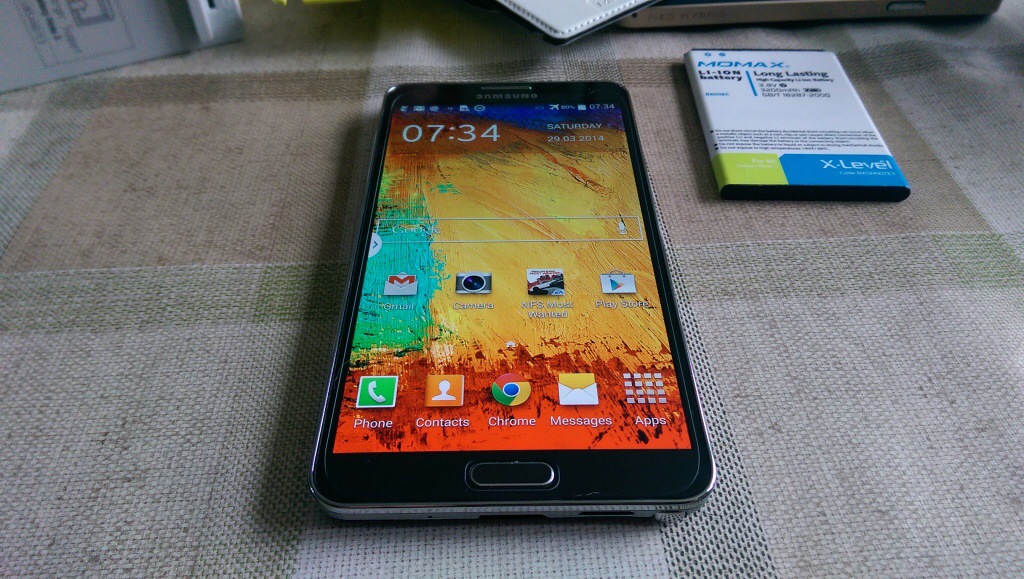
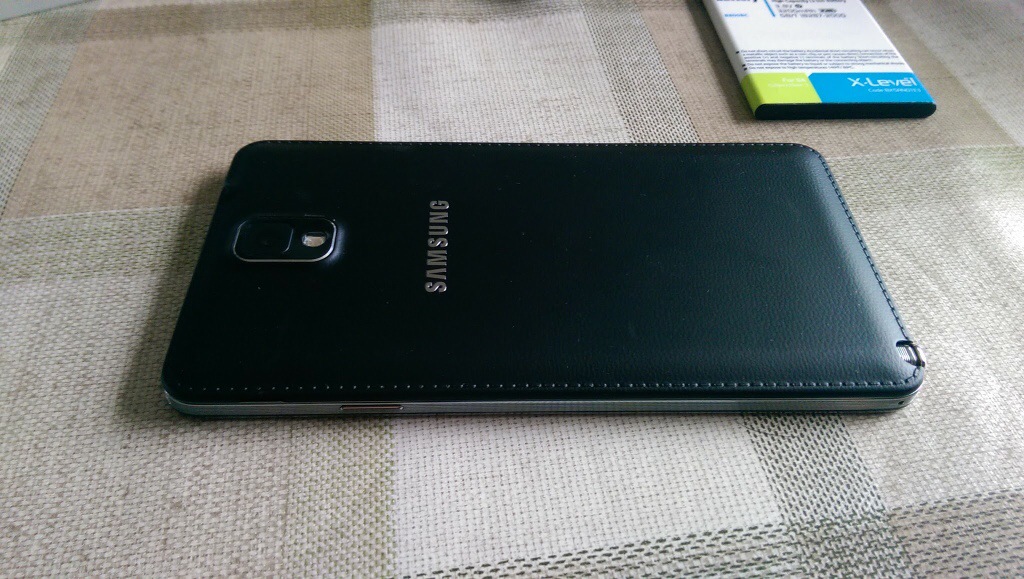
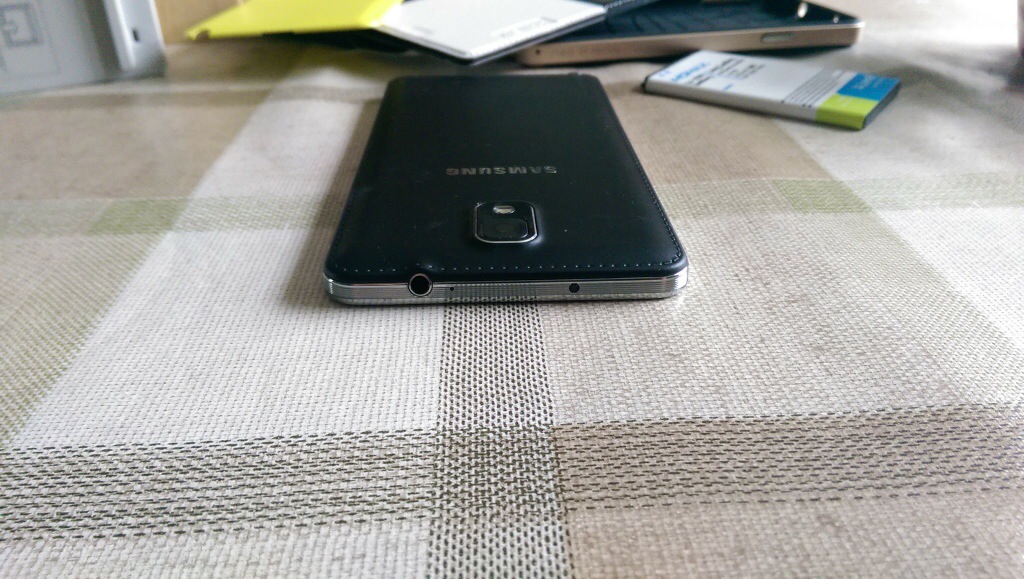
My Samsung Note 3 with box & contents as new plus £119 accessories for sale – Please RT

20140329-080311.jpg

I bought my Samsung Note 3 from Amazon UK at the end of December 2013. So I’ve had the phone 3 months. I’m only selling this as I bought the new HTC One M8.

20140329-080515.jpg

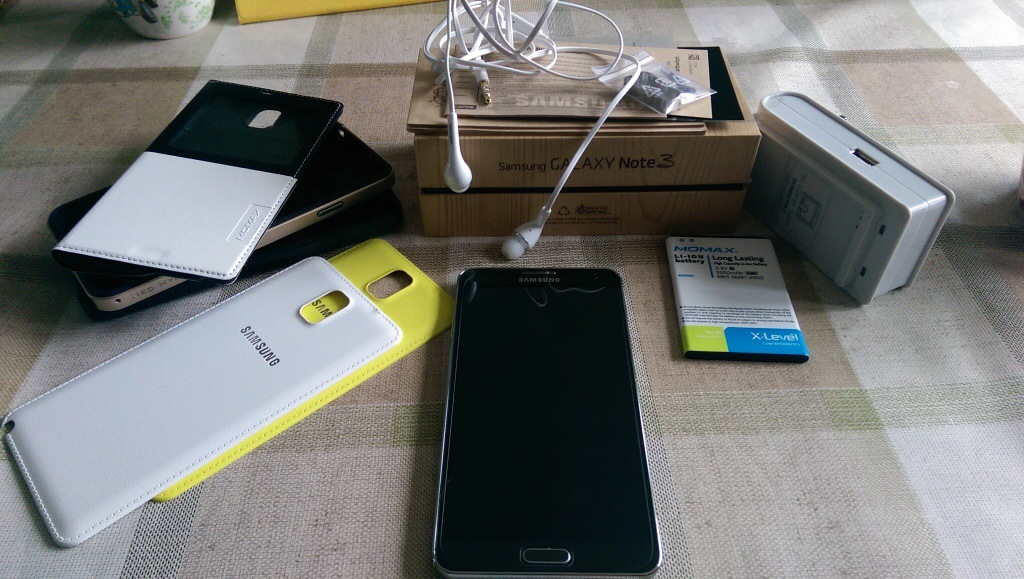
Included is the receipt from Amazon UK, the Note 3 plus box, all the leaflets, headset, Samsung UK charger adapter, USB 3 Samsung lead, the Note 3 is fitted with a tempered glass screen protector so I will leave that on. The phone cost just under £500 from Amazon.

Also included is a Momax spare battery, and spare battery charger which can also charge your phone at the same time.

3 cases. A Momax flip cover. A black dual layer case. The official Spigen sGP Neo case in champagne.

2 replacement backs. Also included are a yellow and white official Samsung. Back covers.

These accessories total new approximately £119. If you need any more info just ask.

I am selling everything as a package at a mere £399. Payment via bacs.

Will be posted Royal Mail special delivery as that is included in price.

Contact me using the menu, donations form or via twitter @gavinfabiani.

20140329-081054.jpg

20140329-081100.jpg

Phone is no longer available.

HTC One M8 – day 2 – review – battery, audio, directions, motions

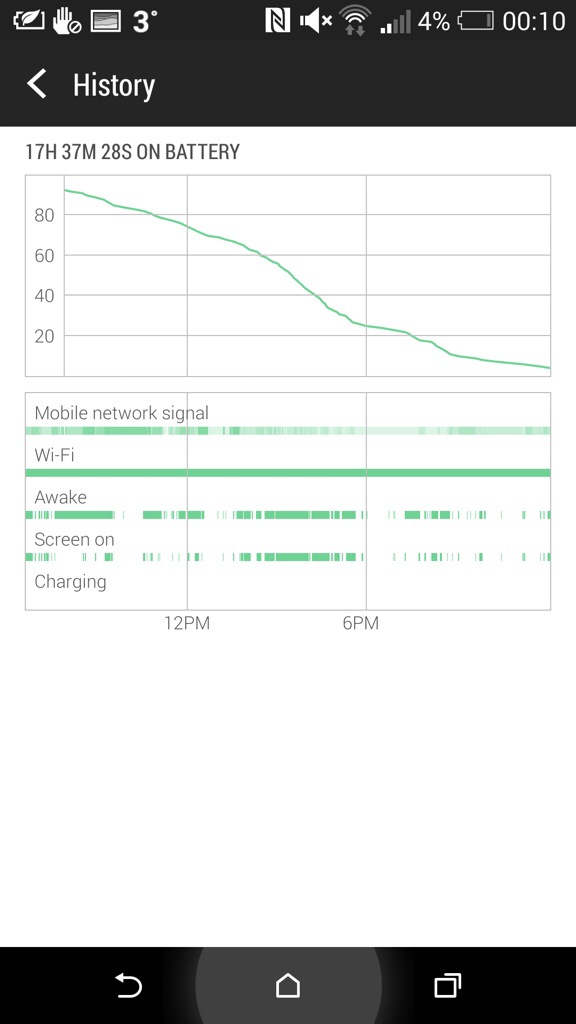
From 6.30am yesterday the HTC One M8 came off the charger. It managed 17 hours and 37 mins and then when it reached 3% I put it into extreme power saving mode. It’s still going. Now I would be considered a power user as I had several email accounts on push, listened to podcasts in the car and used Google Maps. Also used Google Play Music. Watched several YouTube videos. Downloaded apps and app updates. I have 90 apps including social media all working in the background.

I would say that the battery life in real use did really well.

I mentioned app updates. Some of these were the core HTC apps including HTC Gallery. This is superb as this means a full blown firmware update isn’t needed to correct or improve the HTC Apps. And this in turn means HTC can fix their apps without needing to wait for the carrier approval.

Audio. I had more time to use the Bluetooth audio, headphone jack audio and loudspeakers. One word. Freaking awesome. The Boomsound speakers sound so much better. I was listening to BBC Friday Night Comedy and the podcast was really clear, loud and not tinny. Bluetooth audio doesn’t use boomsound but does use AptX. Very clear and powerful sound with my Sony SBH80. Next, I plugged in several headphones. Omg. The headphone amp on this phone is obscene is a good way. So gutsy but neutral too. Plenty of clarity. It drove a full size pair of headphones better than anything I have used with them before.

The setup app appeared in the notification centre. I tapped on this and it opened up the HTC Setup app. You are given a web address with a code to enter. After doing this you can use the computer to effortlessly setup and personalise your HTC One. I had setup my phone on the phone itself so didn’t bother continuing.

Motion controls. I spent some time last night mastering the motion controls. With the screen off, lift phone and if you :-

1) swipe up it will unlock phone
2) swipe down will activate voice dial
3) swipe right to left opens phone in Blinkfeed
4) swipe left to right opens widget screen
5) lift up in horizontal position and press volume down key. Camera opens.

All these work really well and quickly.

HTC Car Mode. This uses HTC’s own voice app. And it’s not as good as Google. So in the help menu it says as an example ” Find a gas station “. So I asked it to find a gas station. Luckily I was low on fuel and it came up with a gas station nearby. According to Google Maps I would be there in no time, in fact just a mere 5 days and 32 minutes. In that period I would be somewhere in the heart of Europe. With my fuel gauge reading 5 miles I’m not sure I would make it that far!

So I tried the same thing but asked “find me a petrol station”. Slightly nearer, this time only a mere 86 miles away. So as a recommendation don’t use HTC Voice Car mode if you are low on fuel.

I also had a proper look at the camera and camera settings along with the video highlights. The camera and editing options are impressive and I have been pleased with the results so far. I managed last night in dim light to capture my 3 dogs. For privacy reasons I can’t show this but it was very good.

On Monday I will add part 3.

20140329-001722.jpg

Above. Screen shot of battery stats. Below. Screen shot of extreme power mode. These are the only apps available during this function.

20140329-001826.jpg