All posts by Gavin Fabiani-Laymond

Unknown's avatar

About Gavin Fabiani-Laymond

President, CEO & Editor of https://gavinsgadgets.com Reviews & News of Technology

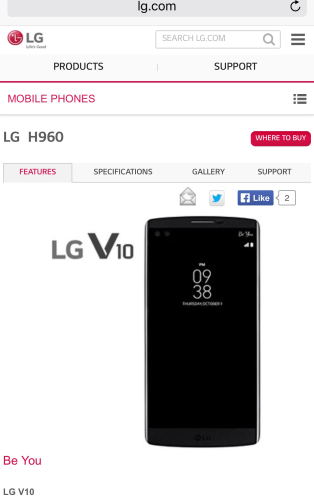
LG V10 – Update

IMG_1045

As mentioned in many other posts, I was going to be using the LG V10 is a camera shootout with the iPhone 6S Plus and Asus Zenfone Zoom.

Well the LG V10 should have arrived days ago but it didn’t thanks to the folks at UPS and the poor security controls. This is what the tracking information says –

Merchandise is missing, UPS will notify the sender with additional details, all merchandise missing, empty carton was discarded. UPS will notify the sender with details of the damage.

However, all is not lost thanks to the folks at Clove Technology who have come to the rescue. So in a day or so I should be able to start firing up a LG V10, reviewing and comparing it as promised.

My main review for the Asus Zenfone Zoom will be finished and go live on Monday.

Amazon Germany – Ordering from abroad – The Highs and Lows and How To

Amazon have an online store front for many countries. One of those is for Germany, http://www.amazon.de.

Sometimes it can be cheaper to order goods from Amazon France, Amazon Spain, Amazon Germany or Amazon Germany than ordering via Amazon UK.

So how easy is it to order from abroad? As easy as using the Chrome Web browser which can auto translates web pages on the fly to English. Next you need to convert the euro prices quoted to UK pounds and then decide if the extra time it takes for delivery and the potential extra inconvenience should the product need returning be worth the hassle and few quid saved. Of course, ordering from abroad can be more expensive.

So what if something goes wrong and you need to contact Amazon support? Well if you can’t speak the language you could try using Amazon’s online chat facility and have Google translate open in another tab and copy and paste text accordingly. The problem with this, as good as Google Translate is, it doesn’t always make sense. So Amazon recommend using email. Contacting Amazon support via email means you can write in English and they will respond in English.

Well I had a recent experience whereby I needed to contact Amazon Germany support. I tried the online chat using Google Translate and it didn’t quite work so I sent an email in English, explaining that I had tried to use the online chat, but it didn’t quite answer my problem because my German wasn’t good enough. I then explained the issue at heart. I was expecting an email back, but to my surprise, an hour later Amazon Germany phoned me and I spoke to a support representative who was extremely helpful and spoke amazing English. Now this wasn’t a one off either as I had to send another email in English and got a call within an hour and from the same person as before.  That was  followed up by a real polite email in English. I’ve copied that beginning and end of the last email below.

Dear Gavin, 

Thank you for the lovely conversation and for your shown understanding. It is much appreciated. 

I have submitted a request to the carrier UPS to try to locate your item. 

If by any case, the carrier doesn’t respond or you still don’t receive the item by 23rd of January, I will immediately contact you to confirm a process of a replacement order for you. 

[text redacted]

I’d like to apologize once again for any inconveniences you may have had and hope I was helpful. 
Thank you for your patience and understanding. 

If you have any further questions or concerns, please do contact us, we will be more than happy to assist you.

Have a great day, Gavin!”


One last point. There have been times where I have ordered from one of Amazon’s European stores, and miraculously the item arrived the next day. One has to wonder if the item really did get posted from abroad ?

Asus Zenfone Zoom – Shooting directly into the sun

So from low light shots to aiming at the sun. Three camera shots highlighting the Asus Zenfone Zoom’s ability to shoot in to the sun. 

First shot is Auto. Second is HDR. Third is manual mode with EV at -1.0.  


Interestingly I aimed the sun at the phone screen and I could still see what I was snapping. Now manual mode with EV at -1.0. 

  
So which do you prefer? 

Panasonic announces the successor to the CM1 – Say hello to the CM10

cm1

Panasonic has just taken the wraps off the successor to the Panasonic CM1 smartphone which featured a 1 inch sensor. The new device is called the Panasonic CM10.

So what’s new?

The Panasonic CM10 still features a 20-megapixel 1-inch sensor f/2.8 lens, the same 15mm bod, 4.7-inch 1080p display, 2GB of RAM, 16GB of storage, Snapdragon 801 processor, Android 5.0 Lollipop and goes on sale at the end of February for $800 approx.

Confused? You should be. The CM10 is exactly the same as the CM1 except it no longer has the phone application. Just LTE data sim cards for connectivity. It still has the old specification of the CM1 which did include the phone aspects. The CM1 comes with android kitkat out of the box with an update available to lollipop. Panasonic will only make 500 a month and sell the new CM10 for over $800.

My advice, head over to Amazon UK, buy the CM1 instead and have the option to use it as a phone only. You can still use it as a connected camera only if left in flight mode. It also is a lot cheaper at £399. You special link below to see the deal.

Panasonic DMC-CM1 Lumix Smart Camera Phone (20 MP) special low price on Amazon UK

Source – Panasonic

Asus Zenfone Zoom – Low Light Camera Shots – All Shooting Modes used

img_2098

Today is all about low light shots from the Asus Zenfone Zoom. So have a look at the camera shots below which also provides details on the exif data. All shots have a f/2.7. For the light trails living on rural Dartmoor means cars hardly ever appear hence the meagre light trails 😀

Shot 1 and 2 – ISO 50, f/2.7 , Shutter – 2 seconds 


Shot 3 – ISO 520, Shutter 1/4 second


Shot 4 – ISO 50, Shutter 2 seconds 


Shot 5 – ISO 50, 1 second shutter 


Shot 6 – Auto mode ISO 450, Shutter 1/8 second


Shot 7 – HDR mode – ISO 800, Shutter 1/7 second 


Shot 8 – Super Resolution mode – Image is 8320 x 4680 – ISO 468, Shutter 1/8 second


Shot 9 – Low Light mode – Resolution drops to 3mp – ISO 554, Shutter 1/12 second 


Shot 10 – Night mode – ISO 338 , Shutter 1/6 second 


And there we have a selection of low light shots from the Asus Zenfone Zoom. 

Asus Zenfone Zoom – Camera app, Settings and Tricks – review

img_2098

The Asus Zenfone Zoom might be a smartphone with a 3 times optical zoom but it also a decent smartphone in its own right. Unlike previous attempts by other companies like Samsung with the S4 Zoom and K Zoom, both of which I have owned and reviewed (see the index, reviews to read these) which had mid range processors and minimal storage, the Zenfone Zoom has a decent 64 bit processor, 4gb ram and as standard 64gb storage plus support for a micro SD card. It also packs tons of smartphone features, so lets crack on and go through them all (hopefully). In terms of my thoughts on the image quality, I will cover this off in my main review which will be live in about a week.

The Main Settings and Other Phone Options

Further down I have created a gallery of screen shots of a number of different settings options. Tap on one photo to open the gallery.

The first aspect of the phone I like is the double tap to turn on or off. Other useful aspects are the inclusion of NFC, One Handed Mode (double tap home key to turn on), Power Saving options, Easy Mode and also a kids mode. Are you brave enough to allow your kid to use the phone! Wi-Fi also includes support for Wi-Fi Direct. Bluetooth includes APT-X. Data usage is split between Mobile Data and WiFi as well as details of data usage per app. The display has options for adjusting the colour balance and also activating a blue filter for night time viewing. I have never used a blue filter at night until I got this phone, but it really helped reduce my eyestrain. ZenMotion is a range of motion gestures used as shortcuts for various actions. Double tapping the home key when one handed operation is active, reduces the size of the screen. You can move the screen around too. You can also write on the screen to launch different apps. What is neat is there are options to launch the front camera by scribbling a “S” and a “C” for the rear camera. A decent do not disturb option is available. The lock screen has the option for quick access apps and whether or not to allow the physical keys to turn the camera on. See the screen shots to show all the details. Theming is everywhere with loads of customisations galore for every aspect including resizing the icons on the fly. I see no need to install a third party launcher with the Asus Zenfone Zoom.

The Camera App Interface

img_2105

Ok, so this is a camera centric phone. So what are the options.

Front Selfie Settings

The front camera has lots of options from a timer that can be made to go off from 1 – 5 secs. To control the length, you just slide the shutter icon into the screen centre. The more you slide, the longer the delay becomes. Beautification is all the rage and the options include cheeks thinning, eyes enhancement, skin softening, blush effect, face/smile tracking. I had a lot of fun with the front selfie camera and was pleased with the shots even in lower light. I lost at least 10 years off my age with the beautification options 🙂

Rear Camera Settings

The rear camera has a feast of options. Or you can just use the auto mode. The operation of the camera is aided by a 2 stage physical shutter button and a physical button for launching video recording. The video button is next to the 2 stage shutter button. The volume keys then act as zoom controls. By default the settings are left to use the 3x optical zoom only and in my tests it bests to avoid using the digital zoom that goes all the way to 12 x zoom. It is better to crop into the 3 x optical zoom shots as the quality will be superior.
img_2096

When in Auto mode, if a better mode will produce a superior result, the mode icon appears bottom right. Tap on the icon to switch to this mode, or turn off. Typically this appears for HDR or Low Light mode. To give you an idea of the setting ranges in manual mode.

– White Balance – 2500K to 6500K
– EV – -2 to + 2 in intervals 0.3, 0.6 1.0 etc
– ISO 50 to 3200
– Shutter speed – 1/16000 (thats right, its super fast) to 32 seconds for long exposures
– Manual Focus – slider control
– Horizontal Level
– Histogram – on or off when taking photo

In Auto Mode you get the following options which alter if you are using another mode.

– White Balance – Auto, Cloudy, Daylight, Fluorescent, Incandescent
– ISO 50 – 3200
– Photo Optimisations – Auto, Off, Manual – Manual gives fine tuning for saturation, contrast, sharpness, noise reduction, backlight, detail enhancement
– Camera Resolution – 13MP 4:3, 10M 16:9, 8MP 4:3, 6MP 16:9, 5MP 4:3, 4MP 16:9
– Anti Shake enhancement – Auto or Off
– Digital Zoom – on or off
– Image Quality – Fine, Standard
– Timestamp – On or off
– Shooting Mode – Touch Shutter, Self Timer, Burst (off, normal, turbo)
– Focus & Exposure – Smart AF, Infinity
– Metering Mode – Centre, Average
– Touch Auto Exposure – on or off
– Face Detection – On or Off

For Video you get the same options with regards to white balance controls and EV adjustments as stills!

– Video Quality – Full HD, HD and TV (640 x480)
– Video Stabilisation – on or off
– Video Preference – Performance or Quality
– Video Touch Auto Exposure – on or off

Generic settings include smart brightness, guidelines, info screen, review duration, shutter animation, shutter sound on or off, launch by physical buttons options, location, correct photo orientation on or off, anti flickr 50 or 60Hz, Power Saving Mode, Set Volume keys for shutter or zoom, save to internal or SD card and a tutorial.

So what do the different photo modes do?

– Auto – automatically determines the cameras best settings based on the environment
– Manual – You decide
– HDR – Expands the dynamic range
– Beautification -makes you look beautiful
– Super Resolution – Combines multiples shots to create incredible detailed photos
– Low Light – boosts up light sensitivity for a clear and bright low light shot without using the flash. Images are 3mp 16:9.
– Night – Allows a slower shutter speed to capture more light in dark scenes
– Depth of Field – Captures photos of close-up subjects with a soft background
– Effect – applies a range of filters
– Selfie – use the rear camera for a high res shot
– GIF Animation – converts a series of images into a moving image or GIF
– Panorama – Horizontal or Vertical
– Miniature – Creates a photo of life size object and turns it into a small scale model
– Time Rewind – Records images before and after the shutter and allows you to select the best ones
– Smart Remove – removes unwanted moving objects from the background
– All Smiles – Combines each persons best expression from multiple shots into a single perfect group photo
– Slow Motion – records fast moving objects with very high frame rate and plays back in slow speed
– Time Lapse – Time lapse recording.

Each of the above modes often have a few extra options too.

Photo Editing Options

After taking a photo, you can easily check the information of the photo, from the time and date, weather at the time, width, height, file size, device, flash, focal length, white balance, exposure time, storage location, and geo location displayed on a map with the coordinates.

Post processing allows for all the beautification options as mentioned previously, applying over 17 filters, adding frames, cropping, straightening, rotating, mirroring or drawing, or fine tuning the photo (auto, exposure, vignette, grads, contrast, shadows, highlights, vibrancy, sharpness, curves, hue, saturation, BW filter, negative, edges, posterise, blur, feather or relief).

All in all, a comprehensive camera app with a wealth of options. As I mentioned, earlier, my main review will include a range of camera samples plus my opinion on its photo and video quality plus other aspects not revealed today.

Tomorrow I will look at low light shots and next week I will conclude with my main review.

Asus Zenfone Zoom – Camera Samples

img_2098
On Saturday I took the Asus Zenfone Zoom out to put the camera through it paces and used my iPhone 6S as a comparison. If you go back one post there are shots from the iPhone 6S Plus. 

Apart from the panoramic shot from the iPhone , all the others were too dark and lacked the sparkle of the Zenfone Zoom. None of the Zenfone Zoom shots have been edited. Please give time for photos to all appear. Click on each photo to see the original.  And be patient to allow all the photos to appear.

Turbo Burst Mode – This uses a ratio of 16:9 and reduces quality to 3mp. 

George, Tiggy and Fury hit the snow slopes of Dartmoor #Asus #ZenfoneZoom

George, Tiggy and Fury hit the snow slopes of Dartmoor #Asus #ZenfoneZoom

George, Tiggy and Fury hit the snow slopes of Dartmoor #Asus #ZenfoneZoom

George, Tiggy and Fury hit the snow slopes of Dartmoor #Asus #ZenfoneZoom

George, Tiggy and Fury hit the snow slopes of Dartmoor #Asus #ZenfoneZoom

Normal Burst Mode – Full size photos 

George, Tiggy and Fury hit the snow slopes of Dartmoor #Asus #ZenfoneZoom

George, Tiggy and Fury hit the snow slopes of Dartmoor #Asus #ZenfoneZoom

George, Tiggy and Fury hit the snow slopes of Dartmoor #Asus #ZenfoneZoom

George, Tiggy and Fury hit the snow slopes of Dartmoor #Asus #ZenfoneZoom

George, Tiggy and Fury hit the snow slopes of Dartmoor #Asus #ZenfoneZoom

George, Tiggy and Fury hit the snow slopes of Dartmoor #Asus #ZenfoneZoom

Auto Mode Shots. You can see below examples of non zoomed versus 3 x optical zoom. Having the optical zoom really makes such a big difference. I was also surprised how much more appealing the Zenfone shots were over the iPhone 6S Plus. 

Stunning landscapes of a snowy Dartmoor near Little Mis Tor #Asus #ZenfoneZoom

Stunning landscapes of a snowy Dartmoor near Little Mis Tor #Asus #ZenfoneZoom

And now with 3 x optical zoom. I prefer this version and the other 3 x optical zoom shot below.

Stunning landscapes of a snowy Dartmoor near Little Mis Tor #Asus #ZenfoneZoom

Stunning landscapes of a snowy Dartmoor near Little Mis Tor #Asus #ZenfoneZoom

No zoom used below.

Stunning landscapes of a snowy Dartmoor near Little Mis Tor #Asus #ZenfoneZoom

Now with optical zoom.

Stunning landscapes of a snowy Dartmoor near Little Mis Tor #Asus #ZenfoneZoom


Stunning landscapes of a snowy Dartmoor near Little Mis Tor #Asus #ZenfoneZoom

Zoomed in again optically.

Stunning landscapes of a snowy Dartmoor near Little Mis Tor #Asus #ZenfoneZoom

HDR mode.

Stunning landscapes of a snowy Dartmoor near Little Mis Tor #Asus #ZenfoneZoom

Panoramic photos from the Zoom are only about 2mb in file size and not a patch on the quality of the iPhone 6S Plus. Apart from the panoramic shot from the iPhone I felt the Asus Zenfone Zoom took the better shots. It is worth noting that turbo burst shots reduce to 3mp and a 16:9 aspect ration. Normal burst mode shots are full resolution shots. 

Apple iPhone 6S – Photos from a Snowy Dartmoor

Below are 3 photos taken yesterday on the iPhone 6S Plus. 

Little Mis Tor, Dartmoor – Panoramic. I particularly liked this shot and was very pleased with the result from the iPhone. Unedited.  Don’t forget to click on the photo to see the original.

Epic Dartmoor Snow Panorama near Little Mis Tor #iphone6splus

The next two had to be edited in snapseed using the HDR scape filter as the shots were too dark (under exposed). 

George poses for the camera on a snowy Dartmoor #iphone6splus

Tiggy jestering with George on a snowy Dartmoor #iphone6splus

Tomorrow I will have around 20 photos taken at the same time with the Asus Zenfone Zoom for comparison.