All posts by Gavin Fabiani-Laymond

Unknown's avatar

About Gavin Fabiani-Laymond

President, CEO & Editor of https://gavinsgadgets.com Reviews & News of Technology

ProCamera + HDR for iOS – One of my favourite camera apps – review 

ProCamera + for iOS is one of my favourite camera apps for taking photos. 

  
Above is the photo snapped by the default camera app on the iPhone 6S Plus. It used HDR to take this shot. 

  
The above shot is taken using ProCamera + and its special HDR mode which brackets up to 5 shots to create one super shot. After taking the shot you can select different HDR variations to save along with the original non HDR shot. 

  
Above a slightly different HDR version and below is a HDR but in black and white. 


The beauty of this app is that you can have different HDR options. You can select Auto 3 brackets, Auto 5 or Auto and let the software decide. If you’re a real pro photographer then you can go manual and choose your own levels of HDR. There is even a lowlight HDR mode. 
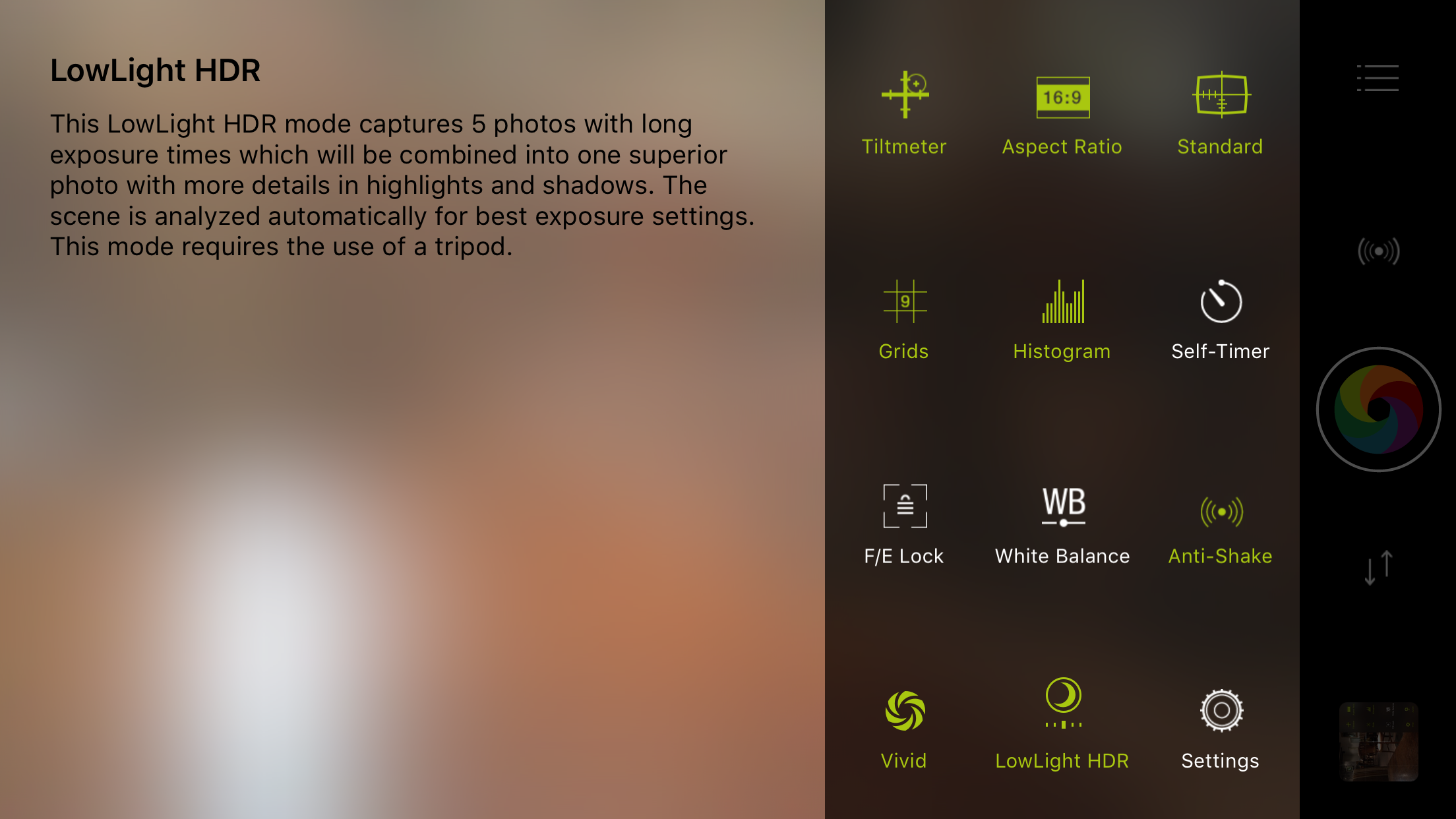
  
And that’s not all. This camera app does so much more. It naturally has all the manual controls as expected. 

  
And dependant on which mode you are in also depends on some of the options. 

Some of the modes require use of a tripod but the app tells you when you’ll need a tripod too. Low Light + mode is an advanced low light mode that combines 64 shots to create one low noise superb low light image. That’s right up to 64 shots !! The app is near magical in its performance.  The brand new LowLight Plus mode was developed in cooperation with Ittiam Systems. 


The settings are comprehensive with loads of fine tuning possible. 


You can even choose the method of stabilisation. 
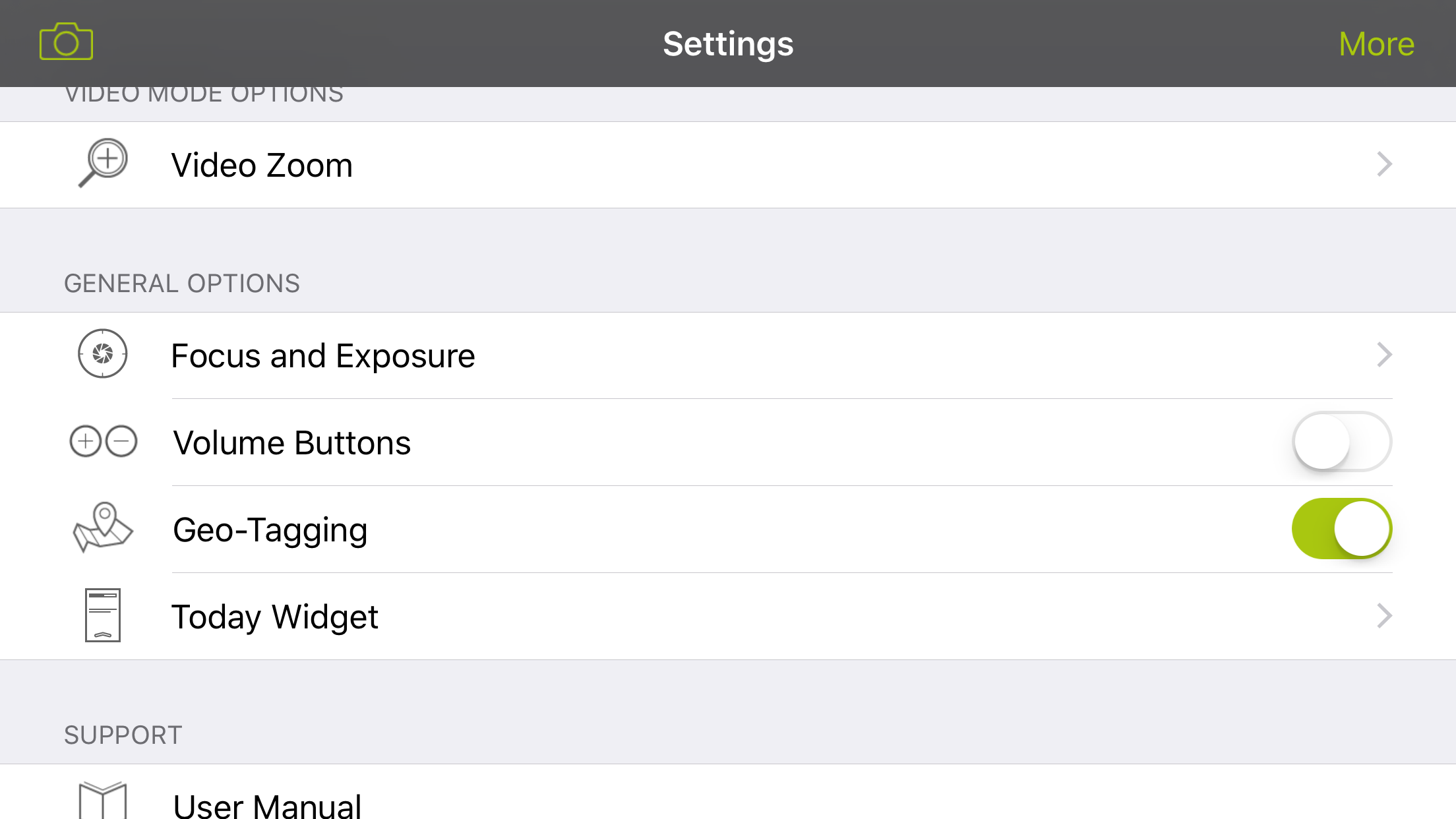


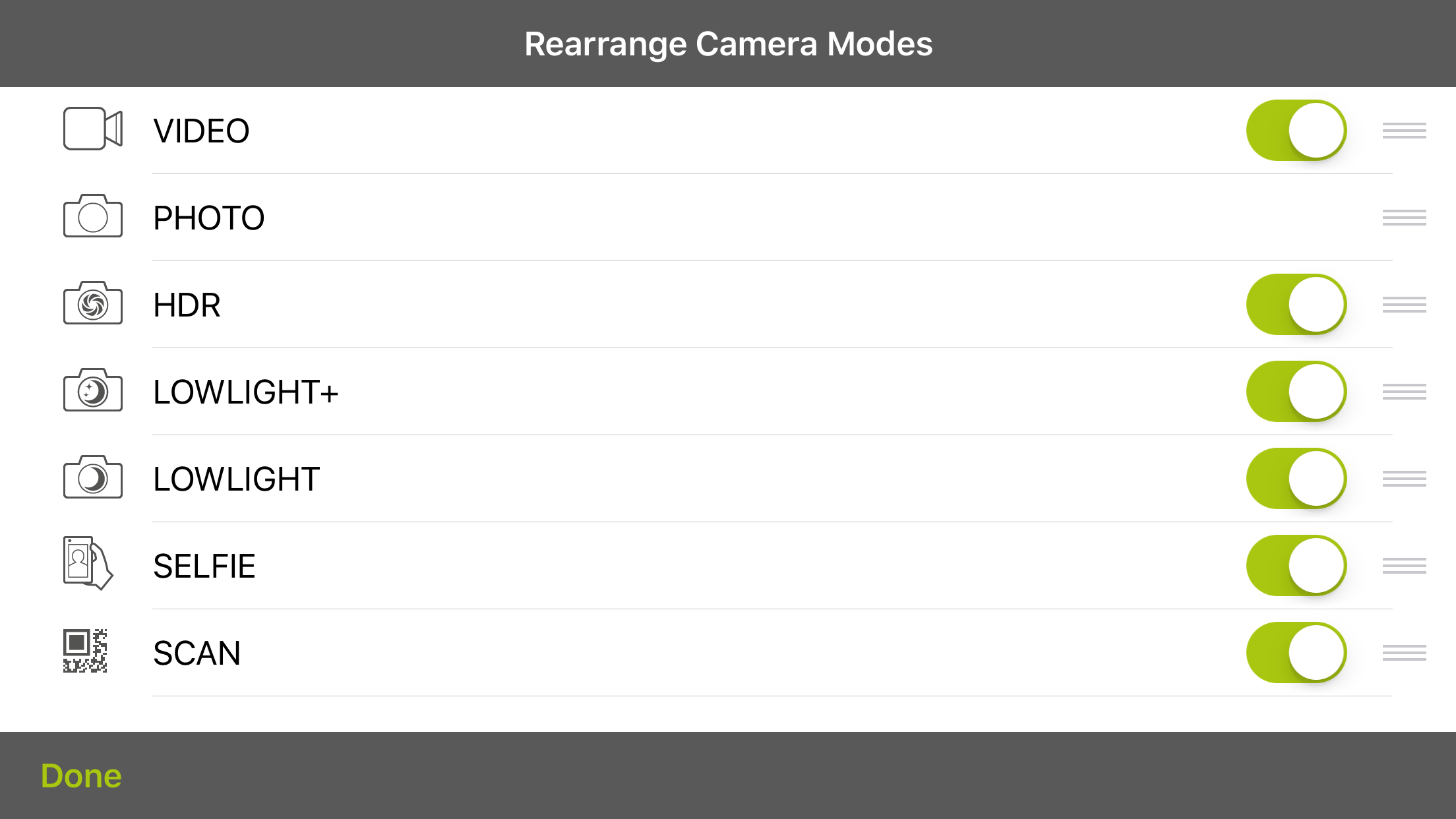
And if you want to, you can reorder the modes and turn off modes you don’t want to use. 

Of course after you have snapped a photo there is a full editing suite along with a good selection of filters. 
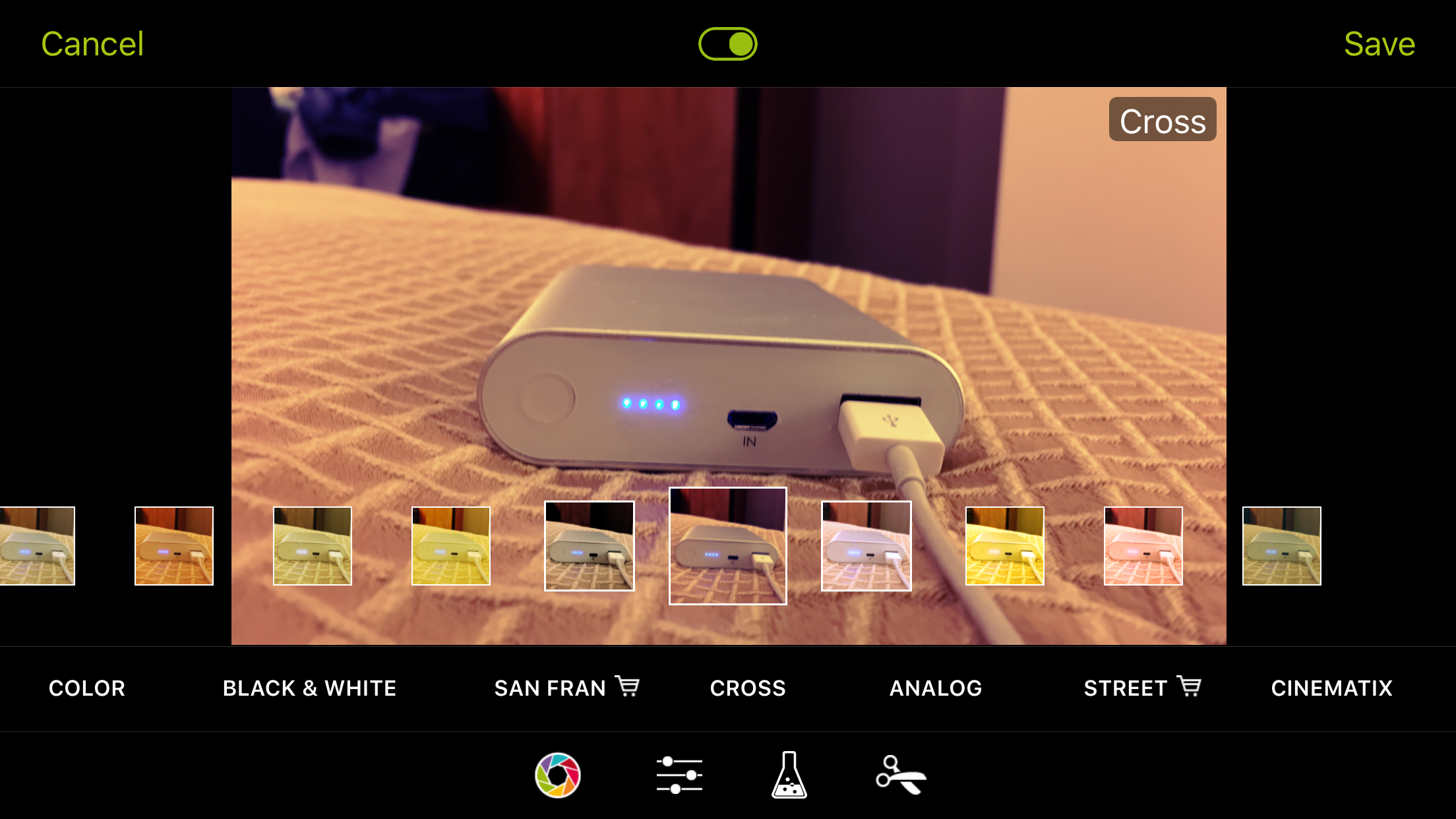
  

Anyway let’s take a look at some more photo examples. 

  

The above shot is lowlight HDR mode with the natural HDR selected. 

So how does the default camera app perform. 

  

The default camera app photo is a lot darker and has more noise. It also loses image quality. 

Now normal lowlight mode with ProCamera +. 


Zooming in on the chairs is really impressive. So much more detail and less noise. 

So what else does ProCamera + offer. Following its iOS 9 update it now supports Watch OS 2 so you can change the capture format , The HDR mode is full of options, there are 78 filters and effects, a special selfie mode, exposure swipe control , manual focus , full resolution photo preview, separate focus and exposure points , resolutions settings , cinematic 24fps for video and more. 

Now this app is not cheap. To get the full benefits of the lowlight + and special HDR extras you’ll need to buy the in app purchases. In total everything comes in around £11.30. 

However this app is so good it is on the verge of being my default camera app. 

More details at the developers website – Click Here 

Shot on an iPhone – Delicious food – Gavin’s Gourmet Kitchen


Eton Mess – 28 calories. 
  

Lasagne + Garlic Bread – 108 calories. 

Last night I posted  on Twitter 2 photos with a calorific guide. 

The responses were somewhat hilarious with all sorts of ways the above could be made at such low calorific value. Some also got the joke and posted other shots of food with fictitious calorie values. 

I was even accused of being lousy at maths. 

If it looks too good to be true, it generally means it is 😉

Eton Mess – 28 calories per teaspoon. That plate 2,200 calories. OMG it was to die for as well. 

Lasagne + Garlic Bread – 108 calories for 10% of plate. That plate 1,008 calories. 

Photography – iPhone 6S Plus using ProCamera+ – see other post today for a review of ProCamera +. 

LG V10 – How to turbo charge the Sabre Hi-Fi DAC sound quality


If you read my review of the LG V10, if not click HERE , you will have read that it has a Sabre 32bit Hi-Fi DAC. This means the V10 has a special high impedance mode for headphones from 50-300 ohms. 

With 50 ohm plus rated headphones, the V10 turns into a stunning digital audio player with lots of power and volume. It still sounds good in low impedance mode, but it’s worth triggering the high impedance mode to witness the difference. 

On XDA Developers somebody developed an app to trick the phone into the high impedance mode. I tried this app and it does t work. It also has other side effects reported by others. 

However, there is a much easier way to put the V10 into high impedance mode. This is achieved using an adapter. Being more precise you need a 10 cm 3.5mm Male to 3.5mm Female Auxiliary 4-Conductor TRRS Stereo Audio Extension Cable adapter as shown in the photo. You plug the adapter into the V10 first. This puts the V10 in AUX mode and switches the DAC to high impedance mode. Then plug your headphones into the adapter.  I would recommend dropping the volume right down to 15 out of 100 before you play any music as the potential volume in high impedance mode is massive. Just one small note is high impedance mode uses more battery. 

I bought a FosPower cable as shown above from Amazon. Including delivery it cost £4.99. Link below. As it came from the USA it did take a few weeks to arrive. 

FosPower cable for the LG V10 from Amazon UK

Apple Watch – The true differences between Apple Original and Third Party straps and bands


I really like my Apple Watch. However, it comes with a steep price tag as do the extra watch straps. But is there really any difference between the cheaper non Apple straps and an original Apple strap? 

Well since owning an Apple Watch in September 2015, I have visited my local Apple Store and tried on several times various watch straps. I also own the official blue sports band and the Milanese loop, both of which fit perfectly and are have not had any defects. 

So what about saving some money and using a third party watch strap or band for the Apple Watch. Well, firstly despite all the reviews you can read on Amazon, the quality, fit and finish in my findings shows that none of the third party alternatives are of the same standard as those sold by Apple. (Where possible text in bold is also a link to Amazon so you can read more about the item). Now, the balance is the cost. Third party straps and bands often cost a fraction of those sold by Apple. This means you can recreate that look for a lot less and often with more colour choices and different types of straps and or bands. 

The photo above shows a Pugo Top Euro Genuine Leather band for the Apple Watch. It got delivered on 4th January 2016, and as you can see is not lasting too well. Fortunately, I bought this via Amazon for £21 , so I can return this for a refund. Whilst the Pugo band looked identical to the Apple leather loop, it felt nothing like the Apple original. I doubt also that leather was used or I should say genuine leather in the Pugo band. 

However, I did buy a Snugg Leather strap in both red and black leather. This is more like a traditional watch strap and has proven to be a good buy. 

Now let’s take a look at something by Spigen. Below is photos of the Spigen Rugged Watch strap and the Spigen Watch case. I got the watch case out of curiosity and also because it was on offer. 

  
Spigen is a well known brand and consequently the strap fits really well. The watch case does too, but it’s not for my liking. The case also comes with 2 screen protectors. 

So the moral of the story is if you want original masterpieces by Apple you will have to pay the high price. Some third party straps and bands are poor quality while others are ok and other more choice too. 

How to setup Nissan Connect and Nissan You+ correctly 

Nissan has a real fudge of a way to setup in car services but after speaking to an engineer this is the correct method. 

First download Nissan You+ from the Apple App Store.

Next download Nissan Connect from the App Store

If you’re using an android phone just download the equivalent apps from the Google Play store. 

Next register on You+. You can use the app to setup an account. Do not do this using wifi. 

Then go to a computer. Not an iPad or tablet. Go to Nissan’s website. Top right. Nissan Owners. Sign in to You+. Then activate the connect services. You will see the option to activate. 

To continue the subscription and activation process wait an hour. 

Again not using wifi and whilst in your  Nissan with the radio switched on, log into You+ on you and phone,  if you’re not already. 

Next open the Nissan Connect app and log in using the same details used with your You+ account. 

The NissanConnect App on your Smartphone will give allow you access to in-vehicle applications. To access the in-vehicle apps:

 – Make sure your App is open and signed-in, before pairing your smartphone to the vehicle either via Bluetooth® (Android) or USB (iOS).

 – Select your vehicle and click Ok.

 –  Press [Info] button on NissanConnect.

 –  Press My Apps button.

With iOS you have to use the lightning cable connection. When you connect the cable into your iPhone and the other end into the USB socket under the arm rest the car screen will say USB connection. It will configure itself. 

Your iPhone will ask you to ignore or accept Nissan Connect. Tap accept. 

And now you have all the apps. If you want Twitter and Facebook, from the Nissan Connect app on your phone, sign in to the services as required. 

Far too complex a method but this is the way to setup Nissan Connect. 

The Future is Now – CarPlay, Android Pay – Using apps installed in your Car – Tweeting from your Car Radio

  
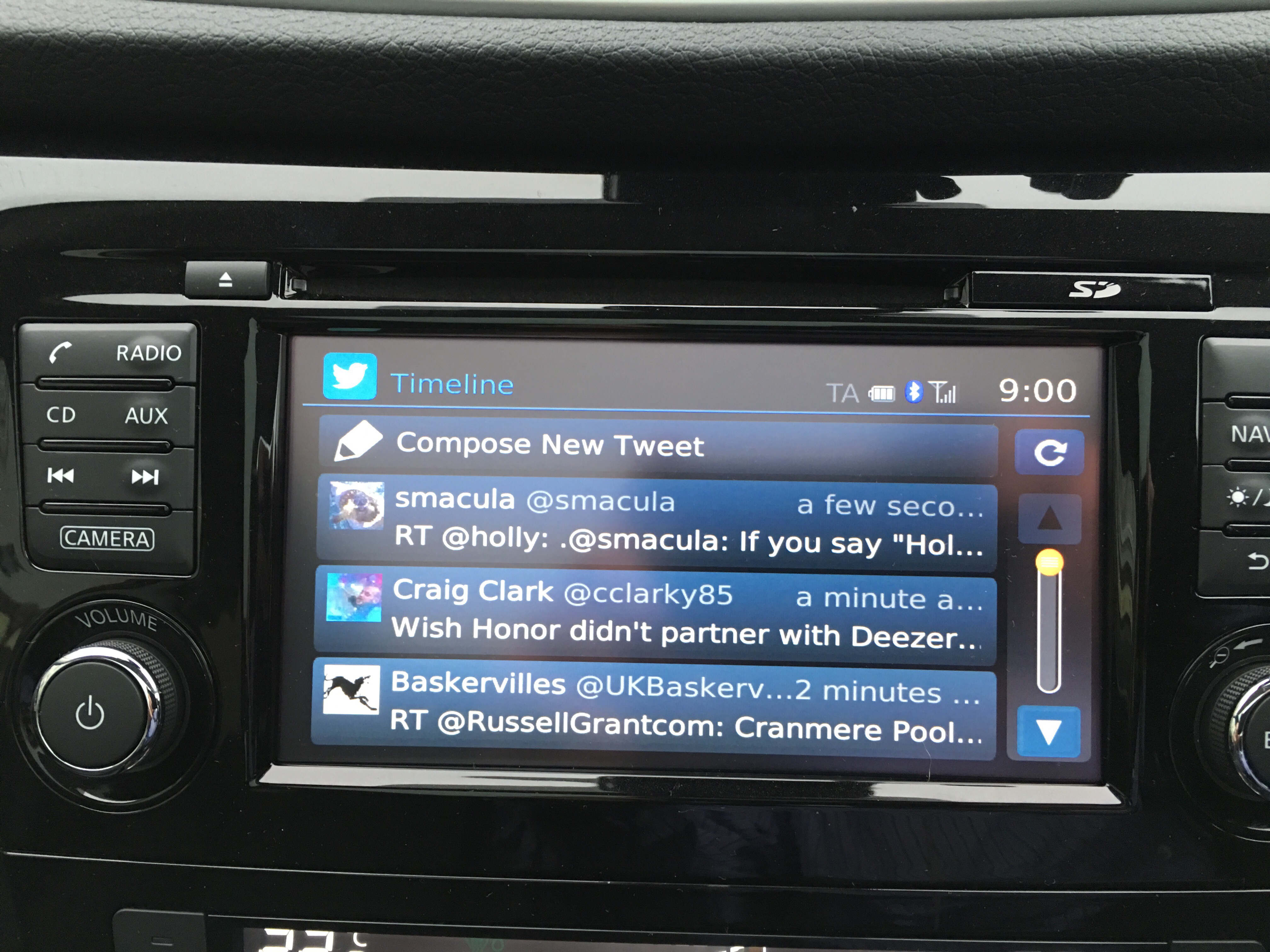
The future of technology is changing. The above tweet was typed and sent from my car dashboard. 

Car manufacturers are vying to get a slice of the app revolution that is arriving on cars. Apple has CarPlay and Google Android Auto. 

A number of car manufacturers have stated their allegiance for one or both of these systems. 

  
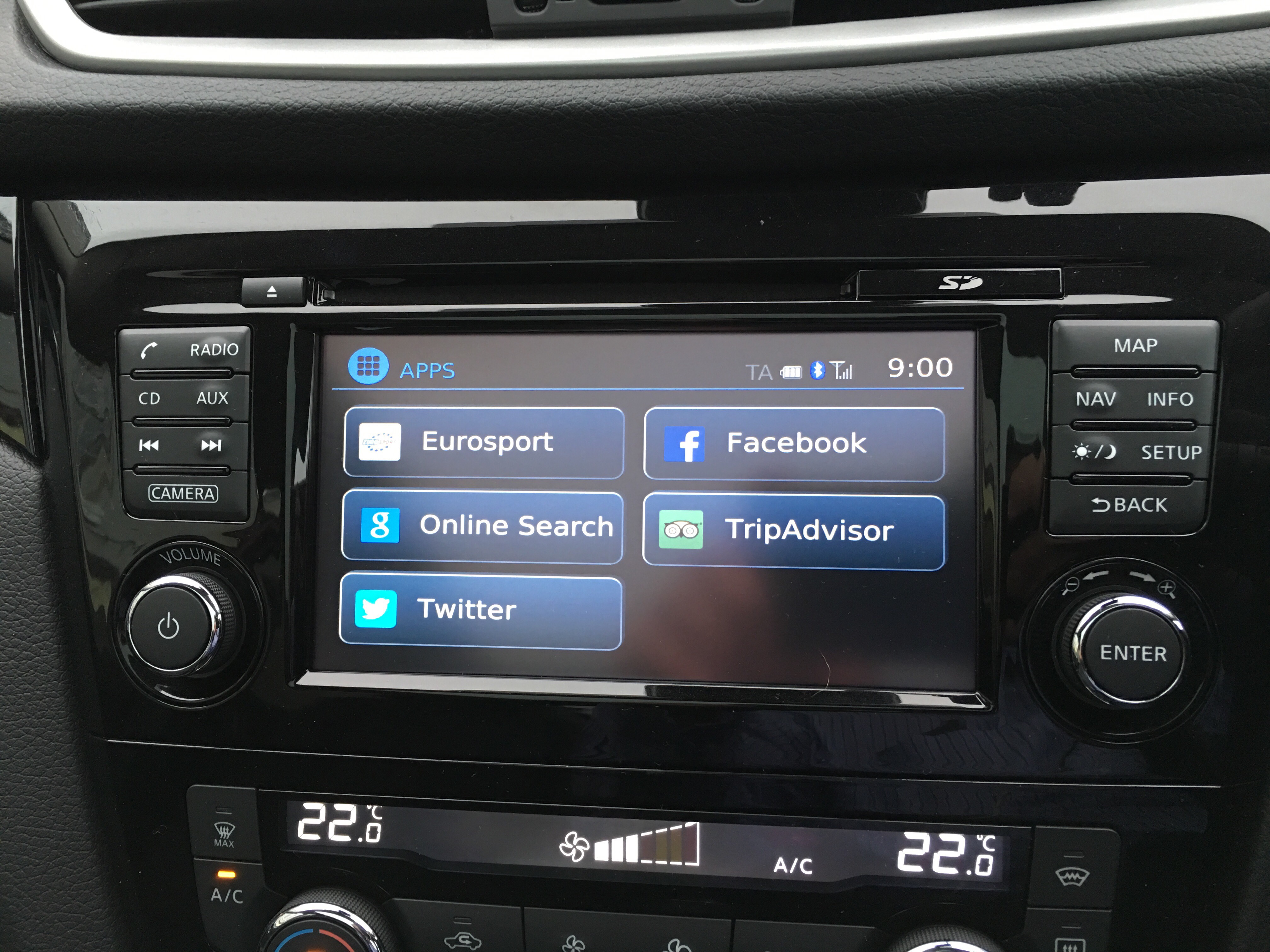
If you own a compatible Nissan car you can have a measly selection of 5 apps ready to use from your car computer screen. 

Selecting Twitter reveals the following interface. 

  
Not exactly user friendly to read the full tweet but better than nothing. 

Ironically sending a tweet is very easy. The on screen keyboard pops up. You can either select a pre saved response or type your own as I did above. 

I can see why Apple and Google have launched their own systems as I have to say Nissan Connect is very limited in terms of apps although the computer does connect nicely to your iPhone and then allows you to play any music on your iPhone or iPod. 

I look forward to the day when CarPlay and Android Auto works in every car. 

So what are the differences? Honor 5X vs Honor 7

b287387-1

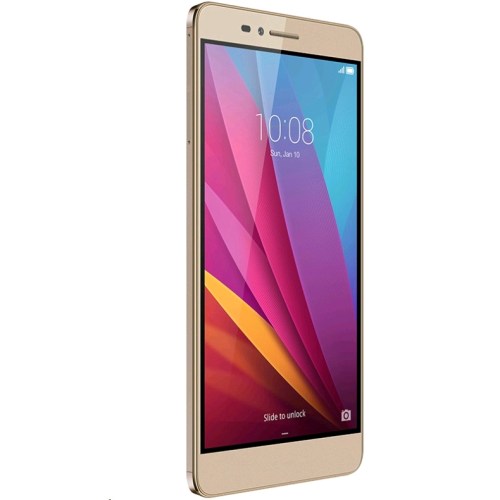
Unless you were living in the dark ages yesterday, you would have seen some press coverage than Honor officially released the Honor 5X in Europe and the UK. The official price is £189 although a £20 saving can be made if you’re quick and buy it directly from Honor store, vmall.eu.

The question many of you may be asking is which Honor phone should I buy? Well hopefully the specs below highlight the key differences –

Honor 5X

– 5.5in 1080p, 401ppi
– Snapdragon 616, Adreno 405 GPU
– 2gb ram
– 16gb storage/ 128gb micro SD
– 2 sim card slots + 3rd slot for SD card
– 13mp rear, 5mp front camera
– WiFi 802.11 b/g/n, 2.4
– Bluetooth 4.1
– 3,000 mAh battery
– 151.3 x 76.3 x 8.15mm, 158g
– No NFC

Honor 7

– 5.2in 1080p 424ppi
– Kirin 935 processor,Mali-T628 GPU, 3gb ram
– 16gb storage / 128gb micro SD
– Dual sim or 1 sim/micro SD
– 20mp rear, 8mp front camera
– Wi-Fi 802.11 a/b/g/n/ac
– Bluetooth 4.0, IR Blaster
– 3,100 man battery
– 143.2 x 71.9 x 8.5 mm,157 grams
– No NFC, Smart Key

So there you have it. There are differences but once again NFC is missing from the new Honor 5X.

The Honor 5X will be available shortly from Three UK, Amazon UK and Clove Technology.

Pocket for iOS and android plus a special feature included by Dropbox for iOS 

  
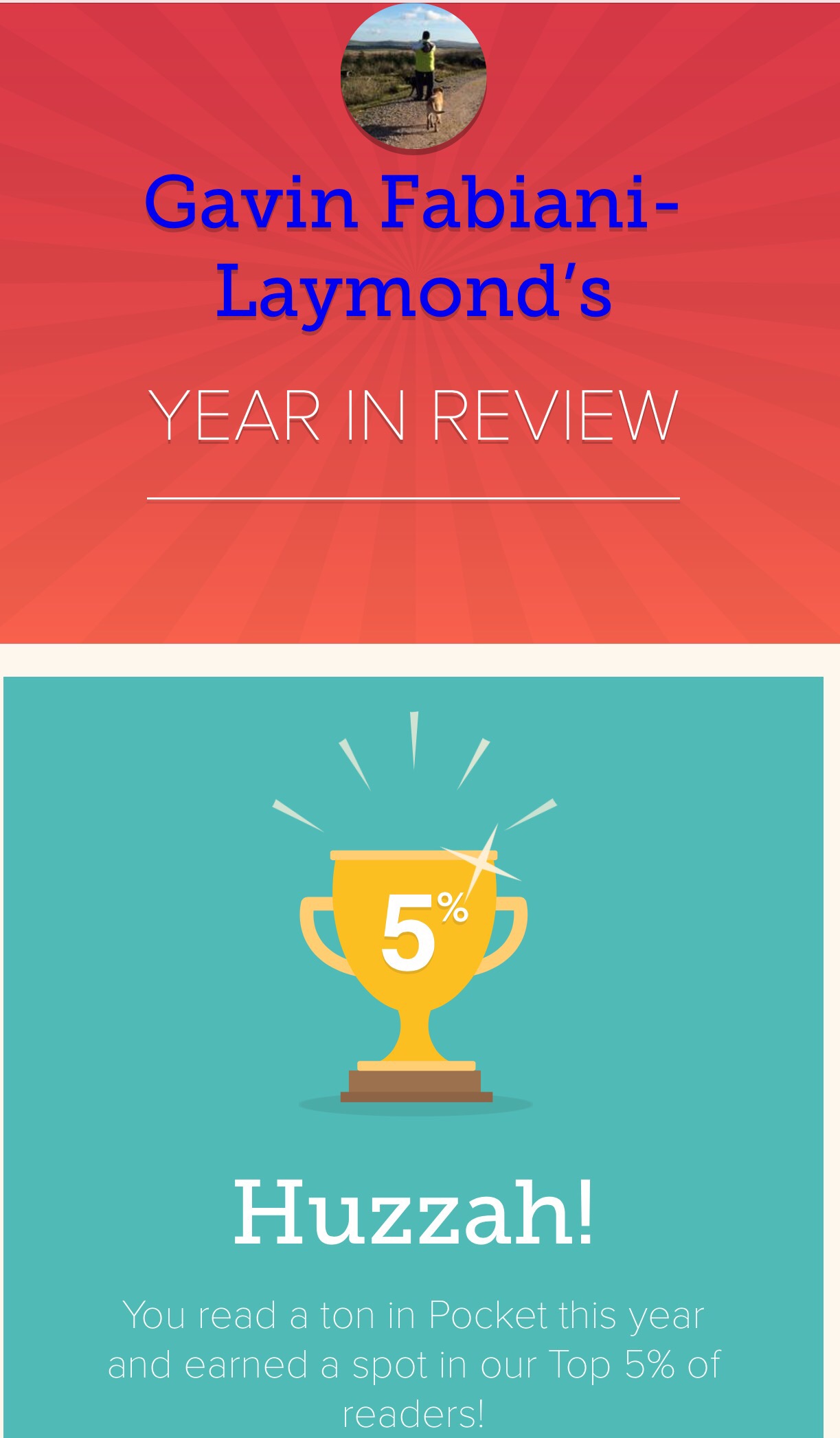
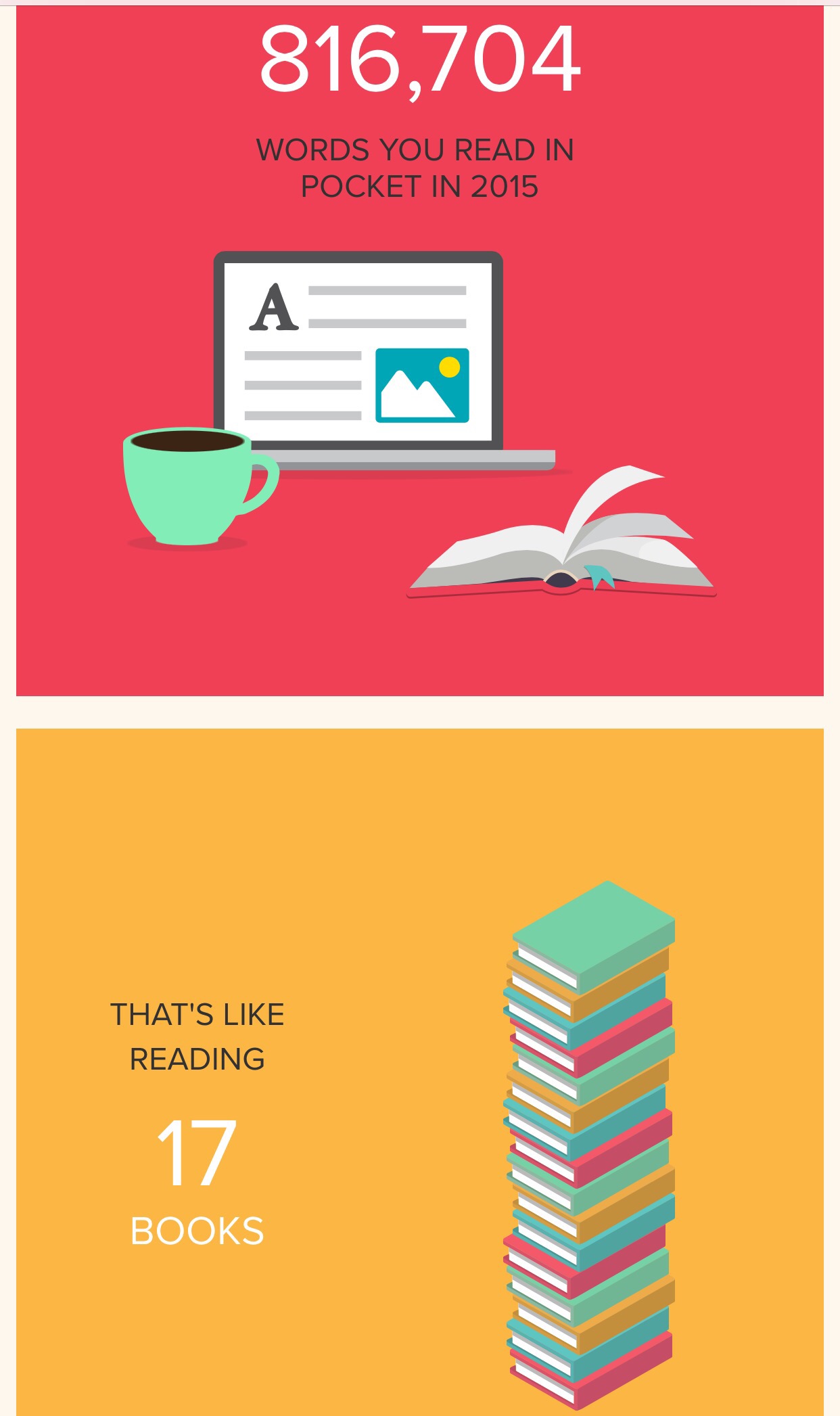
One of my favourite apps is Pocket for iOS and android.  As you can see, I feature in the top 5% users of usage.

Pocket allows a neat way to save web articles, links or videos into its app which you can read later.  It also syncs across phones, tablets, computers and more. It is truly cross platform.


You can save stuff into Pocket directly from many apps and services. In iOS you have a share sheet extension. You can also listen to your saved articles with Text-to-Speech.

Another option for saving web pages is using Dropbox on iOS.Whilst using Safari, if you save to Dropbox using the share sheet option, it saves the entire page as is, and as a PDF which you can view later. 

Link for iOS version – Pocket in Apple App Store

Link for android version – Pocket on Google Play Store

Android Wear gets huge update – full details

You’re walking to meet a friend with coffee in hand. Or maybe it’s really cold outside, so you’re rocking a pair of mittens. Or maybe you’re in the middle of making dinner. There are plenty of times when you’ve got your hands full but still need to stay on top of reminders, messages, and calls. That’s why Android Wear includes things like voice actions and gestures. And today we’re expanding these hands-free options in a number of ways:

Navigate your watch with new gestures. Scrolling up and down your card stream is as simple as flicking your wrist. Starting today you can also expand a card, bring up your apps, or return home to your watch face with a push, lift or shake. You’ll be able to stay connected to what’s important, while keeping your phone (or other hand) in your pocket.

Send more messages with just your voice. With Android Wear, you’ve always been able to get answers to spoken questions. Now you can also use your voice to send messages from apps like Google Hangouts, Nextplus, Telegram, Viber, WeChat, and WhatsApp. Running late for lunch? Just say “OK Google, Send a WhatsApp message to Nathan: I’ll be right there.”

Make calls and listen to messages with speaker support. Screening calls from your wrist is a nice convenience that comes with Android Wear. Thanks to speaker support, you can now make and take calls over Bluetooth. And you can listen to audio/video messages with apps like Glide. All you need is a watch with a speaker, which today includes the Huawei Watch and the ASUS ZenWatch 2 (49mm).

These improvements are rolling out to all Android Wear watches over the next few weeks, including new watches like the Casio Smart Outdoor Watch and Huawei Watch for Ladies. It also wouldn’t surprise me if we see new Android Wear watches announced at MWC in a few weeks.

Source – Google

Apple iPhone 6S Plus – A Mysterious Bug

So here’s the story. I have a 128gb iPhone 6S Plus. This enables me to store a selection of my photos, 4K video and games. 

It also allows me to hold around 30gb of my music on the device. 

So last night I decided to chill out and listen to a few tunes and at the same time test a few bespoke music apps. 

These third party apps were showing that I only had 9 songs installed. WTF. Where had 4,000 songs disappeared to?

So by connecting my iPhone to iTunes, it starting to automatically add again the songs that had just vanished.

If anyone knows why this happened here then please leave a reply in the comments.