Tag Archives: Review

Nvidia Shield Tablet – hardware and cover review

IMG_1084_2

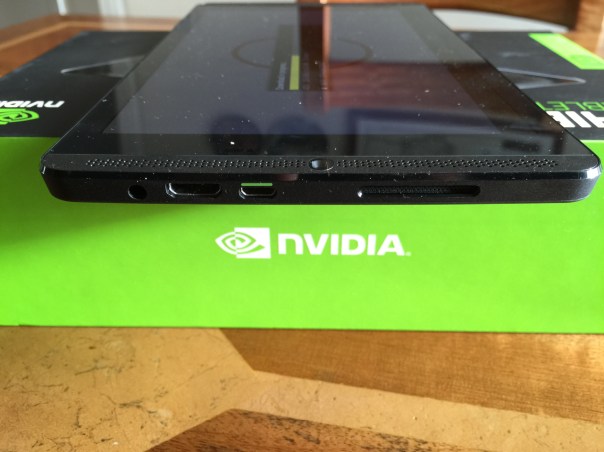
Today I am going to look at the Nvidia Shield Tablet hardware in more detail. I will start by stating this is not built to the same standards as the Apple iPad. Nor is its 1080p screen as good as the iPad. But it is nonetheless a decent enough screen by far.

If you look at the photo above you can see on the screen side the right “front” loudspeaker. The stereo speakers are dual bass reflex port with built-in microphone. The sound from the left and right front speakers is reasonable and adds to the media enjoyment. You will notice sound also comes out of the side too, top right side slat. On the front screen side is also the 5mp front facing camera. The rear also has a 5mp front facing camera. I will cover off the cameras in another post, but needless to say the camera software included is more than expected. Going back to the right side, from the bottom right you can see the headphone jack, HDMI and then micro usb socket. You will notice the micro usb port has green paint on the top. The cable also has one side green, allowing for easier connecting.
IMG_1086

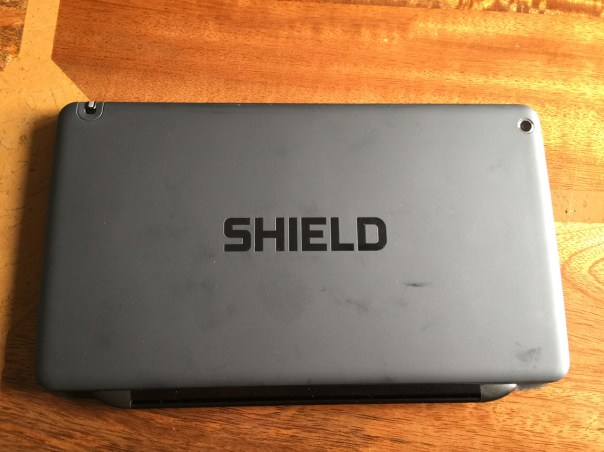
The rear is a soft plastic finish. Nothing special but easy to hold. It does show my fingerprints a little. On the rear you can see the 5mp rear camera and the stylus.
IMG_1081_2

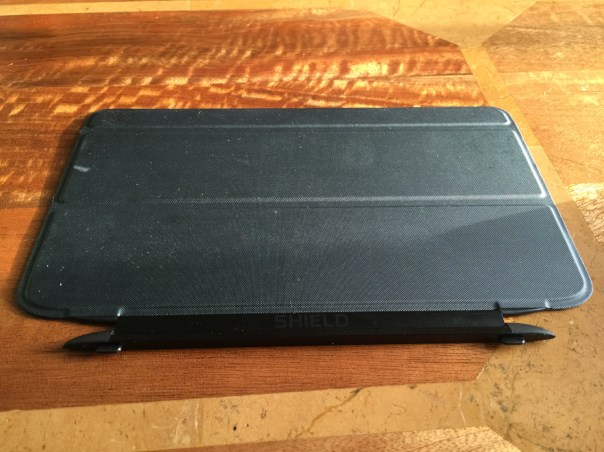
The Nvidia Shield cover is a smart cover. It has two stick out bits that slot in to the gaps on the side of the tablet. The cover is held in place by magnets and can only be held one way around. It is a strong magnetic connection. The cover has a keyboard, and two upright modes. Opening the cover turns the tablet on and off.

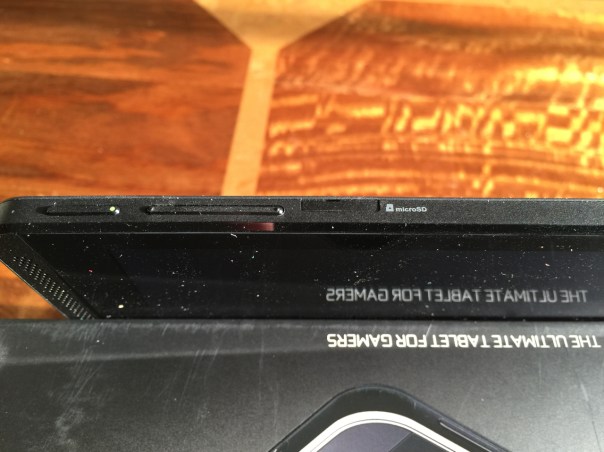
On the top edge is the power and volume controls. I must admit I find the power button fiddly to use.
The top edge also house the micro SD slot and micro SIM card as well as the stylus.
IMG_1082
IMG_1083

So overall the hardware is fine and to be honest I don’t miss my iPad, and at £239 for the 16 GB WiFi only model and £299 for the 32 GB LTE/WiFi it really is a great offering.

The full specs are as follows –

– Processor NVIDIA® Tegra® K1 192 core Kepler GPU, 2.2 GHz ARM Cortex A15 CPU with 2GB RAM
– Display 8-inch 1920×1200 multi-touch Full HD display
– Audio Front facing stereo speakers, dual bass reflex port with built-in microphone
– Storage 32 GB (WiFi+4G LTE) / 16 GB (WiFi-only)
– Wireless 802.11n 2×2 Mimo 2.4 GHz and 5 GHz Wi-Fi
– Bluetooth 4.0 LE
– GPS / GLONASS
– Connectivity WiFi+4G LTE or WiFi-only
– Mini-HDMI output
– Micro-USB 2.0
– MicroSD storage slot
– 3.5 mm stereo headphone jack with microphone support
– SIM Card Micro-SIM
– Motion Sensors 3-axis gyro
– 3-axis accelerometer
– 3-axis compass
– Gaming Features SHIELD wireless controller compatible
– NVIDIA GameStream™
– NVIDIA ShadowPlay™
– GRID Cloud Gaming Beta
– Console Mode
– Gamepad Mapper
– Cameras Front: 5MP HDR; Back: 5MP auto focus HDR
– Video Features 4K Ultra-HD Ready
– Stylus DirectStylus 2 with 3D Paint (Included)
– Software Updates SHIELD software upgrades directly from NVIDIA
– Battery 19.75 Watt Hours
– Weight and Size Weight: 13.7oz / 390g
– Height: 8.8in / 221mm Width: 5.0in / 126mm Depth: 0.36in / 9.2mm
– Operating System Android KitKat OS (Android 5.0 Lollipop ready)
– Software Google Play™, NVIDIA SHIELD Hub, Trine 2: Complete Story, Multi language Handwriting Recognition, NVIDIA Dabbler™, JusWrite, Evernote, Adobe Reader, Camera Awesome

-Cellular Connectivity
North America: Unlocked (compatible with AT&T, please check bands supported)LTE, HSPA+, 3G, 2G, GSM, EDGE
-Outside-North America: Unlocked (please check bands supported)LTE, HSPA+, 3G, 2G, GSM, EDGE
Cellular Bands North America:LTE: Bands 2,4,5,7,17 (1900, 1700, 850, 2600, 700)
HSPA+: Bands 1,2,4,5 (2100, 1900, 1700, 850)

Outside-North America:LTE: Bands 1*,3,7,20 (2100/1800/2600/800)HSPA+: Bands 1,2,5,8 (2100/1900/850/900)
* In certain regions band 1 and voice support is enabled
Nvida Shield Tablet – more impressions

Last night I got to spend some more time with this gaming beast of a tablet. There are so many superb aspects to this tablet, a few bugs and a few surprises.

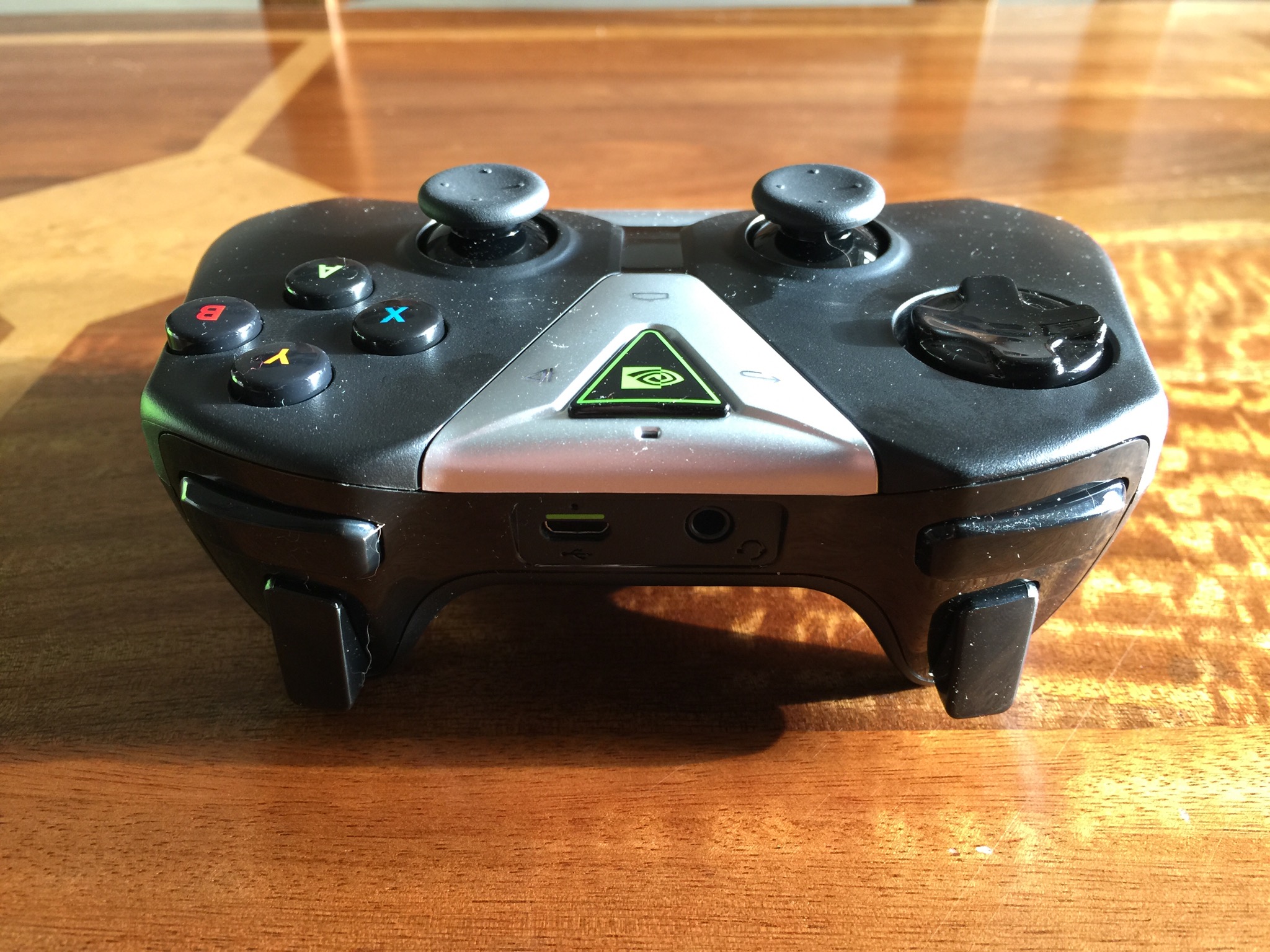
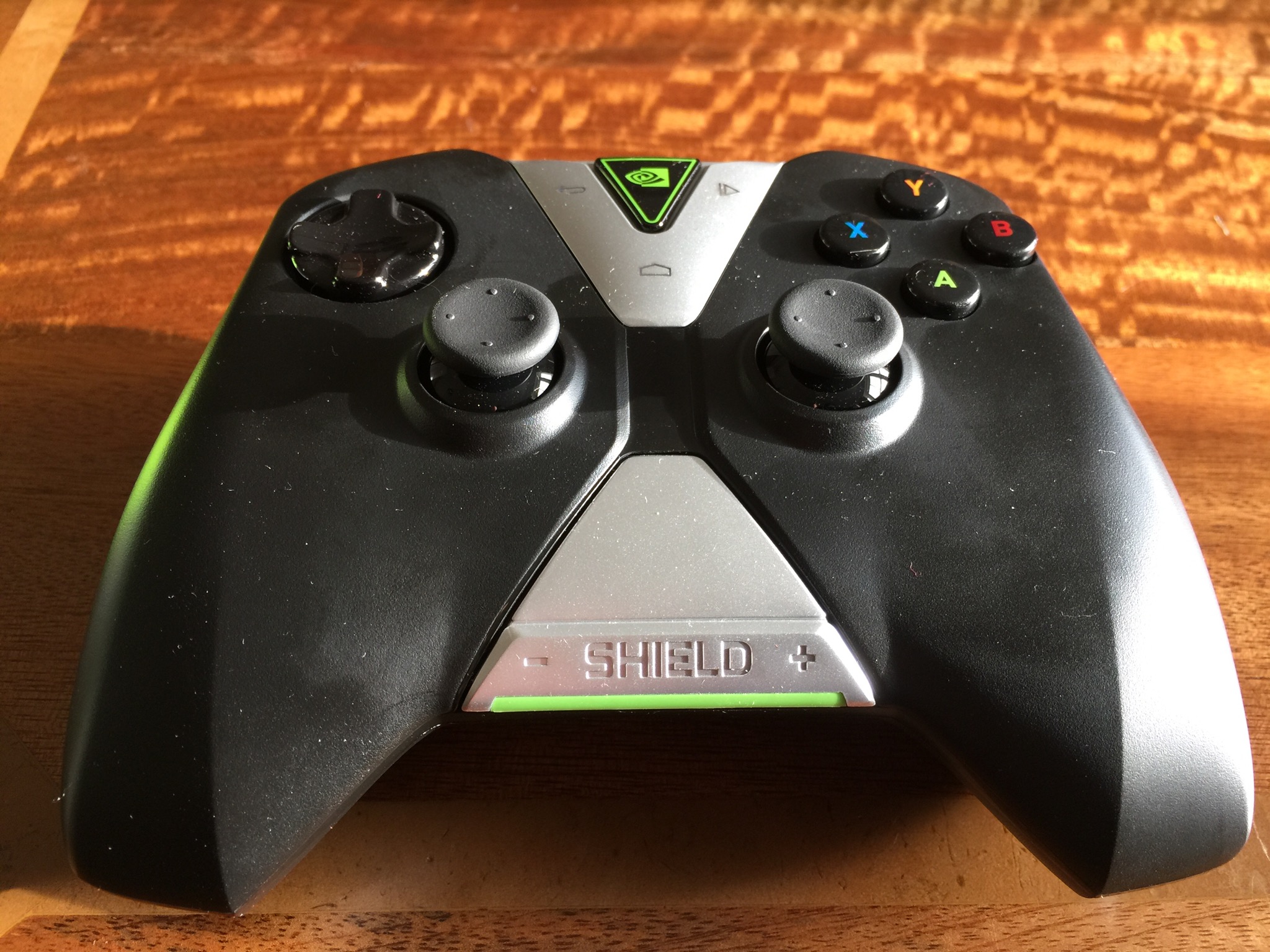
In another post today I reviewed the Apple game control!er by Moga. Well compared to the Nvidia controller, Moga and iOS are really embarrassed. First of all the Nvidia controller connects via WiFi instead of Bluetooth. This is done instantly via the Nvidia app. You use this app to connect a total of 4 controllers. However, with this controller not only does it provide an even faster seamless connection due to using Wi-Fi, it also enables voice search, headphones to be connected to it via the inbuilt jack, and includes android media controls. If that isn’t enough, for games that aren’t working with the controller out of the box, there is a game mapping app that allows you to map the keys swiftly. To give you some idea of the controller compatibility check out this HUGE list from Nvidia http://shield.nvidia.com/android-game-list/ Photos of controller at the end of the post.

So far I have found that games often have better graphics for the device over what I was used too. In many cases the games format and fill the screen better. Then there is the HDMI cable. Connect this to your TV and the tablet PC and decide between console or mirroring mode. Console mode is amazing. The tablet screen is turned off and the whole control is now via the game controller. And the game graphics on your TV are rather good too.

The tablet is great playing Half Life 2, Portal, Jet Set Radio, Emulators likes SNES, N64oid, FPSe, and PPSSPP. Other great games I have played include Table Top Racing, Shadowgun, T.E.C. 3001 and so many more.

Of course the gaming tablet is also a superb tablet. This post was typed on it for example. So apart from having all my games installed, normal apps and special Shield games, I have 6.9gb free of internal storage. If you intend to use the Shield tablet as a tablet, you can activate a number of power saving, processing saving modes. This will prolong the battery life, but there is also an insane mode, to crank the processor to full and enjoy gaming at its ultimate. As I discovered, at full processor mode the battery depletes much faster. The only saviour is if you have a HDMI cable attached and are using your TV as the screen, you can still charge the tablet and play.

More views as soon as I can escape playing Half Life 2!

Update – android lollipop is meant to be ready as soon as Google release it or very close too that date.

IMG_1079.JPG I

IMG_1080.JPG

Samsung Note 4 – incoming review

I got a chance to spend a bit more time with the Note 4 yesterday and still am left in two minds over this phablet. It is definitely a step up from the Note 3 which I adored, but I feel Samsung’s phablet space is well and truly invaded by Apple with its iPhone 6 Plus.

However, to give the Note 4 a fair crack at the whip, I have one en route which should arrive at some point next week.

So if you have any questions please let me know and I will try and answer them in my review of the Note 4.

Apple iPhone 6 Plus – Action shots from the Camera

I’ve been waiting for the weather to improve to take some action shots on my iPhone 6 Plus. Ideally you need bright sunshine but I decided over the weekend I would just try and take whatever shots I could. The light was dreadful. Dull and overcast. All the below photos have not been edited. To give you a better idea of the quality, I used the built in Photos app and cropped in on the movement.

IMG_2870.JPG

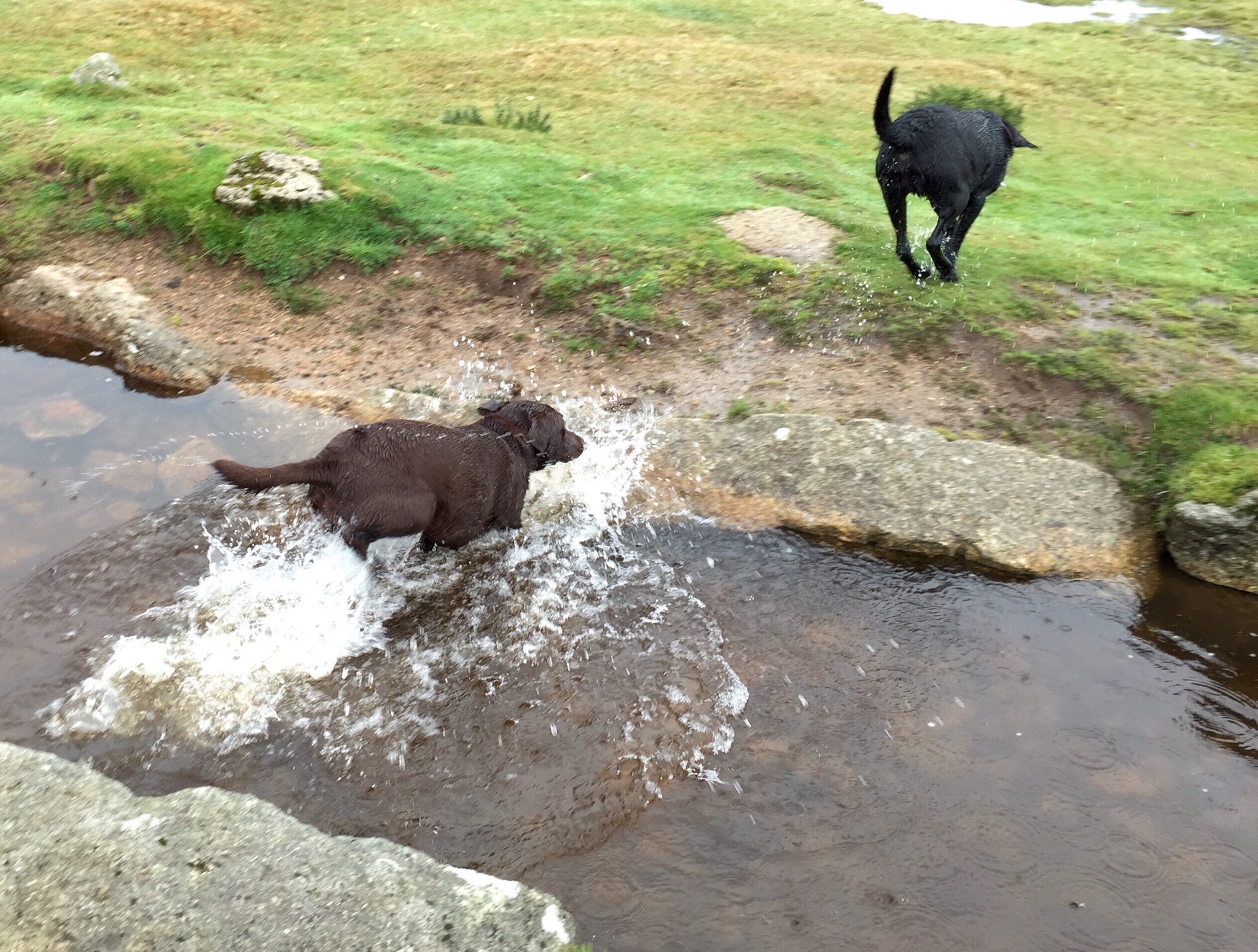
So the first shot above is of Fury demonstrating the long jump.

IMG_2892.JPG

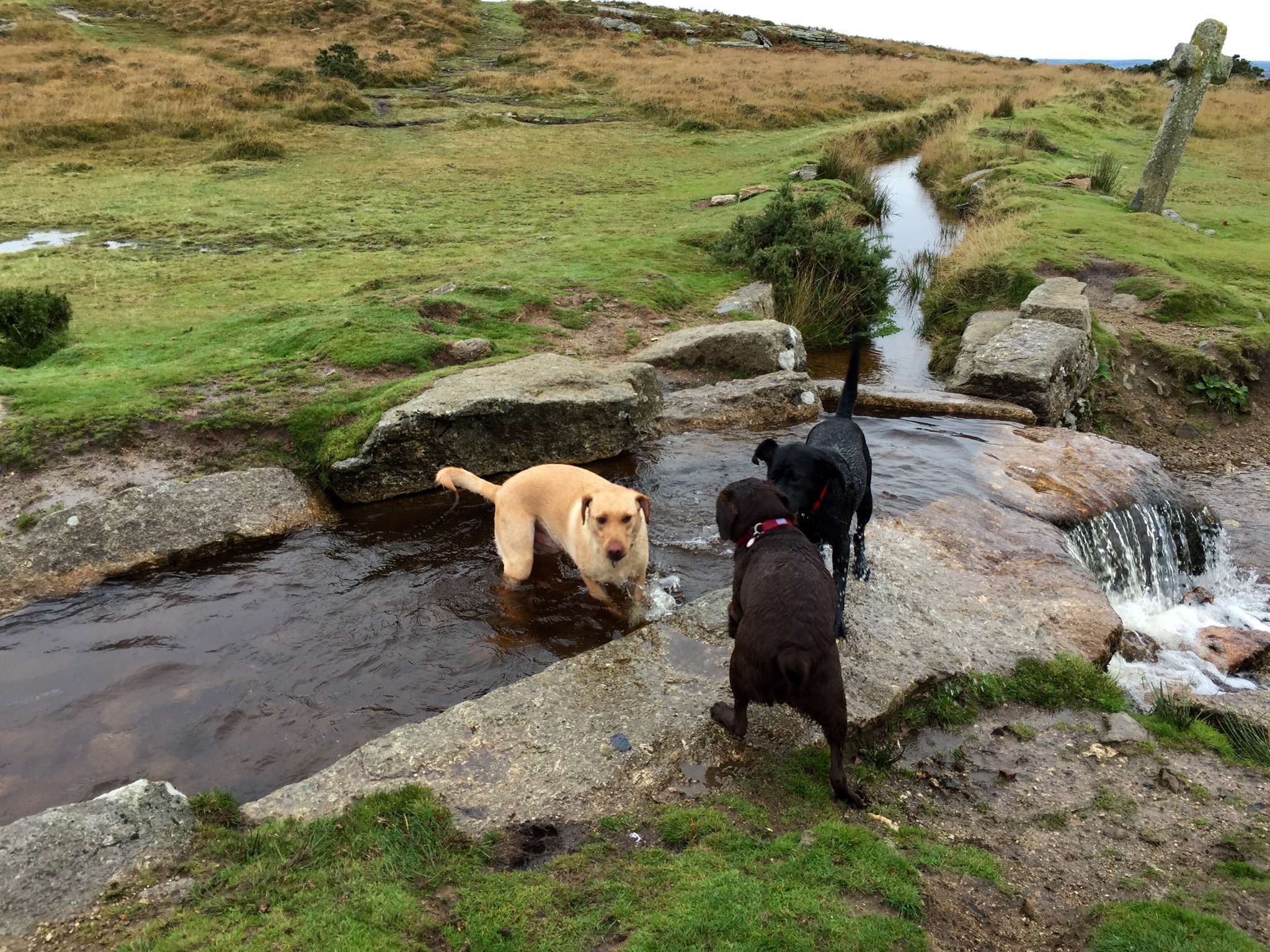
And above we have Tiggy chasing Fury. It is worth noting that in real life this was incredibly fast. When Fury and Tiggy chase each other they are like bullets.

IMG_2889.JPG

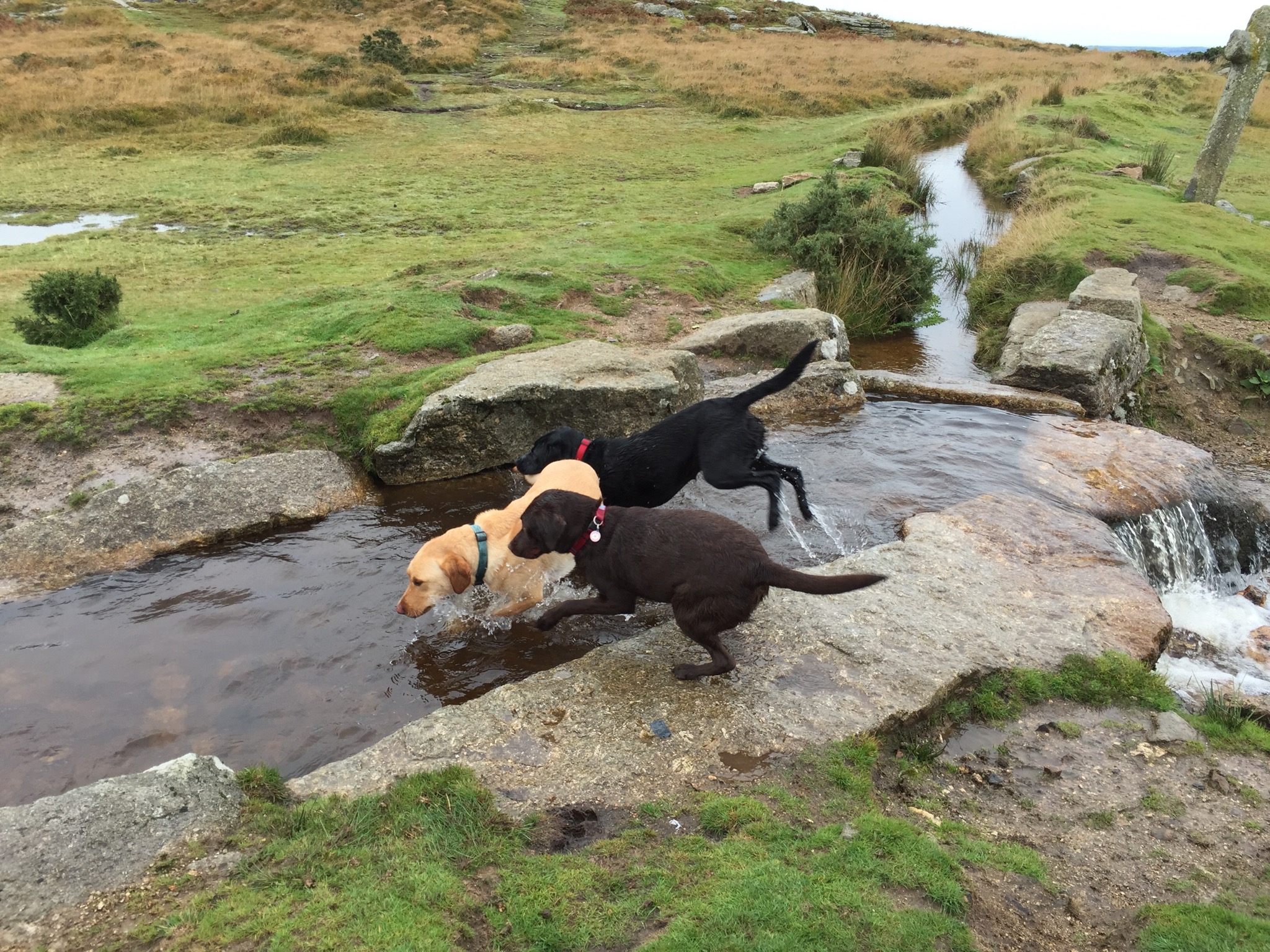
Now George is about to show off the long jump. The lighting was so poor that if I was not using the burst mode on the default camera app, HDR was often chosen.

IMG_2887.JPG

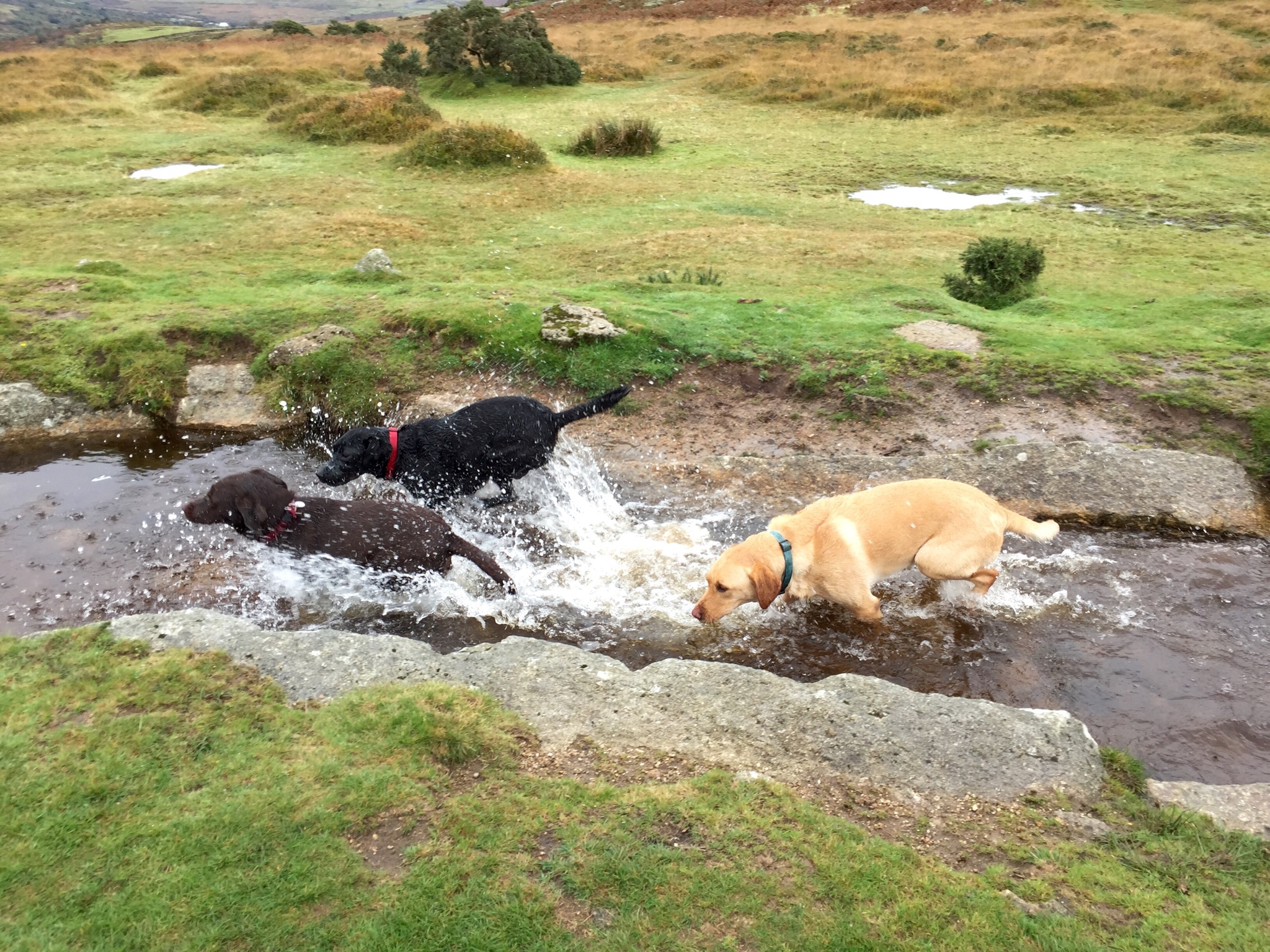
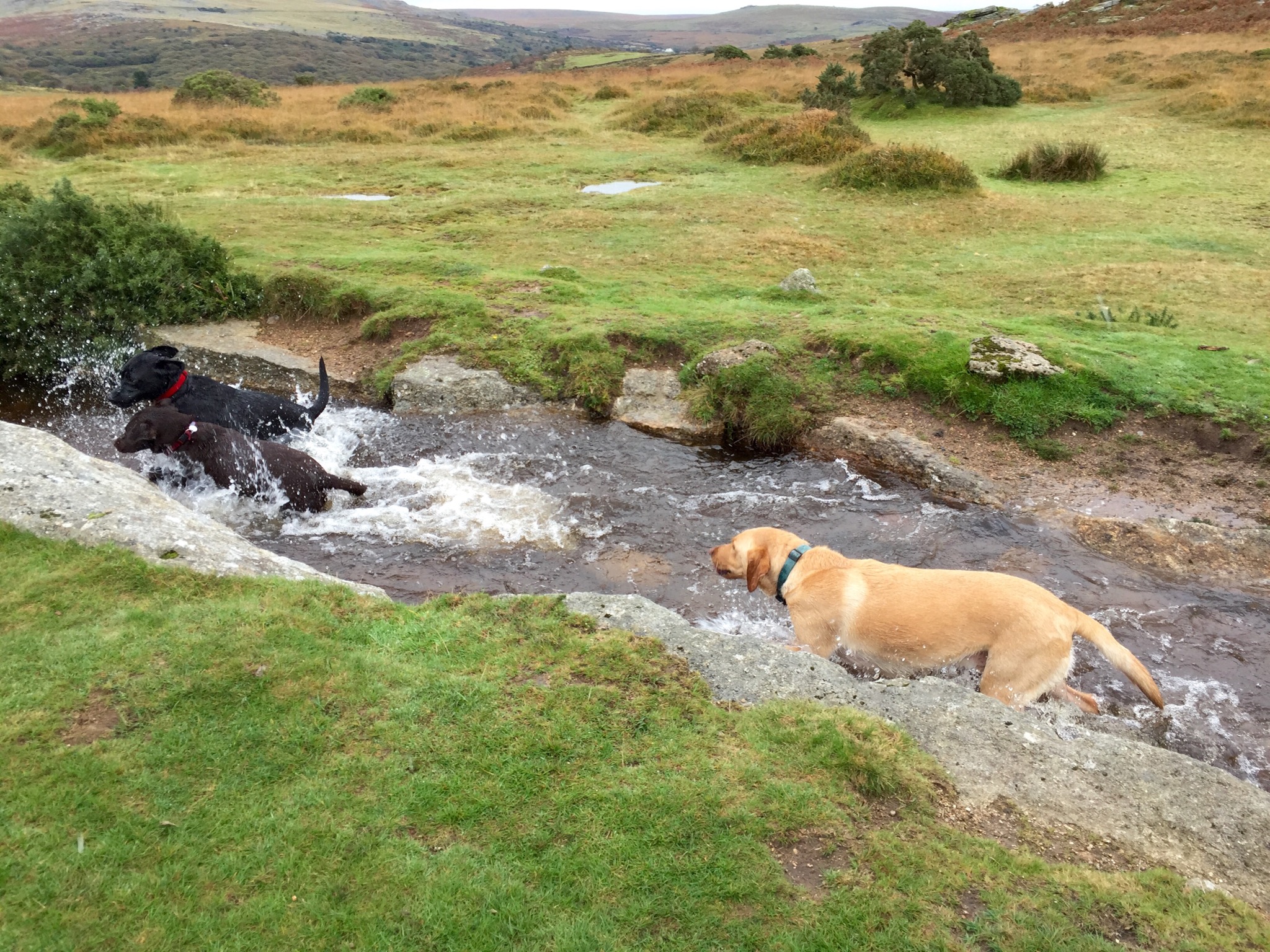
So the last few are of all 3 dogs racing through the leat. Again in real time this whole sequence was over in seconds. All the shots were taken using the default camera app, just holding down the shutter to activate burst mode which is totally instantaneous. So let me know your thoughts.

IMG_2884.JPG

IMG_2882.JPG

IMG_2880.JPG

IMG_2878.JPG

IMG_2876.JPG

IMG_2872.JPG

BlackBerry Passport – The Mammoth 10 Part Review

IMG_2818
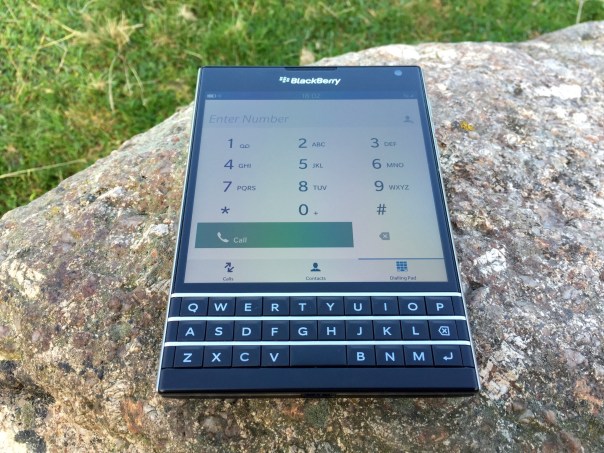
Over the last 10 days I have written many posts covering my thoughts on the BlackBerry Passport. Below are the links to all the review sections. In addition, Episode 25 of Gav & Dave’s Tech Podcast, live tomorrow, will cover off my final thoughts on this piece of hardware. Link for podcast http://www.gdtpodcast.com or head over to your favourite podcast app or iTunes.

First Impressions – https://gavinsgadgets.wordpress.com/2014/10/03/blackberry-passport-first-impressions/

Part 1 – https://gavinsgadgets.wordpress.com/2014/10/06/blackberry-passport-camera-and-samples/

Part 2 – https://gavinsgadgets.wordpress.com/2014/10/07/blackberry-passport-gaming/

Part 3 – https://gavinsgadgets.wordpress.com/2014/10/07/blackberry-passport-second-impressions/

Part 4 – https://gavinsgadgets.wordpress.com/2014/10/08/blackberry-passport-impressions-part-4/

Part 5 – https://gavinsgadgets.wordpress.com/2014/10/09/blackberry-passport-impressions-part-5/

Part 6 – https://gavinsgadgets.wordpress.com/2014/10/10/blackberry-passport-impressions-part-6/

Part 7 – https://gavinsgadgets.wordpress.com/2014/10/05/blackberry-passport-compass-weather-and-maps/

Supplementary Review Sections –

a) Does the BlackBerry Passport Fit in a Pocket? – https://gavinsgadgets.wordpress.com/2014/10/06/does-the-blackberry-passport-fit-in-a-pocket/

b) Will the BlackBerry Passport BEND – https://gavinsgadgets.wordpress.com/2014/10/04/blackberry-passport-impressions-part-3-will-it-bend/

BlackBerry Passport – Impressions – Part 6 – Keyboard

Today, I am going to look at the keyboard, notes and the settings. First up is the note taking app which does more that just take notes.

IMG_20141004_183837

You can add photos, files, voice recordings and more, and also share with ease.

IMG_20141004_183902

So how does the keyboard work entering text in this situation. I was going to attach some more screen shots and photos, but if you really want to see how crazy clever and complex the Passport keyboard is, look at this instructional video from BlackBerry. In fact, this should be mandatory to watch for all Passport owners.

Moving on from the keyboard, lets have a close look at the settings app.

IMG_20141005_080534

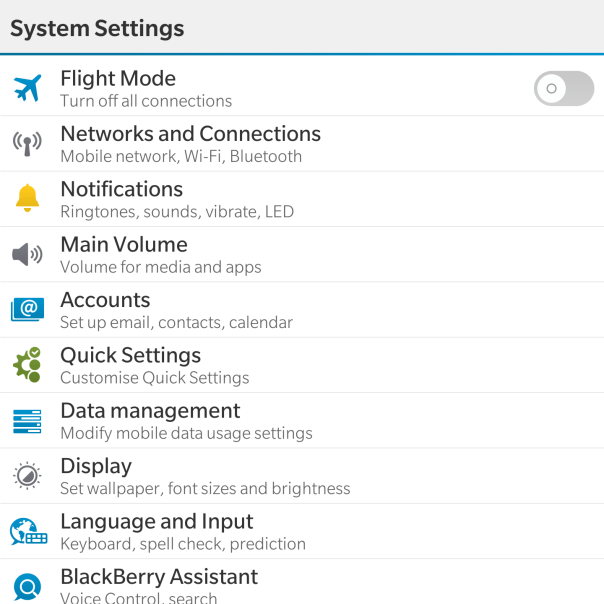
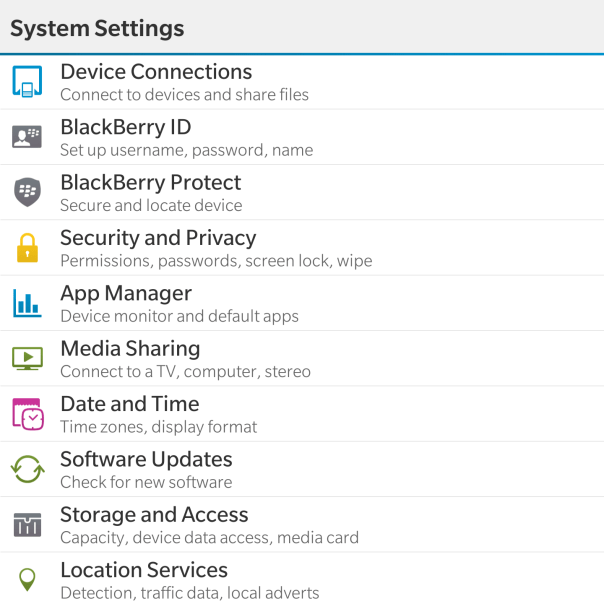
Now as the Passport features top of the range hardware it should come as no surprise that the settings menu is rather comprehensive.

With the Networks and Connections settings is options for Mobile Network (mode, data switch), WiFi, Bluetooth, VPN, NFC, Mobile Hotspot and Internet Tethering.

IMG_20141005_080542

Within the Notifications, Main Volume, Accounts and Quick Settings there are no surprises really. Just your standard affair of options for controlling these parameters. Data Management displays data usage, setup for data limits, options to show a setting for email resizing and whether to download images automatically in emails. In fact most of the options are self explanatory and even provide text under the headings to assist you.

IMG_20141005_080548

For my final thoughts so far, don’t forget to listen to the next episode due out on Sunday of “Gav & Dave’s Tech Podcast”.

BlackBerry Passport – Impressions Part 5 – Office, Clock and Video Options

So today I am going to cover off some of the other apps on the BlackBerry Passport. From a business point of view the Passport comes with Docs To Go, Contacts, Calendar, Adobe Reader, Evernote, Box, Dropbox sync, and Remember. And don’t forget BlackBerry Blend mentioned on Sunday’s post.

Docs To Go covers off Microsoft office docs and editing, from excel, word and powerpoint. It is worth remembering that BlackBerry has in terms of security a whole wealth of enterprise options and security. To be honest all the above apps mentioned to exactly what they say on the tin. The BlackBerry Passport really makes an excellent productivity tool.

So let’s have a look at some of the other included apps. The video app apart from play videos allows some basic editing from trimming, cropping, enhancing and adding filters. Quick sharing options are also available. Story Maker is another app that allows you to create new memories combining photos and videos with effects, music, titles and more. Below are some of the effects available shown at the top of the screen shot.

IMG_20141004_183033

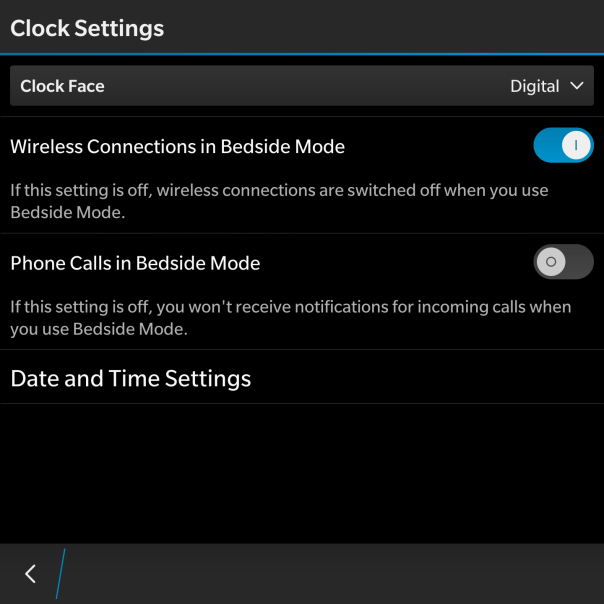
Some another app is the Clock app. This is a simple app with a few options to switch between digital or analogue, and some bedside options as shown below.

IMG_20141004_183125

The clock app also allows for alarms, world clock, stopwatch and timer controls.To be honest there are no surprises here.

IMG_20141004_183342

So finally for today, the file manager.
IMG_20141004_185237

This does exactly what you would expect from a file manager, and links in with BlackBerry Blend. As you can see my iPad is now showing as part of the file manager. This is due to the BlackBerry Blend app.

All in all the Passport has a wealth of options. More tomorrow and in particular the keyboard.

BlackBerry Passport – Impressions – Part 4 – music, audio and BlackBerry Assistant

So today I’m going to cover off my views on the BlackBerry Assistant and music app and audio.

One thing I will say is BlackBerry has not produced a lacking device in terms of hardware. NFC. Miracast. DLNA. Powerful built in speakers and a quad microphone system. The Passport features a “Natural Sound Technology” which adapts Wi-Fi and cellular call sound depending on phone position and background noise. In my phone call tests, my friends at the other end of the call were impressed by the clarity. I even tried making a call on a windy Dartmoor. Same clear call.

IMG_20141004_183732

So above you can see me calling my pet monster. And once you have created an action to a person, it shows that action again to help speed up calling that person again as shown below.

IMG_20141004_183746

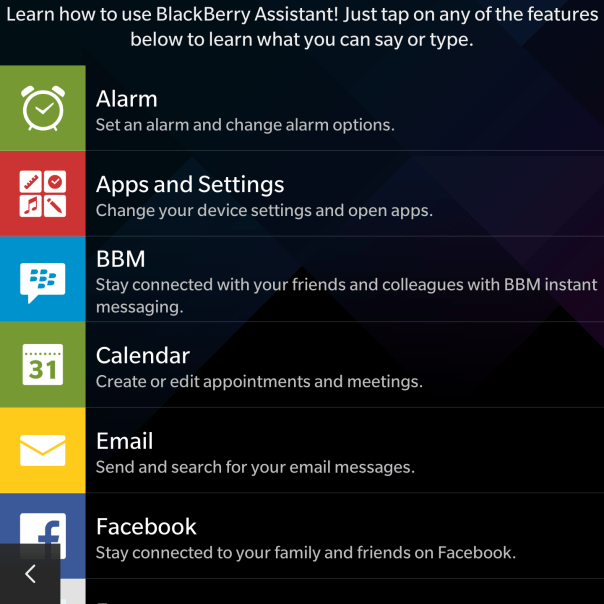
If you tap the “i” for information, you get a list of all the options available. I ought to mention the BlackBerry Assistant is called up with a press on the button on the side, which sits in between the volume up and down keys. If you decide not to use the assistant you can remap it in settings to be a mute switch.
IMG_20141004_183755

As you can see there is a good selection of options available, and in my testing so far the BlackBerry Assistant was fairly accurate with the results.

IMG_20141004_183805

However, there is one aspect of the BlackBerry Assistant that blew me away. It is all very well testing the voice recognition in a quiet room, but I then tried it in the loud noisy environment and it was still able to pick up everything I had said. Truly remarkable.
IMG_20141004_183818

So moving on to the music app. My only gripe or wish was that the albums art could be displayed in a grid view like the Gallery app with the folder view. Otherwise, it is a no nonsense app.

IMG_20141004_181951

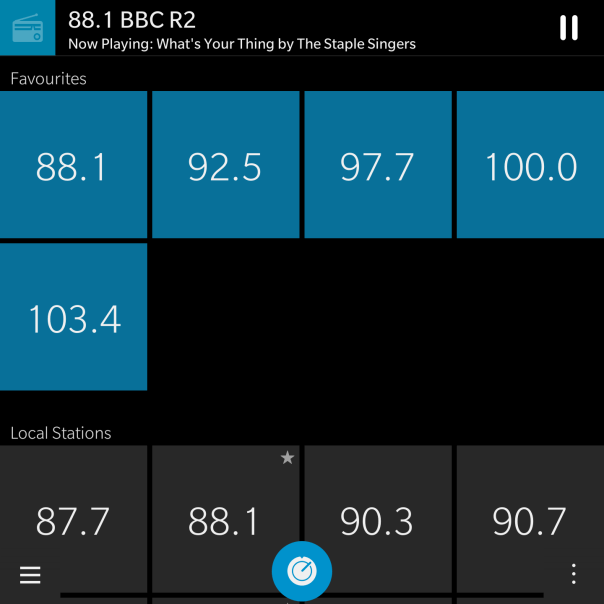
I did not realise there was a FM radio, but I found this in the app options as shown below.

IMG_20141004_182023

And as you can see I have a few radio stations setup.

IMG_20141004_182313

But with all the options, the only thing that really matters is the audio quality. One word. Excellent. Really good via headphones whether connected via a wire or via bluetooth. The Loudspeaker is loud and effective too. FLAC support is natively supported and iOS Headphone controls work with the Passport!

More tomorrow.

BlackBerry Passport – Impressions – Part 3 – Active Panels, Battery, Screen and more

IMG_2814.JPG

So I have now had the Blackberry Passport for just over 5 days. My first post predominately covered the hardware and my very first thoughts. My next challenge was to understand the BlackBerry OS and its way of tackling tasks and moving between screens.

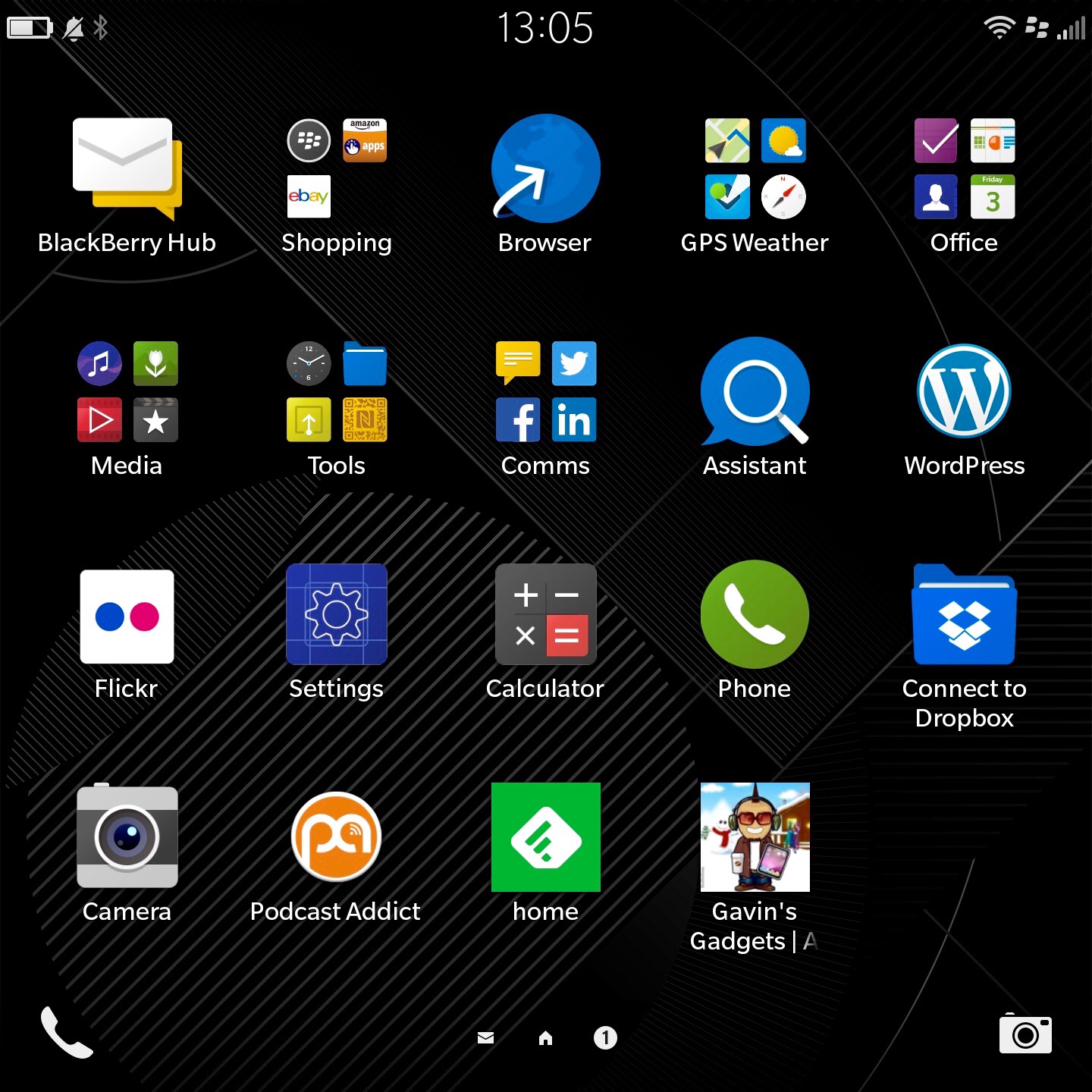
So at the moment, I have worked out how to tidy up my app home screen as shown above and create folders. I have also installed EBay, Flickr, WordPress and a few other apps, including a podcast app. I have a separate home page for games.

IMG_2816.JPG

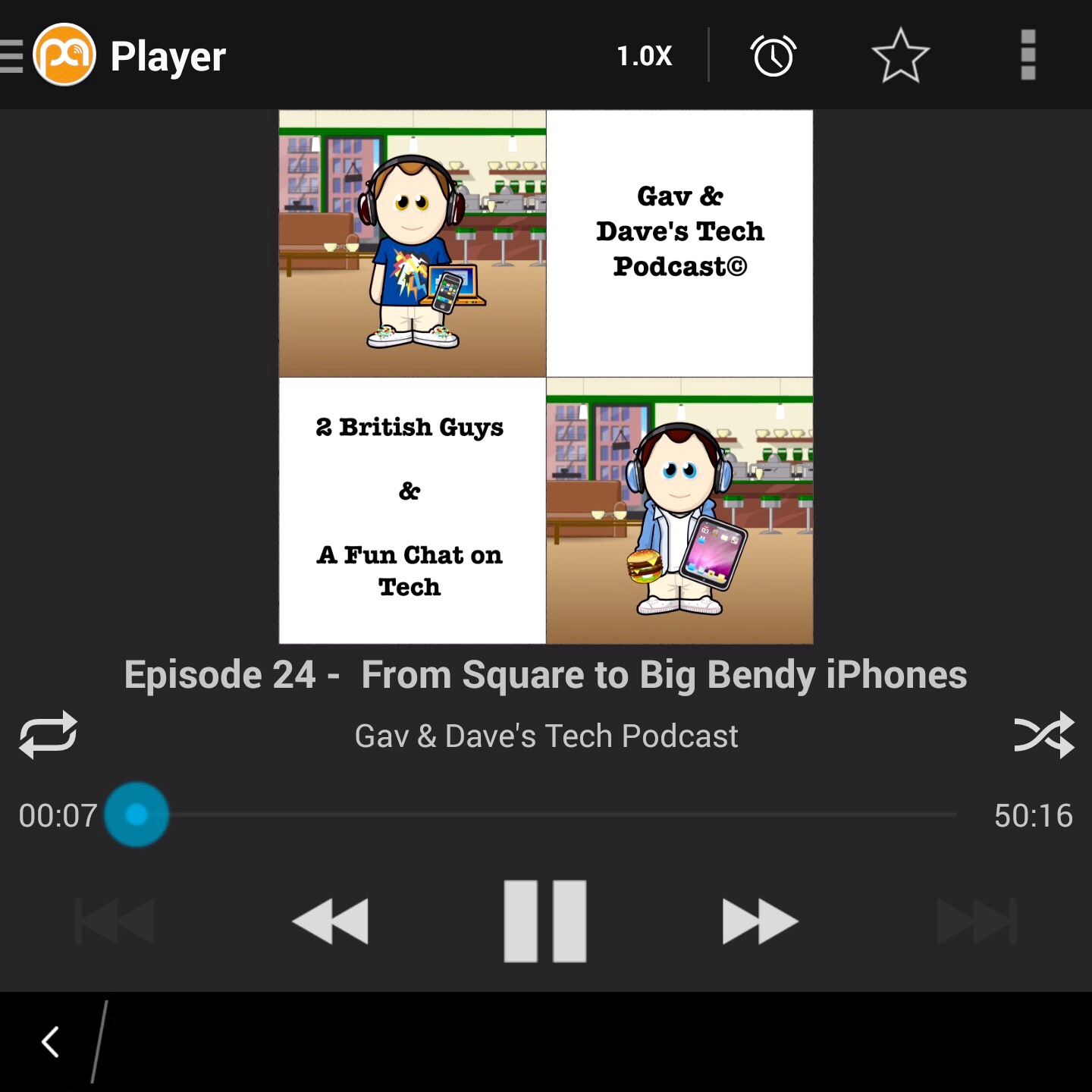
A highly recommend the above podcast 🙂

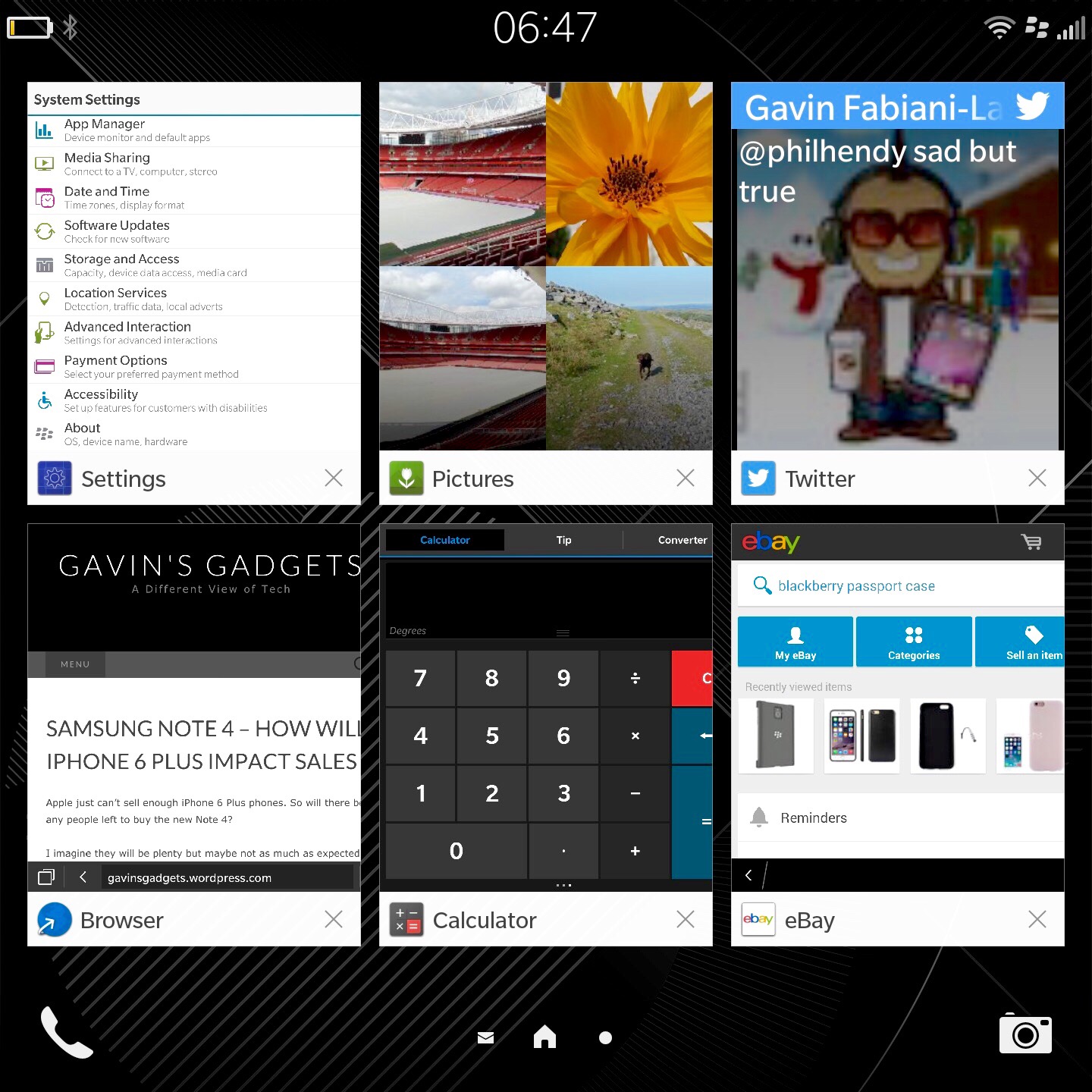
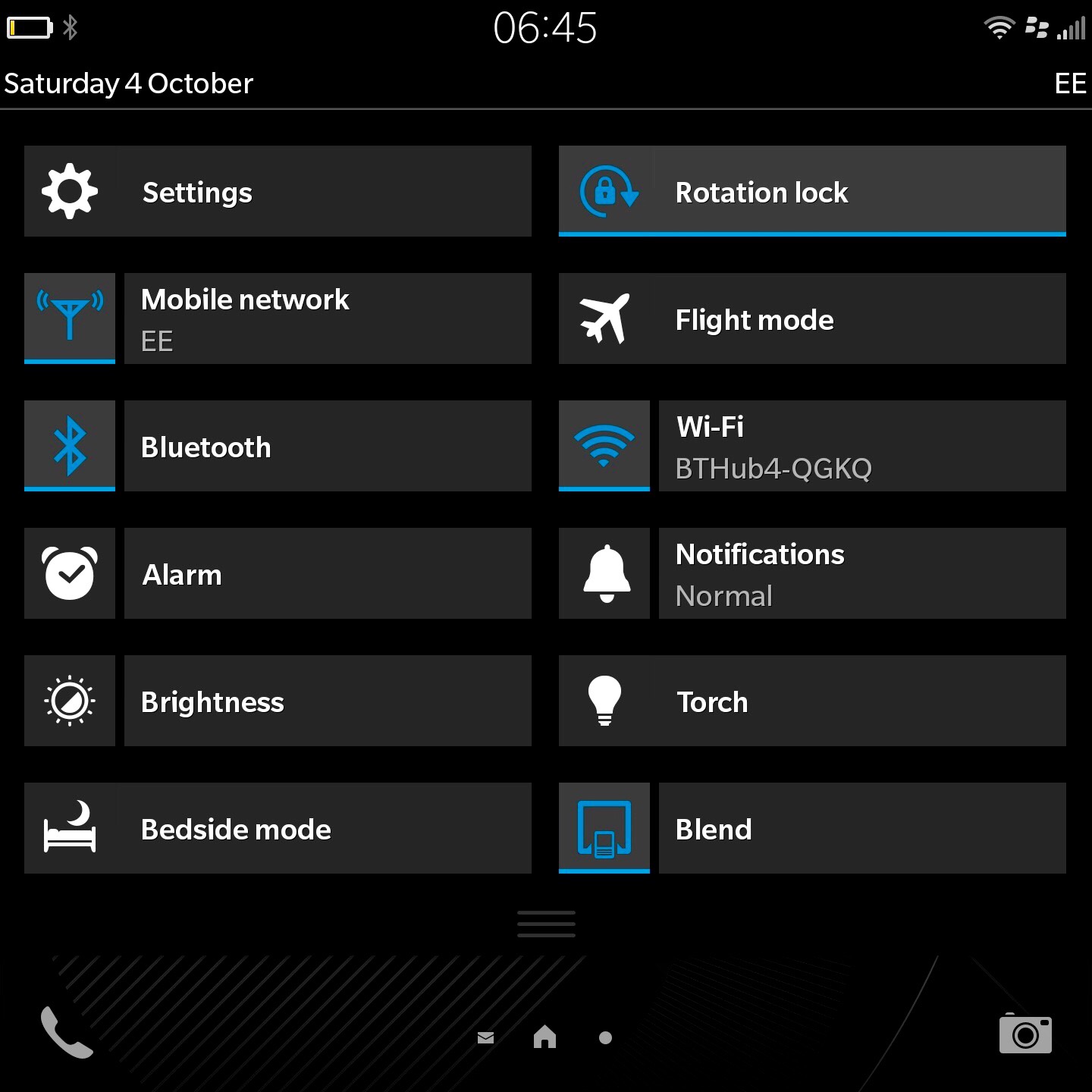
So what’s the software like? Full of swipes and gestures and peeking. It does take a while to adjust and after 24 hours I was just getting to grips with the functionality. In fairness, I’ve been very busy so not spend much time with it properly other than actually use it as a phone and communicator. With the display off you can swipe from the bottom up in an arc to the left or right to turn the screen back on. You can even set an option that turning the Passport on to its front switches the display off. Turning it back over and the displays comes back on. In applications, two finger swipe downwards pulls down the quick toggles. Screen shot at the bottom of the page. In any app, pull from the top edge downwards with one finger brings up the app settings. Swipe up from the bottom edge brings you back into the multitasking page. The running apps shown below are active panels. They change and display information depending on what type of app it is and how it is configured to work in this mode. I must admit it is becoming more natural to use. I have both the Passport and iPhone 6 Plus on the sofa and when a new notification arrives, it is the Passport that I prefer to pick up and use to respond.

IMG_2820.JPG

The toggles menu accessed in any app with two fingers swipe down from top of screen. In home screen only one finger is needed.

IMG_2819.JPG

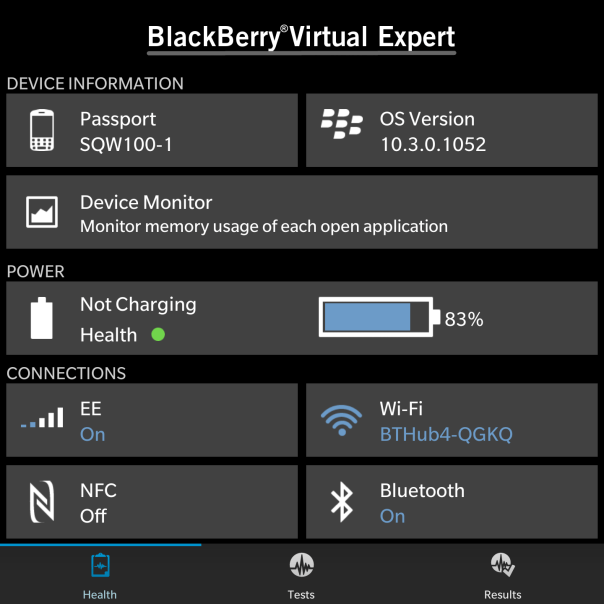
After realising I had several app updates waiting in BlackBerry world, a new app appeared. Virtual Expert provides information about the Passport. This app also allows you to test all the different functionality of the phone, like an engineer mode.

IMG_20141004_192108

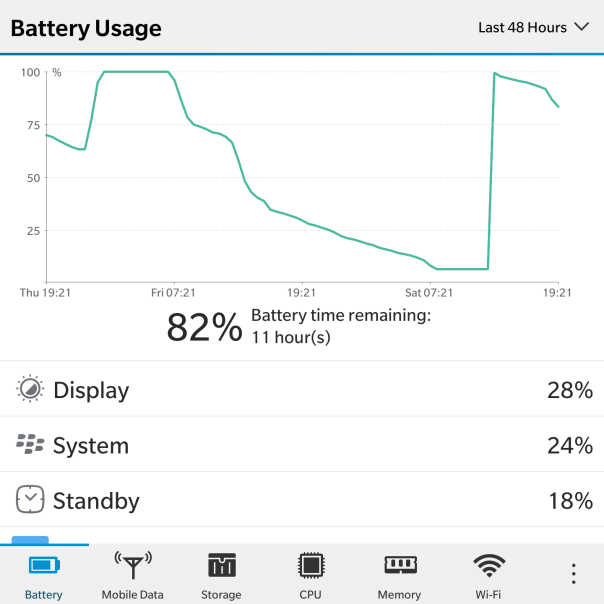
And here you can see some battery stats. These were the first lot of battery measurements take. The battery has improved after subsequent charges. For my usage, The Passport will last 24 hours or so, but I would recommend charging it overnight. I gather the next update to the firmware will include a battery saver mode. It does seem to drain more battery than I would have expected in standby mode. I would hope the next software update will help improve matters.

IMG_20141004_192243

The Passport also has peeking options. With half gestures movements you can have a sneak peek at the Hub, running apps and on the lock screen summaries of the types of notifications received.

However, what makes the BlackBerry a BlackBerry is the Hub, it’s keyboard, and overall functionality. The OS is rather enjoyable to use, even though it’s different to other systems. So let’s talk about the Hub today.

The BlackBerry Hub is a central area to manage all your conversations and prioritise the ones that are important to be seen first. The Hub amalgamates email, text, BBM, phone calls, all your social media accounts and more. So I had my google accounts, yahoo, BBM, Twitter and a few more all setup in the Hub. For privacy reasons I cannot show you any screen shots. You also get system alerts too. Even Flickr upload alerts appeared in the Hub. And the Hub is always a swipe away. So with all the messages and notifications and more you can reply directly from within the Hub. After a few days of using the Hub it really does become a smooth way of quickly seeing, replying and managing your communications. And as mentioned above, it is by far my preferred device for replying to all my different types of notifications from social media, texts, emails and more.

And one of the promoted features is the 4.5 inch screen. And you know what it really is handy for many uses and means never having to rotate the screen, even though rotation is supported!

So below are a few screen shots showing you what certain applications look like on a 4.5 inch screen.

IMG_0345.PNG

IMG_0348.PNG

IMG_0347.PNG

And with the Passport you can use the keyboard as a trackpad to scroll up and down web pages.

So what do you think so far ?

BlackBerry Passport – Camera & Camera samples

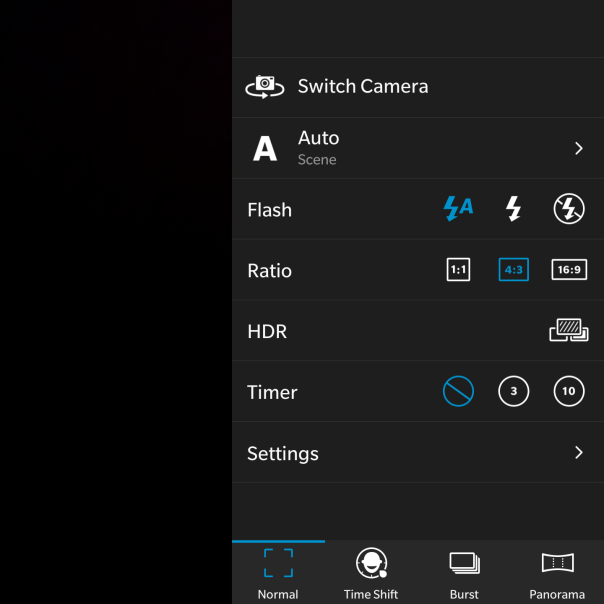
Today I am going to have a look at the camera and also show you some samples. The rear camera is 13mp which also have optical image stabilisation, allowing for decent shots. The camera has a number of options as shown below. The rear camera has a f/2.0 for faster shots. The front camera is 2mp and can record video at 720p.

IMG_20141004_183426

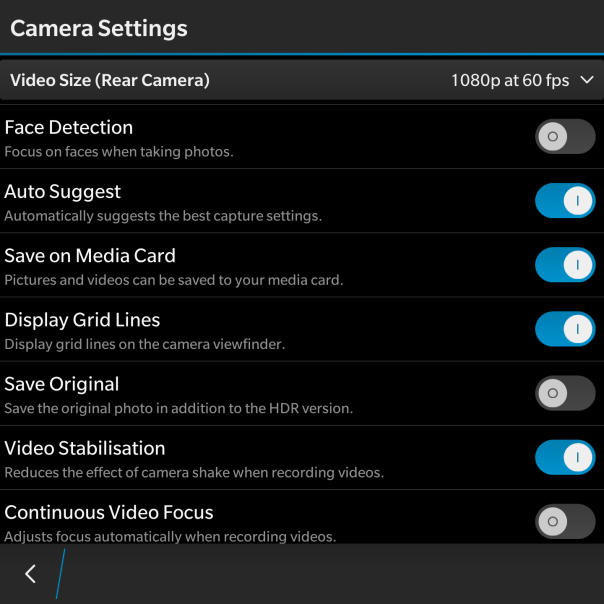
There are a wide range of options to cover most options.

IMG_20141004_183436

Not shown is the GeoTag option, which is yes or no.

IMG_20141004_183447

So that is all the settings, lets look at some shots from the BlackBerry camera. The first shot edited using the in built photo editor filters.

IMG_0349.JPG

IMG_0350.JPG

And the shot below was one of the first photos I took from the camera.
IMG_20141002_180620_hdr

And now some other shots.
IMG_0284

Square mode for those that like instagram.

IMG_0334

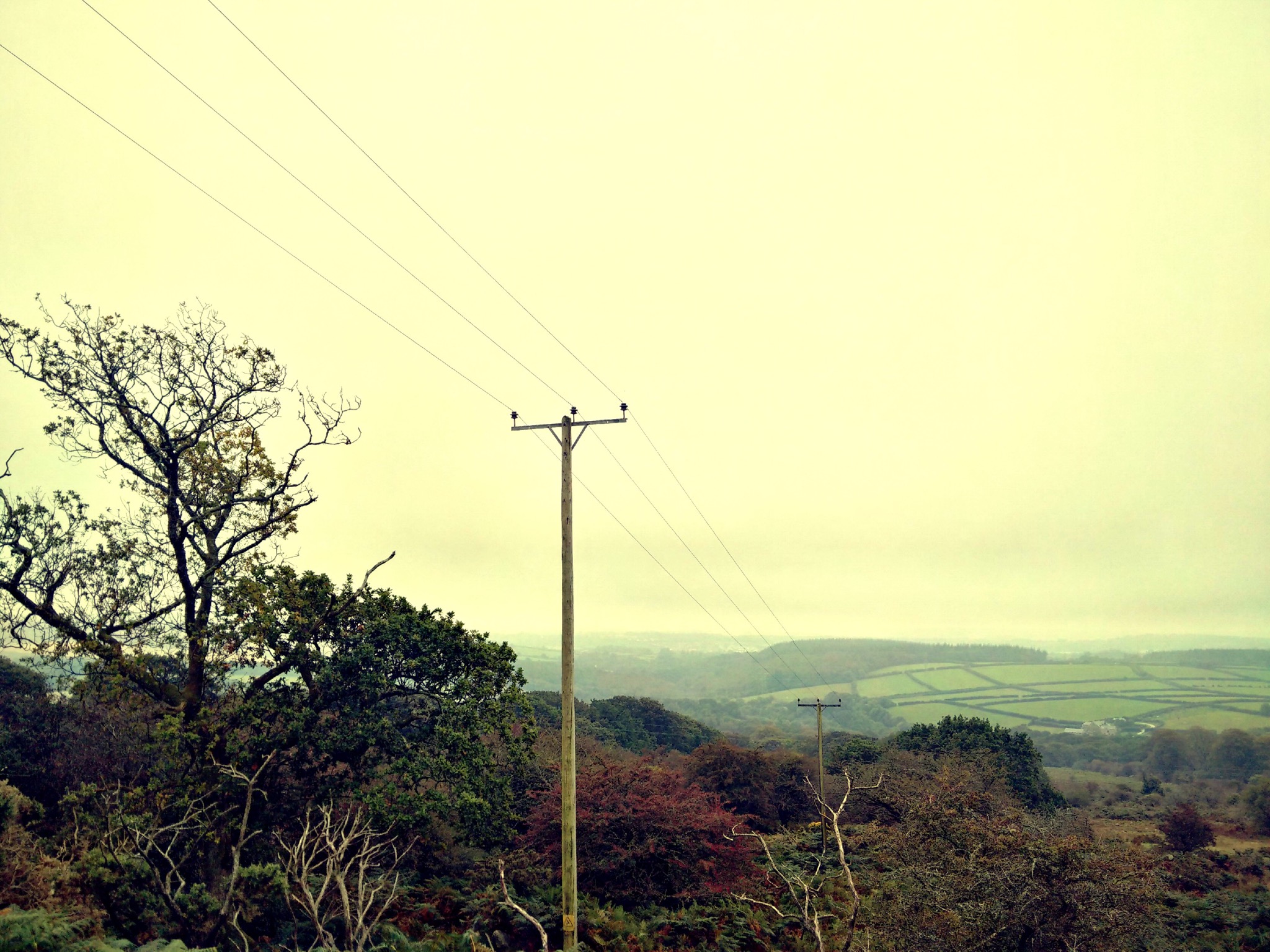
Some really difficult overcast lighting conditions, managed reasonably well by the Passport.

IMG_0335

Panoramic shots were good too.

So what is the camera like to use. For a start as the phone is square, you do not need to rotate it horizontally. Weirdly, I enjoyed not having to rotate. I generally shoot is 4:3 ratio, so I had the on screen camera shutter button visible under my shot. The 4.5 inch screen was actually a benefit. With auto suggest left on in the camera settings, a screen banner appears at the top when it detects if you should switch HDR on or off. Tapping the banner changes the setting, but there is a second or so delay switching HDR on or off. Shooting in HDR is not instant. It takes a couple of seconds to complete each shot. So not ideal for anything moving. I also found it was vital to switch the HDR on or off based on the camera suggestions as otherwise the photo was not as good as it could have been. In addition, it takes about 1-2 seconds to start the camera initially, 1 second thereafter. Apart from that I always ended up with a good photo that I could use. And if you are the sort of person that like filters and other editing features the built in photo editor has a multitude of options. All the different shooting modes work well. The panoramic shot was rather good too. When shooting video, you can take a photo too. Now, I do have an iPhone 6 Plus and I know some of you will want to know how the Passport compares. Well firstly the 6 Plus is faster to take all the shots and process them and the 6 Plus took better shots every single time. However, the Passport photos are still good photos!

IMG_20141004_183512

And finally, you can view all your photos in the Gallery app. As you can see I have quite a large number of photos on my micro sd card, but these are displayed in their respective folders as below.
IMG_20141004_181739

I did found that when I inserted my micro sd card slot which had 15gb of music and 1,000s of photos it took a few minutes for the Passport to scan and prepare the memory card. This was a once only affair.

So overall, a decent camera app and photos with good editing options are present on the BlackBerry Passport.