All posts by Gavin Fabiani-Laymond

Unknown's avatar

About Gavin Fabiani-Laymond

President, CEO & Editor of https://gavinsgadgets.com Reviews & News of Technology

Huawei G8 – First Impressions of Huawei’s Mid Market Flagship


I have received the Huawei G8 smartphone a few days ago. I will be keeping this phone for a while now to use as my android default testing device. As to why I will be keeping this, see below.


First up this phone’s hardware is absolutely gorgeous. Curved corners, metal unibody and a very decent specification. The key specs are –

– Operating System Android 5.1 with Emotion UI
– Processor Snapdragon 615 Processor + 3gb ram + Andreno 405 GPU
– Storage 32gb (22gb available) storage plus micro SD card support upto 64gb
– Network LTE Category 4: 50 Mbit/s (UL), 150 Mbit/s (DL),DC-HSPA+: 5.76Mbit/s (UL),42 Mbit/s (DL),WCDMA: 384 Kbit/s (UL), 384 Kbit/s (DL),EDGE Class 12: 236.8 Kbit/s (UL),236.8 Kbit/s (DL),GPRS: 40 Kbit/s (UL), 60 Kbit/s (DL) – Phone has dual antennas
– GPS/AGPS/Glonass
– Connectivity – Bluetooth 4.0,Wi-Fi 802.11b/g/n, 2.4G, USB2.0 high speed
– Sensors – Accelerometer,Proximity sensor,Ambient light sensor,Compass
– Cameras 13mp OIS f/2.0 BSI 28mm wide angled rear with sapphire lens, 5mp front
– Battery – 3,000mAh
– NFC – Yes
– Screen – 5.5 inch 2.5D 1080p,
– Dimensions – 152 x 76.5 x 7.5 mm, 401 PPI
– Weight -167g
– Fingerprint sensor
– Dual sim setup with micro SD

As you can see, some fantastic specs in a beautiful body. Once I have had some more time with this phone I will report back accordingly.

  
In the meantime, if you have any questions, please let me know in the usual way.

Huawei G8 32GB 4G Champagne at Amazon UK – special deal

Apple iPhone 6S Plus – iCloud, Apple Watch – Part 3 – The Lows, Highs and Findings

It will be nearly two weeks with the iPhone 6S Plus and Apple Watch. It has been 2 weeks of jubilation and frustration, but there is light at the end of the tunnel.

The Lows

iCloud Photos and iTunes Match. Apple senior support had to remote access my macbook to resolve the mess left by iTunes Match. iCloud Photos had a mind of its own, and has taken nearly 2 weeks to get in sync. In fact, I nearly decided to go back to Google Photos but gave it one more chance. Again it took Apple senior support to help resolve the issues initially with iCloud Photos.

The issues I had with the iCloud services drove my mad, to the point a few days in that I wondered if I had made a mistake switching my main phone from the LG G4 to the iPhone 6S Plus.

High mobile data usage. WiFi assist is a great feature, but again I think my upload speed at home meant it was uploading 4K video using my mobile internet and wifi. Consequently my first week with the phone used 2.5gb, which is normally what I use per month. By default, this setting is left on. It is worth noting this could happen. I also noticed at the Apple store Plymouth, the genius employees were deactivating this on 3 phones while I was there.

The Findings

Fortunately, when matters get crazy frustrating, I have patience and try to find what the rules/parameters software and hardware work to. My conversations with Apple senior support where also about trying to establish the rules and parameters of what does what under given circumstances.

If you are going to use iCloud for the very first time like myself, make sure you have fast internet for both upload and download speeds. My upload is slow and I do believe this contributed to the issues I had. Thinking back when I uploaded my music to Google Music it took 6 weeks. I also have to remember that I have used Google for years and years continuously so it has all my data already and knows what I do and when I need it. Apple, iCloud and Siri are on a learning curve, the data needs time to upload and sort itself out. Sometimes, it appears as if the cloud isn’t doing anything, and that may be the case as its having a coffee break. But it does start again and once my library was stored correctly future uploads are fine.

The Highs

I am pleased I gave iCloud Photos another go. It all works dandy now. Changes appear instantly across any Apple devices, and if I use my Chromebook and go to http://www.icloud.com I have access to my photos there as well. In fact, despite Apple refunding my iTunes Match subscription I am thinking about giving it a go again, but this time after my Apple Music trial has expired. When I switch iTunes Match on again, I will do this at a place with a fast upload speed to avoid any time out issues.

The phone itself is a wonderful piece of technology. iOS 9 is a bit of a learning curve for me as there are a lot of new ways of doing stuff and features but it is so good to use. 3D Touch, Apple Pay, the camera and all the apps are superb. The camera is not the best at one single aspect eg still shots goes to the LG G4, but as an overall package across all the different modes it is consistent and a decent shooter and always only takes a single shot to get that perfect shot. The Photos app allows for non destructive editing which syncs the edits across several devices. The features of the Photos app are excellent too. The iPhone is the only phone that has a burst mode that can take 999 shots in one go. In fact, I am not sure my DSLR could manage that many and then save them in such a short time either. So with 4K video, decent photos, you can use iMovie to create a slick movie in seconds. I miss not having iMovie on other non Apple phones.

Apple Pay really does just work. Raise your phone and near a terminal, your credit card image appears automatically, hold the Touch ID button and voila. All of one second. So far I have used it at MacDonalds, Costa Coffee and Marks and Spencers. I actually have used the phone once and the Apple Watch for the other 2 purchases.

And finally apps. A year ago if anyone had asked me I would have said android and iOS were equal when it came to apps. In fact android had some advantages due to its sharing options. With iOS 9, Touch ID and 3D Touch and gaming on iOS in my brief time with the 6S Plus, my view is swinging to iOS having an advantage. Apps feel and run smoother on the iPhone. In fact the whole user experience of the iPhone 6S Plus is a joy to use. Even Apple Maps has not failed me yet for car directions and even walking.

Link all of the above with the Apple Watch, iPad, MacBook and any other Apple eco system component and the benefits of continuity and handoff occur.

Now, in case you’re wondering if I am ditching android all together, this is not the case. I have several devices on test at the moment along with several reviews too. I also use a BlackBerry Curve daily, as this is a work issued phone.

Honor 7 Smartphone – my review

Welcome to my review of the Honor 7 smartphone.
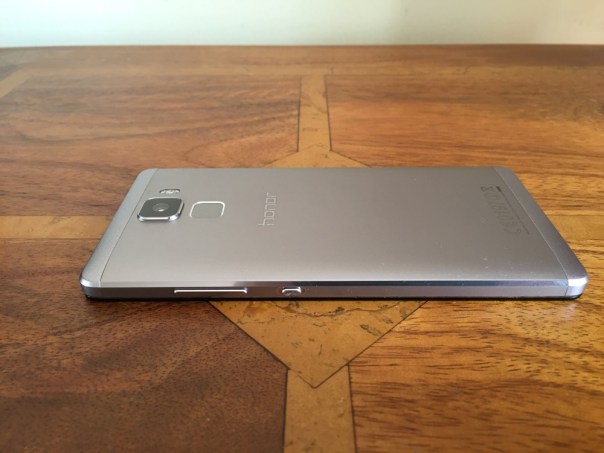


Basics
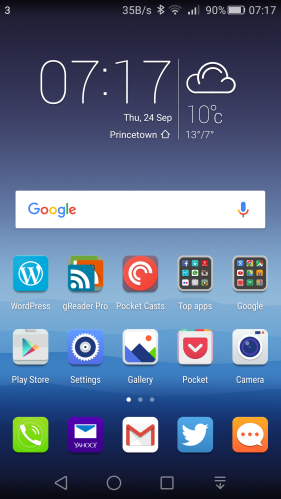
Screenshot_2015-09-24-07-17-54

Screenshot_2015-09-24-07-18-05

The key specifications of the Honor 7 are –

– 20 MP rear and 8 MP front camera f/2.0
– 5.2 inch 1080p HD display, metallic body, ceramic blasting
– 3100 mAh battery, Smart Power 3.0, Reverse Charging
– Kirin 935, 64 bit OctaCore CPU with up to 2.2 GHz, revolutionary heat dissipation design
– 4G LTE Bands: 3/7/20 (works with all UK 4G networks)
– Dual sim arrangement with option for second sim or micro SD card up to 128gb.
– Good clear loudspeaker
– Super fast fingerprint sensor
– Emotion EMUI v3.1
– 3GB ram
– Smart Key – configurable to 3 actions and or apps

The Honor 7 used for this review was kindly loaned to me in which time I have undertaken a number of tests.

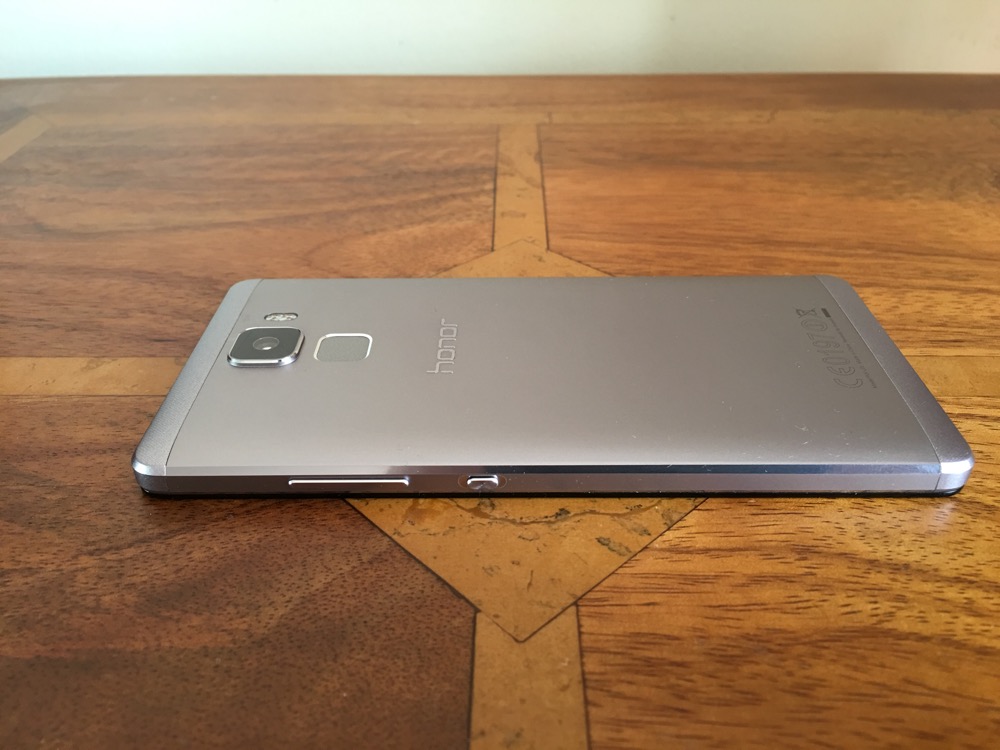
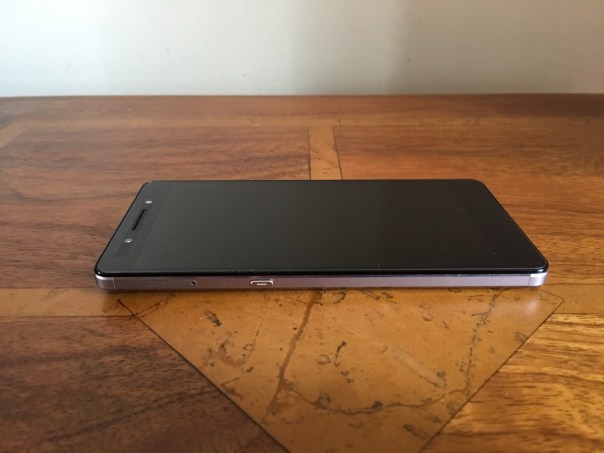
First impressions are fantastic. Open the box, lift the phone and it feels so premium with it metallic unibody finish. And then you start to use it and it really becomes a joy to use. There are so many neat touches I will try and cover them all.

Basics – cellular signal and reception is excellent on the Honor 7. It seems to be a trait of Honor devices. It is a shame with mobile payments starting to take off, that NFC is not included. Call quality was also good. Honor also have their Signal+ and WiFi+ options present in this phone.

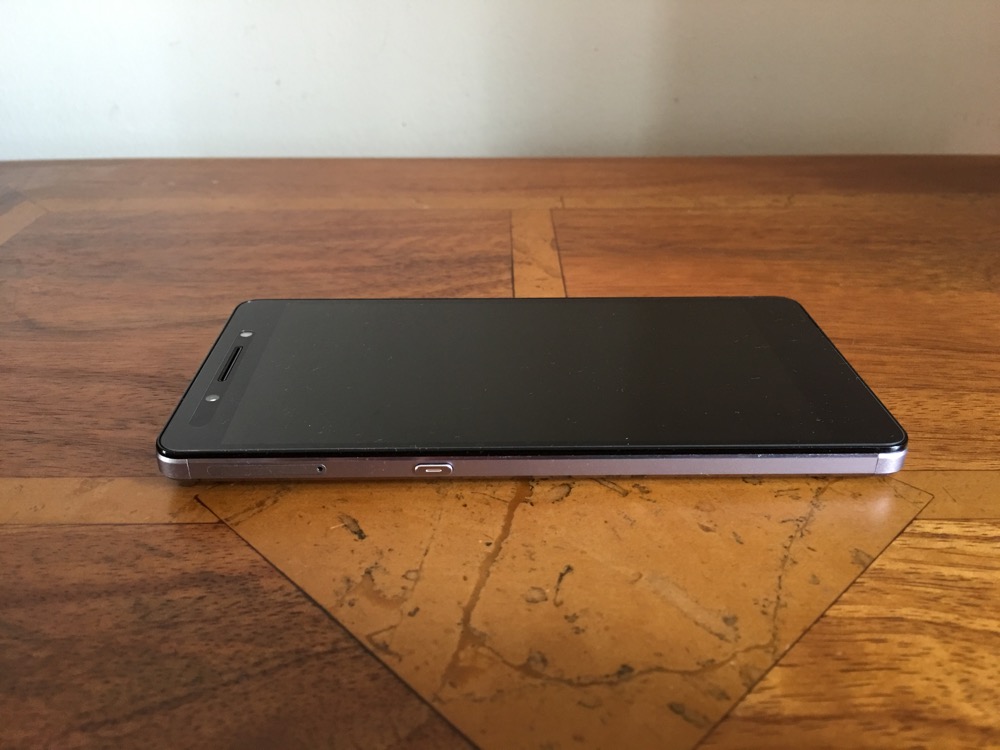
Grip – the rear has a slightly curved back and edges which helps with holding the phone.

Smart Key – on the left side is a key you can configure to do 3 different things. Press, double press, long press. You can leave each option to do nothing. Options includes ultra snapshot, voice recording, torch and screen shot or launching whichever app you required. I had screenshot, camera and Google search.

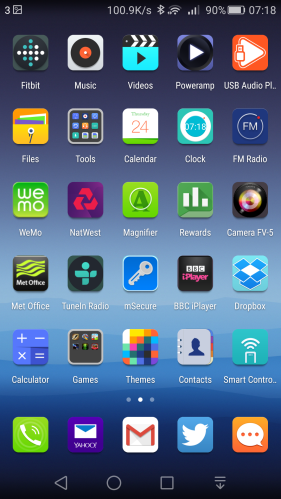
EMUI 3.1 – This is the custom launcher Honor install. I really like it. The main difference with this custom launcher is the removal of the app drawer. Think iPhone with folders or apps on home screens. There are many many themes available for EMUI to change the look as required. Of course, if EMUI is not to your liking then you can install another launcher eg. Nova or Google Now.

Screen – the screen is a 5.2 inch 1080p screen with good viewing angles.

Processor – the phone comes with Honor’s in house processor and 3gb ram. AnTuTu produces a score of 50,000 and the 3gb ram keeps everything running smoothly.

Extras –

– Its a dual sim. Only one sim has 3g and 4g. The second sim can only manage data at 2g. However, the first sim does 4g on all the UK bands. The dual sim management works well. You can select which sim is the default for data, calls and messages. Also when using 2 sims as I did, you can have 2 signal strengths showing in the status bar as well as both network names and the network speed.

– On screen menu buttons can be reconfigured and an extra menu for the notifications screen is available.

– To conserve battery there is an option for Protected apps (apps to be allowed to run in the background), Notification Manager (control apps that are allowed to be in the notification centre), Battery saving modes. If you are installing a lot of apps, you might find apps stop working in the background. It is important to make sure you setup the apps you want to run in the background. Also the phone reminds you of apps that are draining battery. This can become a nuisance.

– Fingerprint sensor that allows up to five fingers to be stored. Once unlocked the fingerprint sensor can be used a a touch panel. You can go back to previous view, back to home with a touch and hold, take photo, answer a call, stop an alarm, slide up to show the recent apps and slide down to display the notification centre. The fingerprint sensor is lightning quick to unlock.

– Voice Wakeup – by speaking at any time, “Dear Honor, where are you”, the phone plays this creepy music with a voice that gets louder whilst saying “I’m here”. You can also use the voice control to call contacts are other functions are available.

– Motions – You can flip to mute, pickup and reduce call volume, double touch to turn on, draw 4 different letters to launch an app e.g. draw a C to launch the camera.

– Glove mode. This is also available.

All the above extras are user configurable. So you could turn them all off or turn on just the features that you want.

Battery life – The standout feature for me was the battery life. I often got 5.5 hours screen on time. The worst day was only 5 hours screen on, and my best day was 6 hours 2 mins screen on time. This was with location on high, wifi and bluetooth on and connected to my FitBit Charge HR.

Camera and Audio

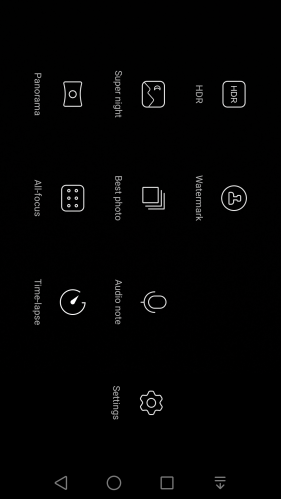
The camera app includes many options with shooting modes good food, video, photo, beauty, light painting (car light trails, light graffiti, silky water, star track), HDR, watermark, super night , best photo, audio note, panorama, all focus and time lapse. Within the settings you can turn on voice control, object tracking, adjust ISO, white balance, exposure, saturation, contrast, brightness and more. There is no manual mode and no raw options.
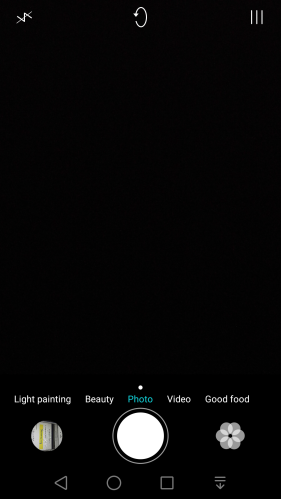
wpid-wp-1443357669911.png

wpid-wp-1443357675625.png

Camera sample shots below –

Random shots taken with the Honor 7

Above, fog had arrived on Dartmoor. A difficult shot in terms of focusing, but the Honor 7 did an okay job.


Random shots taken with the Honor 7

This turned out better, with the orange colour popping.


Random shots taken with the Honor 7

Not so impressed here. A bit over exposed and looking washed out.


Random shots taken with the Honor 7

And now a macro of the flower.


Random shots taken with the Honor 7

Again, over exposed slightly, but a fair amount of detail. The Honor 7 does have optical image stabilisation which might have assisted here.


Random shots taken with the Honor 7

Reasonable shot this time.


Random shots taken with the Honor 7

My overall thoughts on picture quality is that the Honor 7 is average is good light and can produce some ok photos, but struggles in lower light with image quality unless using super night. Some of these fancy modes like super night mode or light painting are fun to use and work surprisingly well, but tripods are needed for these to achieve a decent image.

Now to the audio. The loudspeaker pumps out volume at around 90db and is clear too. I had nearly 5,000 songs on my 128gb micro SD card and the Honor 7 had no issue managing that number of songs. However, the sound produced by the default music app was a little sharp in the treble when using headphones despite having good left and right separation. Using Poweramp app did help a little. USB Audio is not supported

Conclusion

The Honor 7 is a strong offering. Good quality build, lots of features, satisfactory camera and strong battery life. It represents good value for money and it is a shame NFC is not included which is needed for Android Pay.

Honor 7 4G UK Dual SIM-Free Smartphone deal at Amazon UK

Apple iPhone 6S Plus – Shooting with sun glare – tips

The Apple iPhone 6S Plus picks up sun glare fairly easily. Obviously, you can tilt the phone slightly to avoid the glare, but if you do shoot in to the sun slightly, not only will you get sun glare, but also sun spots.

The sun spots register as green spots and are rather annoying. Now post processing you could mask these if the spot is over some dark background. Just paint over it with the same matching background. Or, tilt the iPhone so the green sun spot is placed right into the sun itself, as per shot below. The end result is quite pleasing.

Sunrise over Great and Little Mis Tor, Dartmoor #iphone6splus

Warning – Check your iPhone running iOS 9 for Data Usage – details and fix

I received a rather unpleasant shock this morning. In 8 days since owning the iPhone 6S Plus I have used 2.5gb of mobile data. So I checked my wife’s 6S and her phone had used 750mb of data.

Now in my case I am fortunate that I have an unlimited plan, but I use 2-3gb of data maximum per month, not per week. In the case of my wife, she has a 500mb data plan since she never uses anymore than 100mb per month.

So what caused this huge swing in mobile data usage. It turns out there is a setting which is on by default called WiFi Assist. It is located in the main settings app, mobile data and then scroll all the way down to the bottom of the list, an untick the Wi-Fi assist toggle.

Hopefully you haven’t got stung for high data charges by now.

Update – Michael left an extra bit of advice is the comments. Thanks for that. “As well as turning off wifi-assist. Make sure that you go into iCloud settings and iCloud Drive, scroll down to the bottom and turn off “use mobile data” it’s something I read about on Twitter that really makes a difference, that some sites have missed to mention that seems to do the trick, (You really want to be backing up all those 12 mb pictures and video files only on wifi! )”

Apple iCloud – It Really Doesn’t Work – Editorial

I had a vision, one vision, a clear and concise vision. Buy the latest iPhone, integrate everything into the Apple iCloud for that perfect seamless Apple eco experience.

So what could possibly go wrong? Read on….

The first step in this conquest for pure Apple cloud nirvana was making sure all my PIM data was updated on Apple iCloud. This was achieved by copying by Google contacts and PIM data into the iCloud equivalents. This worked rather well.

Next was to turn on iCloud Photo library from my mac and have a full copy of my photos up in the Apple Cloud. This didn’t work initally. This was solved only by visiting an Apple store and using their wifi to upload. It also took ages.

The iCloud Photo experience hasn’t improved. I have now had to turn this feature off on my iPhone 6S Plus and just use photostream. The problem is caused by my upload speed being too slow versus the constant flow of new photos. I also manually connect my iPhone 6S and sync photos. I still have a copy of my photos with Apple iCloud and will continue to do so as I like the structured folders and overall integration. This isn’t working though. Duplicates are appearing all over the place. And some can’t be removed.

So next job was to subscribe to iTunes Match and Apple Music. This has been a total disaster beyond belief. Whilst Apple has been offering accessible support, it has left me in a position of 10% of my iTunes library ruined. Apple support left me after several support calls in a greater disaster.I now had around 41 drm protected tracks which were not drm in the first place, and still 10% of my music library lost by using Apple’s Cloud services. If it was not for my quick thinking, the number of DRM protected tracks would have increased 5 times. I would stress, these issues were not caused by my human hands but Apple and or their iCloud services.

So my issues are far from over. Apple are continuing to see what they can do to recover my music library.

To be continued…..

So 36 hours later since first writing this post, and it was worded somewhat stronger in version 1.

Mossy, from Apple Senior support, last night via remote access and some pure genius, salvaged all my iTunes music and video library and that now syncs perfectly with my iPhone 6S Plus. Local backups on Time Machine!

Except now Photos on my MacBook still does not tally with Photos on my iPhone. Grrrr. Another call later and this is the position.

I have duplicate photos on my iPhone, not on my MacBook. I am running iOS 9.02 and El Capitan on my MacBook.I now have turned off iCloud Photo library as I don’t trust what its doing to my devices. I might turn on My Photostream, but its off for the moment. I have several unresolved issues that will take another evening to get sorted or maybe not.

BUT I have a question that I hope somebody can answer. I want to understand the behaviour of the iPhone and MacBook syncing via lightning cable. It seems that if I take a lovely photo of say 4mb or a panorama of 18mb in file size, after syncing back to my iPhone its only just over 1.4mb. Is this normal behaviour? Can the option for full resolution photo synced be left on? Or do I have a fault somewhere?

THEN if I went back and used iCloud Photo library cloud services, it appears you can have the whole full resolution photo downloaded on to your iPhone or a lower resolution. This also means having to pay Apple for a higher cloud storage. But using your own lightning cable and MacBook it appears you cannot do this.

In my opinion this does not appear right unless I am missing a setting somewhere.

Update 2 – I have decided to turn on iCloud Photos again on all devices, and give it another shot. I really need this to work, as it turns out this will be the key way to ensure I get the high res versions on my selected devices.

Apple iPhone 6S Plus – My Time Lapse Test

Below is a video produced from 3 separate time lapse clips recorded on the iPhone 6S Plus. It is worth noting that my tripod was shaking in the strong wind whilst recording the first clip. The optical image stabilisation was working overtime!

There are 3 clips in total merged together on the iPhone 6S Plus using iMovie iPhone app.

The middle clip is my favourite. Watch the boat appear and seemingly swerve at high speed. The first time lapse clip is filmed with a 360 degree rotating device mounted on the tripod.

Let me know what you think. The highest quality setting is 1080p.

LG’s new flagship – The LG V10 – Official Video plus detailed specs

LG has taken the wraps off the LG V10 and what a killer phone it is. 4gb ram. 64gb storage plus micro SD card up to 2TB. Dual front cameras. Made from SAE grade 316L stainless steel and its it’s been rated MIL-STD-810G Transit Drop Compliant for shock. Manual mode for video now on the fly. Fingerprint sensor and more. It also has a secondary front display.

Here’s the official video by LG.

And the specs –

s take a look at the full specs.

– Processor Qualcomm Snapdragon 808 Processor, Adreno 418 GPU
– Main display 5.7-inch QHD IPS Quantum Display 513ppi
– Secondary display 2.1-inch IPS Quantum Display, 160 x 1040, 513ppi
– Memory4GB LPDDR3 RAM / 64GB storage plus microSD
– Rear camera 16MP with F1.8 Aperture/OIS v2.0
– Front camera 5MP Dual Lens 80-degree Standard Angle/120-degree Wide Angle
– Battery 3,000mAh removable
– Operating system Android 5.1.1 Lollipop
– Size 159.6 x 79.3 x 8.6mm
– Weight 192g
– Network LTE-A Cat. 6
– Connectivity Wi-Fi 802.11 a, b, g, n, ac, Bluetooth 4.1, NFC, USB 2.0
– Colours Space Black, Luxe White, Modern Beige, Ocean Blue, Opal Blue
– Quick Charge 2 – 50% charge in 40 mins
– Manual mode for video – ISO, Shutter, White Balance, Frame rate, Focus, new 21:9 cinematic mode
– Electronic video stablisation
– Audio extras – 32-bit Hi-Fi DAC electronic processor
– Qualcomm’s QFE2550 closed-loop antenna tuning – first phone to deploy for better voice and network reception

More photos from the Apple iPhone 6S Plus and views

Below are some photos I snapped recently with the Apple iPhone 6S Plus. I am really loving the phone and with a bit of experimentation getting some really good photos, even in low light. Really low light is its weakness. But that’s when you need a flash.

I am also experiencing a major disaster with Apple’s iCloud service, iTunes Match, but more on that tomorrow, with hopefully some good news.

Right 4 photos, all random and all first shots. To see full size, just click on photo and select original size.

Cross the Line

Tiggy hides in the Grass, Dartmoor

Sunset over Princetown

Motorola Moto X Play – review 

Welcome to my review of the Motorola Moto X Play. 


Basics

The key specifications of the Motorola Moto X Play are –

– Water repellent nano coating
– Android 5.1.1 Lollipop – Motorola’s quick updates
– 1.7 GHz Octa-core CPU – Snapdragon 615, Adreno 405 @ 550 MHz GPU, Natural Language Processor, Contextual Computing Processor
– 21 MP camera – f/2.0 aperture & dual LED flash
– 5.5” Full HD display with Corning Gorilla Glass 3
– 2 GB RAM – keep all your apps open and running quickly
– High capacity 3630 mAh battery – keep working for longer
– Front facing bottom speaker
– 16GB internal storage (9gb available), micro SD up to 128gb
– Bluetooth 4.0 LE
– Weight 169g

The Motorola Moto X Play was kindly loaned by Clove Technology, https://www.clove.co.uk/motorola-moto-x-play ,for the purpose of this review. When Motorola announced the 3 new Moto X devices, this was the one I wanted to actually own. A 5.5 inch screen with a whopping 3,630 mAh battery plus a new 21mp camera. Plus the phone runs a near stock build of android along with some snazzy Motorola additions.

The snapdragon 615 processor provides a smooth performance. AnTuTu score was 36,000. The screen viewing angles are good, with average sunlight visibility. NFC is included so android pay will work with his phone.

Motorola includes an app called Moto Assist. This understands whether you’re at home, in the car, or in the office, adapting to your needs at that moment. Eg. reading your text messages aloud while you drive or even silencing your ringer and turning off the display at bedtime. The more I used this, the more is learnt and the more useful it became.

The other feature of the X Play is the colour and finish options. This phone can be customised in many different colours and trims.

Camera and Audio

Motorola has bumped at the camera on this year’s phone using a 21mp f/2.0 rear Sony Sensor. The from sensor is a respectable 5mp. The rear camera features closed loop processing, quick Launch, Phase Detect Auto-Focus (PDAF), Instant ON Video Stabilization, Tap anywhere to capture, Colour Correlated Temperature (CCT) flash with dual LEDs, 1080p HD video (30 fps),Slow motion video,4X digital zoom,Burst mode,Night mode,Auto HDR, Panorama and Drag to focus & exposure. Lots of features but what how good are the camera shots?

IMG_20150930_145909384

IMG_20150930_145823611

IMG_20150930_150217608

IMG_20150930_145813116

IMG_20150930_145806350

IMG_20150930_145233870

I really liked the shots from the camera and whilst low light produced some noise they were still acceptable. If you would like to pixel peep, just click on photo and select full size if needed.

The loudspeaker is mono and on the front and maxed at around 90db. It is loud and clear and enjoyable to use. Headphones sound equally loud and clear. USB Audio is supported.

Conclusion

The Motorola Moto X Play is great phone and a good price. The near stock build offers an enjoyable experience. I thoroughly enjoyed the audio quality from the front loudspeaker and the superb battery life makes a change from battery guzzling QHD displays.

If you are looking for the Motorola X Play or need to read the full detailed specs, then head over to the fine people at Clove Technology – https://www.clove.co.uk/motorola-moto-x-play