Tag Archives: Review

Samsung Galaxy S4 Zoom – review part 5a – disaster strikes

This is a second part of the review today, highlighting a rather disastrous discovery.

It was sunny late evening yesterday, so I decided to go take some photos. Panoramic are my favourite type of photo so I took several of these. I had a brief look on the phone, and the panoramic shots looked rather grainy.

Anyway, once back home, I connected via USB the S4 Zoom to my PC. It showed there was 800 photos to import. I had only taken 50 so something was wrong here. Basically all the thumbnails were being picked up, including dropbox. And then it took 20 mins to import the photos and the speed was painfully slow.

The panoramic photos had no resolution. They were 200kb in size. They should have been 30mb as a minimum. Another tech guru Steve Litchfield also tested his panoramic mode on his S4 Zoom and it had the same problem.

A phone call to Samsung, and a discussion with one of their camera experts, resetting and changing some other settings made no difference. Then I installed 5 top panoramic apps from Google Play and they also produced dreadful resolution.

Samsung recommended I returned the phone for a refund, as they could not guarantee whether it was software or hardware. Or whether it could be fixed by an update.

This is a camera first phone second device. It is possible that the S4 Zoom may just have a weakness for panoramic photos. It is disappointing though.

Samsung Galaxy S4 Zoom – Review Part 3

I hope you have enjoyed the first 2 parts of the S4 Zoom review and early impressions. To recap on those parts click here.

Today, I am going to cover off some of the issues I have encountered. I probably won’t be able to stretch and test the camera due to the rainy UK weather until the weekend.

So in no particular order these are the issues or observations –

– battery life is fairly reasonable so far. I have used the S4 Zoom constantly and I can get through a day from 6am to 10pm. But no more. That is with using the camera, a few calls, twitter, blog, lots of stuff syncing and Internet. In fairness the battery is fairly hefty and I have 90 apps installed.

– the battery is removable but I cannot so far find anywhere even from Samsung that is selling the battery. In the long term, I would definitely want a spare battery kept with me especially if I was going to be snapping loads of photos.

– charging – thankfully regardless of whether via mains or USB the phone seems to charge fairly quickly.

– car GPS mount – my universal mount can’t handle the depth of the S4 Zoom and in my brief hunt for a new one cannot find anything. Any suggestions would be grateful.

– cases – you must be having a laugh, I have only found one case on eBay which is a silicone type affair for £3.90. It looks shocking, but it is better than nothing. Samsung are meant to have a bespoke case for this device, but nothing is available yet. In fact accessories for this device are going to be few and far between.

– story album – Samsung include an app called Story Album. You select some photos and make an album which you can then get printed and posted to yourself. Except, you select the photos and nothing further happens. Apparently, Samsung have suggested I need to hard reset my phone and some software I have installed might be clashing with it. Well no chance of that for a while until I have tested everything I need, and then I might try again. But I reckon its the app.

– auto focus on the camera – maybe me, but sometimes it seems to struggle to auto focus. I need more time to test camera but indoors this is what I have observed.

– camera – talking of the camera, I need to familiarise myself with the options, but strangely I did find the HTC One concept of taking photos much easier as with the HTC One you didn’t worry about which mode you just took the photo and edited it afterwards

– photos – no question about it, you get a decent quality photo. Optical zoom is brilliant being on your phone as often you do need to zoom in to a photo. I have captured views that no other phone could have managed due to optical zoom. Digital zoom is useless in comparison.

– speed – it takes about 1.5- 2.0 seconds to take the first photo from pressing the camera icon and then using shutter button. The HTC One could have taken 20 photos in the meantime, albeit much lower quality. As the S4 Zoom is more like the S4 Mini it’s processor is not as powerful. I don’t get any issues with its speed, and it is not slow, but then it is not fast like the HTC One. You do get the odd slow down, but it is odd ones and has no impact is usage. Makes you wonder if we really need Snapdragon 800 processors!

– voice control – you have the ability to control many apps by voice. Sometimes it works very well, and sometimes it is a bit hit and miss

– screen – it comes with a lower resolution screen than the standard S4 and you do notice the difference. Put the S4 Zoom side by side to the HTC One and it really shows how incredible the HTC One screen is. It’s a real wow moment. In addition, the S4 Zoom just isn’t a bright screen compared to the HTC One.

– shape, size and weight – it’s heavy. And you notice it in shirt front pockets but it fits with ease. Mainly as its not too wide or too tall. It’s fairly comfy in the hand due to its curves, but the Zoom lens does get in the way sometimes. I’m getting used to it though

– sound – loud and good audio quality, so makes for a good MP3 player, or for listening to podcasts over the loud speaker.

– no notification led – it got none, and no light for charging state either.

In reality you have a camera with a smartphone attached. It’s a good combo as you can do nearly anything and achieve high quality photos. It is still early days, and the main camera test is yet to be done.

If you have any questions, please ask. I should have all the answers.

Anyway, here is a photo taken last night. Zoomed in and cropped.
2013-07-30 21.48.35-1

Samsung Galaxy S4 Zoom – Review Part 1

Yesterday, I provided my early impressions of the S4 Zoom. Click here.

Today, I am going to start reviewing the device, and at the same time will answer the many questions I have already received about this device. As I mentioned yesterday, I got my Samsung Galaxy S4 from Clove Technology.

The official specifications of the S4 Zoom are –

-Xenon Flash, 16MP BSI CMOS Sensor, 24-240mm 10x optical zoom
-Optical Image stabilisation, F3.1-F6.3 Lens, 4fps Burst Shot, ISO 100-3200
-1080p video recording, Dedicated shutter key
-Zoom Ring for quick sharing of photos and access of the handset’s interface 1.9MP front facing camera
-Expert Mode for you to change shooting parameters,Smart Modes to help for your photos
-HDR Mode, Panorama,Best face to adjust smiles and eyes
-Multiple filters and modes to enhance your photos
-8GB Internal Storage (5GB user-accessible), possible to move apps to micro SD card
-MicroSD slot (expandable up to 64GB)
-Bluetooth, WiFi, 3G
-IR Blaster with Peel software
-3.5mm earphone Jack
-Accelerometer, Geomagnetic, Proximity, Gyro, RGB Light
-A-GPS and GLONASS for navigation
-Li-Ion 2330mA
-Up to 7 Hours Internet Usage Time (3G)
-Up to 9 Hours Internet Usage Time (Wi-Fi)
-Up to 10 Hours Video Playback Time
-Up to 46 Hours Audio Playback Time
-USB Chargeable
-Up to 13 Hours Talk Time (W-CDMA)
-Up to 570 Hours Standby Time (W-CDMA)
-1.5GB RAM
-125.5 x 63.5 x 15.4 mm
-208 g weight
-USB v2
-Super Amoled Display , 4.3 inches qHD resolution of 540 x 960
-GSM 3G, EDGE / GPRS (850 / 900 / 1800 / 1900MHz)
-HSPA+ 21Mbps / 5.76Mbps (850 / 900 / 1900 / 2100MHz)
-802.11a/b/g/n 2.4+5GHz, Wi-Fi Direct available
-PBAP, A2DP, AVRCP, HFP, HSP, OPP, SAP, HID, PAN, DI, MAP
-NFC available but not available Mobile Payment
-DLNA (Samsung Link), MHL 1.2 support
-KIES, KIES Air support
-Dual Core Processor
-1.5GHz CPU Speed
-Video Format: MPEG4, H.264, H.263, VC-1, WMV7 / 8, Sorenson Spark, VP8, MP43
-Full HD (1080p) Video Playback available
-Recording up to 30fps
-Audio Format : MP3, AMR-NB / WB, AAC, AAC+, eAAC+, Vorbis (OGG), FLAC, WMA

So being a Samsung device, everything including the kitchen sink in terms of specifications are included, but actually one key feature is missing. And that is the notification LED. That means no charging light too. I do miss this at the moment.

The apps Samsung include with the Zoom are WatchOn (the infra red blaster and TV Peel software), S Planner, Gallery, Samsung Apps, Samsung Hub, S Translator, Internet, TripAdvisor, Group Play, Video, Story Album, Music, Flipboard, Photo Suggest, Paper Artist, Video Editor, Calculator, Clock, Help, Downloads, My Files, Voice Recorder, Voice Search, Settings, Samsung Link, Dropbox, S Memo, Polaris Office 5 (the viewer is included but the full version is free when you log in to Samsung Apps). That is quite a decent bunch but not a massive bloatware either.

The settings of the S4 Zoom reveal quick toggles of which you can select from wifi, gps, sound, screen rotation, bluetooth, mobile data, blocking mode, power saving, screen mirroring, wifi hotspot, s beam, nfc, driving mode, smart stay, sync, and flight mode. As you can see, considerably less from the standard S4.

Further within the settings the key areas are security. Within here you can encrypt device and sd card, set up the remote controls, sim change alert and find my mobile and a few other options. On the accounts tab, you can control you various accounts from email , dropbox, Samsung and the backup options. You can choose to backup to Google, Samsung or dropbox. Under the My Device section in settings, there is lock screen, display, sound, home screen mode, open camera, call, block mode, driving mode, safety assistance, power saving mode, accessory, accessibility, language and input, motions and gestures, smart screen and voice control. The connection tabs handles wifi, bluetooth, data useage, more networks, NFC, S Beam, DLNA, Screen mirroring and Kies. The above list does not include all the setting options, as I have only included the relevant ones. 10% got left out. But even just listing the options is a task in itself.

Anyone using a Windows Phone, should now understand why WP8 is so far behind android. Anyway, back to the settings. Lockscreen – here you can select the type of screen lock preferred from swipe, face, pattern, pin or password. With swipe selected, you can have multiple widgets on the lockscreen, customise apps, app shortcuts, pick your unlock effect, and more.

Display – options for wallpaper including live wallpapers, notification panel options, screen mode options which include adapt, dynamic, standard, professional photo and movie. I use adapt so it changes according to your environment. Daydream options include colours, flipboard, photo frame and photo table. Fonts – options for font size from tiny, small, normal, large and huge. Font styles include default, choco cooky, cool jazz, rosemary and Samsung Sans plus the option of downloading tons more. Other options for touch key light duration from 1.5 seconds, 6 seconds, always off and always on. Options to display battery percentage, edit after screen capture, and auto adjust screen tone which saves battery.

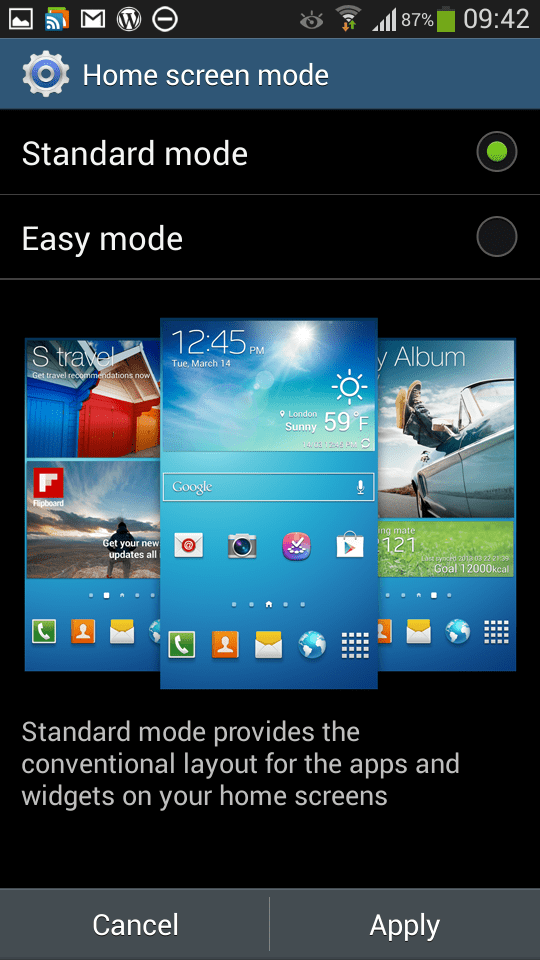
Sound settings options have everything from volume controls for media, ringtone, notifications and system levels. Vibrations intensities can be set for incoming call, notifications and haptic feedback. You can select all your different tones and ringtones of which there are loads to choose from. You can also turn on or off keypad, touch, screen lock tones, haptic feedback on or off and also use the adapt sound option to find the best sound for you during calls and music. This is a very good option to setup. Make calls clearer. If you are a novice the home screen mode allows you to switch from the standard android setup to easy mode. There is also an option to open the camera everytime you press the power button. Call setting options have about another 20 options from call rejection options, call reject messages, alerts and more.

Blocking mode is excellent. You can use this to disable incoming calls, notifications, alarms and timers. You can have this setup as on or off or to work between certain times. I have this on permanently between 10pm and 6am with the exception for calls allowed from my favourite contacts.

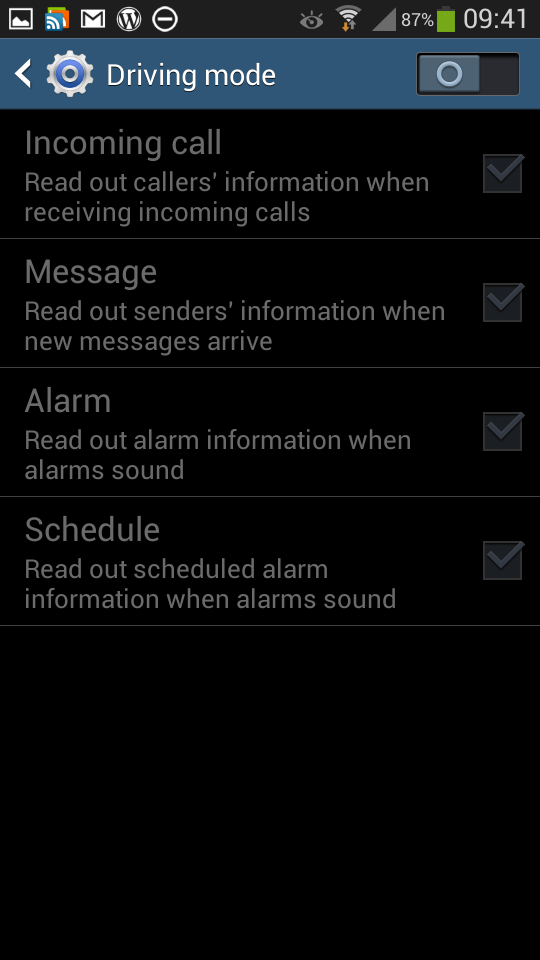
Driving mode has options to read out aloud caller information, messages, alarms and schedules. And with Samsung S Voice you can reply too. S Voice is a whole subject on itself.

Safety Assistance – in an emergency by holding the volume up and down keys for 3 seconds will send messages at your selected interval to your selected emergency contacts with a message your setup and your exact location. Super clever stuff.

Power Saving mode – options for CPU reduction, screen lowering, and haptic feedback off or on.

Accessory – there is a special flip case coming out, and you have the option to unlock the screen with this case in accessory setting. Also the HDMI output audio can be changed from stereo to surround.

Motions and gestures – these include direct call (lift phone to call contact displayed on screen), smart alert , tilt zoom, pan an icon, pan images, turnover to mute calls or pause sounds. Smart screen – smart stay keeps screen on when you are looking at it, smart rotation keep screen rotated according to your face orientation. You can turn these on or off.

And finally Voice Control settings – incoming calls can be rejected or answered, Alarms can be snoozed or turned off, Camera can take photos by voice and operate a lot of the features, and control music playing too eg next, stop, pause, volume up , volume down. The Voice settings are in addition to S Voice app which does considerably more.

Anyway, that is a summary of what is included within the S4 Zoom. There are plenty more features within each of the apps, of which the camera is most fascinating. Just to give you an idea of the camera quality have a look at this photo I took on my Flickr account.

More tomorrow. But in the meantime, below are some screenshots of the various settings and items mentioned above.

2013-07-28 09.40.572013-07-28 09.41.102013-07-28 09.41.212013-07-28 09.41.362013-07-28 09.41.422013-07-28 09.41.552013-07-28 09.42.282013-07-28 09.42.352013-07-28 09.42.532013-07-28 09.43.022013-07-28 09.43.122013-07-28 09.43.272013-07-28 09.43.33

Moga Pro Controller – Review

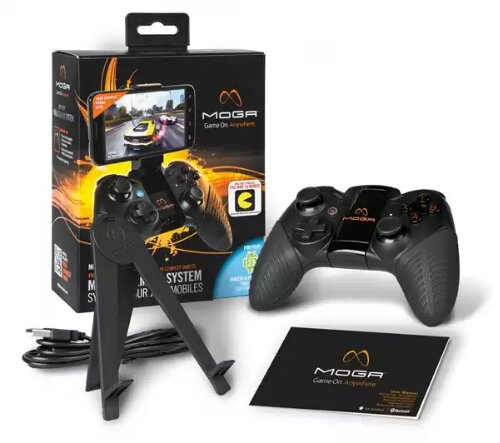
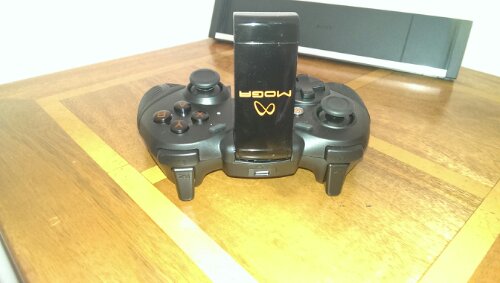
The Moga Pro Controller  is a game controller with clickable dual analog sticks, shoulder buttons and triggers, D-pad, and four action buttons offer the control you need for the games you want to play. It connects with a wireless Bluetooth connection that works with Android tablets and phones.
image

-The MOGA Arm™ secures phones up to 3.2 in./82mm, the largest phones in the market
-Full-sized, rubberized grips minimize wrist fatigue during mobile gaming sessions
-Internal, rechargeable batteries with a USB recharging cable
-Folding tablet stand
-Huge game library with more titles coming all the time
-Works with Bluetooth-enabled Android 2.3+ smartphones and tablets

In the box you get the controller, a micro usb lead, instructions and a tablet stand. This is ideal for using with any tablet including my Xperia Z Tablet.
image
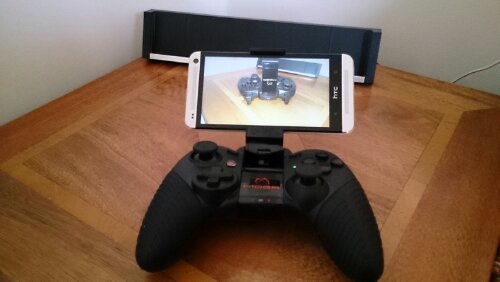
However, using it with your phone is equally slick, with an extendable arm that springs back to hold your phone. Shown above with the HTC One in situ. The angle of the arm can be adjusted too, either as shown or upright. The controller is available in several countries. In the UK, I got mine from Game UK for £39.99. I have also seen it in Game UK retail stores. As part of the price, you also get a copy of Pac Man and Nova 3. Nova 3 can only be installed on one device, so if you have a tablet and phone choose wisely.

Holding the Moga Pro feels really great. It fits like a glove in the hand and all the controls are easy to reach and use. I have had the controller for nearly 2 weeks and it is just as fantastic to use as it was from day one.
image

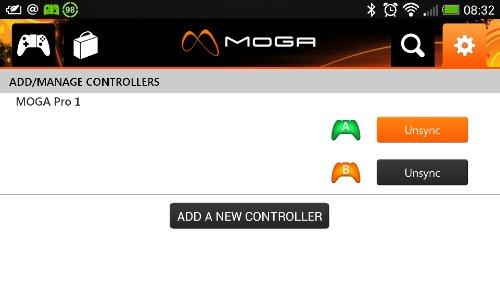
The first thing you need to do is fully charge it, so connect the micro usb cable into the rear socket and charge away first. Setting up is simple. Install the Moga Pivot app and setup connection A first, then B. The controller Works better in mode A with Moga enhanced games, but it is also great with non enhanced games in mode B.
image
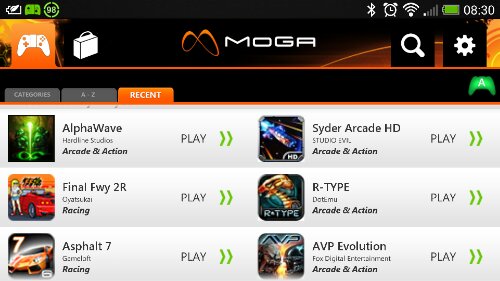
Connection A is for games specifically Moga enhanced for which there are over 100 and the list is growing. After you are all connected, reboot your phone and switch off and on again the controller. Open the Moga Pivot app, and connect to profile A. Once connected, it brings you to the store list of available games.
image

If you tap the top right icon controller icon, it will bring up a list of your games, ones you have played via the Moga Pro and ones yet to play. Below is my games.
image
And more.
image

It is quite likely you will already have some Moga enhanced games. So one thing to remember that everytime you want to play a game, you must launch the Moga Pivot app first, and each time and launch the game from within the app.

So what’s it like to use. Two words. Freaking awesome. Action or racing games come alive. Having analogue controllers provides a level of control not possible with touch screen controls. The gaming experience is a wonderful experience. But it is not just action type games that benefit. Games where a bit of skill is required also benefit. I have some crazy high scores on games were I was useless previously.
At present the Moga Pro is for android 2.3 upwards.

And if you like playing games this is well worth considering.

Sony Xperia Z Tablet SGP-DS5 Official Dock review

Yesterday the postman was all about the Z Tablet, and along with the Zenus case came the official Sony Dock .

image

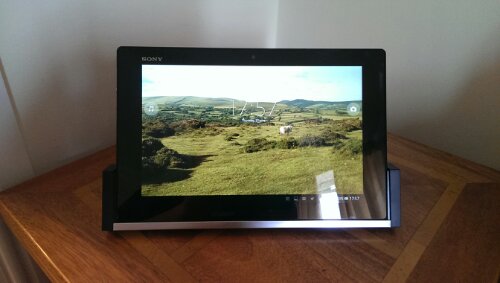
The dock is a very simple affair, a plastic base with a micro usb slot and a pivoting rear plate. The dock costs nearly £40 and doesn’t come with a micro usb lead or mains plug. You are meant to use the plug and cable that came with the tablet. Connecting the lead is very simple as shown below.

image

You then take the Z tablet and it beautifully glides down into the dock. Effortless.

image

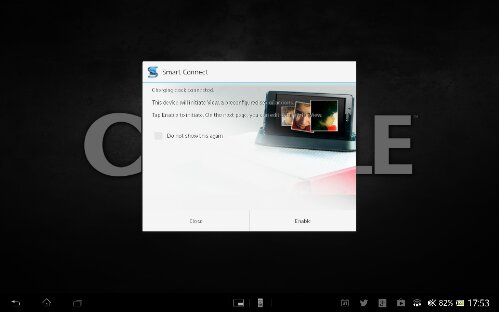
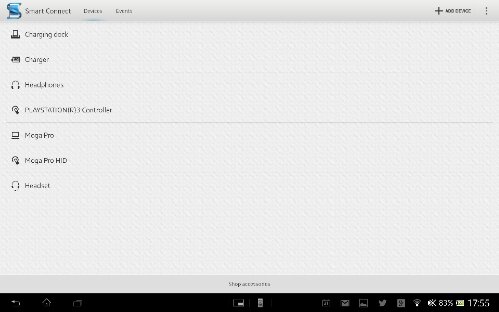
You can then adjust the angle too. However, as soon as the tablet is docked the smart connect app launched. Screen shots below.

image

image

With this app you can create actions that occur when the tablet is cradled. In fact you can do this for any accessory, and as you can see I have a number already working with the Z tablet.

Once docked you can adjust the viewing angle. I must admit when I first took the dock out of the packaging I was a underwhelmed. But in use it is rather neat. Is it worth £40. That’s debatable. Would I recommend it. Yes but only if you’re rich.

HTC One – part 3

Over the last few days I have posted a number of articles detailing my time with the HTC One. To read the previous parts click here.

Today, after spending more time with the phone I am beginning to grasp some of its uniqueness. Sometimes specs don’t reveal the real truth, since its the real life user experience that counts, and whether the specs or features actually add any proper benefit to the user.

So yesterday I mentioned how taking photos was a breeze and some of the pre camera effects possible. I haven’t touched on the video side, but needless to say it has some great qualities including slow motion and image stabilisation software as seen in the Nokia Lumia 920. So after taking a photo you can edit, share, print, send and so much more. When you open the gallery you are faced with a screen as below.

20130331-092346.jpg

Within this first screen you have options to see Facebook, Flickr, Dropbox and Picasa photos displayed. I only have Flickr set up for the time being. If you touch the “my photos” you jump into another screen. This can show albums, events or locations. If you click into events, you can then select an event, as shown below.

20130331-092747.jpg

You will notice the top box has a play icon. What this does it jump to the next screen shot and allows you to show off the photos of your days shooting with a musical showcase presentation. You can change the effects and more. This is a really simple idea and works really well. Plus the boom box speakers on the front with beats sound incredible. It’s not a gimmick at all. And here is a YouTube video with 8 photos put together in seconds by the HTC One – click here.

20130331-092947.jpg

You can also use the Zoe mode or continuous shooting mode to combine multiple photos into one. Really cool again.

Of course with each photo you can edit them in the photo editor which is excellent. It has options for effects, frames, retouch and transform. Each of these options reveal tons of other options including auto enhance, colour filters galore, several frames, skin smoothing, face slimming, eye enhancer, crop, rotate, flip and straighten and much more.

If you have a DNLA TV you can of course send the photos to the TV, or use HTC Media Hub as another way of doing the same thing.

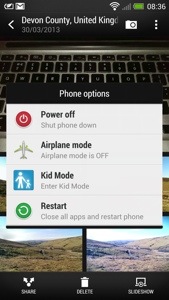
Some of features. Long press the power button brings up shortcuts for power off, aeroplane mode, kids mode and restart. Yes there is a kids zone mode which is a safe environment for your kids to use your phone.

20130331-093609.jpg

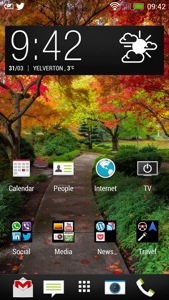
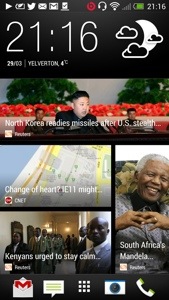
So what else have I being doing with my One. Well I’ve been using Blinkfeed a lot more. It really is a great piece of software. I’ve changed my default home screen slightly. See below.

20130331-094526.jpg

One thing I noticed that using the HTC One camera and changing between the different options on screen feel fast and logical. Well thought out menus and quick changing. My Samsung Note 2 and S3 were never as fast with the menu settings and felt congested too. The other thing with the One is forgetting all its specs, what you will get is a perfect photo pretty much first time every time no matter what the lighting conditions. Impressive.

One last thing, the sound quality whether though the front speakers or via your headphones is stunning. I keep listening to more and more of my music with a variety of headphones and keep getting omg moments.

More on Tuesday. Day off tomorrow 🙂

First Impressions of the HTC One

Yesterday morning was meant to be a quick visit to the local shops in Plymouth and back again.
image

However, the 3 store was launching the HTC One, so I popped in to have a look and play. Then they offered me a deal I couldn’t refuse. Being honest, my Lumia 620 was so good, I wasn’t really looking to buy anything anyway. And I was focused on the S4 which I cannot see buying anytime soon ever.

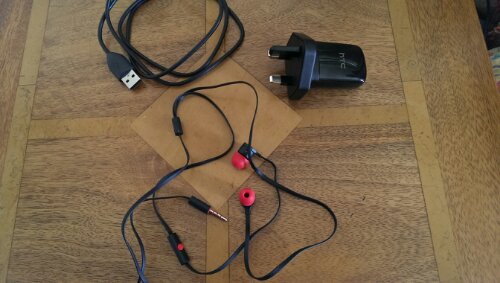
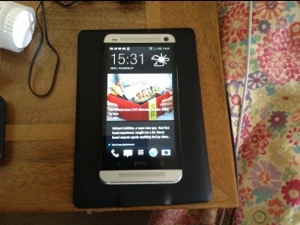
So here are my very early impressions. The phone itself is the most beautiful of anything made, even better than the iPhone 5. The screen is stunning, and seeing is believing. In the box, is a super cool mains adapter, usb lead, sim tray ejector tool and trendy looking headphones red and black headphones and some different size buds for them. Attention to detail is huge. You also get some leaflets, from safety to starting up.

So I charged the phone first. Then I turned on. A few menus appear, wifi setup and then you are asked would you like to set your phone up on your PC/Mac. I said yes. It provides you with a web address to enter in your browser, and then a code. You are then left with the setup now taking place on your web browser. From the browser you created your accounts eg dropbox, email accounts, installed a selection of recommended apps, chose your ringtones, alarm tones and notification tones, bookmarks and a few more things. You then confirm, and go back to your phone to accept and voila. With the tones you could actually play them first before selecting your chosen noise.

HTC also provide a free download of HTC Sync Manager. With this installed, I was able to read my last iPhone 5 backup data, and I could extract whatever I wanted from messages, bookmarks, pim data, photos and more. I then used the software to copy some music and photos (from iPhoto) across.

Next up I went into Google Play and started to install about 100 apps. However, I have not being able to install some due to compatibility issues. These so far include Doodle Jump, Zite, NFS Most Wanted, Nationwide and Amazon Appstore. Otherwise everything installed fine. Apparently this is due to the 1080p screen resolution which is brand new and some apps haven’t been configured to work more than 720p.

I have taken a few photos indoors and the quality in the low light is astounding. Very impressive stuff. I have also used the supplied headphones and my Bose AE2i, switched on Beats Audio and got blasted away. Great quality. The loudspeakers on the front are very good, clear and loud.

What I now have to do, is tidy up all the apps, explore all the HTC Settings and apps, and understand how it all flows.

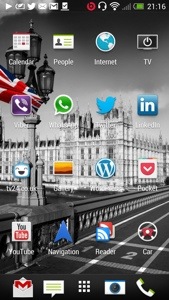
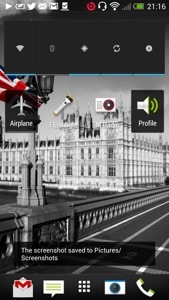
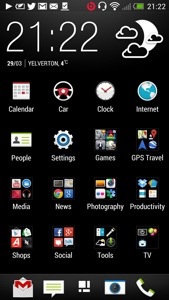
But initial impressions are fantastic. I’ve added some screen shots of my setup so far. I had seen a few dummy cases of the HTC One but when I actually viewed a working version in silver I was blown away by how beautiful the phone is to look at. And the screen. The iPhone 5 retina screen is excellent but this screen on the One is a different league. The HTC One is a different league to any other smartphone available. It’s a quality made smartphone, looks it and feels it. The attention to detail is fanatical. Even the mains adapter comes in 2 sections which rotate to clip together. It hard to visualise but HTC wanted even that to feel amazing as the 2 sections are very cool too. Even the included headphone has accents of red on the ear buds, talk button and headphone jack. I never normally even bother to open the included headphones but I was intrigued with the red and black styling to see whether they were crap or not. In fact they are well above par and I would use them as my in ear headphones permanently. Personally, my preference is over the ear cans. I have tried a pair of Bose AE2i and Sony MDR-1. Both sound excellent and the One headphone amp is powerful enough to drive these both easily. Talking about the sound, its always best IMO to leave the beats audio option on. Then there is the slick setup procedure. All this makes you realise you have bought a quality product. And HTC Sense is professional and functional. I still need to play around with options on the home screens and more about that and day 2 will appear tomorrow.

PS. In case you are wondering, the Nokia Lumia 620 is still going to be used. It is a fab phone.

20130329-213218.jpg

20130329-213226.jpg

20130329-213236.jpg

20130329-213244.jpg

20130329-213253.jpg

20130329-213259.jpg

Part two is now live on my blog. Click here for next part.