Tag Archives: Review

Blast from the Past – Mwg Zinc II review

Below is the review of the Mwg Zinc II that I wrote in 2008.

Review of Mwg Zinc II  by Gavin Fabiani-Laymond.

image

Date of Review – 18th July 2008

Available from –  http://www.expansys.com/

Price – £399.95 with currently a £50 cash back offer

Pros – Zinc II menu useful
            Retractable Stylus
            Loud Speaker (never miss a tone)
            Mini-usb

Cons – No flash on camera
            Competition

Expansys recently sent me the Zinc II to review. I have had this a week now, and have actually enjoyed this handset. It is a fairly straight forward affair. The specifications are :-

Operating System: Microsoft® Windows Mobile® 6.1 Professional, World Wide English
• Processor: Samsung 520MHz
• Memory:
– 256MB Flash ROM
– 64MB RAM
– MicroSD expandable memory
• Display: 2.8” TFT QVGA, Flat Panel (Touch Screen)
• Keyboard: QWERTY keypad with semi-automatic sliding mechanism
• Network Frequency:
– Quad-band GSM 850/900/1800/1900MHz
– Tri-band UMTS 2100/1900/850 MHz
– HSDPA 3.6Mbps
• Connectivity:
– Wireless LAN 802.11b/g
– Bluetooth® version 2.0
• Audio:
– Speakerphone
• GPS: Integrated highly sensitive SiFRstarIII GPS chip, reliable in urban and densely covered outdoor environments.
• Camera:
– 2 Megapixels CMOS camera
– Supports still image and video capture
• Operating Time:
– Standby up to 260 hours (GSM)
– Talktime up to 6 hours
• Dimensions: 109.5 x 59 x 18 mm; 185g

The key point to note is the 64mb of ram. Whilst this did not cause me any problems, most WM6 devices now have 128mb of ram. I am sure if the device was loaded and running several intensive applications, there is a possibility to overload it.  The keyboard is very sensitive, and at first I held the key to long and duplicated letters. However, with a bit of practise I started to get used to the keyboard and actually started to like not having to press the keys so hard as I do on my Samsung i780.

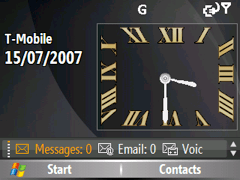
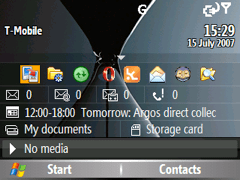
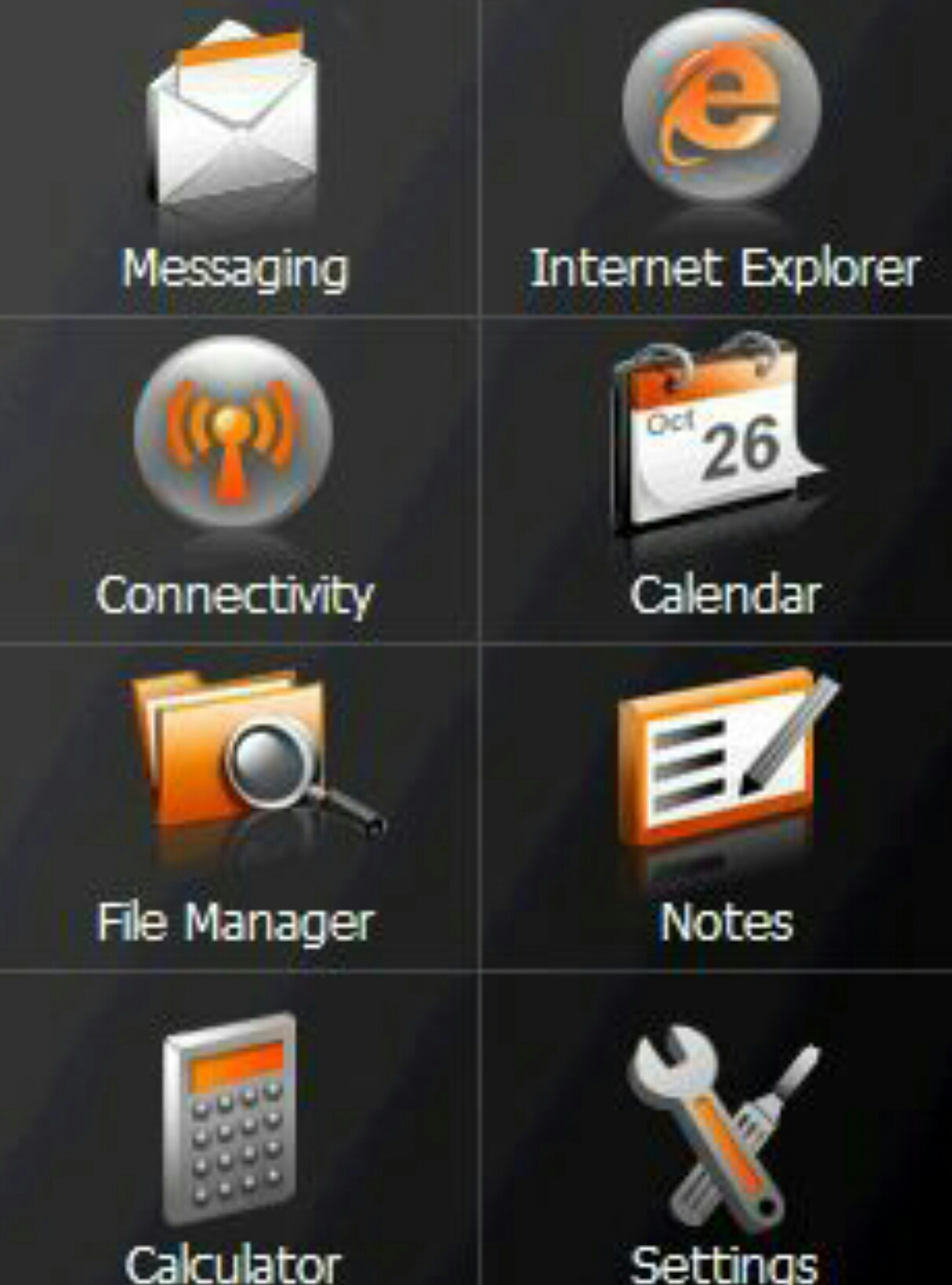
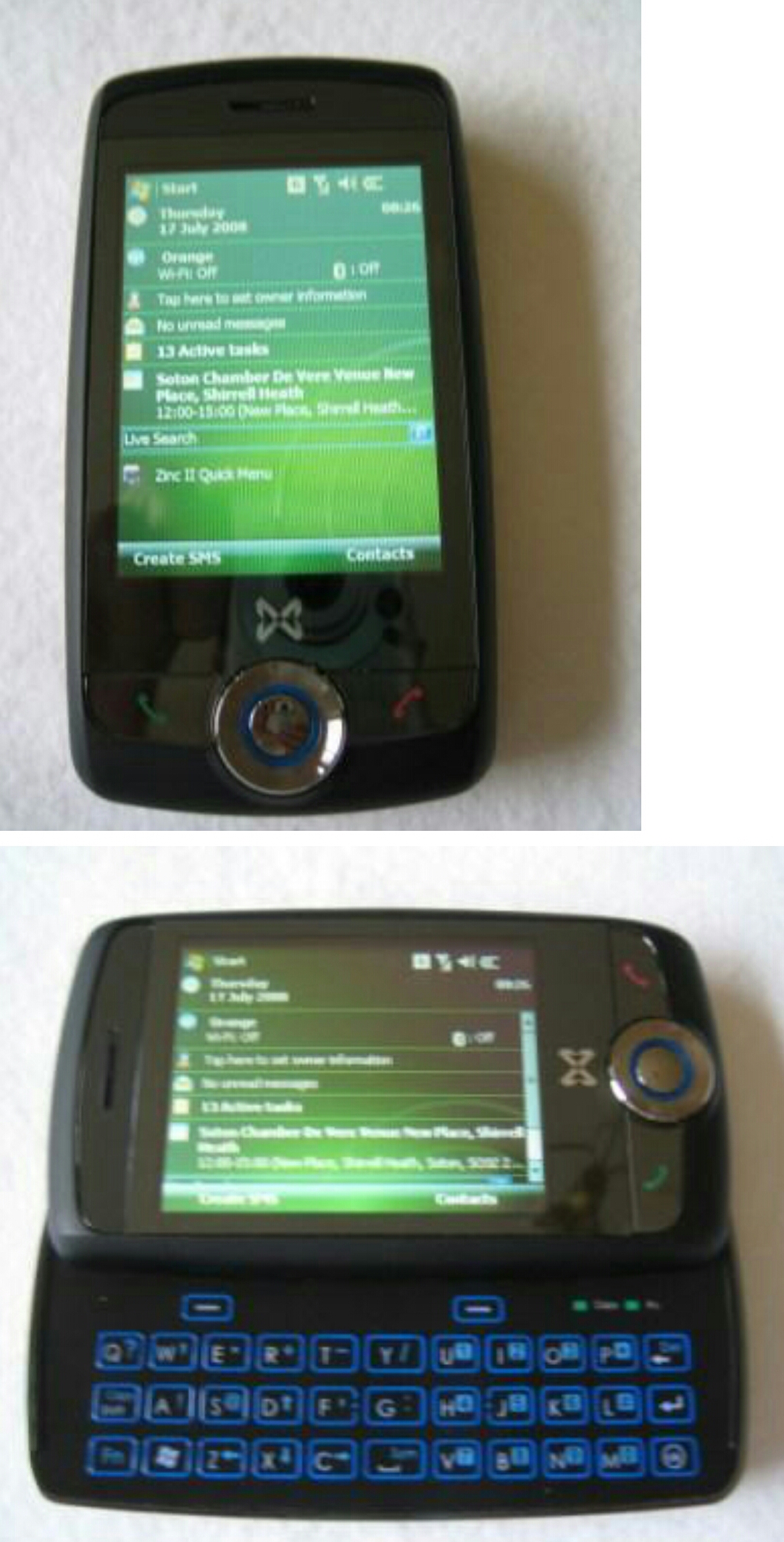
Mwg have followed HTC’s today plugin concept and provided a today plugin called Zinc II menu. Unlike the HTC option, it allows multiple contact shortcuts and application shortcuts. See screenshots below.

image

image

In use the call quality was as good as most WM6 devices I have used, but the loudspeaker volume was loud, so no chance missing any alarms!

As the device uses mini-usb, it is compatible with a wide range of accessories. The stylus is a retractable one, and a bit lightweight for my liking.

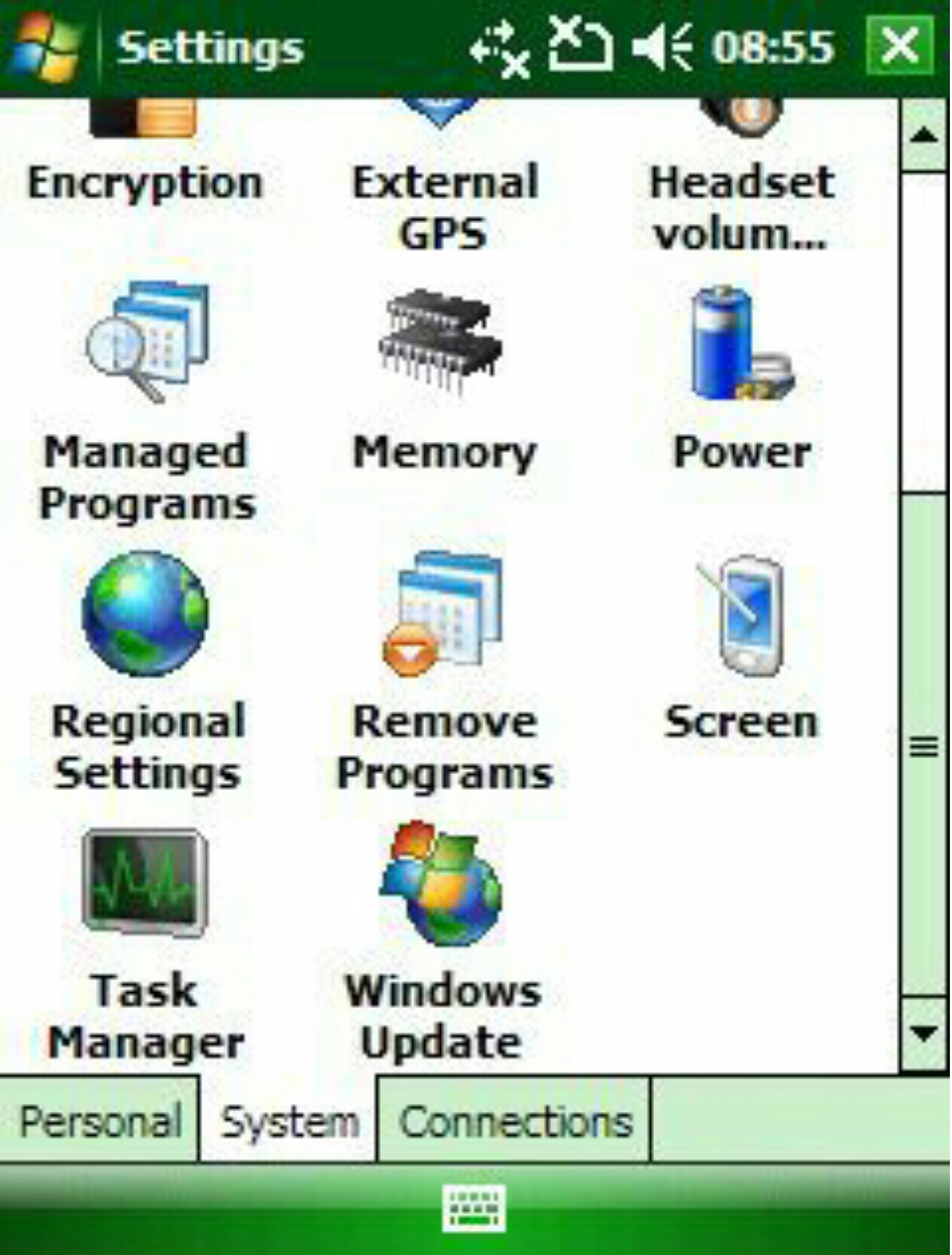
Mwg have also tweaked some of the settings – see screenshots –

image

image

All the features of the device as described and the only one concern I have is with the 64mb of program memory, and the lack of buttons on the front of the device. A start menu and ok button would have been helpful, but Mwg have gone for the cleaner look.

After using the phone for the last week, it has been a pleasant experience. Thanks to http://www.expansys.com again for sending the unit for review.

Blast from the Past – The Virtual Keyboard – Seeing is Believing

Now this review is a sure classic gadget. And one from 10 years ago!

Welcome to my next Gavin’s Gadget Review – the Virtual Keyboard

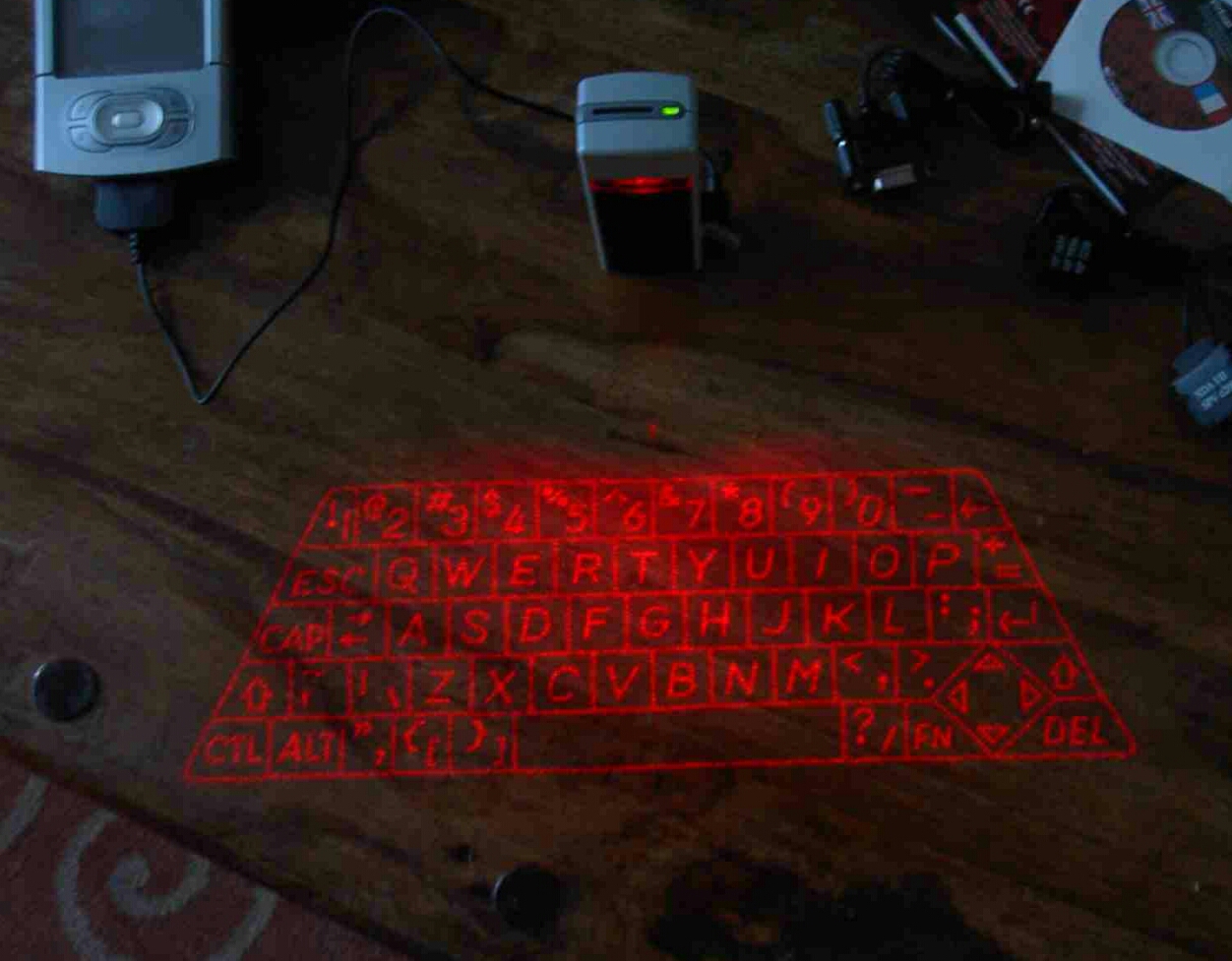
image

Now before anyone asks, is this fantasy or fiction I will state this is fiction and following my use of the keyboard it is no gimmick.

In fact before I continue, I have been left stunned at how well its works. Not to mention the “wow” factor. All my colleagues, friends in the pub, new friends I have made showing the Virtual Keyboard cannot believe what they are seeing. However, they are equally amused by the fact it work.

So what do you get in the box.

image

The Virtual Keyboard, a lovely small case for it, some instructions, the installation CD, and a whole host of adapters which connect to Palm, Pocket PC, Smartphones and even a PC (serial).

The Virtual Keyboard uses the latest infrared and laser technology to project a full size qwerty keyboard onto any flat surface.

The current version is compatible with:

O2 XDA I and II – O/S Pocket PC2002/3

Orange SPV e200 – O/S Smartphone 2003

Palm Tungsten T3 – O/S Palm OS 5.x

Palm M505 – O/S Palm OS 4.x

HP2210 – O/S Pocket PC2003

HP5550 – O/S Pocket PC2003

Laptops/Desktops – O/S WinXP, 2000, NT & 98

The actual device is quite compact. In fact it was a lot smaller than I had anticipated.
Loading the installation CD revealed all the different operating systems. I chose Palm OS5 and installed the driver.

Plug the charging into the wall and give the unit a 2 hours charge. This should last for 2 hours continuous typing. So in reality you should get a whole days worth of typing if you do a bit here and there.

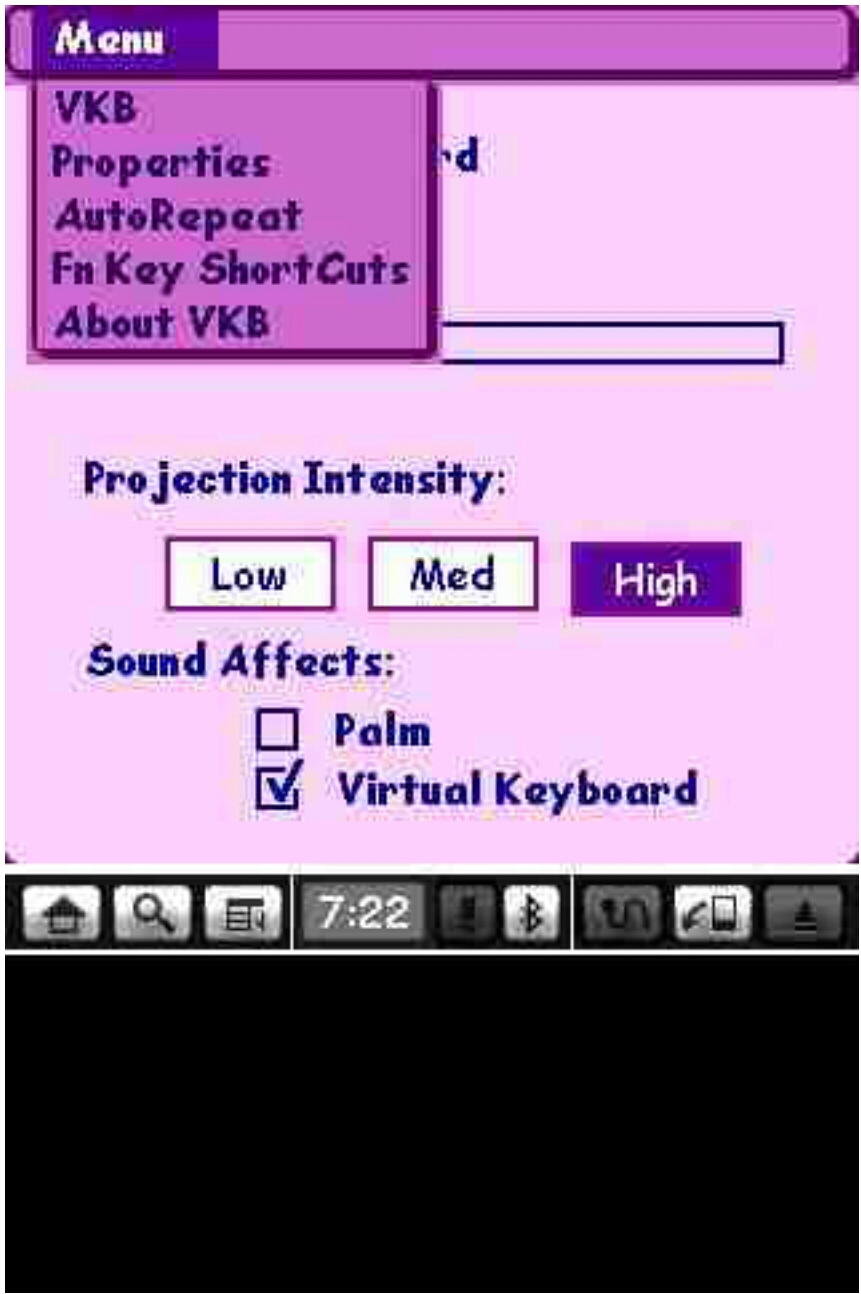
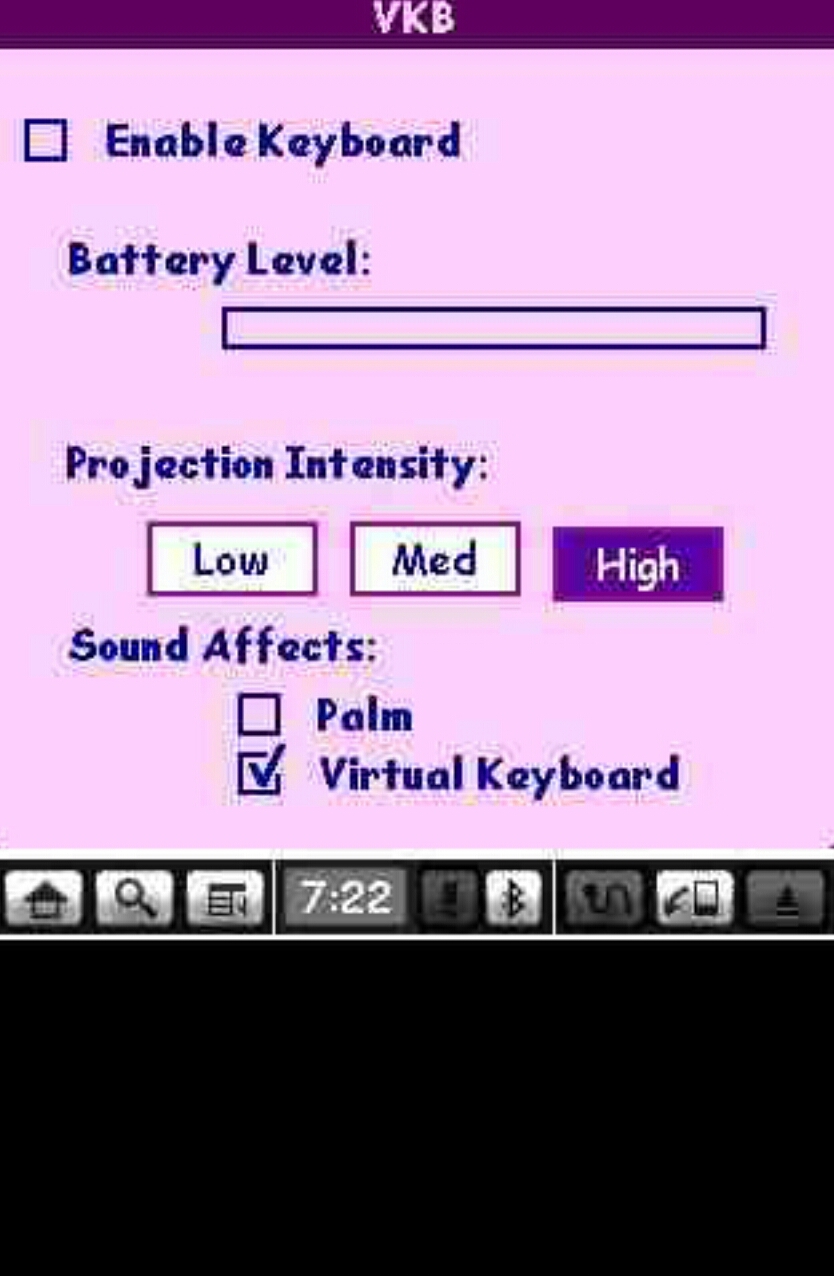
Next it is important to configure the driver to your own typing style and the various options as shown below.

image

image

The size of projection is reasonable and easy to use.

It is worth noting that the Virtual Keyboard cannot be used in direct sunlight and must be used on a flat surface. Also, the keyboard driver settings appear to be lost following a soft reset.

So where in the world can you purchase this? I bought mine from Simple Solutions (http://www.simplesolutions-uk.com/shop/ ). This is the first time I used this company and I was very impressed at how efficient and helpful everyone was in answering all my questions. Also, my Virtual Keyboard arrived the very next day!

Definitely recommended and a very cool piece of kit.    

Blast from the Past – Samsung i600 – review

Below are all the sections I wrote covering the Samsung i600. This was at a time was qwerty keyboards were still popular. That was about to change in a few months time when Apple launched the iPhone

Samsung i600 – First Thoughts
i600

Review Date: 18th June 2007 Review by: Gavin Fabiani-Laymond

Price: £285 + VAT

Available from: http://www.clove.co.uk

Pros: Easy to use and setup, light and small

Cons: Lack of games in landscape mode

On Sunday, it was my birthday, which revealed a Samsung i600 all neatly wrapped up. This is the first Windows Mobile Smartphone that is “non touchscreen” phone I have had running windows. So far I am really enjoying this device.

I am not going to show you videos or pictures unboxing the phone, as there are plenty of these to watch elsewhere. Instead, here are my intial views:-

The first thing I did was take my sim card out of my Sony Ericsson K800i and put in in the i600. I then had a choice of the extended battery of normal battery. Dependent on which battery you choose, each has a separate back piece. Obviously, the normal battery is slightly heavier but not by much. I used the extended battery. I then connected the AC charger and commenced charging. In the box was a separate battery charging unit, so with the second charger (this was bought separately) I independently charged the normal battery. After a few hours, I powered on the i600.

I went to add the T-Mobile settings for MMS, SMS, Web and Voicemail. The i600 had already retrieved these from the network. That was brilliant and so much easier than my last unlocked Pocket PC Phones which needed loads of fields completed. I actually knew that I was going to be getting this as a present, so in preparation I bought a 2gb micro sd card, a screen protector, 2 leather cases from http://www.pdair.com and a advanced screen protector and silicone case from http://www.proporta.com. Sadly, the 2gb sd card didn’t work, but I was able to buy one later that day from a mobile phone shop with a £10 premium ☹ . On the subject of cases, I got an extended and non extended leather case from http://www.pdair.com . Both are brilliant, but do not include the cut-out for the 3g camera at the front. The Proporta Silicone case also didn’t have a cut-out for the front camera, but other than that was well made and even came with a belt clip and carry cord. The screen protectors were a different matter. I got one off ebay and one from Proporta. The ebay protector was awful and looked terrible on my i600. The Proporta Advanced Screen protector was lovely, and even had a slight curve to match the i600 screen.

After fiddling with the cases, I moved on and added my server details within the Activesync application on the i600. I use a service by http://www.mail2web.com called “live mail2web” which provides free of charge push server email and syncing of pim info. Because my i600 has HSPDA all my pim data and email was on my phone in record time. I then went to sync to my pc with Activesync. And here was my first problem. Activesync was naming my i600 “WM_Gavin_FL” and I wanted my i600 to be called simply “Gavin”. In PPC Phones you can easily change your user id. But in a smartphone you cannot. I downloaded Resco File Explorer for Smartphones and the Registry Editing module. I then went into the registry.

HKEY_LOCAL_MACHINE\Ident\

Within this key, you will see several strings and values. One string is titled “Name” and its value is the current name assigned to your Windows Mobile Phone. I simply changed this name to Gavin and rebooted my i600.

Now I was back in business. I next transferred my music and pictures to the memory card. I also tried several games, but found problems with the games not sizing correctly to the screen. On the application front, I have not had the same issues. Luckily for me, Egress and Bejeweled all work very well. Over the next week I will report back on which applications work well on the i600. I have tried the new Opera 8.65 beta. It is much more powerful than the standard browser, but it has crashed when downloading files.

The today screen. Samsung have provided some really effective and great looking home plugins. The card wheel is the coolest home screen, out of the ones available. I have found no issues with call quality or freezing of the phone with email etc. Samsung have added some really interesting touches to the phone. Additional software includes podcast and rss applications. Also, when I tried using Windows Media player, Samsung have added a skin which is a graphic equaliser. Very cool. The absence of word, excel and powerpoint viewers is disappointing, although I have found an alternative way of reading/editing these files, although not to the same level of sophistication.

The keyboard is a superb. I have mastered entering emails and text at high speed. In fact, I do not miss the touchscreen at all, except for games and the notes application. No more scribbles ☹ .

Battery life has been mentioned by many as the weakness of this phone. I so far have only used the extended battery, and manage to get through a day with email retrieval every 30 minutes, 1 hours web browsing, and several hours messing around. I imagine in full use the i600 will need charging daily.

Other little touches. Within the email application, one of the options is to automatically retrieve email daily. I like this option for email accounts which have low usage.

I have used the 1.3mp camera and it is not too bad. A picture taken with it is shown below.
i600 5

So at the moment it is all smiles. Over the next few days I will be experimenting with software to create the perfect setup. Any questions or thoughts please ask.

And then 8 days later, I added the following review post.

Following on from my first impression review, I have used the Samsung i600 for 8 days. In that 4 days I have learnt an awful lot about the smartphone version or Windows Standard.

There are definitely some odd differences between a touchscreen and non-touchscreen. Overall I am convinced non-touchscreen is surprisingly versatile and is an easier phone to use.

I have made the following tweaks to ensure my i600 functions the way I like. Within the registry I changed:-

HKEY_LOCAL_MACHINE\Ident\

I altered the string value to Gavin. This registry hack is the only way to alter the smartphone’s name to a name you prefer.

HKEY_LOCAL_MACHINE\Software\Microsoft\Internet Explorer\AboutURLs\home

I altered the home string from the wapsamsungmobile to my preferred website. In fact, I created my own homepage bookmarks. If you go into Internet Explorer on your PC, under the menu, file, there is an option to “import and export” bookmarks. I exported the favourites. Before I did this I created a new folder with 5 of my favourite bookmarks. I named the file “Gavin’s Bookmarks”. You can edit the htm file using notepad if you wish. I then copied this across to the main memory of the i600, within “My Documents”. I changed the string value to “file://\My%Documents\Gavin’s%Bookmarks.htm”.

Next on my list involved adding the clock on the top bar. The time is only visible in the today screen in smartphones. I installed “Clockontop” which is a freeware application and available from http://www.smartphone-freeware.com. The other frustration I found was that Pocket Internet Explorer would not allow many files to be downloaded, included some zip files. However, another free application called PIEPlugin from http://mobile.surrealnetworks.com/SN%20PIE%20Download%20Plugin.htm solves this problem and allows for the following file types to be downloaded:- aac, doc, exe, nes, mp4, mpg, mov, ogg, pdf, pdb, pps, ppt, rar, xls, and zip.

I also found a free registry tweaks program called MobileConfig by http://www.infinityball.com/Article.aspx?ArticleID=129 but as of yet I have not needed to use this.

Apart from adjusting the settings of the i600, the above are the only special tweaks that I found were needed. The other useful item I did was read the manual. I wonder how many of you never bother to read the manual. The manual is informative and I learnt about some hidden features of the i600. For example:-

1. Push and hold scroll wheel reveals quicklauncher app. This is highly customisable and can have applications, file, favourites and docs
2. Quick press on power off button reveals useful options, like power off, connection manager, profiles, keylock
3. Button next to space bar on right. Push and hold for symbols.
4. Key Shortcuts – can be assigned to web pages, contacts, programs and email addresses
5. So many other shortcuts in all the programs eg camera application.

Onto the software side. I have added the following applications which work very well:-

Agenda One, SK Tools, Egress, Ereader Pro, Ewallet, Live Search, Metro, Coreplayer, Pocket Player 3.2, MobileConfig, Clockontop, Opera v8.65b (a bit buggy) , Resco File Explorer, Resco Radio and Tube 2 London.

On the gaming front, this has proved a little more difficult as there are not many games that work on this device. However the following play fine :-

Astraware Solitaire, Bejeweled, Glyph – all by http://www.astraware.com
Meteor – by http://www.mobile-stream.com
Virtual Pool Mobile – by http://www.celeris.com
ISS Blackjack, Blocks, Logic, Video Poker – http://www.implicitsoftware.com
SPB Brainevolution – http://www.spbsoftwarehouse.com

And that I am afraid is the total list. I have tried loads of games so if any developers believe there games work on the Samsung i600 please let me know.

The other strange thing which affects all smartphones is when you install software, it doesn’t list it alphabetically in the start menu. It is not an issue, as this can be altered using a registry tweak, but it is peculiar. Apart from that the Samsung i600 is a revelation. I must comment on a mistake in my first impression review, in that to view documents like word etc Piscel Viewer is used for this task. Piscel Viewer is also a reasonable picture viewer too. The Samsung i600 includes applications for Alarms, D-Day (important days), Notepad with syncing to Outlook, Voice Notes, World Clock, Pocket MSN, Piscel Viewer, Obex FTP, Smart Search, Task Manager, Smart Converter, Voice Assist, Stopwatch, Podcast, RSS Reader, and a few others and not forgetting the basic Microsoft applications. Remember Word Mobile etc isn’t installed.

I am amazed at the amount of included software and how well the i600 functions. Even the alarms work !!! In fact the alarm is so bloody loud there is no way you could ever stay asleep.

I will now experiment more with battery life to see how this works with push email active.

The other issue I have is the lack of editing options. I often need to copy and paste text from one program to another. Suggestions I have seen include, Xbar 3.2 and Vito Copy. Does anyone have any other thoughts.

More soon. Any questions or comments please ask.

And then on the 16th July 2007 I wrote my final part.

I have now had the Samsung i600 exactly one month. So how am I managing 1 month later?

It is a brilliant phone and I love it. I have only one gripe and that is not with the Samsung i600 but with Microsoft. There is no editing functionality built in. I am experimenting with several pieces of third party software, but nothing is perfect.

One item that I am having great fun with is the today screen. Samsung added some really superb today screen plugins as shown below in addition to the standard ones provided by Microsoft. First up is the Card Wheel which is terms of coolness is right up at the top. I have shown a few screens from this, Basically, as you scroll down the options flip round in a wheel motion:-
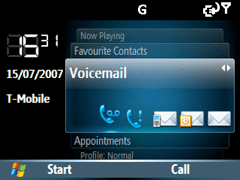
i600 2

Whilst using WMP10, you can see what tracks you have listened to last, and go and play them from the front screen.

i600 3

Another useful card is the profile tab, enabling quick switching of profiles.

i600 4

However, other today options by Samsung include the clock, calendar, large text and a 6 option panel at the botton which scrolls through options similar to the card wheel. There is the pop up option, which has most items visible. I quite like this one.
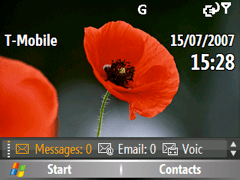
i600 5

i600 6

i600 7

i600 8

However, I use a free third party today plugin which shows everything I want to know including the home screen of Fizz Weather. This was available from a very talented individual Kooldezine. http://www.kooldezine.com/Q.htm .

i600 9

By scrolling down one can change the profile and launch the applications as shown etc. Of course, a more traditional screen using just Fizz Weather and the standard Microsoft options looks like this –

i600 10

Another very cool option is an animated home screen, whereby the earth rotates around. Pressing the centre action button activates the text slowly on the left corner.
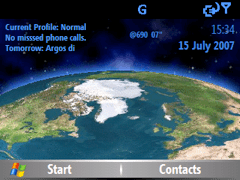
i600 11

Again, this is freeware and available from http://black.jgui.net/ .
Now, Samsung have also added some neat little touches. This is the standard skin for the WMP10. Yes it is a fully functional graphic equaliser.

i600 12

I have also discovered a load of free games that work reasonably well on the i600. SPVMan (a pacman clone), CincoSP (a hangman and mastermind cross) and S-Tris 2. Available via http://blackjacksmartzone.spreebb.com/index.php?showtopic=18 .

From the same website, but under the application freeware section, I found Keylock. http://blackjacksmartzone.spreebb.com/index.php?showtopic=17 A simple application that locks the phone keys after a preset time. The default is 30 secs.

Also don’t forget there was some useful software mentioned in my first two articles on the Samsung i600. Links at beginning of article.

I mentioned before, I am struggling with the lack of editing abilities. I am trying VitoCopy and Orneta Scissors. I will let you know my findings.

In the meantime, I am enjoying the high speed internet access, the thin profile and design and as Shaun would say, everything just works.

I am also managing fine with the standard battery, instead of using the extended version. I found that there are many Samsung Blackjack cases but few i600 cases. As a tip, I bought some leather Blackjack cases, went along to the shoe repairers and asked to have a large hole punched through the leather to reveal the front video camera.

Any questions, please ask. Gavin Fabiani-Laymond

So there you have it. Have we advanced that much in 8 years? 🙂
Acer Jade S55 – Review – Conclusion

image

Welcome back to my final part, the conclusion of the Acer Jade S55 review.

Today, I am going to summarise my thoughts on the Acer Jade S55. The Acer Jade S55 has many positives going for it. It is a dual sim phone, with controls in place to monitor data usage from the moment you first turn on the phone. It then has not 1, but 3 easy or quick mode home screen options. These also offer password protection to prevent other areas of the phone being used.

This could be perfect for kids or older people as the fonts can be enlarged substantially as well. Quite impressive in that respect.

I managed to capture some lovely photos, and this is despite the fact it costs 1/3 of the Samsung Note 4. It also has above average audio quality using headphones with just an average loudness via the loudspeaker. Again not as flagship phone audio quality but then it costs a lot less.

Acer also include Bring Your Own Cloud solution apps for all your files and media. Again this is done to allow you to use your existing PC as the cloud. In addition, there are a few other apps Acer include but it is not overkill.

In fact, the whole experience is fairly close to a stock Android experience which makes the Acer Jade S55 rather pleasant to use and the more time I spent with this phone the more I enjoyed it.

Acer Jade S55 – Review – More Camera Samples

Following my post analysing the camera software please find below more sample shots. These are all held in my Flickr account, so if you click on the photo you will be able to see the full resolution shots. If you want to view all the photos I have snapped with the Acer Jade S55, click on my Flickr album https://www.flickr.com/photos/gavinfabl100/sets/72157648344100003/

Fiery Sunrise on a frosty -12°C Dartmoor #AcerJadeS55

Wilting Tree on a snow dusted Dartmoor #AcerJadeS55

The Tree at Widecombe on the Moor, Dartmoor #AcerJadeS55

Snow capped Dartmoor #rugged #AcerJadeS55

Princetown's Famous Red Telephone Box #Dartmoor #AcerJadeS55

St. Mary the Virgin Rewe Church, Rewe #AcerJadeS55

Tiggy #selfie #AcerJadeS55

Acer Jade S55 – Part 3 – Camera, Screen and Audio

Welcome back to part 3 of my Acer Jade S55 review. Today is all about the camera and audio. There will another post with some camera samples.

Before I start on the camera, I will discuss the audio quality for music and the loudspeaker. The phone comes with DTS HD Premium Sound option, which gives adjustments for bass, treble and EQ presets for music and video to choose from. Music presets are flat, classical, dance, jazz, pop and rock. Video presets are flat, drama, action and MTV. The loudspeaker is just average and lacks bass levels found on the HTC One M8. But to be honest I would also connect a bluetooth speaker to any phone. Plug in your headphones and it is a different ball game altogether. In the box are a pair of in ear headset headphones which are best to be left in the box, as their sound quality are poor. To test the audio quality I therefore attached some decent over the ear headphones. For this test I used my V-Moda Crossfade M-100s. The Acer Jade S55 had no issue powering these to a decent volume and provided an average the audio quality which was better than I had expected. The treble was a little over the top at times too. However, at the price point the audio was reasonable.

Bluetooth. No issues playing through my stereo bluetooth headset/headphones. Loud, dynamic and punchy.

The screen is my opinion is good. As I type this, I am watching a YouTube video with my headphones plugged in. And it looks great. Just shows you how far screen technology has moved on at the lower price points.

Screenshot_2015-02-07-07-08-07

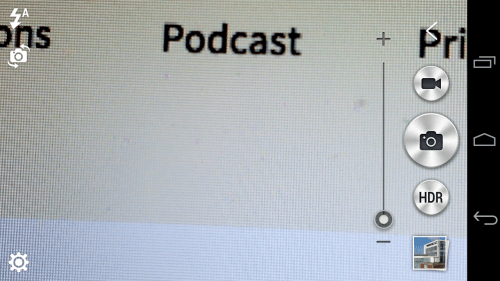
So lets move on to the camera. Firing up the camera takes you to a simple layout. The HDR button can be changed, more later on that.

Screenshot_2015-02-07-07-08-25

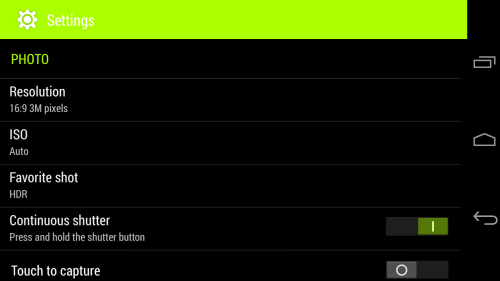
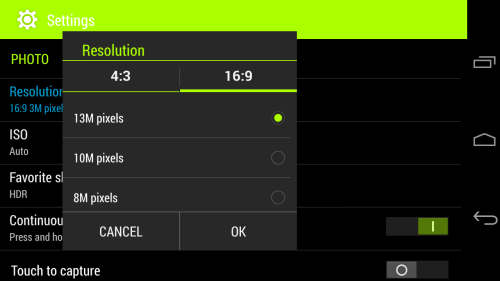
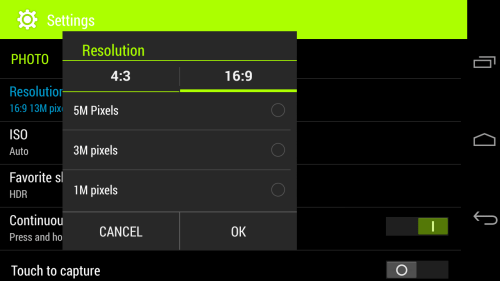
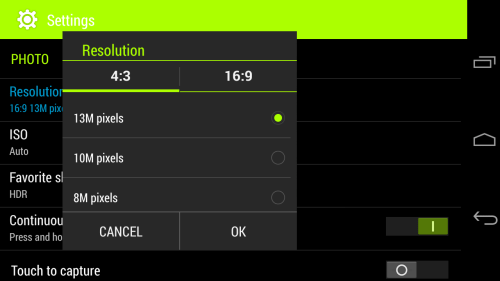
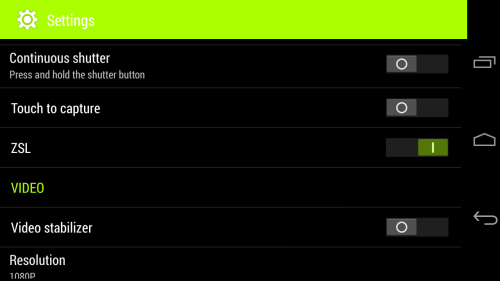
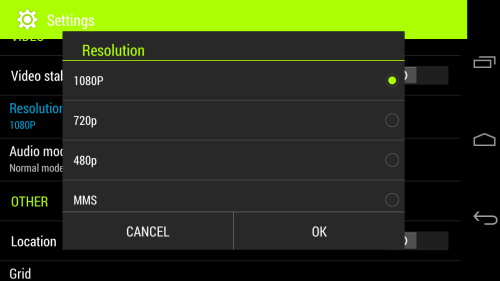
So lets look at all the camera settings. The screen shots below are pretty self explanatory.

Screenshot_2015-02-07-07-08-39

What is unusual is the resolution at 16:9 or 4:3 can both be set at 13mp.

Screenshot_2015-02-07-07-08-59

Screenshot_2015-02-07-07-09-08

Screenshot_2015-02-07-07-09-28

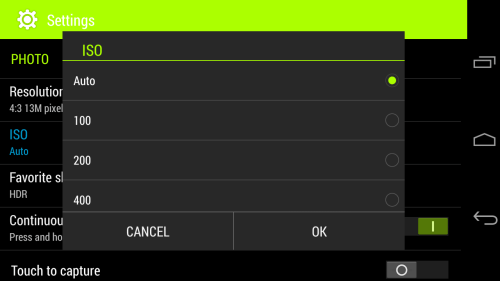
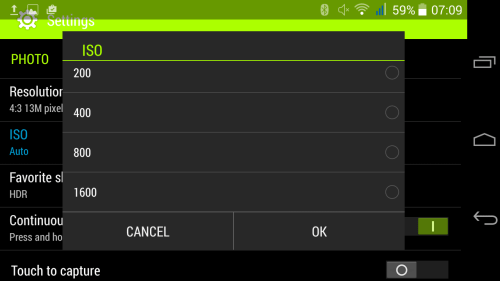
In terms of ISO control, this increasing from AUTO, 100, 200, 400, 800 and even as high as 1,600.

Screenshot_2015-02-07-07-09-35

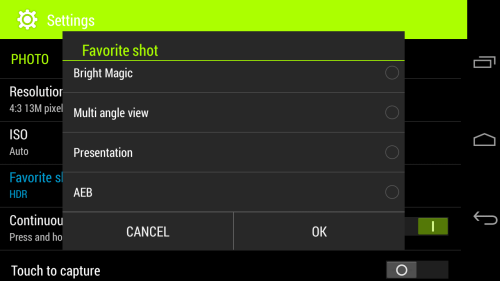
To explain some of the not so obvious shooting modes, Bright Magic is ideal for dark scenarios, AEB takes 3 shots at different exposure levels and then shows all 3 photos for you to decide which one(s) you want to keep.

Screenshot_2015-02-07-07-09-45

In terms of shooting modes there are several options. Whatever option you choose will become the second button available. If you look above my selection was HDR. So pressing the big camera shutter button takes a standard shot, but then pressing the smaller one shoots HDR. Taking HDR shots takes about a second and a half per shot.

Screenshot_2015-02-07-07-10-02

Screenshot_2015-02-07-07-10-16

Screenshot_2015-02-07-07-10-38

So what about the camera quality? Well don’t forget this has a f/1.8 for the rear camera so it should take a good shot even in low light conditions. In reality I had some pleasurable results.. Some shots were really good and with some I did get some from blurry shots. But the more I used the phone, the better my photos were.

Have a look at the photo samples and decide for yourself.

Acer Liquid Leap SmartBand – review

image

image

Today I am having a closer look at the Acer Liquid Smartband which retails for £79. If you want to read any of my other wearable device reviews click here – https://gavinsgadgets.com/reviews-accessories/ . The reviews include everything from Pebble, Samsung Gear Fit, LG G Watch (R) to the Samsung Gear S and now the Acer Liquid Leap SmartBand.

The specifications of the Liquid Leap are as follows –

– Screen 1″ OLED Touch Screen, Surface Hardness: 6H ,Screen Resolution: 128 x 32
– Capacitive, Single Touch function
– Waterproof IPX7 – The Liquid Leap can be immersed for up to 30 minutes at a depth of up to 1 meter.
– Weight – 20g
– Bluetooth 4.0
– Up to 7 days battery life
– Processor 2-bit ARM® Cortex™ M0 CPU
– Memory RAM 16 KB RAM + 256kB flash
– Brightness – up to 70LUX (with Touch panel)
– Sensor Type- G-sensor
– Features: Email, Music control ,Camera control
– Compatibility – Android 4.4 eg. Acer Liquid X1 /Jade /E700 /Z500 /Z200, Samsung Galaxy S3/ S4 / S5, Moto X / G, HTC One M7 / M8, Nexus 4/5 – Apple iOS 7 / iOS 8: iPhone 4s / 5 / 5S / 5C / 6 / 6 Plus

As you will see from the last line, the Liquid Leap is cross platform with support for Android and iOS.

The device tracks your steps, exercise and sleep as well being able to glance and read text messages, see who is calling and view all your upcoming events. But lets take a close look at the hardware and the app that comes with the device.

The Acer Liquid Leap uses a charging cradle as shown above which connects with a micro usb cable which is included in the box. The cradle is easy to attach, just means if you are going on a long trip you will need to carry it with you. The battery is meant to last up to 7 days. I have managed 5 days but it has increased on each of the charges. The battery was totally flat when received.

So out of the packaging, the first step is to charge the band. While that is charging download the Acer Liquid Leap app from either the Google Play store or AppStore. When the Leap band first started charging a 4 digit code was displayed on the screen. This is used to setup the device with the app and your phone.

So what does the app look like and what are its features? Below is the home screen menu.

Screenshot_2015-02-07-04-31-43

Below is the main manager screen which looks clear and concise. In case you are wondering why there are no current steps showing for the day, look at the status bar. It is 4.31am when I took the screen shots. The different sections are all self explanatory and tapping on each section reveals more information.

Screenshot_2015-02-07-04-31-57

Here you can see the number of steps taken and below the distance travelled.

Screenshot_2015-02-07-04-32-12

You can also setup Goals in the settings too.

Screenshot_2015-02-07-04-32-23

Another settings options displays the battery and what notifications you would like to see on your Liquid Leap. As you can see the options are limited, so to preserve battery life I turned most of them off.

Screenshot_2015-02-07-04-32-42

In terms of sleep recording, the stats only reveal the total time slept and not any further breakdown of sleep stats.

Screenshot_2015-02-07-04-32-50

In terms of comfort the Liquid Leap was comfortable to wear. The strap securing mechanism is similar to that of the Fitbit Flex. In terms of what you can do with the band itself. A few taps on the device to turn it on reveals the time and date. Swiping reveals steps, swipe again shows distance, then calories and time towards your goal setup. If from the time screen you swipe right instead of left, you get to the apps section. Here you access sleep mode, notifications, settings, and music controls. The settings menus allow for the screen to be flipped, show battery level, restart device and factory reset it. It really is simple to use, one because it is easy to use, and two as the options are not extensive.

The first time you use the app, you setup as user name and password, enter your sex, height, weight and whether you want to use metric measurements or US ones.

In conclusion, this is probably one of the simplest tracking devices I have used. It was also simple to setup. However, in use I found it to track more steps than my other devices attached to my arms which included the Samsung Gear S and Fitbit Charge HR. In a day it showed 10% more steps than the other device, although every device showed a different number of steps.

The wearable space is rapidly increasing, and Acer have shown their hand with their Liquid Leap. It is not perfect but for some its simplicity may be ideal.

Acer Jade S55 – Review – Part 2

Yesterday, I looked at the hardware design of the phone and today I am going to take a closer look at the software package.

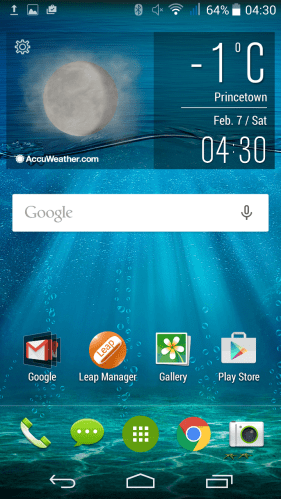
Screenshot_2015-02-07-04-30-59

This is the home screen that you are shown after turning on for the first time. I have installed the Acer Liquid Leap manager SmartBand app.

Screenshot_2015-02-07-04-31-13

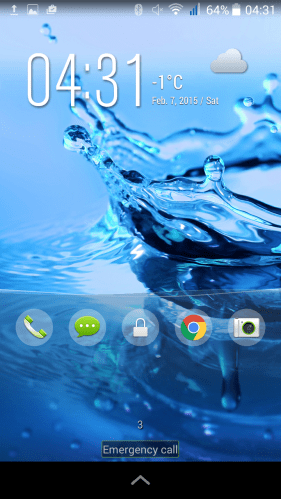
The lock screen has shortcut options and in practice swiping anyone of them works really smoothly.

Screenshot_2015-02-07-04-31-31

The notification settings options are the usual affair, but with a shortcut for the torch. Always handy to have that option close to hand.

Screenshot_2015-02-07-04-33-10

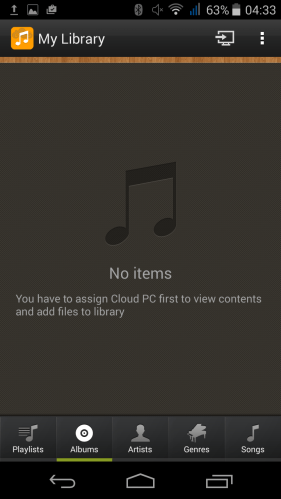
I mentioned yesterday Acer offer BYOC. Bring Your Own Cloud. This enables you to use your own PC as a cloud sycning solution for your music, photos, videos, files and documents. Each one of these options has its own app as you will see below in the screen shots.

Screenshot_2015-02-05-06-19-04

Apart from BYOC apps, Acer also include Acer Nav which is powered by TomTom. Handy.

Screenshot_2015-02-05-06-19-14

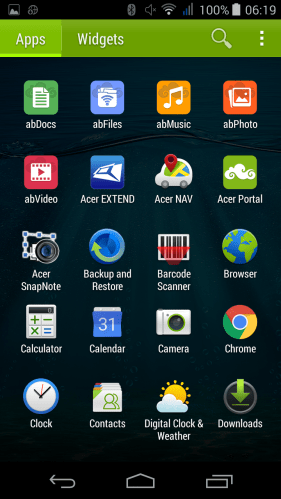
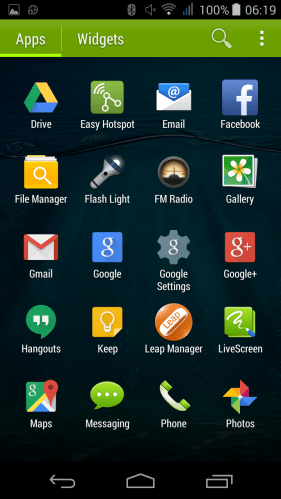
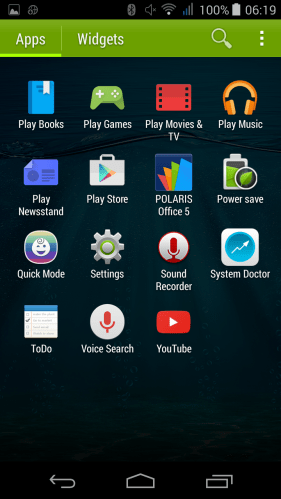
Acer do not add much bloatware to the phone. Chrome is the only web browser. Google Play is the music player. Consequently, out of the 16gb storage, just over 12gb is available.

Screenshot_2015-02-05-06-19-21

In terms of other apps, a FM radio, Easy Hotspot, File Manager, Livescreen, Polaris Office 5 (editing too), Power Save, QuickMode, System Doctor and Flash Light are added and not much more.

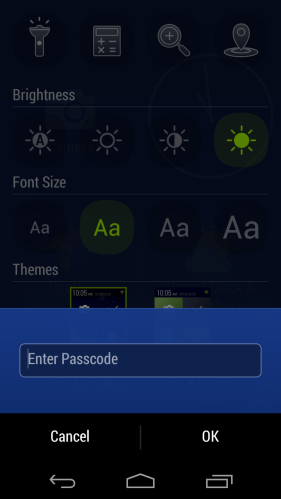
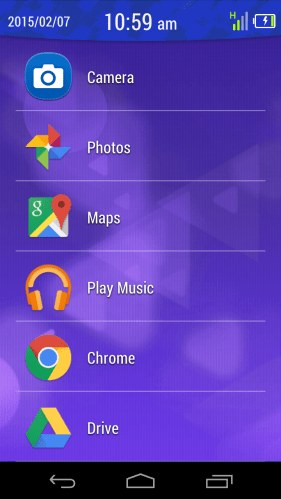
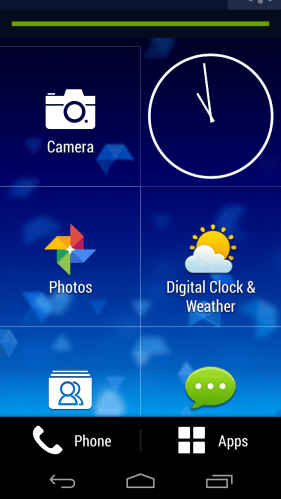
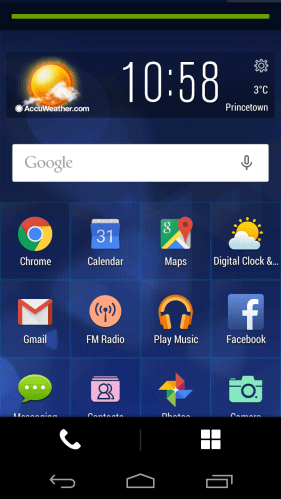
The Quick Mode app is rather good. It allows you to select from 3 easier to use home screen modes. In basic mode you get a list of apps on the home screen maximum. All accessing settings is password protected as it is for the other Quick modes. See screen shot below.

Screenshot_2015-02-07-10-59-11

Screenshot_2015-02-07-10-59-58

Easy mode is similar but with large icons on home screen that scrolls up and can have more items added.See screen shot below.

Screenshot_2015-02-07-10-58-51

And lastly standard mode makes the icons smaller on the home screen but again with restricted access. All in all, I think Acer did a good job adding just enough, but also creating some easier to use home screen modes.

Screenshot_2015-02-07-10-58-21

Screenshot_2015-02-05-06-19-28

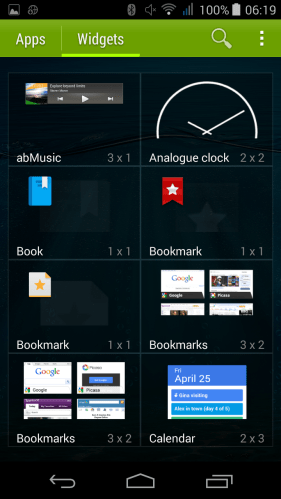
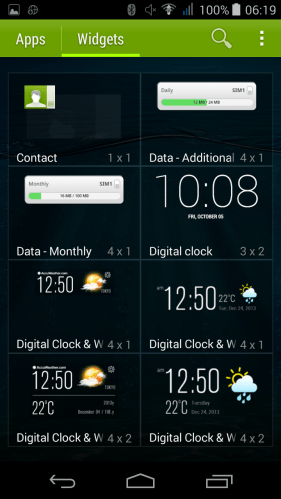
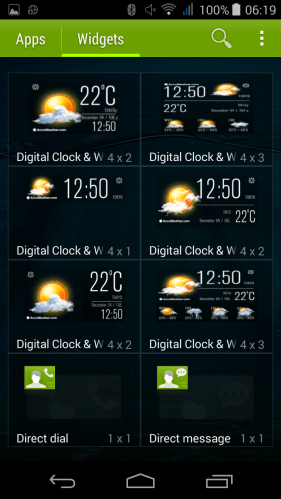
Acer have also add a few of their own widgets.

Screenshot_2015-02-05-06-19-33

With plenty of widgets for the time and weather!

Screenshot_2015-02-05-06-19-39

In terms of operation the processor powering the phone does not seem to impact performance. It is a smooth affair moving from app to app. Antutu scoring revealed it only had one quarter of the performance versus the Note 4. And yet you would not know it in real life. Riptide GP2 played just fine. Call quality was ok too. The power button is on the top of the phone. This is not the best placement due to the height of the phone. The rear of the phone is a fingerprint magnet.

Tomorrow I will look at the camera and audio in more depth. If you have any questions, please let me ask in the comments or on social media in the usual places.