Tag Archives: Camera

Acer Jade S55 – Part 3 – Camera, Screen and Audio

Welcome back to part 3 of my Acer Jade S55 review. Today is all about the camera and audio. There will another post with some camera samples.

Before I start on the camera, I will discuss the audio quality for music and the loudspeaker. The phone comes with DTS HD Premium Sound option, which gives adjustments for bass, treble and EQ presets for music and video to choose from. Music presets are flat, classical, dance, jazz, pop and rock. Video presets are flat, drama, action and MTV. The loudspeaker is just average and lacks bass levels found on the HTC One M8. But to be honest I would also connect a bluetooth speaker to any phone. Plug in your headphones and it is a different ball game altogether. In the box are a pair of in ear headset headphones which are best to be left in the box, as their sound quality are poor. To test the audio quality I therefore attached some decent over the ear headphones. For this test I used my V-Moda Crossfade M-100s. The Acer Jade S55 had no issue powering these to a decent volume and provided an average the audio quality which was better than I had expected. The treble was a little over the top at times too. However, at the price point the audio was reasonable.

Bluetooth. No issues playing through my stereo bluetooth headset/headphones. Loud, dynamic and punchy.

The screen is my opinion is good. As I type this, I am watching a YouTube video with my headphones plugged in. And it looks great. Just shows you how far screen technology has moved on at the lower price points.
Screenshot_2015-02-07-07-08-07

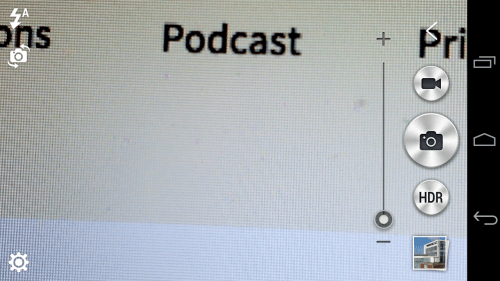
So lets move on to the camera. Firing up the camera takes you to a simple layout. The HDR button can be changed, more later on that.
Screenshot_2015-02-07-07-08-25

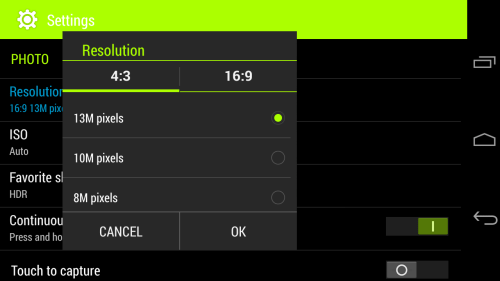
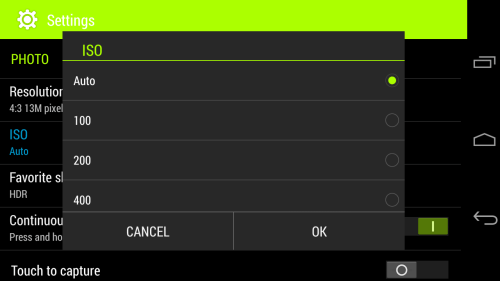
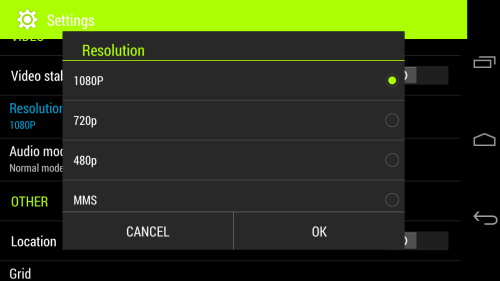
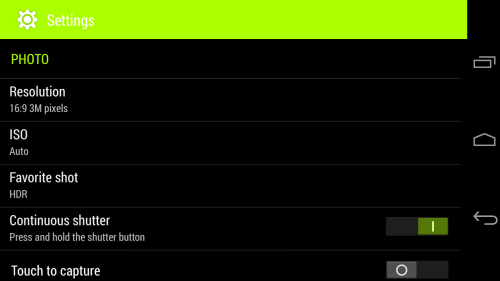
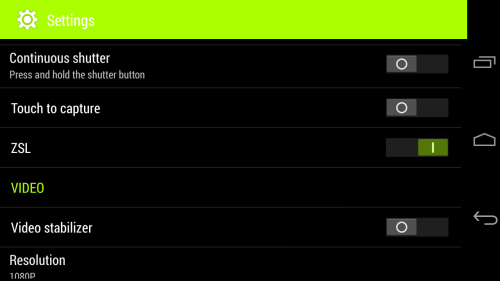
So lets look at all the camera settings. The screen shots below are pretty self explanatory.
Screenshot_2015-02-07-07-08-39

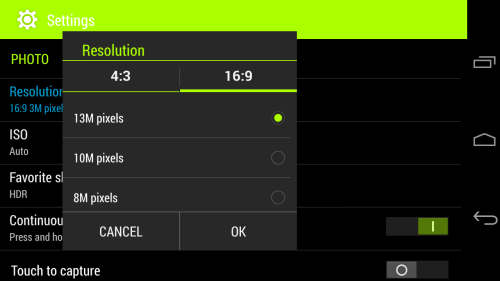
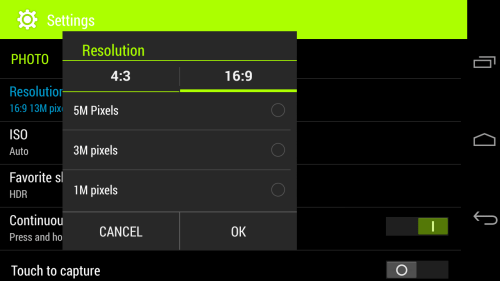
What is unusual is the resolution at 16:9 or 4:3 can both be set at 13mp.
Screenshot_2015-02-07-07-08-59

Screenshot_2015-02-07-07-09-08

Screenshot_2015-02-07-07-09-28

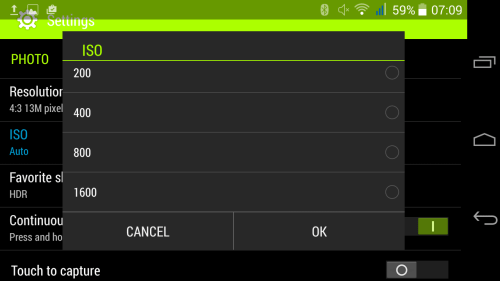
In terms of ISO control, this increasing from AUTO, 100, 200, 400, 800 and even as high as 1,600.
Screenshot_2015-02-07-07-09-35

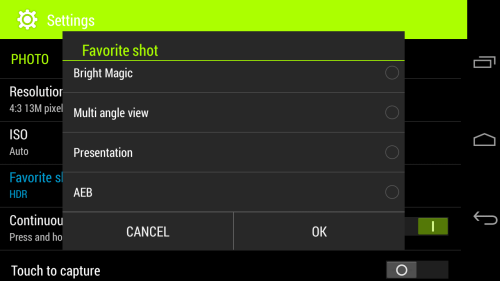
To explain some of the not so obvious shooting modes, Bright Magic is ideal for dark scenarios, AEB takes 3 shots at different exposure levels and then shows all 3 photos for you to decide which one(s) you want to keep.

Screenshot_2015-02-07-07-09-45

In terms of shooting modes there are several options. Whatever option you choose will become the second button available. If you look above my selection was HDR. So pressing the big camera shutter button takes a standard shot, but then pressing the smaller one shoots HDR. Taking HDR shots takes about a second and a half per shot.
Screenshot_2015-02-07-07-10-02

Screenshot_2015-02-07-07-10-16

Screenshot_2015-02-07-07-10-38

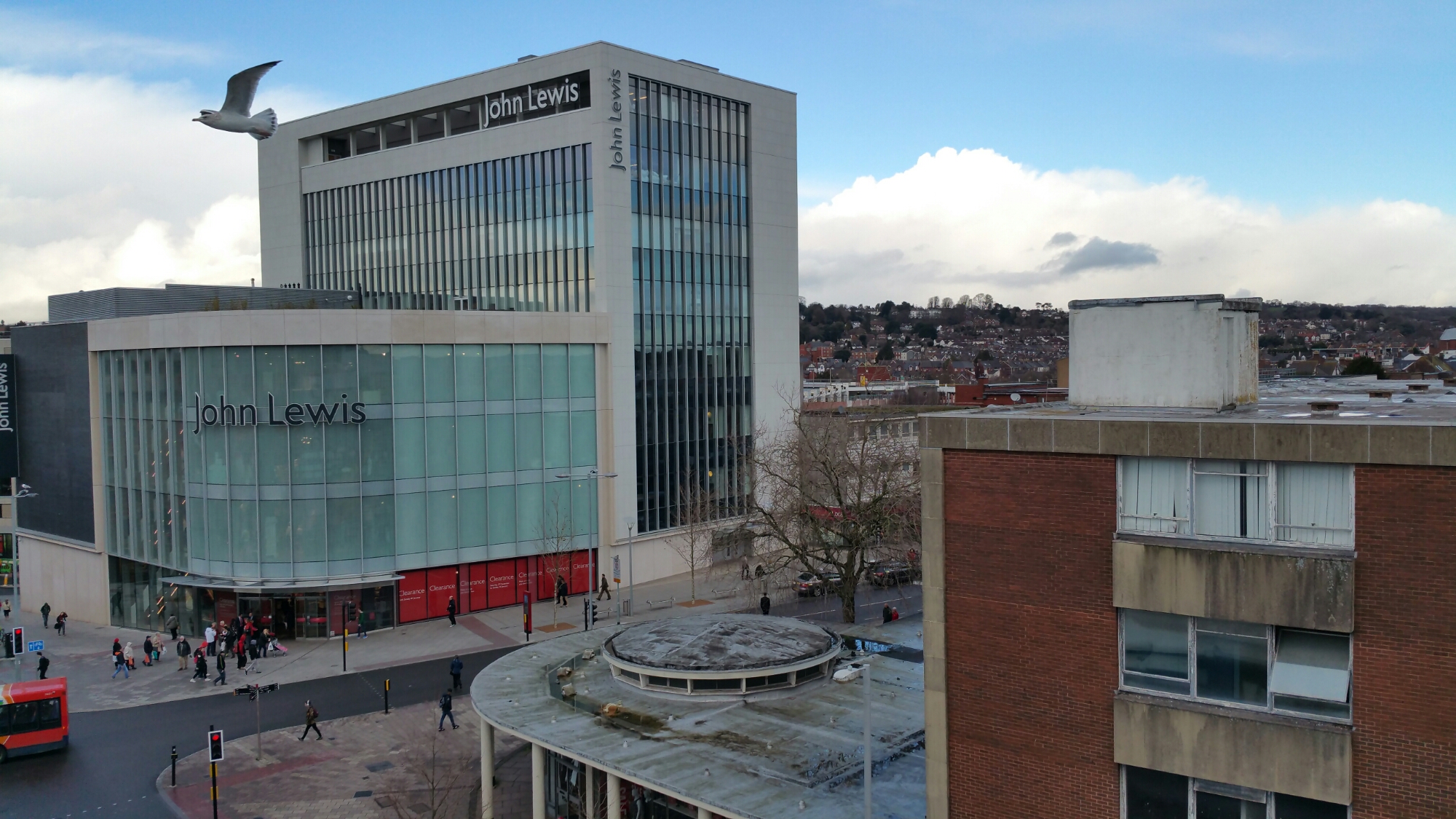
So what about the camera quality? Well don’t forget this has a f/1.8 for the rear camera so it should take a good shot even in low light conditions. In reality I had some pleasurable results.. Some shots were really good and with some I did get some from blurry shots. But the more I used the phone, the better my photos were.

Have a look at the photo samples and decide for yourself.

Unlock the full potential of the Samsung Note 4 camera – wow

Disclaimer – I am at the early stages of exploring this but so far my results are mixed. This only applies if you are using a snapdragon Note 4.

So here goes the explanation. Samsung use strong processing of any photo taken by the Note 4. Over sharpened and more. It is possible to unlock the potential of the Note 4 camera using a non rooted method and take shots without these effects.

Step 1 – install Snap Camera HDR. https://play.google.com/store/apps/details?id=com.marginz.snap&hl=en . Note most third-party apps can’t make use of the 1/8s (or, in cases, even the 1/15s) shutter speed but max out at either 1/15s or 1/30s, bumping up the ISO used to twice or four times that of the ISO needed at 1/8s. This app according to preview can access the extra control required. It also allows sharpening to be turned off or on the controlled limits.

Step 2 – head over to the developers page on XDA Developers Forum – http://forum.xda-developers.com/showpost.php?p=35633104&postcount=1 and follow the steps to become a beta tester. After installing and paying for the app above, it will be updated to the beta version. None of the magic can occur without the beta version.

Step 3 –

Follow and read the detailed posts on DPReview part 1 . Ultra low light tips and a Nokia Pureview 808 vs Fuju XE-1 and Note 4 – http://www.dpreview.com/forums/thread/3781966

Part 2 – Tips for broad daylight and very high shutter speeds – http://www.dpreview.com/forums/thread/3782300

Part 3 – Tips and tricks shooting HDR – http://www.dpreview.com/forums/thread/3782850

In hindsight, it might be best to start from Step 3 to understand everything.

Happy reading!

So far my results have been mixed. Unsharpened photos do look good but sometimes I prefer the saturated sharpened look from the Samsung app. Also, the default Samsung app has some really good algorithms at play. Snap Camera HDR has some great options but it also seems to have issues focusing at times in poor light. Maybe once the Note 4 gets lollipop the camera and third party apps will be able to have even greater control.

I have also been trying the Google Camera app again with mixed results. I would be interested to see if you are using any other apps yourself. If you are leave a note in the comments.

Apple iPhone 6 Plus – Action shots from the Camera

I’ve been waiting for the weather to improve to take some action shots on my iPhone 6 Plus. Ideally you need bright sunshine but I decided over the weekend I would just try and take whatever shots I could. The light was dreadful. Dull and overcast. All the below photos have not been edited. To give you a better idea of the quality, I used the built in Photos app and cropped in on the movement.

IMG_2870.JPG

So the first shot above is of Fury demonstrating the long jump.

IMG_2892.JPG

And above we have Tiggy chasing Fury. It is worth noting that in real life this was incredibly fast. When Fury and Tiggy chase each other they are like bullets.

IMG_2889.JPG

Now George is about to show off the long jump. The lighting was so poor that if I was not using the burst mode on the default camera app, HDR was often chosen.

IMG_2887.JPG

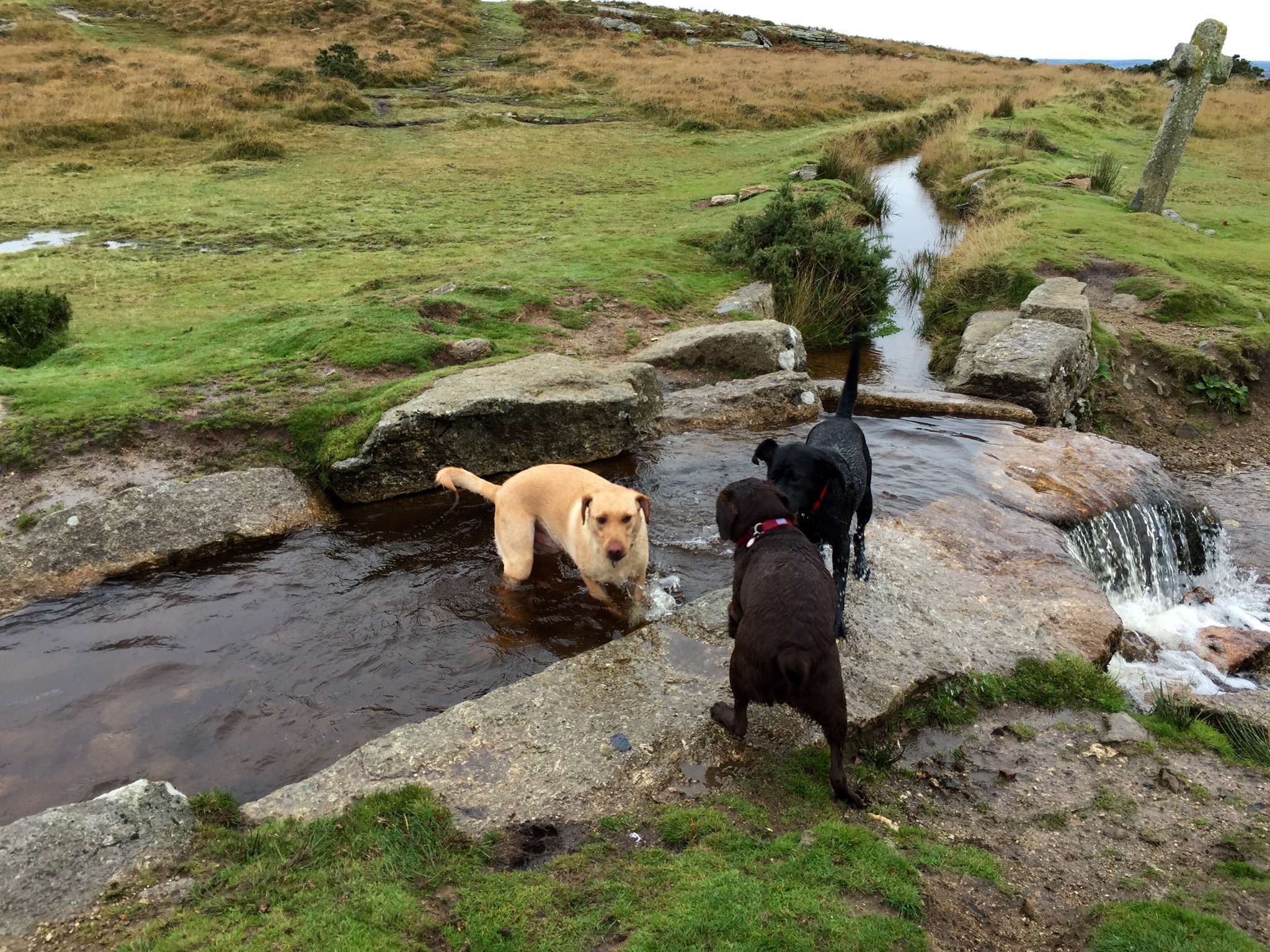
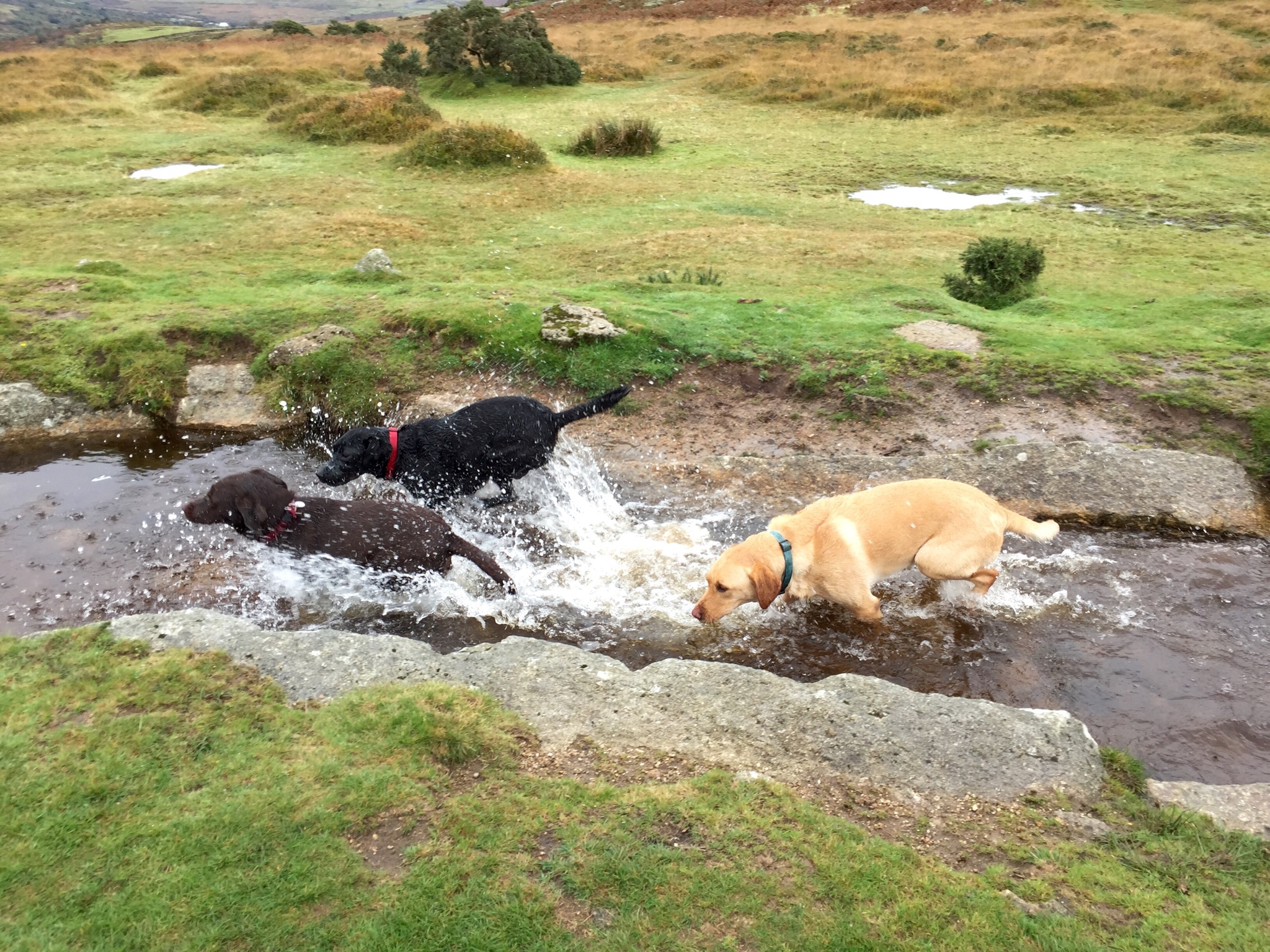
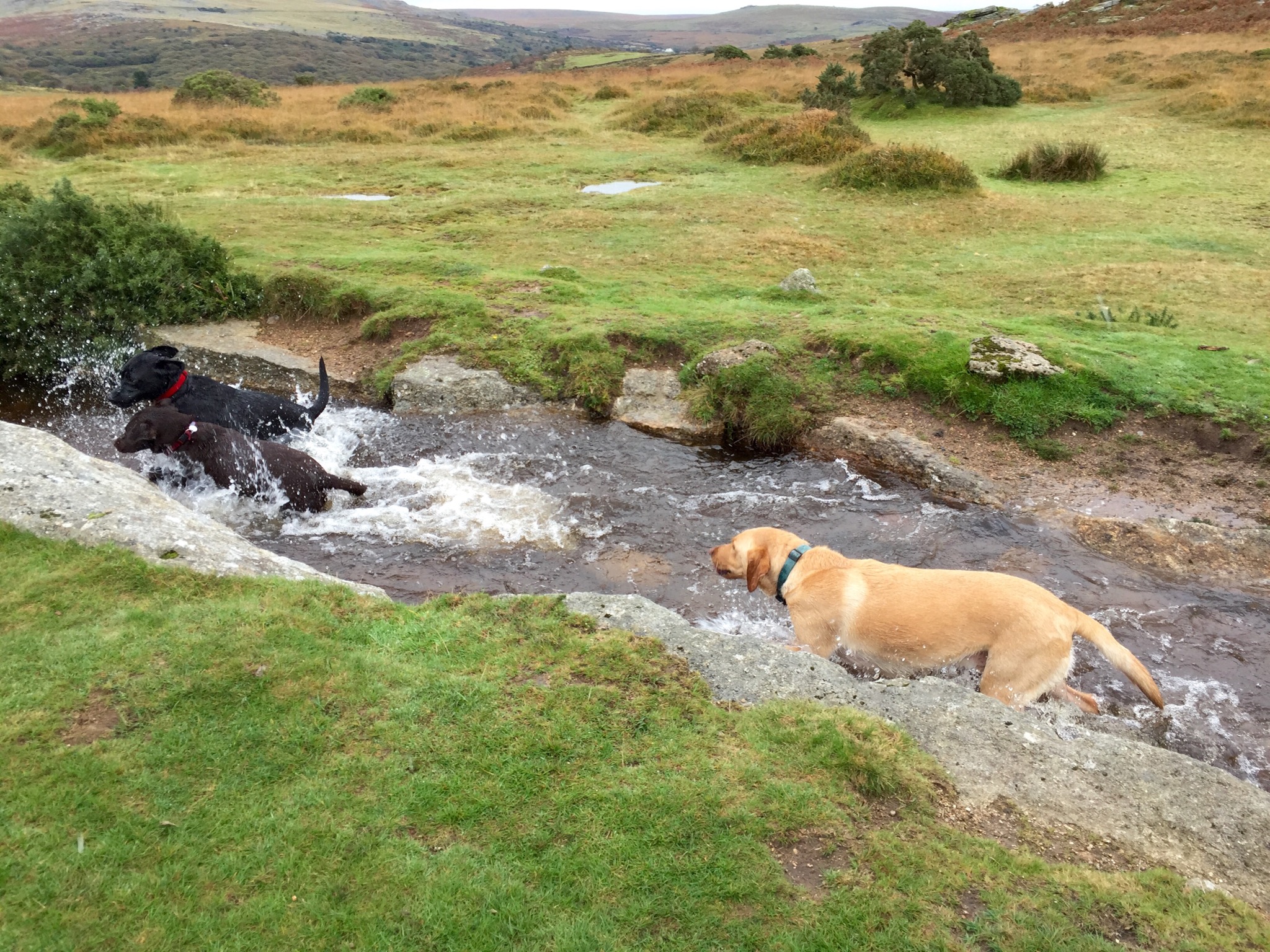
So the last few are of all 3 dogs racing through the leat. Again in real time this whole sequence was over in seconds. All the shots were taken using the default camera app, just holding down the shutter to activate burst mode which is totally instantaneous. So let me know your thoughts.

IMG_2884.JPG

IMG_2882.JPG

IMG_2880.JPG

IMG_2878.JPG

IMG_2876.JPG

IMG_2872.JPG

LG G Flex – Camera Thoughts and Samples

So the G Flex has a 13mp camera but unlike the G2 it does not have OIS. However, I found it was able to take good shots of my black and dark brown labs. The shutter response was fast at times too. The quality however is not in the same league overall as the Samsung S5 for example. However the camera did not disappoint. I did notice the photos being slightly over exposed as well.
CAM00041

Camera – modes include normal, shot and clear, HDR, panorama , VR pano, burst, beauty, dual camera, time catch shot, intelligent auto, sports and night.

And below some sample shots.
2014-05-05 13.47.48

2014-05-05 13.50.29

2014-05-05 13.51.06

2014-05-05 13.51.40

2014-05-05 13.53.33

If you want to see the full res plus exif data go to my flickr album https://www.flickr.com/photos/gavinfabl100/sets/72157644114354349/

To be honest, I was rather surprised at the camera, as I thought it would be terrible but it was quite reasonable in the end.

And this surprise is the same for all aspects of the phone so much so that I’m now looking to sell my Samsung S5 and keep the G Flex.

Nokia Lumia 1520 – review part 3 – camera

If you have read my earlier reviews on the Lumia 925 and Lumia 1020 you will be familiar with all the camera options. In essence, the 1520 is a 20mp Carl Zeiss lens with optical image stabilisation and 2 x lossless zoom. It has many pro camera settings for some great artistic tricks. But most people are just going to hit the shutter button or on screen button. Yes, unlike other phones, the Lumia range do have a dedicated camera hardware button on the edge.

So I really wanted to test the optical image stabilisation and quality of the end results. So let’s set the scene. At 3am thunderstorms and gales arrived. At midday, it was just high winds with a piercing cold wind too. My eyes were watering from the cold, and I could hardly stand still as the wind kept moving me all over the place. As a comparison I took with me the Samsung Galaxy Note 3, but due to the wind all of the photos ended up being blurred.

First up the war memorial in Princetown, Dartmoor, Devon. The accuracy of the colours is phenomenal.

20140107-124105.jpg

Next is the Dartmoor Visitor Centre. Most phones would struggle to capture the whole building and lamppost.

20140107-124303.jpg

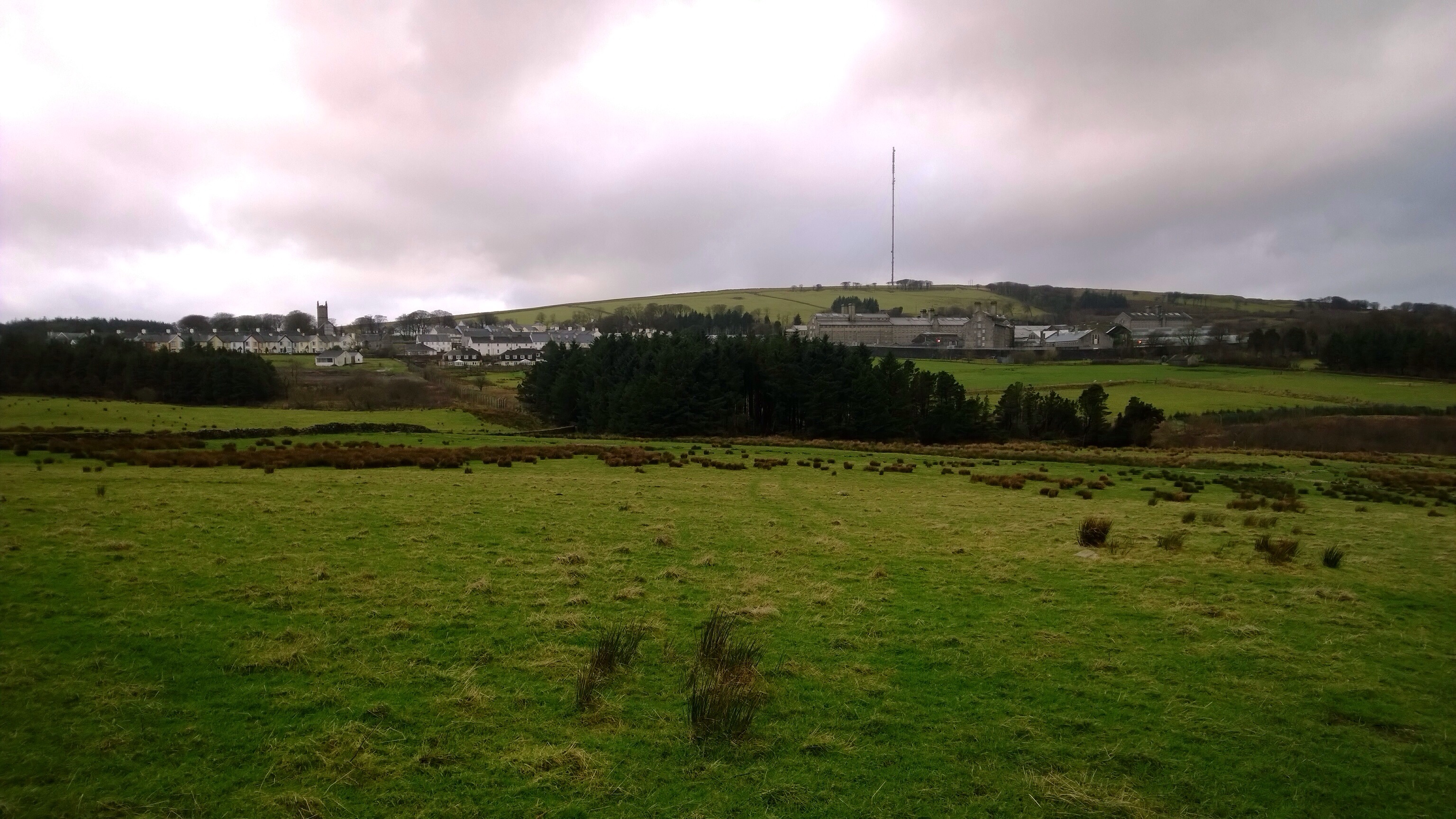
Next up is the view over to Dartmoor Prison, a famous Victorian prison. What’s great about this shot is once again the amount captured in the frame, but also the clarity of the church in the distance.

20140107-124455.jpg

And finally, I took this exposed to the wind with the 1520 actually shaking as I couldn’t hold it still enough. The optical image stabilisation worked a treat.

20140107-124647.jpg

Bear in mind the above are only the 5mp versions of the shot. The 1520 actually saves a hi resolution pureview shot at 20mp as well. With this you can use this to undertake some pro editing. Or using the Nokia Pro Cam camera app, reframe the shot you just took to create a different view. You can the save this and go back again into the original hi-res shot and repeat as often as you like.

Having used both the 1020 and now the 1520, I would personally choose the 1520. It has a faster processor and this is evident in shot to shot times being near instant.

If you would like one of these phones or something else head over to Clove Technology who will be happy to help you.

Final Thoughts on the cameras of the Sony Xperia Z1 vs iPhone 5S

Over the last few days, and maybe a few days before that I have uploaded camera samples from both the above phones. They are totally different animals, but here are my thoughts. The good news with both of these phones is that they can both be used with the quirky Sony QX10 hub lens.

Sony Xperia Z1 –

This is a newly released phone for Sony. It has software bugs. The phone has rebooted for no apparent reason about once a day and the camera frozen once too. The photos are focused in the centre of a shot, but out of focus around the edges. Bright days, the photos seems over processed. Low light can be dreadful. It just depends on the type of low light. However, the camera options are extensive. 61 shots in a second and 20.7mp photos too. I am keeping the Z1 because I really like it and I reckon after at least 2 software updates from Sony will be once amazing phone and camera. That probably will take 3 months at a guess. Panoramic photos seem to be low resolution affairs. I don’t understand why that it. I also believe if Sony had included Optical Image Stabilisation, this phone would be unbeatable in the camera department. The photos I have taken show incredible depth as well.

iPhone 5S –

Less is more is the moto here. High quality shots every time practically with no effort. It is just auto mode. Apple offer a square box option and very high quality panoramic photos. The photos show more natural colours too. I have taken some amazing photos of my dogs. There are other options, but not that many. I would call the 5S camera gimmick free just fast quality photos. Currently, in terms of quality I would pip the 5S ahead of the Z1. But I am keeping both phones, so will revisit the camera test as Sony updates the firmware.

In summary, don’t buy the Z1 for its camera