Category Archives: Tech News

Review Part 2 – Sony Xperia Z1

Welcome back to part 2. To read first impressions and earlier articles on the Z1 click here.

image

The weather has been constant rain but the sun did appear briefly,  for long enough to run outside in to my backyard. The above photo snapped on the Z1 was taken in superior auto mode.

So as you can imagine I’ve been using the Z1 non stop. In fact last night it was downloading all my games. During the day yesterday it was downloading my Sony Entertainment movies. I now have all my apps and games installed.

image

I have setup all my folders and kept a fairly simple homescreen. For the time being I’m using the Sony launcher but at some point I will setup Apex Launcher as my default.

The Z1 out of the box can be configured to work with a Sony Ps3 Dual Shock Wireless Controller.  And it works really well. I also connected my Moga Pro Game Controller and that works fine too.  Good news for gamers.

The Z1 also has small apps that can be sitting on the screen. These are selected using the running apps menu button.

The default Sony keyboard is the only keyboard you will need, so hold off downloading any third party offering. When you first use it after setting up the phone you will see a magic wand icon. This takes you through layouts and options and more. In the system settings you can change the skin/theme too. Talking of themes, the Z1 has the option for changing the theme. There are automatic themes to choose from, that when applied alter the look throughout the whole phone.

I also opened the Sony Privilege app to get my free films and 60 day music unlimited trial. The deal from Clove Technology also includes the Sony SmartWatch 2. These are due to be posted out at the end of the month.

I also had a look at the apps pre installed. Fortunately, Sony don’t go too crazy. There was an anti virus app which I unistalled first. The rest seem ok. There is a diagnostics app, which allows you to test hardware and software performance. Box, the file storage app which is similar to Dropbox. Setting up Box on the Z1, gives you 50gb storage for life. If you want this too, let me know in the comments. I will be able to see your email only when you reply. I will then send the referral link to you via Box.

Photo editing options include the basic photo editor and Pixlr Express. The Z1 includes a FM radio too with RDS. There is also a sketch app which I have yet to explore.

On the subject of audio, Sony include a pair of Sony Mh750 headphones / headset. These retail at around £22 and are one of the best quality cans I’ve seen packages with the phone. The Z1 produces great audio reproduction via the headphone jack.

It’s early days to discuss battery life but from what I’m seeing one whole day hammering the phone is possible. I would imagine 2 days if average usage.
Now that I have pretty much setup the phone I will start to look at all the other software and hardware features.

On a negative note, the Z1 has rebooted twice since I have had it for no apparent reason. Other than one of the times I was multitasking over 28 apps, many of which were games.

Until tomorrow…..
Tesco to take on Apple and Amazon with its on tablet

On Monday,  Tesco is launching an Android device, called the Hudl.

It should cost £100 due to special offers similar to Amazon’s Kindle, and called the Hudl.

The device will add to their technology portfolio  which already includes video streaming and download service Blinkbox, which boasts 2.8m monthly users, Blinkbox music and the forthcoming Tesco eBook store.

Leaked specs for the Hudl reveal a seven-inch screen, 1280 x 720 screen resolution, dual cameras, 16 GB of internal storage and stereo speakers. It is also expected to come in a range of colours; black, red, blue and purple.

So one more tablet to join the ranks.

iOS Apps and Games

Even though I have not got any more iOS devices, I still have been updating my extensive iOS apps and games on iTunes. It has been interesting reading the new update descriptions.

Developers have been making their apps more iOS 7 in appearance, while adding in extra compatibility and or functions. I imagine, if I was to buy an iOS device and reinstall my apps I would be shocked at the difference.

And then it got me thinking. iOS really does have a better selection of apps and games than any other platform. Android is catching up rapidly, but it still does not have the breadth and depth. This gap is even more noticeable with tablet apps. In addition, iOS apps generally look better presented.

You can see why people stick to the Apple brand and their iPhones, iPads and iPod Touch’s.

However, despite my findings I decided not to buy a new iPhone but a Sony Xperia Z1. I simply prefer a larger screen than the 4 inches of the iPhone.

App Stores – how much have you spent?

I decided to be brave and pull up my Google Play and iTunes purchase history.

iTunes purchases started from 20th June 2009. This was the time when I got an iPod Touch 2g for my birthday. It was also my first Apple device. Google Play purchases started from August 2008, although it was not called Google Play back then, and the early purchase transactions are in a mix of dollars, euros and British Pounds.I also have a US iTunes account. This is used to rent films way ahead of release in the UK and to watch some great American TV Shows. UK TV is dreadful with everything repeated so many times.

My Google Play total is £250. This includes a few music singles and albums, but no hardware is included. Purely media, music, films, apps and games.

My UK iTunes account for a year shorter period in duration, amounts to £832. But my US iTunes which is mainly TV shows and 10% films equates to a total of £1,500 approximately. It is approximate due to the conversion rate changing.

Just for the record, my Windows Phone market place apps and games total £32.

One thing I have noticed, is that the apps were generally a lot less on Google than Apple. Also, media content was easier to download and view on Apple devices. And this explains why developers seem happier to develop first on iOS, as iOS users spend more on content.

So what do you reckon you have spent on media?

First Impressions and Review Part 1 of the Sony Xperia Z1

My Sony Xperia Z1 has just arrived. I bought it from Clove Technology .Over the next few weeks I will be writing a daily review of the Z1, along with the QX10, and the Sony Z1 accessories as they become available. If you would like to know anything just ask in the comments.

image

And unlike some reviews, this is not a loan device but my own that I bought with my hard earned money.

Anyway, the official specifications of the Z1 are –

– Operating system – Google™ Android™ 4.2.2 (Jelly Bean)
– Processor 2.2 GHz Qualcomm MSM8974 Quad Core
– GPU Adreno 330

– Size 144 x 74 x 8.5 mm, Weight 170 grams
– Available colours – Black, Purple, White, SIM card Micro SIM
– Screen Size 5.0 inches, Resolution 1920×1080 pixels
– Type 16,777,216 colour TFT
– multi-touch, up to 10 fingers supported

– Memory RAM 2 GB, Flash memory, Up to 16 GB (11.7gb free
– microSD™ card, up to 64 GB (SDXC supported)

– Camera Resolution 20.7 MP, Digital zoom 8x
– Front Camera 1080p for video chat and 2 MP for camera capture
– Photo light  Pulsed LED
– Video recording HD 1080p

– Sensors, Accelerometer, Ambient light, Proximity, Magnetometer
– And Gyroscope

– UMTS – HSPA+ 850 (Band V), 900 (Band VIII), 1700 (Band IV),1900 (Band II), 2100 (Band I) MHz
– GSM – GPRS/EDGE 850, 900, 1800, 1900 MHz LTE (Bands 1, 2, 3, 4, 5, 7, 8, 20)
– 4G- (Bands 1, 3, 5, 7, 8, 20)

– Battery 3000 mAh minimum
– Talk time (GSM) Up to 830 minutes, Standby time (GSM) Up to 880 hours, Talk time (UMTS) Up to 900 minutes, Standby time (UMTS)
Up to 850 hours, Standby time (LTE) Up to 760 hours

– Music listening time Up to 110 hours
– Video playback time Up to 400 minutes

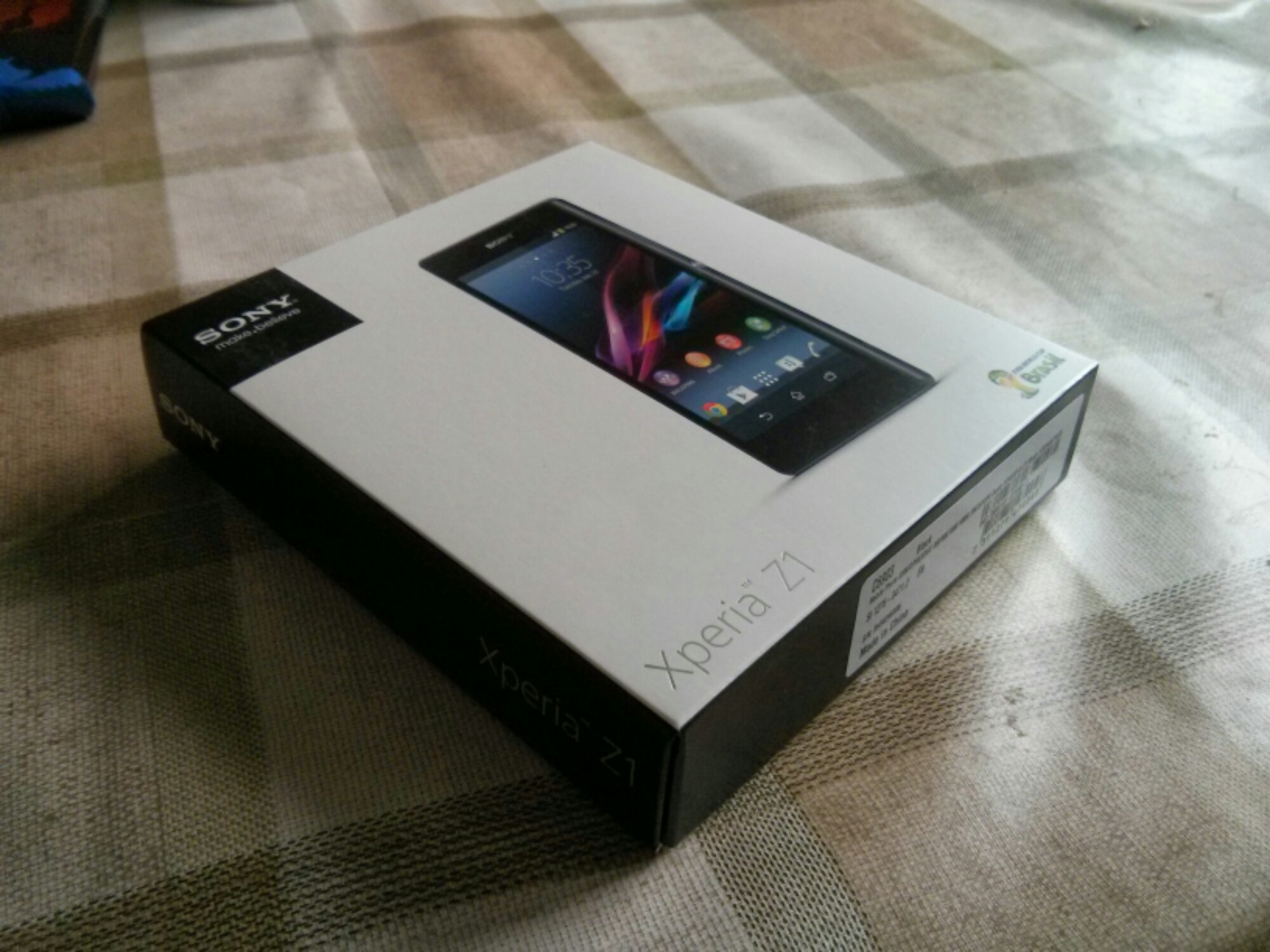
The Z1 came boxed as below with the following contents- USB cable, UK plug, some leaflets including a quick start guide. It also came with a front screen protector. Nice touch.

Below is some photos of the device. It sure looks lovely in the flesh. It feels solid in the hand and built to exacting standards.

Now the first thing the manual says is charge the phone for 30 mins. Please be assured I followed this point. Then insert your micro sim and micro SD card. I put my new 64gb card in the slot. All going really well so far. Power on and start following the start up guide, entering email accounts and so on. I already had a Sony account from my time when I had the Z Tablet, so it added the Z1 to my profile. After finishing the setup, I noticed Google was starting to restore my apps. I immediately stopped that process as you never know what you may need or not need on a new device. After a few existing apps had updated I with 10.72gb free internal memory.

Whatever you do, do not accept the 30 day unlimited music offer in the walkman app. Go to the Sony Privilege app. Within this app is a 60 day trial, 5 free films to download too. As I have bought games from PlayStation Mobile store, these are also available for to download. Sony also allows for a PS3 dual shock controller to connect to the Z1, so expect comment on this in later review sections.

A little surprise, after first setup, my Z1 has my Dartmoor scenic shot as the background. No idea if that was Google or Sony.

So, the phone is gorgeous to hold and look out. Lovely screen too but not as bright as the HTC One. So far I have taken a few photos. Some are good, some in low light were not so good due to being too noisy. I have tried the QX10 with the Z1 and it works really effortlessly. The Z1 camera is really fast. The shutter button is great.
z1 1

The loudspeaker is above average in quality and sound but not at HTC One quality. I am yet to test the audio quality via the headphones.

I connected the Z1 via USB to my Mac. The Z1 then asked if I wanted to install Sony Bridge for Mac which I did. This is a great piece of software. I have installed 1,000 photos selecting my events in iPhoto. The software also allowed me to import photos I had taken too back into iPhoto. I also copied 4,000 songs across which did take a few hours.

I still have plenty of exploration of all the apps and services available. I also need to fully install the balance of my apps and games.

Over the next few weeks, I will be looking at every aspect of the Z1 including the official accessories as they become available.

Now its time for more playtime with the Z1.

Just a quick thank you for Clove Technology for such a great service. They also have one of the best deals. Phone, Sony Smartwatch 2 and £110 Sony Entertainment media.

Review of the Sony QX10 lens

To recap on all the earlier articles and sample photos click here.

In this article I am going to discuss the settings and options using the QX10 from within the Sony Playmemories app. And to be honest there isn’t many. Sony clearly wanted this used in auto mode. Maybe the app will get updated with more features. However, I think Sony wanted the QX100 to be more complex and keep the QX10 simple.

image

When the app fires up ready for snapping photos this is all you see. Top right is the mode selector and just below you get little icons appearing warning that you might need a tripod, or your shaking the lens too much and the scene it has selected.

image

Tapping top right reveals the 3 modes. Program mode only gives you control of exposure and white balance.

image

The white balance options are as below.

image

Tapping the mode top right reveals a choice between photo or video.

image

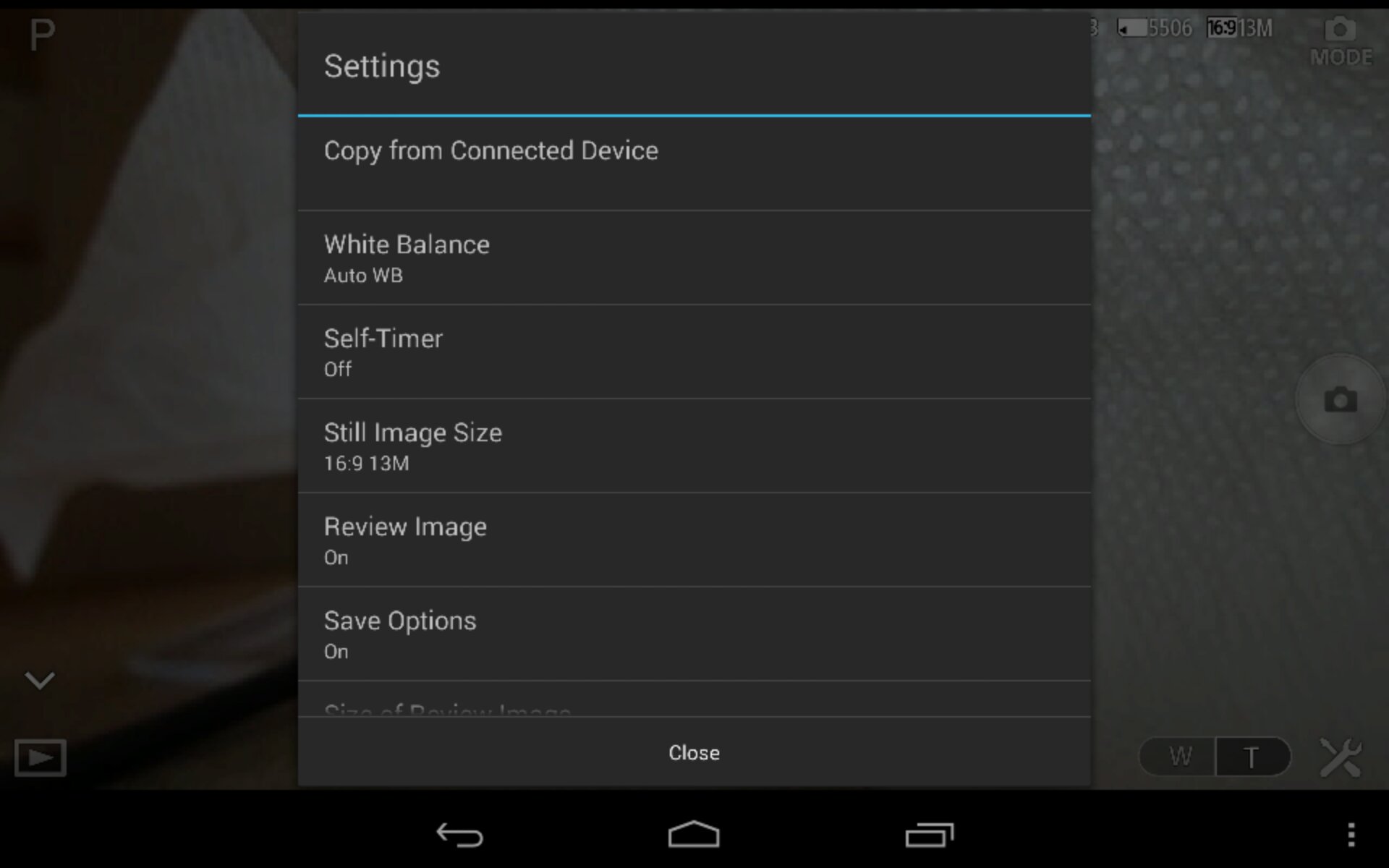
The settings icon pulls up a menu as follows.

image

There is also format memory card. Most of the settings options are self explanatory. You get an option to set the size/resolution of photos.

image

The option to select whether the camera copies the photo to the device and the file size. Either 2mp or full size.

image

The other options is the zoom in and out. Represented on bottom right with the W and T. These buttons are also on the lens itself to use without the phone. The lens also has a shutter button.

And that is all you really get in terms of control from within the app.

I do recommend the following. Download and install the app. Turn the app on and lens. Enter the lens password found on the manual front cover book. Wait for connection to finish. Exit app. Turn lens off. Reboot your phone. This will ensure smooth operation.

If you have a Z1 or Z phone , Sony will soon be releasing a dedicated case to attach the lens to your phone. The SPA-ACX2 for the Z1 and the SPA-ACX1 for the Z. If you use this special case you can remove the bottom clamp attachment. The clamp stretches to a width of 75mm.

I’ve used the QX10 successfully with my Nexus 4 and new Nexus 7 2013. These worked fine but after configuring app I had to reboot both devices to ensure a smooth operation. With both these devices you did get occasional lag on the screen when moving the lens. With the Sony Xperia Z1 I have not witnessed any lag.

There are many uses for this lens. It can sit flat on a table and then be operated remotely. You can hold it and put it in tight positions. It has good low light and zoom capabilities. And it is hassle free to use.

I like it a lot. And don’t forget you can use the lens with your iPhone and android phone.