Category Archives: Reviews

Sony Xperia Z1 – Roxfit Desert Tan Book Case review

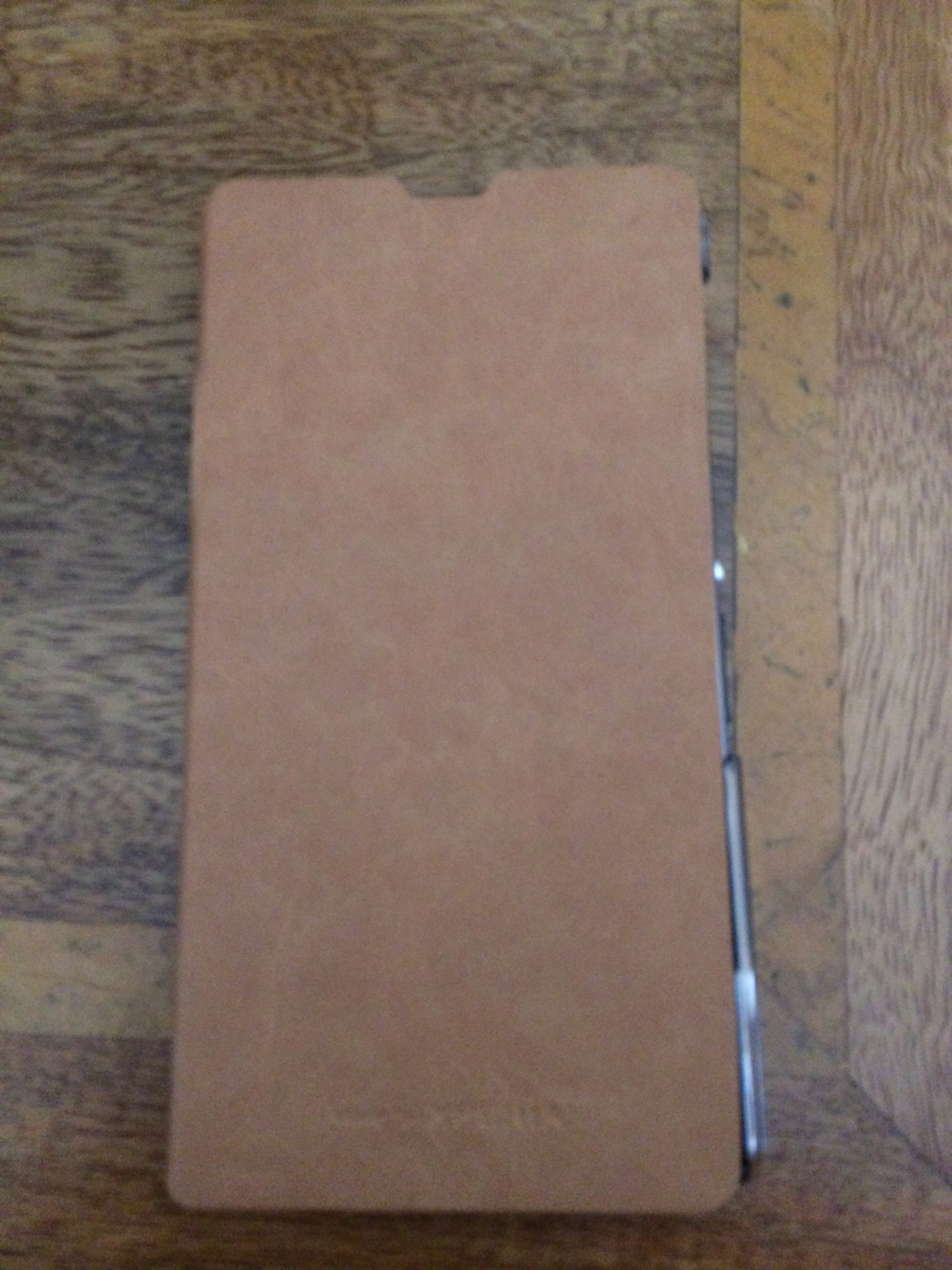
The other day I received a Roxfit Desert Tan Book case for my Sony Xperia Z1. Roxfit are the official case makers for Sony Xperia phones.

IMG_0063

The finish is lovely, the Z1 fits snugly into the case. Fully closed, you can still see the notification light and speak on the phone too with the case closed.

Opening the case up, reveals a credit card slot, access to all the ports too. The rear has a cutout for the camera.
IMG_0065
IMG_0067

The magnetic charging area on the Z1 is accessible with the case open, but it wont work inside the DK31 dock. When closed you can open the micro sd flap and charge the phone.

I am very pleased with this case and just wish Apple made this finish for its 5S.

Final Thoughts on the cameras of the Sony Xperia Z1 vs iPhone 5S

Over the last few days, and maybe a few days before that I have uploaded camera samples from both the above phones. They are totally different animals, but here are my thoughts. The good news with both of these phones is that they can both be used with the quirky Sony QX10 hub lens.

Sony Xperia Z1 –

This is a newly released phone for Sony. It has software bugs. The phone has rebooted for no apparent reason about once a day and the camera frozen once too. The photos are focused in the centre of a shot, but out of focus around the edges. Bright days, the photos seems over processed. Low light can be dreadful. It just depends on the type of low light. However, the camera options are extensive. 61 shots in a second and 20.7mp photos too. I am keeping the Z1 because I really like it and I reckon after at least 2 software updates from Sony will be once amazing phone and camera. That probably will take 3 months at a guess. Panoramic photos seem to be low resolution affairs. I don’t understand why that it. I also believe if Sony had included Optical Image Stabilisation, this phone would be unbeatable in the camera department. The photos I have taken show incredible depth as well.

iPhone 5S –

Less is more is the moto here. High quality shots every time practically with no effort. It is just auto mode. Apple offer a square box option and very high quality panoramic photos. The photos show more natural colours too. I have taken some amazing photos of my dogs. There are other options, but not that many. I would call the 5S camera gimmick free just fast quality photos. Currently, in terms of quality I would pip the 5S ahead of the Z1. But I am keeping both phones, so will revisit the camera test as Sony updates the firmware.

In summary, don’t buy the Z1 for its camera

Mega Camera shootout – iPhone 5S vs Sony Xperia Z1 – share you view on the better phone!

Apple has just released the iPhone 5S with its improved A7 processor and updated camera 8mp. Meanwhile Sony has also recently released its bad boy Sony Xperia Z1, with a huge 20.7mp camera.

They do say size isn’t everything, but how will this pan out in real life tests. Below are 3 sample shots from both cameras. To view the full resolution versions along with all the exif data, additional photos for comparison, go to my special Flickr set http://www.flickr.com/photos/gavinfabl100/sets/72157635718285964/ .

First up you will notice that the iPhone 5S does not shoot in widescreen 16:9, rather 4:3. The Z1 in superior auto mode shoots in 16:9 and in manual 20.7mp settings is also 4:3. Again, study the photos here and on my Flickr set. And decide which is best. Tomorrow, I will give you my opinions on the 2 phones.

First up inside Costa Coffee with the Z1.
2013-09-21 08.27.51

Now with the 5S.
IMG_0052

Inside the Apple Store Plymouth with the Z1.
2013-09-21 09.51.45

Now using the 5S.
IMG_0053

Ok, lets go outside. It is a grim day with overcast skies. Z1 goes first again.
2013-09-21 10.39.12

And once again same shot but with the iPhone 5S.
IMG_0056

And outdoors again on Dartmoor. It is a foggy day. First up the Z1.
2013-09-21 11.12.31

And lastly, the 5S.
IMG_0057

To see more photo examples including 20mp shots from the Z1, go to my Flickr set http://www.flickr.com/photos/gavinfabl100/sets/72157635718285964/ .

And leave you views in the comments. They all count. Tomorrow I will conclude with my thoughts on the cameras.

Review Part 2 – Sony Xperia Z1

Welcome back to part 2. To read first impressions and earlier articles on the Z1 click here.

image

The weather has been constant rain but the sun did appear briefly,  for long enough to run outside in to my backyard. The above photo snapped on the Z1 was taken in superior auto mode.

So as you can imagine I’ve been using the Z1 non stop. In fact last night it was downloading all my games. During the day yesterday it was downloading my Sony Entertainment movies. I now have all my apps and games installed.

image

I have setup all my folders and kept a fairly simple homescreen. For the time being I’m using the Sony launcher but at some point I will setup Apex Launcher as my default.

The Z1 out of the box can be configured to work with a Sony Ps3 Dual Shock Wireless Controller.  And it works really well. I also connected my Moga Pro Game Controller and that works fine too.  Good news for gamers.

The Z1 also has small apps that can be sitting on the screen. These are selected using the running apps menu button.

The default Sony keyboard is the only keyboard you will need, so hold off downloading any third party offering. When you first use it after setting up the phone you will see a magic wand icon. This takes you through layouts and options and more. In the system settings you can change the skin/theme too. Talking of themes, the Z1 has the option for changing the theme. There are automatic themes to choose from, that when applied alter the look throughout the whole phone.

I also opened the Sony Privilege app to get my free films and 60 day music unlimited trial. The deal from Clove Technology also includes the Sony SmartWatch 2. These are due to be posted out at the end of the month.

I also had a look at the apps pre installed. Fortunately, Sony don’t go too crazy. There was an anti virus app which I unistalled first. The rest seem ok. There is a diagnostics app, which allows you to test hardware and software performance. Box, the file storage app which is similar to Dropbox. Setting up Box on the Z1, gives you 50gb storage for life. If you want this too, let me know in the comments. I will be able to see your email only when you reply. I will then send the referral link to you via Box.

Photo editing options include the basic photo editor and Pixlr Express. The Z1 includes a FM radio too with RDS. There is also a sketch app which I have yet to explore.

On the subject of audio, Sony include a pair of Sony Mh750 headphones / headset. These retail at around £22 and are one of the best quality cans I’ve seen packages with the phone. The Z1 produces great audio reproduction via the headphone jack.

It’s early days to discuss battery life but from what I’m seeing one whole day hammering the phone is possible. I would imagine 2 days if average usage.
Now that I have pretty much setup the phone I will start to look at all the other software and hardware features.

On a negative note, the Z1 has rebooted twice since I have had it for no apparent reason. Other than one of the times I was multitasking over 28 apps, many of which were games.

Until tomorrow…..

First Impressions and Review Part 1 of the Sony Xperia Z1

My Sony Xperia Z1 has just arrived. I bought it from Clove Technology .Over the next few weeks I will be writing a daily review of the Z1, along with the QX10, and the Sony Z1 accessories as they become available. If you would like to know anything just ask in the comments.

image

And unlike some reviews, this is not a loan device but my own that I bought with my hard earned money.

Anyway, the official specifications of the Z1 are –

– Operating system – Google™ Android™ 4.2.2 (Jelly Bean)
– Processor 2.2 GHz Qualcomm MSM8974 Quad Core
– GPU Adreno 330

– Size 144 x 74 x 8.5 mm, Weight 170 grams
– Available colours – Black, Purple, White, SIM card Micro SIM
– Screen Size 5.0 inches, Resolution 1920×1080 pixels
– Type 16,777,216 colour TFT
– multi-touch, up to 10 fingers supported

– Memory RAM 2 GB, Flash memory, Up to 16 GB (11.7gb free
– microSD™ card, up to 64 GB (SDXC supported)

– Camera Resolution 20.7 MP, Digital zoom 8x
– Front Camera 1080p for video chat and 2 MP for camera capture
– Photo light  Pulsed LED
– Video recording HD 1080p

– Sensors, Accelerometer, Ambient light, Proximity, Magnetometer
– And Gyroscope

– UMTS – HSPA+ 850 (Band V), 900 (Band VIII), 1700 (Band IV),1900 (Band II), 2100 (Band I) MHz
– GSM – GPRS/EDGE 850, 900, 1800, 1900 MHz LTE (Bands 1, 2, 3, 4, 5, 7, 8, 20)
– 4G- (Bands 1, 3, 5, 7, 8, 20)

– Battery 3000 mAh minimum
– Talk time (GSM) Up to 830 minutes, Standby time (GSM) Up to 880 hours, Talk time (UMTS) Up to 900 minutes, Standby time (UMTS)
Up to 850 hours, Standby time (LTE) Up to 760 hours

– Music listening time Up to 110 hours
– Video playback time Up to 400 minutes

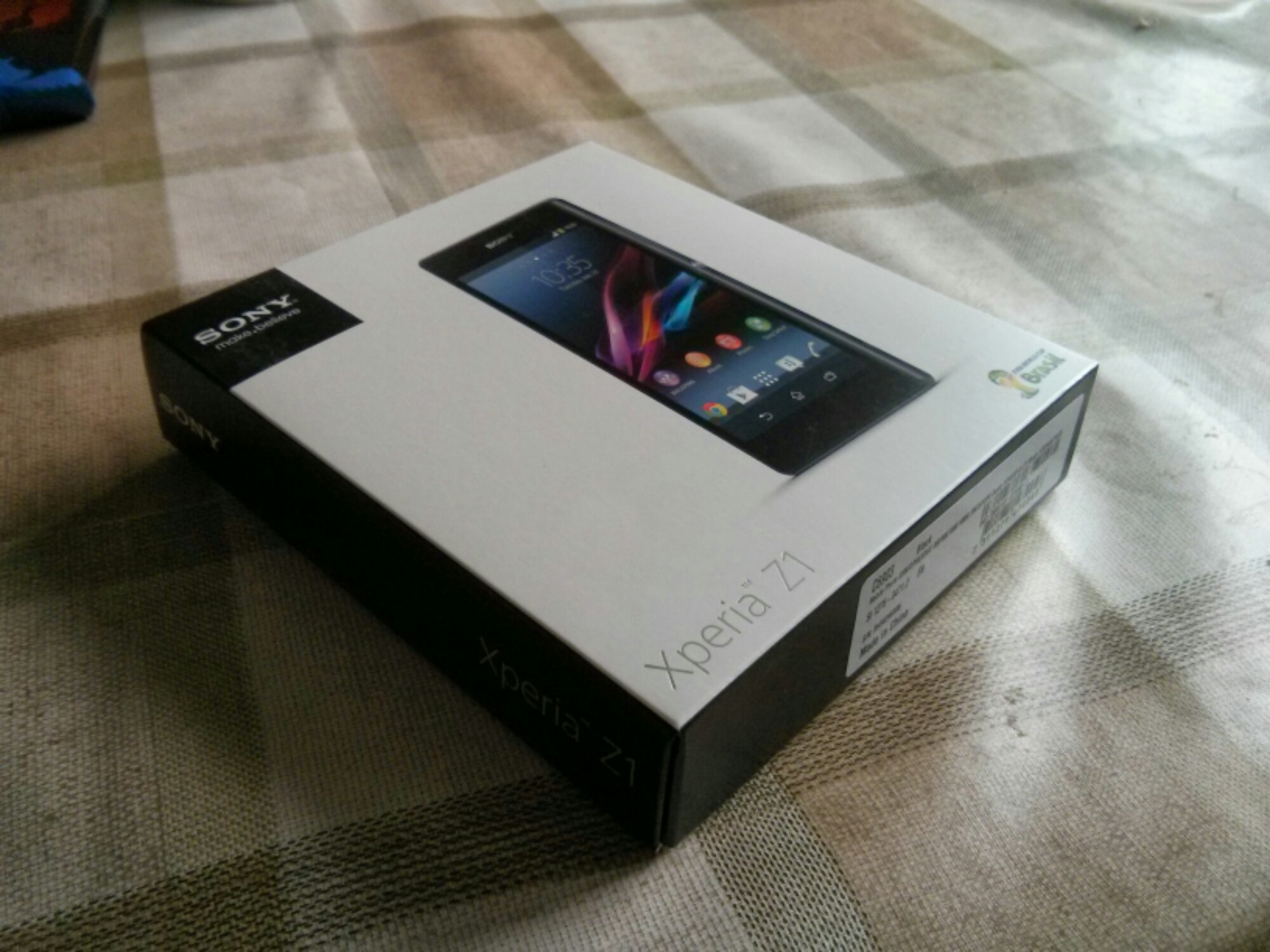
The Z1 came boxed as below with the following contents- USB cable, UK plug, some leaflets including a quick start guide. It also came with a front screen protector. Nice touch.

Below is some photos of the device. It sure looks lovely in the flesh. It feels solid in the hand and built to exacting standards.

Now the first thing the manual says is charge the phone for 30 mins. Please be assured I followed this point. Then insert your micro sim and micro SD card. I put my new 64gb card in the slot. All going really well so far. Power on and start following the start up guide, entering email accounts and so on. I already had a Sony account from my time when I had the Z Tablet, so it added the Z1 to my profile. After finishing the setup, I noticed Google was starting to restore my apps. I immediately stopped that process as you never know what you may need or not need on a new device. After a few existing apps had updated I with 10.72gb free internal memory.

Whatever you do, do not accept the 30 day unlimited music offer in the walkman app. Go to the Sony Privilege app. Within this app is a 60 day trial, 5 free films to download too. As I have bought games from PlayStation Mobile store, these are also available for to download. Sony also allows for a PS3 dual shock controller to connect to the Z1, so expect comment on this in later review sections.

A little surprise, after first setup, my Z1 has my Dartmoor scenic shot as the background. No idea if that was Google or Sony.

So, the phone is gorgeous to hold and look out. Lovely screen too but not as bright as the HTC One. So far I have taken a few photos. Some are good, some in low light were not so good due to being too noisy. I have tried the QX10 with the Z1 and it works really effortlessly. The Z1 camera is really fast. The shutter button is great.
z1 1

The loudspeaker is above average in quality and sound but not at HTC One quality. I am yet to test the audio quality via the headphones.

I connected the Z1 via USB to my Mac. The Z1 then asked if I wanted to install Sony Bridge for Mac which I did. This is a great piece of software. I have installed 1,000 photos selecting my events in iPhoto. The software also allowed me to import photos I had taken too back into iPhoto. I also copied 4,000 songs across which did take a few hours.

I still have plenty of exploration of all the apps and services available. I also need to fully install the balance of my apps and games.

Over the next few weeks, I will be looking at every aspect of the Z1 including the official accessories as they become available.

Now its time for more playtime with the Z1.

Just a quick thank you for Clove Technology for such a great service. They also have one of the best deals. Phone, Sony Smartwatch 2 and £110 Sony Entertainment media.
First Impressions and Specifications of the Sony QX10 Lens

Yesterday, I received the Sony QX10 lens. As my Sony Xperia Z1 was not due to arrive until this morning, I gave the QX10 a short blast with my Nexus 4.
DSC00832

The official specifications of the QX10 are –

-Imaging Sensor : 1/2.3″ (7.76mm) Exmor R® CMOS sensor, 18.9mp, Bionz image processor
-Color Filter System : RGB primary color mosaic filters
-AF Modes : Multi Point AF / Touch AF

-Memory Stick Micro / microSD Memory Card / microSDHC Memory Card supported

-Still Image Size 16:9 : L:13M (4,896 x 2,752) S:2M (1,920 x 1,080
-Still Image Size 4:3 : L:18M (4,896 x 3,672) S:5M (2,592 x 1,944)
-Video Mode : MP4: 12M (1440 x 1080, 30 fps)
-Microphone/Speaker : Built-in Stereo Microphone
-Still Image File Format : JPEG (DCF, Exif, MPF Baseline) compliant, DPOF compatible

-Image Stabilization : Optical SteadyShot(TM) image stabilization
-Priority Setting for Face Detection up to eight faces max

-Battery Type : InfoLITHIUM® NP-BN (3.6V)
-Number of Still Images approx 200 images

-Metering Modes : Multi Pattern, Exposure Compensation : +/- 2.0 EV, 1/3 EV step
-Exposure Settings : [Still] Superior Auto, Intelligent Auto, Program Auto, Movie Mode
-ISO : [Still Image] ISO100-3200(iAuto), ISO100-12800 (Superior Auto), ISO100-1600(Program Auto)
-White Balance Mode : Auto / Daylight / Shade / Cloudy / Flourescent White Balance 1 / Flourescent White -Balance 2 / Flourescent White Balance 3 / Incandescent,ISO Sensitivity (Movie) : [Movie] Auto (ISO 100 – 1000 level)

-Lens Type : Sony G® Lens
-Aperture (Max.) : F3.3 (W), F5.9 (T)
-Optical Zoom : 10x (Optical Zoom during movie recording)
-Focal Length (35mm equivalent) : [Still Image 16:9] f = 27.5-275mm [Still Image 4:3] f= 25-250mm [Movie -16:9] f = 27.5-275mm (SteadyShot Standard), f = 27.5-385mm (SteadyShot® Active Mode) [Movie 4:3] f = 33.5–335mm (SteadyShot® Standard), f = 33.5-469mm (SteadyShot Active Mode)
-Lens Construction : 9 elements in 7 groups (including 4 aspheric elements)
-Clear Image Zoom : 10x

-Self-timer : 10 sec. / 2 sec.
-Shutter Speeds : iAuto (4 – 1/1600) / Program Auto (1 – 1/1600)

-NFC : Yes (NFC forum Type 3 Tag compatible)
-Wi-Fi : Yes
-USB Port(s) : USB 2.0 Hi-speed
-A/V Remote Terminal : Multi/Micro USB Terminal, Hi-Speed USB (USB2.0)

-Tripod Mount : Yes

-Dimensions (Approx.) : 2 1/2” x 2 1/2” x 1 3/16” (62.4mm x 61.8mm x 30.0mm)
-Weight (Approx.) : With Battery and Memory Stick_micro 0lb 3.7oz. (105.0g)
-Weight(Approx) (Main unit only) : 0lb 5.8oz. (165g)

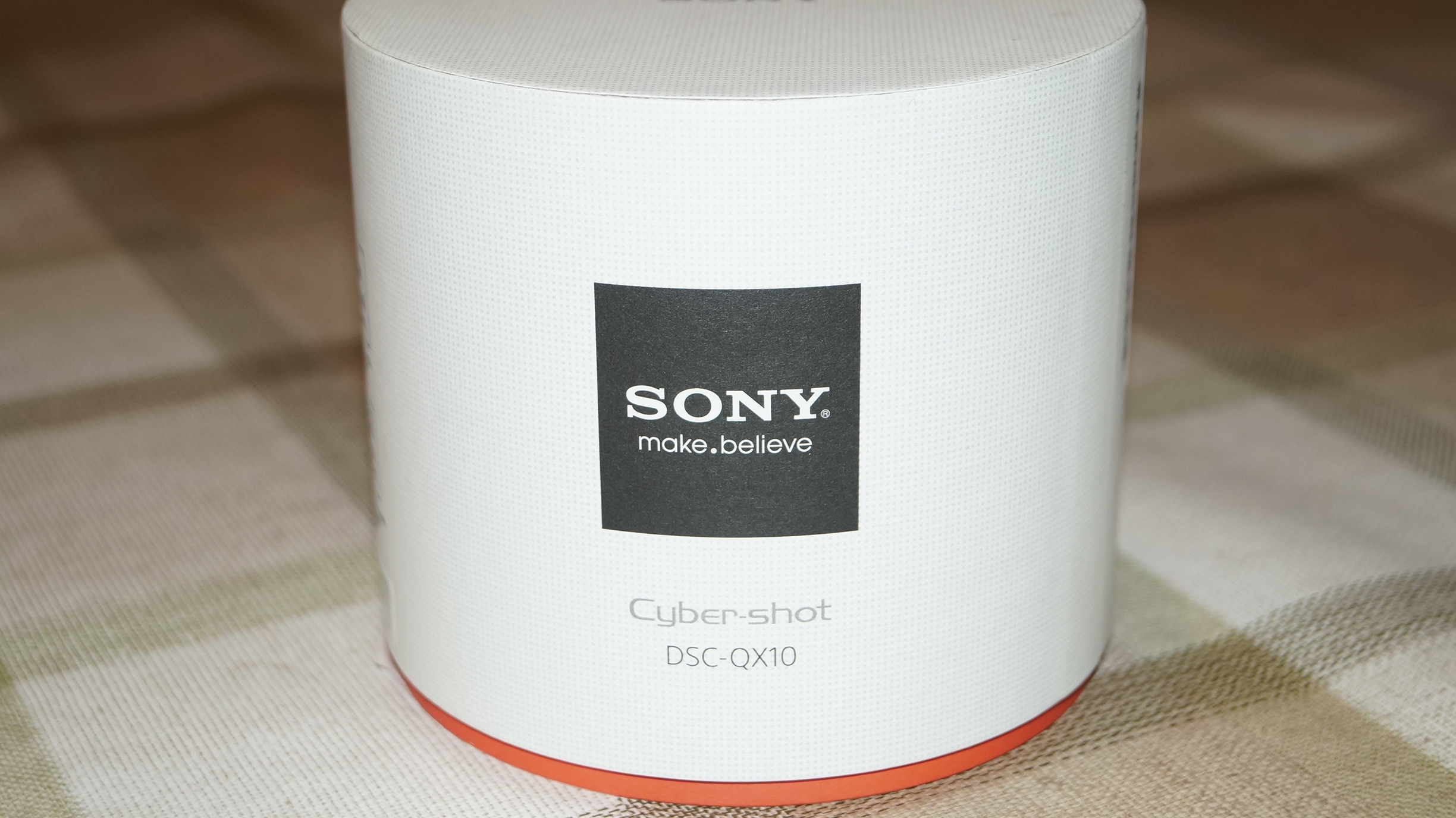
The QX10 arrived in a circular box.
DSC00835

Opening the box revealed the lens itself. As you can see the box is huge versus the size of the actual lens.
DSC00825

Inside the box was a very chunky manual, rather more like a start up guide in loads of languages, several leaflets, a battery, lanyard, micro usb lead and the circular base. First up, you have to put the battery in to the lens as shown. Insert your micro sd card or Sony M2 memory stick in the slot just below. The tripod mount is positioned below the memory card slot as per photo.

DSC00831

Next connect the circular base plate. This enables the lens to be clamped on to most android or iphones. 75mm is the widest point the clamp can officially open up to. Now the hard part. Go charge the battery using the micro usb lead. It the hard part because the temptation is to try and use it straight away.

As the QX10 works with iPhones or android, you need to download the PlayMemories Mobile app from the respective app stores. Open the app, turn the QX10 on by pressing gently down on the power button. Enter the password which is printed on the quick start user manual and voila. Your phone is now acting as the viewfinder.

So far it has been a blast, but I have only had limited time with it. Also the weather has been constant rain and fog. Photo samples on next article. A full review will appear over the next few weeks along with the Sony Xperia Z1. So far I am very impressed. Makes me wonder just how much better the QX100 will be.

Sample photos from the Sony QX10

Following on from my last post on the QX10, below are a few samples, unedited and taken in the most dreadful conditions.

The outdoor shots were taken with heavy rain and fog, and the photo of my dogs was snapped in very low light indoors. The indoor shot was then cropped to focus on the dogs to give you some idea of the level of detail.

The other fun part of the dog photo, was the lens was left on the table opposite, while I used my Nexus 4 6 feet away to operate it. The scenic landscape was taken using the QX10 without the Nexus 4. This is possible as the QX10 has its own shutter button.

The photo below is at 8 x zoom.
DSC00006

This is the cropped dogs in low light.
DSC00007

And finally taken without the Nexus 4, just using the QX10’s own shutter. Also snapped blind as no viewfinder.
DSC00010

If you want a full size sample of extreme low light and zoom, go to this photo on my flickr account http://www.flickr.com/photos/gavinfabl100/9788380273/

A more indepth review and more photo samples will appear on the next few weeks along with the Sony Xperia Z1.

Wireless charging and why I won’t buy any device unless it has this feature

I had read an article by Steve Litchfield from All About Windows, and listened to him rave about how amazing wireless charging along with the benefits. Well, I did think this was a load of nonsense. I mean, how difficult can it be to plug a micro USB lead into your phone and tablet!

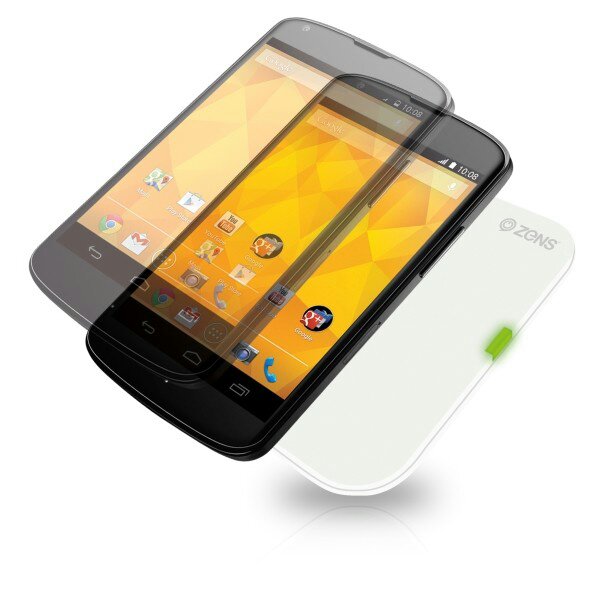
Well that was a week ago. My views today are this. Unless a phone has this capability or means I won’t consider buying it. So what has happened in a week. I received the Nexus 4 and new Nexus 7 and then discovered they both had the circuits built in to allow wireless charging. Curiosity got the better of me and I ordered a Zens charging pad. Well being able to just place the phone or tablet on this pad and it charges is a revelation. It is just so cool. In addition the pad turns charging off at 100% and recommences when battery drops to 95%.

So I decided to get a double charging pad for another room. I might get one more for downstairs too. But the double pad is not as slim and sleek as the single pad. So I returned the double pad and got another white Zens single charging pad. Happy days.

The other neat aspect of the Zens charging pad is that it is not placement sensitive.
image

image

My top photography apps on android

Those that follow my twitter account @gavinfabiani know that I like posting photos of my pets and Dartmoor. Consequently, I also have tried a number of photography apps. Below are my favourite-

1. The default camera app that came with your phone. Always start here and see what it can and can’t do.

2. The phone’s default editing options. Explore what your phone can and can’t do. Examine file sizes after editing too as some photo editors shrink the photo.

3. Camera Zoom FX – simple easy to use and tons of editing options. Works on tablets too. Complete control of photo capture. Voice activation.

4. Color Splash Effect – takes an image and makes it black and white. Then add back colour to the areas you want. Plus add text, effects, overlays, frames, and textures too.

5. Picsay Pro – similar to Camera Zoom FX but only for editing photos. Has some snazzy effects too.

6. ProCapture – camera + panorama – high quality panoramic photos up to 12 linked together, wide shot, loads of camera options. Good on tablets too. No post editing just great at taking photos.

7. Pro HDR Camera – full control over taking HDR photos. Plus after editing adjustments before saving.

8. Photoshop Touch – enables layers and other pro editing options. If you know what you are doing this is a very good app.

9. Lapse it – Time Lapse – Pro – create some stunning time lapse effects. A tripod might be handy.

10. Snapspeed – another post editing app. Drama is a great affect to use. Makes boring photos exciting.

A lot of the apps have some overlap, but each offer something special. With all the above and the default camera app you will be surprised by what you can achieve.