Category Archives: Android

What photo apps do you use on your Android and Windows Phone

Like the previous post for iOS, this one covers android and windows phone.

Windows Phone – as I only have had Nokia apps I’ve only ever used the included apps by Nokia, so these include Nokia Camera and Creative Studio.  1Shot Beta is the only third party camera app worth mentioning but do you use any others?

Android – this depends really on your phone and what software is included. But on my Note 3 I have the following apps installed.

1. Snapspeed – great editing app

2. Google+ Photos – plenty of filters and editing options

3. VSCO Cam – the best filters app. Worth buying the collections to save some money. Plus loads of the usual editing options

4. Picsay Pro – superb editing app plus has the ability to add balloons and other crazy items to photos eg hats

5. Photoshop Touch – advanced editing app

6. Lapse it Pro – creates amazing time lapse photos. You will need a tripod and a full charged battery!

7. Color Splash Pro – allows you to highlight the colour of one bit of the photo

8. Photo Grid – collage maker

So what else do you use?

Twitter for android notifications now resolved – details

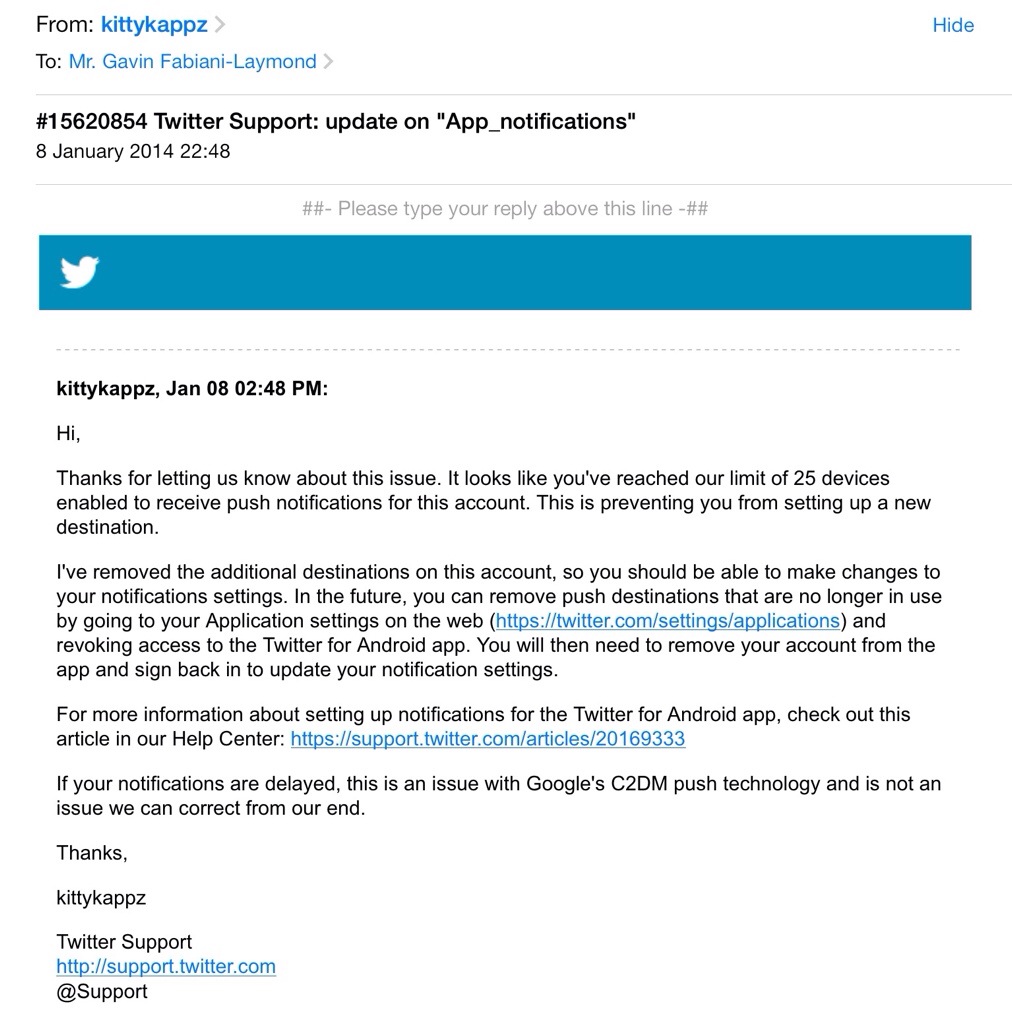
For over a week I had been frustrated with twitter on my Samsung Note 3 due to the lack of push notifications occurring. All the steps suggested by twitter support in the email below had already been tried by me several times. So if you get the message when trying to turn on push notifications “you cannot connect more than 25 devices to one account” by all means try the steps below. But if that doesn’t work, you will have to send an email to twitter support and wait about a week for it to be fixed.

20140110-072441.jpg

Another mobile threat – this time from Starbucks

Just how secure is your mobile data ?

The Starbucks mobile-payment app is reportedly saving user data, including email addresses, passwords and even your GPS location in plain text. Theoretically, anyone with access to your phone and a PC can download your private data.

Who needs hackers when sensitive information isn’t even encrypted in the first place!

Samsung Galaxy Gear – review impressions

image

The Galaxy Gear in mocha grey arrived a few days ago and I have been trying to get a sense of its usefulness.

It certainly splits opinions as to its looks. Some say it’s too big and bulky and looks butt ugly. Others are amazed by it. It’s fairly light despite its bulk. Other comments were over attention to detail. The screws on the Gear and not tightened into the same position. Other watches at this price point would not be like this!

Also there was an ongoing debate on twitter as to whether it’s really a watch as the time is not displayed permanently. When you lift your arm the accelerometer triggers the display to show you the time or chosen clock face.

Putting all that aside it comes in a typical Samsung box with the watch, charger, watch cradle with NFC, quick start guide and warranty leaflets.

I completely missed the fact that to NFC pair the Gear to the Note 3 that the watch cradle needed to be attached so I ended up manually downloading the Galaxy Gear Manager app and using bluetooth to pair the devices.

From the Gear Manager you can completely configure the watch complete with whatever face clocks required and the types of notifications you would like it to receive.
image

image

Some of the clock faces include shortcuts to apps and other functions. I like a plain face with the day of the month enabled in the clock options. They are a few more clock faces to download in the Samsung App store along with actual apps you can run on the Gear.

image

There are many settings that greet you when you open the Gear Manager.
image

And then there is a whole section just for notifications.
image

And then third party notifications. So for example I have twitter and Google Now selected.
image

Each of the included apps on the Gear has settings.

image

So it all seems very complicated at first. And it is. I didn’t grasp what was happening where and why but as day 1 progressed everything started to fit into place. Day 1 involved involved taking a number of photos with the Gear, asking S Voice to call a contact and then have a conversation using the Gear, all very James Bond 007 style. If the Gear and the Note 3 become separated the Note 3 locks. You can also double press the power key for S Voice which is marginally better than on the Note 3. For whatever Siri faults are on the iPhone, it is better than S Voice. However S Voice on the Gear is much better than on the Note 3 itself. I also had tons of notifications arriving. I had the Gear on vibrate but there are tones to select and different volumes. There is also a brightness and screen off delay settings. You can wake up the Gear display just by looking at the Gear. The accelerometer activates screen with the correct motion. I was dubious as to whether this function would work as well as described but it does. The other neat motion based function that works really well, is say I get a new tweet notification and pick my Note 3 up, the Gear will open the Note 3 twitter app at the notification. Rather neat.

I am still working out how notifications work between the Gear and the Note 3. For example, if I delete an email notification on the Gear it only removes the Note 3 notification and the email app shows a number badge of 1 email still. Opening the app shows the email as read. It is understanding the chemistry between notifications and the respective apps that will improve the operation. However, you still need to remove the notifications off the Gear and there’s no global delete yet.

So how easy is the interface? Actually very straight forward. With the clock showing, swipe down from edge to edge for camera, swipe up edge to edge for phone dialler. Two finger tap beings up Bluetooth and battery level status, volume and brightness adjustment. Swiping across to the left brings up the notifications, and contacts if you go the other way. Keep swiping to scroll through all the other apps. The menu does loop so you don’t have to go all the way backwards again. For every app that has a notification you can delete individual notifications or select all within that app. But you can’t at the moment do a global delete all app notifications as mentioned above. I have used S Voice to find a contact, dictate a text message and send it perfectly. To go backwards, just swipe down. Two finger holding on the display beings up recent apps and you can swipe away any you wish to close. The Gear will take a max of 50 photos after which you will need to delete them off the phone. After each photo , the Gear will transfer them to your phone. You can record 3 video clips in a row, after which the camera app closes to maintain optimal performance. The camera has a macro mode option. You can alter the order of apps and move apps in to the app folder or just have one app per whole screen. In the app folder 4 apps are shown per page.

Talking of apps some companies have released Galaxy Gear specific apps. I have installed the following.

Ebay for Galaxy Gear – works same as main app but only able to browse your activity.

Pocket – flick thru your articles. Hit play and the articles are read aloud through the Note 3. I really like this operation.

Zite – flick through headlines. Tap on article and it opens on phone. Not sure of usefulness of this but it’s different.

Camera 360 – adds some effects and frames for the Gear camera. A worthy extra.

Sample low light shot. I have created another post with some additional camera samples. You can remove the Galaxy Gear watermark as well.
image

So with all this activity what’s the battery like. Well from 8am to 7pm it knocked the battery to 50% meaning I would need to charge to overnight. With lighter usage maybe a second day is possible, but one full day is not unreasonable.

Is it worth £299. No. But who else sells a smart watch that can make calls, has a camera and speaker built into the strap? Will I keep it. Yes.
Samsung Galaxy Gear – camera samples

Below are some further camera samples from the Galaxy Gear.  Don’t forget the watermark can be removed in the camera settings. As a comparison I have included a shot from the Note 3 of the same area.

image

image

Note 3 shot 

image

The Note 3 was able to reproduce the lighting conditions much better but I was quite happy with the Gear photos if sharing to just social networks like twitter.

Sphero 2B robotic ball – details

20140110-081147.jpg

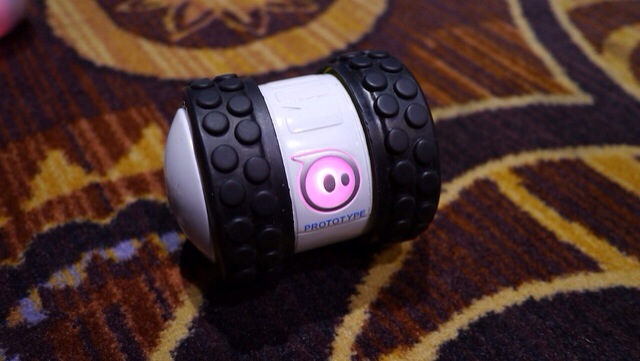
I recently reviewed the Sphere Ball. Refer to index in review tab above for details. Sphero 2 is currently the latest incarnation but at CES 2014, Sphero 2B is the new robot toy from Orbotix that can move as fast as 14 feet a second. That’s supposedly the equivalent of a 6 minute mile and twice as fast as the Sphero 2.0. The spinning tube has comically rugged tires that allows it to adorably jolt out at breakneck speeds and tackle any surface.

The Sphero 2B is controlled by your iOS or Android device, has a few accessories (like new wheels) and can be programmed so you can create your own robot army. It due on in September 2014.

I will be honest after a few weeks I lost interest in my Sphero Ball and so did my 3 dogs.

Camera shootout – Samsung Note 3 vs iPhone 5S

And the winner is neither.

I own both these phones and use them extensively to take photos.

Below is a brief overview of each and what you should expect.

Speed – From startup to capturing the moment goes to the iPhone 5S. And then the 5S burst mode of 10 photos per second at full resolution all the way up to 999 photos as a burst is out of this world. I’ve tried it and it works. It does take a while longer than normal to analyse 999 photos and give you the best but it’s still quick.  Meanwhile the Note 3 only takes 20 shots on burst but it’s very quick once it starts. From holding the shutter button down seems to have a delay of 1- 2 seconds before the burst mode starts.

Panoramic – this goes to the 5S as it auto adjusts exposure as you pan. But both are good at this mode. And both can take some fantastic shots. With the Note 3 be sure to hold phone vertically to get a real large photo.

Low light or indoors – this is a close draw. Both have strengths and weaknesses here. The Note 3 uses the flash more often whereas the 5S tries to avoid using the flash. On scenic non moving night shots the Note 3 using a tripod will outperform the 5S.

Good light – both take excellent photos. The 5S has an uncanny way of making sure the photos are very natural in their colour reproduction. But the Note 3 has higher mega pixel lens. And it shows. I actually prefer the Note 3 results slightly.

Macro – a close match. But the Note 3 wins. It’s one of its strengths.

Software – the 5S is limited and is really a “just press the shutter” whereas the Note 3 has comprehensive options. Depending on your needs depends on your winner.

Overall I prefer the Note 3 photos but I do miss that speed to first shot that the 5S achieves.

Samsung Note 3 KitKat update starts rolling out

The next software update for the Samsung Galaxy Note 3 has started via over the air.

The change log is –

-Select between the stock messaging app or Hangouts for SMS and MMS

-Select between TouchWiz or other launchers through settings

-Wireless printing

-Updated Google apps

-Updated Galaxy Gear Manager brings improved connectivity and better email options

-Music album art shows on the lock-screen while music is playing

-A camera shortcut is now displayed on the lock-screen

-New emojis support

I wouldn’t say the update is significant in features as most aspects are already included but this will make the phone very fast.

Samsung Note 3 – review – 3 months later – day 14

It’s been 2 weeks since I received the Samsung Note 3 again. With 7 firmware updates and countless app updates, the full software packages provided by Samsung, the Note 3 has been a different phone to the buggy disaster that was released at launch.

Some of the surprises and highlights has been the camera. The Note 3 camera has taken some awesome quality photos far above what I expected. At night time and with the use of my tripod I used an app called “A Better Camera” . In fact using this camera app with Samsung’s own default app provides a superb shooting experience. I found a tripod adapter for the Note 3 called iStabilizer from Amazon which allows for high quality night shots. Using voice to take photos removes the potential for camera shake. Photo editing is handled by several apps and the effects available are huge.

After 3 months the software is considerably bug free. There are a few bugs still remaining but nothing of any significance. So what I am getting is a smooth experience. In fact, the Note 3 has less bugs than the iPhone 5S which constantly reboots and has a battery not up to the task of a smartphone.

As a music player the Note 3 is fantastic. But it has USB Audio out so by connecting the Fiio E18 USB Portable DAC/Amp the improvement in audio enjoyment is off the charts.

And then there is the even more stark realisation. With the Note 3 not only have I left my iPhone in a bottom drawer, I am not using my iPad or computer. The Note 3 handles all the computing needs for me.

Until the next best thing arrives tomorrow, the Note 3 is my favourite phone.

The ZTE Projector Hotspot – the device you have always needed according to ZTE

20140110-075615.jpg

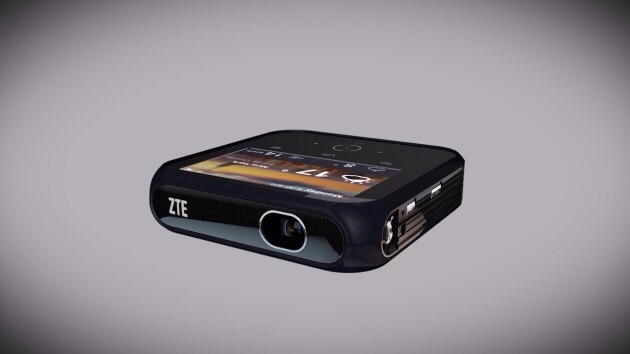
LAS VEGAS Jan 6, 2014 – At CES 2014, ZTE, the fourth largest mobile phone manufacturer in the U.S., today introduced the “Projector Hotspot,” the world’s first all-in-one Wi-Fi hotspot and portable projector. Ideal for a variety of applications – from the boardroom to the classroom, or for at-home or outdoor entertainment, ZTE’s Projector Hotspot provides up to eight users with anytime, anywhere Wi-Fi access at 4G LTE speeds, and projects up to 120-inch images and video from a variety of convenient inputs. ZTE’s latest breakthrough is coming to the U.S. in 2014.

ZTE’s Projector Hotspot packs a ton of content sharing options into a compact 4.7 x 4.7 x 1.1-inch frame. It features an on-board 4-inch capacitive touchscreen through which users can access its Android operating system, making it easy to share content stored on the device, from the Internet, or through third-party applications. Users can also share content from their laptop through HDMI, or wirelessly mirror the screen of a smartphone or tablet via Wi-Fi Display. ZTE Projector Hotspot is small and light enough to take anywhere, it easily fits in a briefcase for the next big presentation or a backpack for the family camping trip.

Beyond sharing content, the Hotspot Projector also connects up to eight clients to a blazing 802.11 b/g/n network running at 4G LTE speeds. It features a 5000mAh battery and can also be used as portable charger for your smartphones.

ZTE Hotspot Projector specifications include:
Wi-Fi network management
Up to 8 clients
WPS
IPV6 supported
Display
4.0” Capacitive touch
800×480 WVGA
Bands LTE Supported
Size & Weight 120mm X 120mm X 28.5mm ,400g
Connectivity
Wi-Fi 802.11 b/g/n
HDMI
USB-A
Headset Jack
Bluetooth
Audio output
Battery 5000mAh internal
OS Android 4.2
Projector information
Projector Type: DLP
Brightness:100LM
Image Size: up to 120’’
Resolution: 1080P input supported
Contrast ratio: 1000:1

As good as this projector might seem, it really will need a darkish room to display the contents on the wall/screen properly as it’s not that bright.