Tag Archives: Samsung Note 4

Samsung Note 4 – Lollipop update is out

Samsung has started it rollout of the lollipop update for the Samsung Note 4. Users in Poland and Russia are first out of the block.

Personally, I would hold fire until the early adopters report back with any issues. Currently, my Note 4 and android 4.4.4 is rock solid. However, I can’t wait to get lollipop on my Note 4 so that I can start to see the battery and camera improvements. Also due to running on ART the speed of the phone has been increased. Early installers on XDA Developers have tested with AnTuTu and are getting scores up from Android 4.4.4 of 45,000 to lollipop of 53,290.

If you have already installed lollipop, do leave a note in the comments with your findings after updating.

Samsung Note 4 – How to capture moving people, dogs and kids

Tiggy tries the long jump, Windy Post, Dartmoor #samsungnote4

Following a discussion on Twitter at the weekend, I was asked how to I capture moving items like pets, kids, people and such like. There are endless pro photography options but I am going to focus on simplicity.

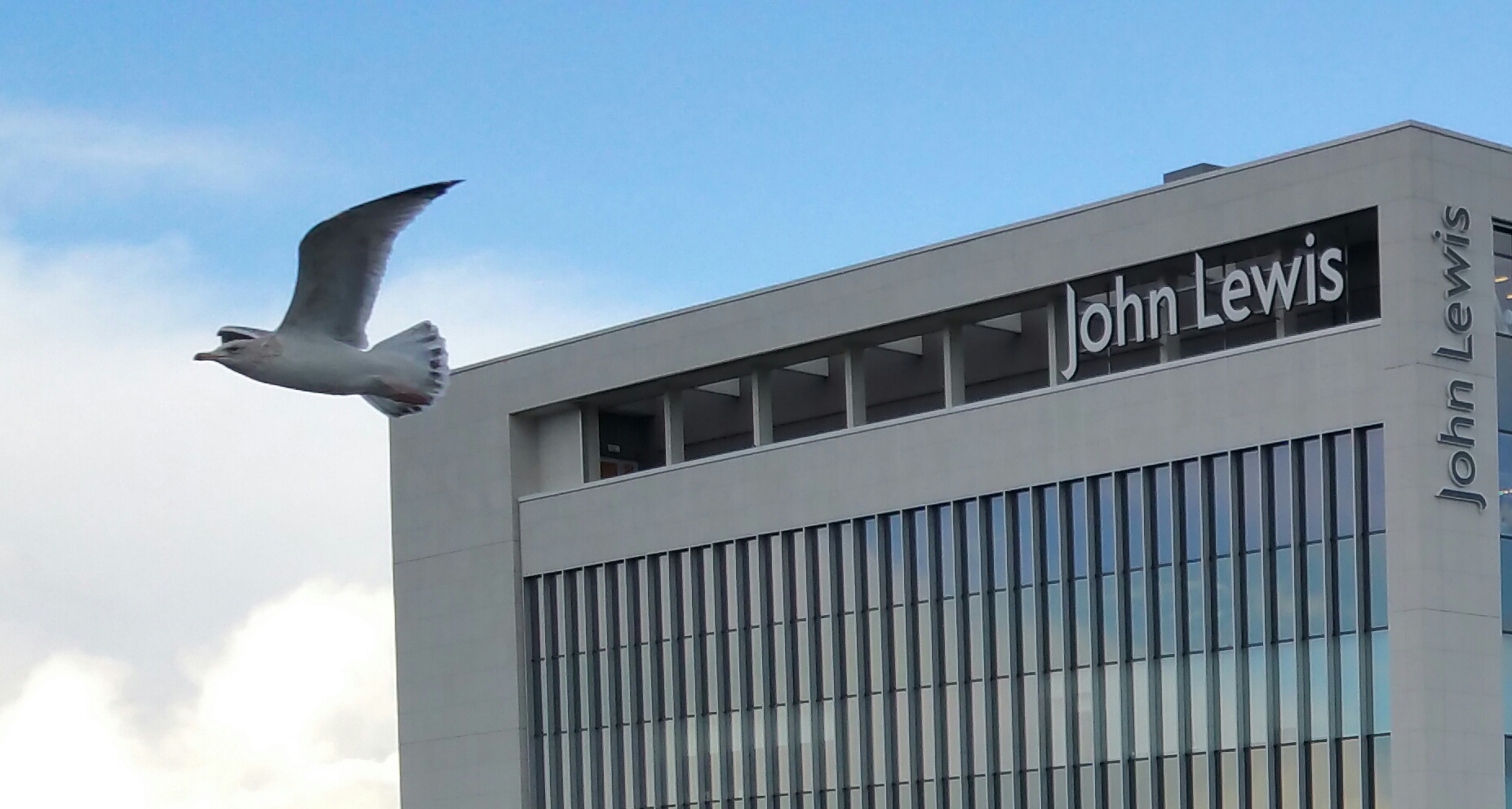
To illustrate what is possible, I took the above shot using the Samsung Note 4. This was snapped in difficult lighting using the burst mode, and then cropped in slightly to focus on the action. So what else did I do to capture this scene. Well below is my thought process.

Framing. Think about what the scene looks like through the viewfinder (screen). If you are going to want to shoot leaping dogs, try and get in to a position where you know your dog will run or fly passed. In other words set the phone up ready with the view minus the dog or child etc.. Now as you start to see you object move in to the target area, and about 1 sec before, press and hold the shutter button. 30 burst photos will be taken. While this happens do not move the phone. Breathe in, tucks arms in to chest as you take the photos. You can never have too many photos! Simple really, but lets step back. If you see you dog running try and let the Note 4 gain focus and then when scene is in target view, then press and hold on screen shutter button to activate burst mode.

What about indoors in low lighting. Normally the Note 4 tries to avoid using the flash, so use the night mode which needs a longer shutter time. This mode is no good for people and pets normally. However, you might be lucky in night mode. For this you must try and hold phone still to get the best shutter and ISO options using the OIS. IF necessary don’t be afraid of using flash. Sometimes there is no choice. IF you need extra light, use the torch mode on another phone to shine at subjects. Beneath a certain low light, the camera will not perform miracles. Other options at night is trying to shoot with HDR mode. Personally I don’t recommend that. You might find having to use an ISO of 800.

In better lighting, another mode worth trying is either Sport or Shot and More. Both these work really well too. As does 4K video recording, then during playback taking a screen grab which will be a 8mp image. Shot and More only works where the action is going to appear left to right or right to left in a predicable line. Once snapped, you can create some fancy modes. Below is one such effect. Because the horse was always going to jump over the fence, the line and my positioning was straight forward to manage using Shot and More.

The Jump in stages #rcs14 #horsephotography

Of course, you can always tweak the manual settings on the camera app, but usually by then the moment has been lost. Generally, it is understanding the lighting tolerances of the phone. Bright light, dusk, sunrise, sunset, indoor lighting, snow all impact the shots. It is worth practising without people first in your actual setups to see what works best for you so you don’t spend time trying to guess what mode to use and the miss the moment.

So what tips have you got?
Using Black and White Photography with the Samsung Note 4

Having used the Samsung Galaxy S5, K Zoom, Note 3 and now the Note 4, I have found that I am fairly familiar with how each shooting mode works and how to use each mode to get the desired effect.

Dead or Alive Stripped Tree with Dartmoor in the distance #b&w #samsungnote4

Note – click on photo if you want to go to my Flickr account to see original full size shot.

I have found with the Note 4 that in order to get the best “after edited” shot, it is best not to have taken the shot with HDR on. It is better to work with a photo that is slightly darker in places. Using various filters with a non HDR shot seems to bring out far more dramatic photos.

This also applies when using black and white as your way of expressing drama or a mood in a photo. The above was simply a random shot of a photo taken of a tree with a backdrop of Dartmoor. I then used Camera360 and choose a Black and White Strong filter.

Unlock the full potential of the Samsung Note 4 camera – wow

Disclaimer – I am at the early stages of exploring this but so far my results are mixed. This only applies if you are using a snapdragon Note 4.

So here goes the explanation. Samsung use strong processing of any photo taken by the Note 4. Over sharpened and more. It is possible to unlock the potential of the Note 4 camera using a non rooted method and take shots without these effects.

Step 1 – install Snap Camera HDR. https://play.google.com/store/apps/details?id=com.marginz.snap&hl=en . Note most third-party apps can’t make use of the 1/8s (or, in cases, even the 1/15s) shutter speed but max out at either 1/15s or 1/30s, bumping up the ISO used to twice or four times that of the ISO needed at 1/8s. This app according to preview can access the extra control required. It also allows sharpening to be turned off or on the controlled limits.

Step 2 – head over to the developers page on XDA Developers Forum – http://forum.xda-developers.com/showpost.php?p=35633104&postcount=1 and follow the steps to become a beta tester. After installing and paying for the app above, it will be updated to the beta version. None of the magic can occur without the beta version.

Step 3 –

Follow and read the detailed posts on DPReview part 1 . Ultra low light tips and a Nokia Pureview 808 vs Fuju XE-1 and Note 4 – http://www.dpreview.com/forums/thread/3781966

Part 2 – Tips for broad daylight and very high shutter speeds – http://www.dpreview.com/forums/thread/3782300

Part 3 – Tips and tricks shooting HDR – http://www.dpreview.com/forums/thread/3782850

In hindsight, it might be best to start from Step 3 to understand everything.

Happy reading!

So far my results have been mixed. Unsharpened photos do look good but sometimes I prefer the saturated sharpened look from the Samsung app. Also, the default Samsung app has some really good algorithms at play. Snap Camera HDR has some great options but it also seems to have issues focusing at times in poor light. Maybe once the Note 4 gets lollipop the camera and third party apps will be able to have even greater control.

I have also been trying the Google Camera app again with mixed results. I would be interested to see if you are using any other apps yourself. If you are leave a note in the comments.