Tag Archives: S7 edge

Samsung Galaxy S7 – Waterproof matters & Using the Video Editor

The Samsung Galaxy S7 and S7 are waterproof and dust proof and on a day like today on Dartmoor, it really is the only phone I would want to use outdoors currently.

It is raining along with thick fog. This is Dartmoor for you and of course its the British Summertime!

So after snapping photos and a load of video clips, Samsung has an app called Samsung Video Editor which is downloadable from the Galaxy App store. It offers a way of creating a mini movie. Options from transitions, titles, music, trimming, 3 speed options, filters, microphone audio, and a load more basic items. The app is free. It does have a big limitation. It works really well up to 720p video. It crashes sometimes using 1080p 30fps. But anything higher it does not work. The video editor is not as good as iOS iMovie but it is better than nothing.

To give you an idea, see the video below, with photos and video from the S7 taken this morning and created and edited on the phone to give you an idea of the final output.
Quick Camera Tips – Samsung Galaxy S7 – Shortcuts on Wide Angled Photos

Below are a couple of tips on using the camera on the Samsung Galaxy S7 and S7 Edge.

1) After opening the camera app, select modes, and then tap Download. This will open another page where you can download another camera app. I would suggest downloading Surround Shot.

2) With all the camera modes on the screen, if you tap more, add a shortcut to the home screen, you can tick the modes you would like to appear on the home screen, and hit save. Camera mode shortcut icons will be added to your home screen. This will happen even if you use Nova Launcher.

3) I mentioned downloading Surround Shot mode. With this if you photograph 5-6 shots you can recreate the wide angle look similar to the LG G5. Panorama mode is also good for a super wide shot. Obviously, it is not as true wide angled as the G5 in effect, nor would it work very well with moving subjects.

So have you got any specific tips ?

How to Connect a Moga Pro Power Bluetooth Game Controller with the Samsung Galaxy S7

I have owned the Moga Pro Power Bluetooth Game Controller for ages now and used it with loads of different android phones and tablets.

The setup procedure is meant to be as follows. Download the Moga app in the Google Play Store. Go into the Moga app settings and follow the connection setup procedure.

Just one problem, this no longer works and judging by the app comments in the Google Play Store, loads of people cannot get it to connect.

Well good news there is a way to get both Mode A and Mode B working. The trick is not to use the Moga app but you still should install it. So head over to the S7’s setting app. Select bluetooth. Scan. Make sure the Moga Pro is first turned to Mode A. It should show connected after a short while. If it doesn’t scan again, and again if necessary. It will connect. Also, press the button on the game controller next to the LED indicator light. This is top left. Once the S7 shows it as paired, slide the Mode switch on the controller to B and repeat the process. It doesn’t always pair on the first attempt, so keep trying. It took me about 3 attempts on each mode.

When connected and playing you will get a green icon in the status bar.

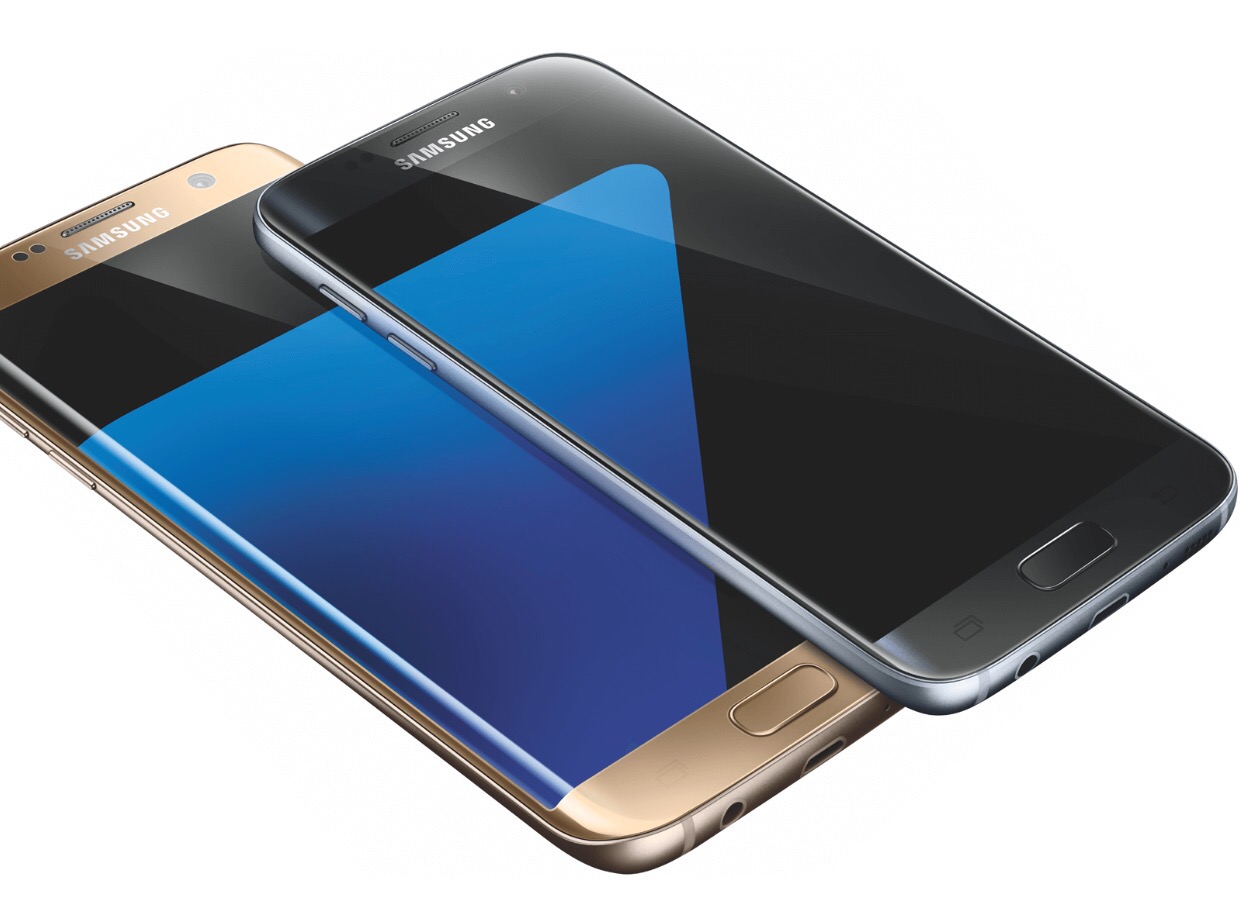
Say hello to the Samsung Galaxy S7 and S7 Edge – details and new specs 


Like all phone releases nothing is kept a surprise anymore. It also should come as no surprise that Samsung’s new Galaxy phones are similar to the S6 and S6 Edge. 

But there are going to be some important changes. 

The rear camera will drop from 16mp to 12mp. The phone battery capacity will increase to 3,000mAh and 3,600mAh for the S7 and S7 Edge respectively and take 2 hours to recharge for the S7. The S7 Edge will take 2.2 hours to recharge. 

The next change is the reintroduction of the micro SD card. 

And if you want to buy one, fear not these will go on sale 11th March 2016. 

So based on the renders are you interested ?
Source Venturebeat