Tag Archives: Review

First Impressions and Review Part 1 of the Sony Xperia Z1

My Sony Xperia Z1 has just arrived. I bought it from Clove Technology .Over the next few weeks I will be writing a daily review of the Z1, along with the QX10, and the Sony Z1 accessories as they become available. If you would like to know anything just ask in the comments.
image

And unlike some reviews, this is not a loan device but my own that I bought with my hard earned money.

Anyway, the official specifications of the Z1 are –

– Operating system – Google™ Android™ 4.2.2 (Jelly Bean)
– Processor 2.2 GHz Qualcomm MSM8974 Quad Core
– GPU Adreno 330

– Size 144 x 74 x 8.5 mm, Weight 170 grams
– Available colours – Black, Purple, White, SIM card Micro SIM
– Screen Size 5.0 inches, Resolution 1920×1080 pixels
– Type 16,777,216 colour TFT
– multi-touch, up to 10 fingers supported

– Memory RAM 2 GB, Flash memory, Up to 16 GB (11.7gb free
– microSD™ card, up to 64 GB (SDXC supported)

– Camera Resolution 20.7 MP, Digital zoom 8x
– Front Camera 1080p for video chat and 2 MP for camera capture
– Photo light  Pulsed LED
– Video recording HD 1080p

– Sensors, Accelerometer, Ambient light, Proximity, Magnetometer
– And Gyroscope

– UMTS – HSPA+ 850 (Band V), 900 (Band VIII), 1700 (Band IV),1900 (Band II), 2100 (Band I) MHz
– GSM – GPRS/EDGE 850, 900, 1800, 1900 MHz LTE (Bands 1, 2, 3, 4, 5, 7, 8, 20)
– 4G- (Bands 1, 3, 5, 7, 8, 20)

– Battery 3000 mAh minimum
– Talk time (GSM) Up to 830 minutes, Standby time (GSM) Up to 880 hours, Talk time (UMTS) Up to 900 minutes, Standby time (UMTS)
Up to 850 hours, Standby time (LTE) Up to 760 hours

– Music listening time Up to 110 hours
– Video playback time Up to 400 minutes

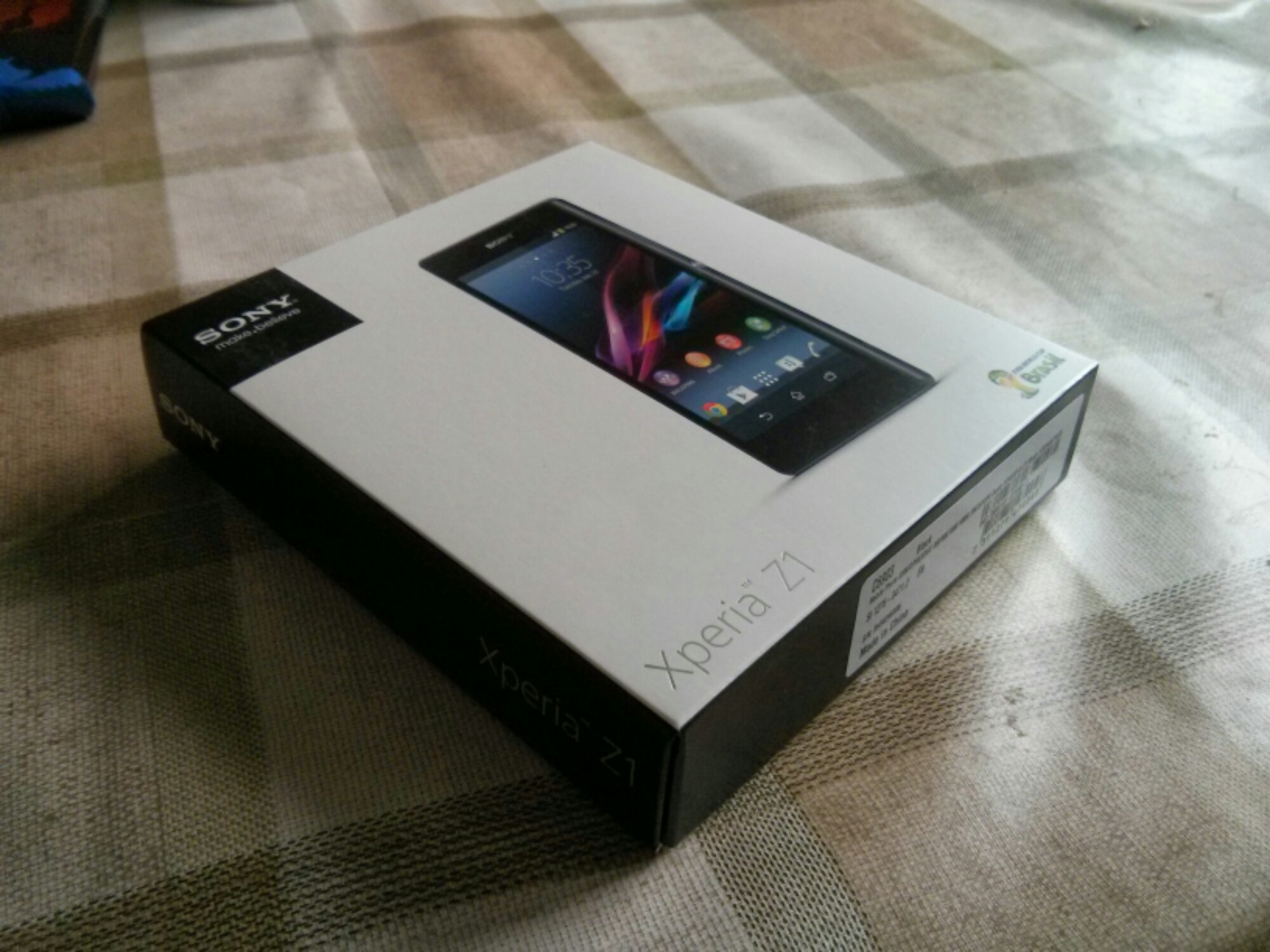
The Z1 came boxed as below with the following contents- USB cable, UK plug, some leaflets including a quick start guide. It also came with a front screen protector. Nice touch.

Below is some photos of the device. It sure looks lovely in the flesh. It feels solid in the hand and built to exacting standards.

Now the first thing the manual says is charge the phone for 30 mins. Please be assured I followed this point. Then insert your micro sim and micro SD card. I put my new 64gb card in the slot. All going really well so far. Power on and start following the start up guide, entering email accounts and so on. I already had a Sony account from my time when I had the Z Tablet, so it added the Z1 to my profile. After finishing the setup, I noticed Google was starting to restore my apps. I immediately stopped that process as you never know what you may need or not need on a new device. After a few existing apps had updated I with 10.72gb free internal memory.

Whatever you do, do not accept the 30 day unlimited music offer in the walkman app. Go to the Sony Privilege app. Within this app is a 60 day trial, 5 free films to download too. As I have bought games from PlayStation Mobile store, these are also available for to download. Sony also allows for a PS3 dual shock controller to connect to the Z1, so expect comment on this in later review sections.

A little surprise, after first setup, my Z1 has my Dartmoor scenic shot as the background. No idea if that was Google or Sony.

So, the phone is gorgeous to hold and look out. Lovely screen too but not as bright as the HTC One. So far I have taken a few photos. Some are good, some in low light were not so good due to being too noisy. I have tried the QX10 with the Z1 and it works really effortlessly. The Z1 camera is really fast. The shutter button is great.
z1 1

The loudspeaker is above average in quality and sound but not at HTC One quality. I am yet to test the audio quality via the headphones.

I connected the Z1 via USB to my Mac. The Z1 then asked if I wanted to install Sony Bridge for Mac which I did. This is a great piece of software. I have installed 1,000 photos selecting my events in iPhoto. The software also allowed me to import photos I had taken too back into iPhoto. I also copied 4,000 songs across which did take a few hours.

I still have plenty of exploration of all the apps and services available. I also need to fully install the balance of my apps and games.

Over the next few weeks, I will be looking at every aspect of the Z1 including the official accessories as they become available.

Now its time for more playtime with the Z1.

Just a quick thank you for Clove Technology for such a great service. They also have one of the best deals. Phone, Sony Smartwatch 2 and £110 Sony Entertainment media.

Review of the Sony QX10 lens

To recap on all the earlier articles and sample photos click here.

In this article I am going to discuss the settings and options using the QX10 from within the Sony Playmemories app. And to be honest there isn’t many. Sony clearly wanted this used in auto mode. Maybe the app will get updated with more features. However, I think Sony wanted the QX100 to be more complex and keep the QX10 simple.

image

When the app fires up ready for snapping photos this is all you see. Top right is the mode selector and just below you get little icons appearing warning that you might need a tripod, or your shaking the lens too much and the scene it has selected.

image

Tapping top right reveals the 3 modes. Program mode only gives you control of exposure and white balance.

image

The white balance options are as below.

image

Tapping the mode top right reveals a choice between photo or video.

image

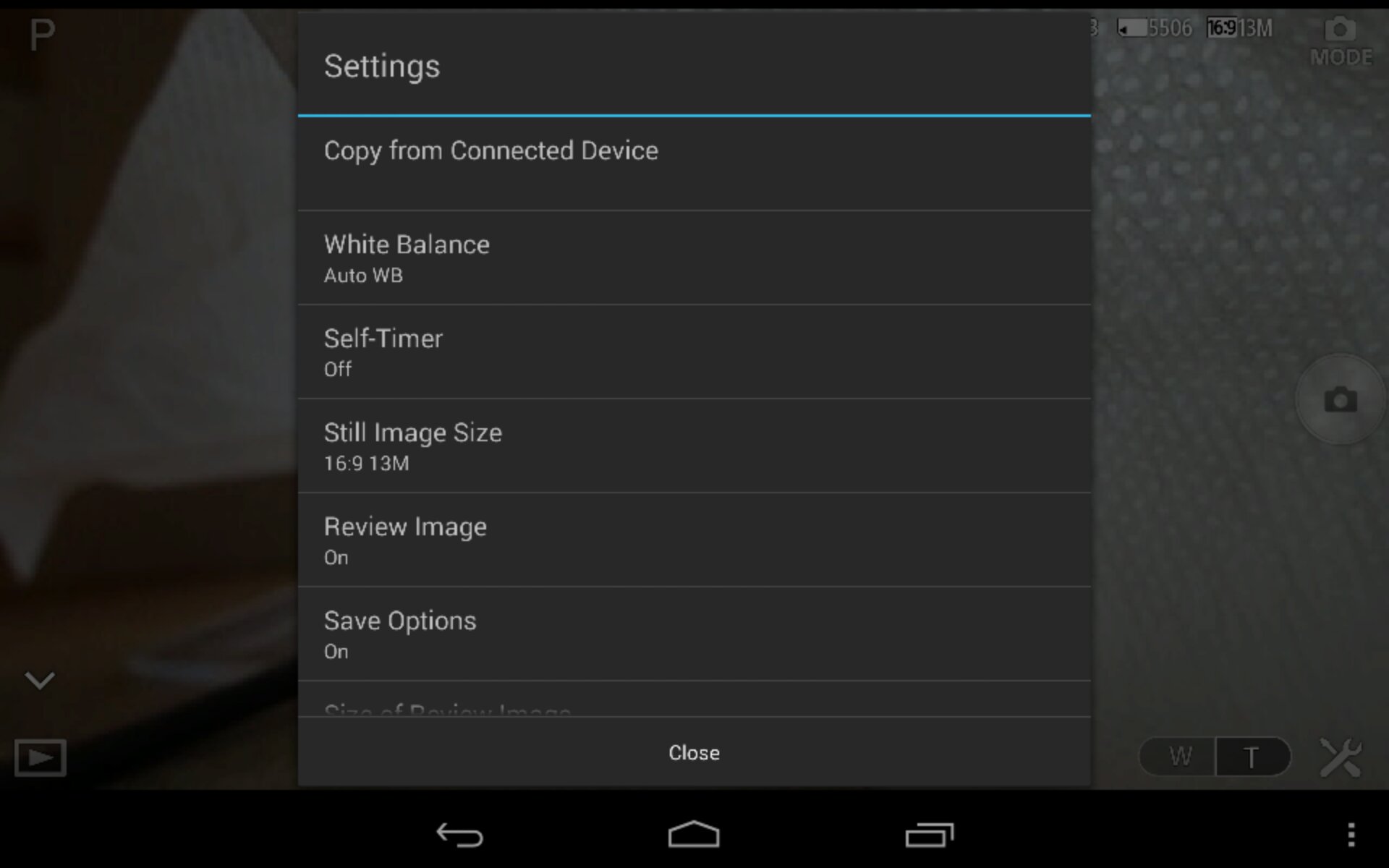
The settings icon pulls up a menu as follows.

image

There is also format memory card. Most of the settings options are self explanatory. You get an option to set the size/resolution of photos.

image

The option to select whether the camera copies the photo to the device and the file size. Either 2mp or full size.

image

The other options is the zoom in and out. Represented on bottom right with the W and T. These buttons are also on the lens itself to use without the phone. The lens also has a shutter button.

And that is all you really get in terms of control from within the app.

I do recommend the following. Download and install the app. Turn the app on and lens. Enter the lens password found on the manual front cover book. Wait for connection to finish. Exit app. Turn lens off. Reboot your phone. This will ensure smooth operation.

If you have a Z1 or Z phone , Sony will soon be releasing a dedicated case to attach the lens to your phone. The SPA-ACX2 for the Z1 and the SPA-ACX1 for the Z. If you use this special case you can remove the bottom clamp attachment. The clamp stretches to a width of 75mm.

I’ve used the QX10 successfully with my Nexus 4 and new Nexus 7 2013. These worked fine but after configuring app I had to reboot both devices to ensure a smooth operation. With both these devices you did get occasional lag on the screen when moving the lens. With the Sony Xperia Z1 I have not witnessed any lag.

There are many uses for this lens. It can sit flat on a table and then be operated remotely. You can hold it and put it in tight positions. It has good low light and zoom capabilities. And it is hassle free to use.

I like it a lot. And don’t forget you can use the lens with your iPhone and android phone.

Back with the Nokia Lumia 925

After the screen starting failing on the Samsung Galaxy S4, I decided to have another go at using the Nokia Lumia 925. I really liked it when Nokia kindly sent it on loan previously, so the other day a Lumia 925 arrived in the post.

Some of the features I liked was the Windows Phone 8 interface with live tiles, the fantastic camera and just the way it looks and feels.

So yesterday, I fired up Nokia Navigation and used it all during the day to drive me to destinations I knew really well, just to test the accuracy of the software. Firstly, I was able to download the map of England before I left home, meaning no data charges for downloading the map data as required by Google Maps. In addition, if the reception failed, the navigation would still continue. I also connected the Lumia 925 to my car’s bluetooth. While Nokia Maps was directing me, I streamed Nokia Music. The sound quality was excellent, even better than that of the HTC One.

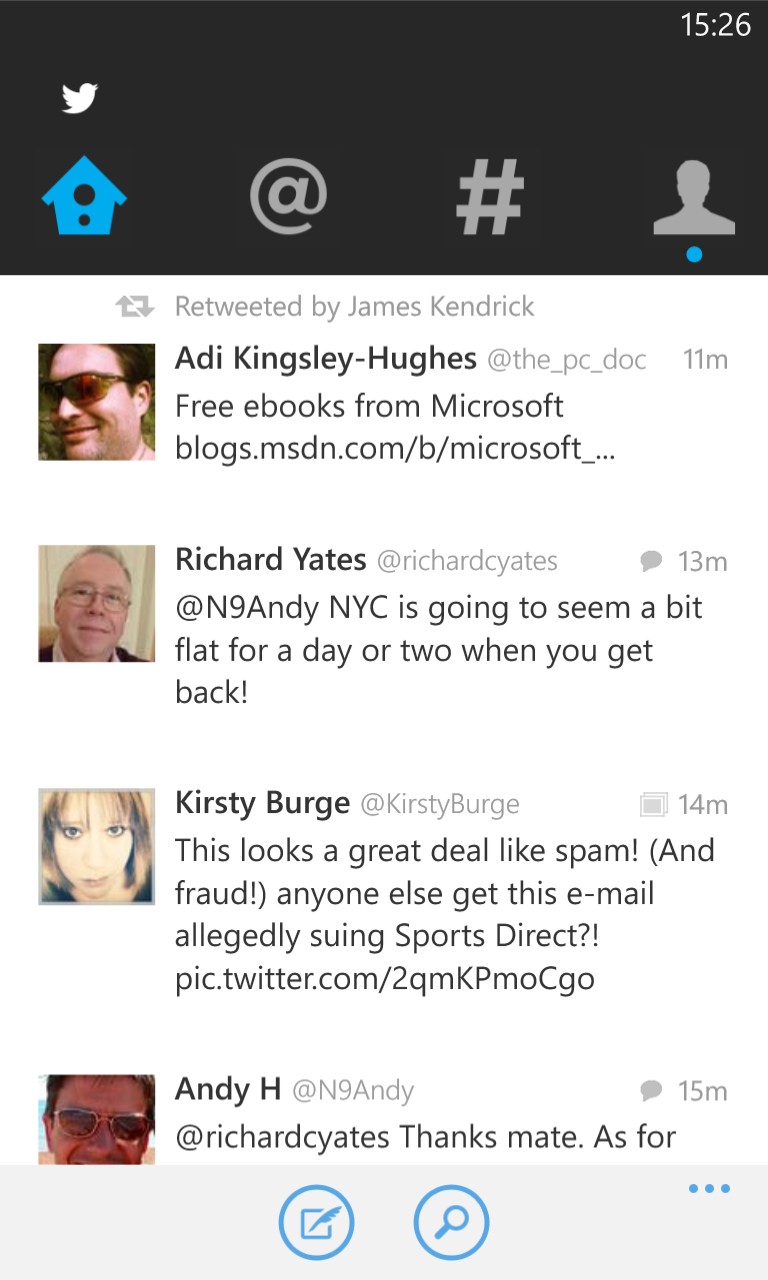
Later on in the evening, I installed a number of apps and games from HD Photo Viewer, Nextgen Reader, Twabbit and many many more. Twabbit is an excellent twitter app. I then customised my live tiles, and I have everything showing from F1 news, my blog, weather, email, social updates and more.

I am finding gaps in the apps, so this means I have to find other ways of doing things. This works fine most of the time. Except Dropbox support would be helpful. And occasionally, the apps actually work and look better than android and iOS. But there are missing gaps in the app, and I don’t meant instagram.

Let’s see how tomorrow goes.

Samsung Galaxy S4 Zoom – Review Summary

Welcome back to my last part on the Samsung Galaxy S4 Zoom. Earlier parts can be found here.

So, let’s start by saying that I have returned my S4 Zoom, due to one issue / bug that just frustrated me. Annoyingly, everything else about the phone and camera was fine. The battery was removable, it had a micro SD card slot, it was based on the S4 Mini so a competent performer. It also can take good photos and the optical zoom and xenon flash assured you always got a decent snap. It even had preset modes to take the guess work out of what advanced settings you needed for a waterfall, fireworks, and many other scenarios photos. It even had a centre button, handy for turning the phone on whilst sitting on a table.

But for a camera first, phone second device, it was a weakness or fault in the panoramic mode that let the device down. As mentioned already, panoramic photos were being captured at only 400-600kb maximum file sizes, resulting in poor pixel count and not acceptable for a camera phone.

However, if you never take panoramic photos, then the S4 Zoom is a fantastic piece of kit. Sadly, I do take many due to living in a very scenic place, and consequently the Samsung Galaxy S4 Zoom has been returned.

Nokia Lumia 925 – Review part 4

Welcome back again. To recap on the earlier review sections, click here.

In part 4, I am going to comment on areas or features I am enjoying and worth a mention.

1 – The first thing I have noticed is the persistent clock on the lock screen. It is a digital clock and it is always visible. Something so simple, yet so useful, just being able to glance down and read the time, without having to press a button.

2 – Double tapping the screen to unlock the lock screen. A simple idea that just works really well. I also like some of the lock screen options. See screen shot further down of my bird.

3 – Having a dedicated camera button is excellent. Press and hold from the lock screen to fire up the camera, half press to focus and then shoot. Also tapping on the screen to take a photo is another feature I really like.

4 – The camera really does take some smashing photos, both indoors and outdoors. Low light is not much of an issue for the 925 so once again lovely photos are snapped.

5 – Nokia include a large bundle of software from free internet radio music streaming, photo editing, camera tricks, maps and turn by turn navigation to name a few of my highlights.

6 – Google email, contact and calendar worked out of the box

7 – Even though Google mail is available, if you have a Windows Phone you really need to accept you will be drawn towards Microsoft’s products. And that is not as bad thing. You get Office out of the box. Skydrive is Microsofts cloud solution, and I like the idea that my photos are uploaded to it.

8 – Several months ago, I had a Lumia 620, and when I entered my hotmail email, the Lumia 925 restored all my data, including text messages. I was surprised. No apps were restored though.

9. On the app front, I have managed to find all the apps or an equivalent in the Windows Marketplace (app store). It seems to have got a lot better, even in the last 3 months. However, it is not at the maturity of iOS and android. One area that has shot forward is games. NOVA and HALO and now in the app store and there are some new games appearing that are not available on other platforms. However, the app store allows you to trial software, and then if you like you can buy it. Now that is a concept I would like adopted by android and Apple.

10. The menus and layouts. I simply love the large oversized text and screens. Just makes viewing the device that much easier.

11. The keyboard – the best. It is so easy to enter text on the keyboard, and the screen responsive is superb.

12. The negatives are really not the Lumia 925’s fault, but that of Windows Phone 8. It needs a notification centre. Or a live tile that accumulates every missed notification.

13. The design and build of the Lumia 925 is in my opinion stunning.

14. The audio quality through headphones is really excellent. Dolby surround sound is available too. Options like audio levelling are handy. The loudspeaker is ok, a bit tinny.

15. Battery life. Still early days but it seems to me that it can last a day.

16. The only aspect I am not too keen on is the micro usb port being at the top of the device.

17. Memory. The Lumia 925 is 16gb, which had 12gb free after first installation.

In summary, it is a very good phone to use that takes excellent photos.

20130808-082757.jpg

Nokia Lumia 925 – Review part 2

Yesterday, I covered the hardware specifications and my very first initial impressions. Click here to recap.

Today, I am going to cover the software included with the Lumia 925, and it really is an impressive suite, providing a whole new phone experience. I received a software update the other night. It was a smooth process, and I now should have a more improved phone.

On the productivity side you get the following apps – Calculator, Clock, Calendar, Phonebook, Alarm clock, Reminders, To-do list, Social networks in Phonebook, OneNote, Wallet, Family Room, Kid’s Corner.

Business apps which are optional downloads include Adobe acrobat reader and Lync (Corporate IM). Software included are SkyDrive storage for documents and notes, Microsoft Office apps Excel, Word, Powerpoint, OneNote, with syncronization to Exchange ActiveSync. There is also an excellent Mac companion app and Windows 8 companion app. As you would expect you can sync your Calendar, Video, Pictures, Music and Contacts.
wp_ss_20130807_0001
wp_ss_20130807_0002

The Email clients are comprehensive and include Yahoo! Mail, Outlook Mobile, Gmail, Office 365, Nokia Mail, Windows Live / Hotmail / Outlook.com and MS Exchange Active Sync. The protocols supported are SMTP, IMAP4, POP3. In addition to the standard viewing and editing or email attachments, there is a text to speech message reader, conversational view option on email, multiple combined inbox view, inbox filtering, HTML viewer too.

The social side is covered with Google Talk, Twitter, Windows Live Messenger, WhatsApp, Yahoo! Messenger, Skype IM and Facebook. The Messaging features Integrated text messaging and chat, Instant messaging, Concatenated SMS for long messages, Multiple SMS deletion, List of recently used numbers, Audio messaging, Text-to-speech message reader, Text messaging, Number screening for messaging, Unified MMS/SMS editor, Automatic resizing of images for MMS, Distribution lists for messaging, Multimedia messaging, Conversational chat style SMS, Unified inbox for SMS and MMS.
wp_ss_20130807_0003

One thing Nokia does well is call quality, so it comes as no surprise that the phone includes the following – Voice Commands, Call waiting, Voice mail, Integrated hands-free speakers, Call forwarding, Call logs for dialled, received and missed, HD audio, Call history, Voice dial, Conference call, Skype voice call
Video call features: Skype video call. Noise cancellation is handled by 2 microphone uplink noise cancellation.

On the security front Enterprise users get Remote security policy enforcement. General security features include Remote device locking via Internet, Secure NFC, Track and Protect via internet, Firmware update, Remote wipe of user data via Internet, Device lock, Device passcode, PIN code, Firmware and OS integrity check, Secure device start-up, Application sandboxing and integrity check, Lost device tracking, Browser integrated anti-phishing and User data encryption for device.

Other software includes Internet Explorer 10, Facebook, LinkedIn, Twitter, DLNA, SkyDrive, PhotoBeamer, Foursquare,Wi-Fi hotspot, Nokia HERE Maps, HERE Transit, HERE City Lens, HERE Drive+. The Mapping software provided by Nokia is excellent. It is gives you the options to download the entire map of the UK so you do not use as much data when using it. It also provides full turn by turn navigation. Obviously, if you lived in another country you could download the appropriate app. The location technologies included in the Lumia 925 are Magnetometer, A-GPS and A-GLONASS.

wp_ss_20130807_0004
The camera is one of the key features of the Lumia 925. The rear camera is a 8.7 MP PureView with auto focus and a two-stage capture key, 4 x digital zoom, Carl Zeiss optics, 1/3 inch sensor for excellent low light photos and a f/2.0 aperture speed for fast action shots. I intend to take lots of photos too. The phone camera also includes backside illumination and optical image stabilisation. The camera module is made up of 6 lenses. The digital camera extras include Nokia Smart Camera, Cinemagraph lens, Panorama lens and Bing vision. The front camera is 1280 x 960 pixel, f/2.4 ,HD 1.2 MP wide angle. Video is filmed at 1080p on the rear camera at 30fps. 4 x video zoom is possible. Video playback codecs supported are VC-1, Windows video, H.264/AVC, H.263 and MPEG-4. Video playback file formats supported MP4, WMV, AVI, 3GP, 3G2, M4V and MOV.
Video recording formats are MP4/H.264. The front camera records video at 720p.

wp_ss_20130807_0006

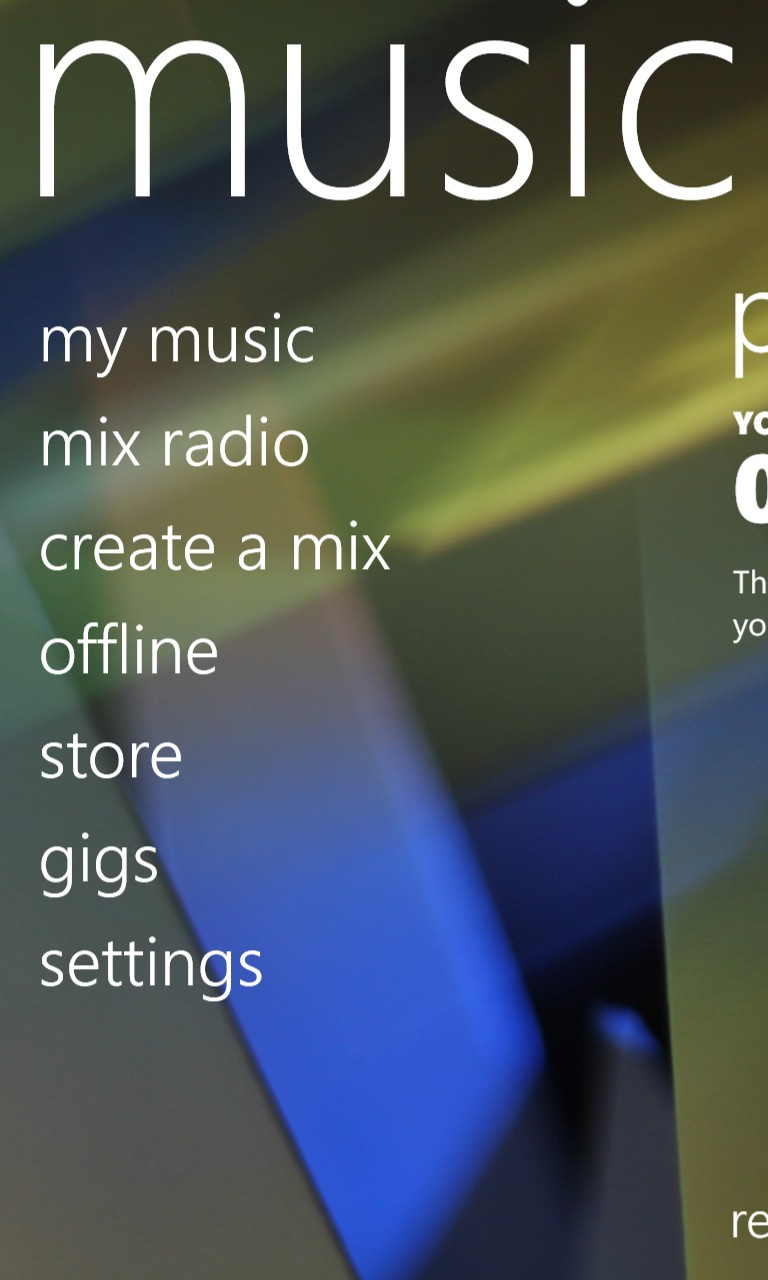
On the music and audio front, Nokia impresses once again. The Lumia 925 includes Nokia Music (live streaming of music), Internet Radio, FM Radio, Music Player, Dolby Headphone support, graphic equaliser. Codecs supported are MP3, AMR-NB, WMA 10 Pro, GSM FR, WMA 9, AAC LC, AAC+/HEAAC, eAAC+/HEAACv2. Audio playback file formats supported ASF, MP4, AAC, AMR, MP3, M4A, WMA, 3GP and 3G2.

wp_ss_20130807_0005

Finally, if you like gaming, the Lumia 925 includes DirectX 11, Touch UI and XBox-Live Hub. The X-Box games that you can purchase or trial are excellent too. More of that in the next part of my review.

Nokia Lumia 925 – Review and First Impressions – Part 1

Yesterday, I received in the post the Nokia Lumia 925. Removing the Lumia 925 out of the box reminded me of when I had the Lumia 620, except now I was holding a slimmer and more capable Lumia. Before I continue, just a quick thanks to Nokia for sending the Lumia 925 for review.

Opening the box and removing the Lumia 925, its beauty and quality finish are very apparent.
20130807_111715
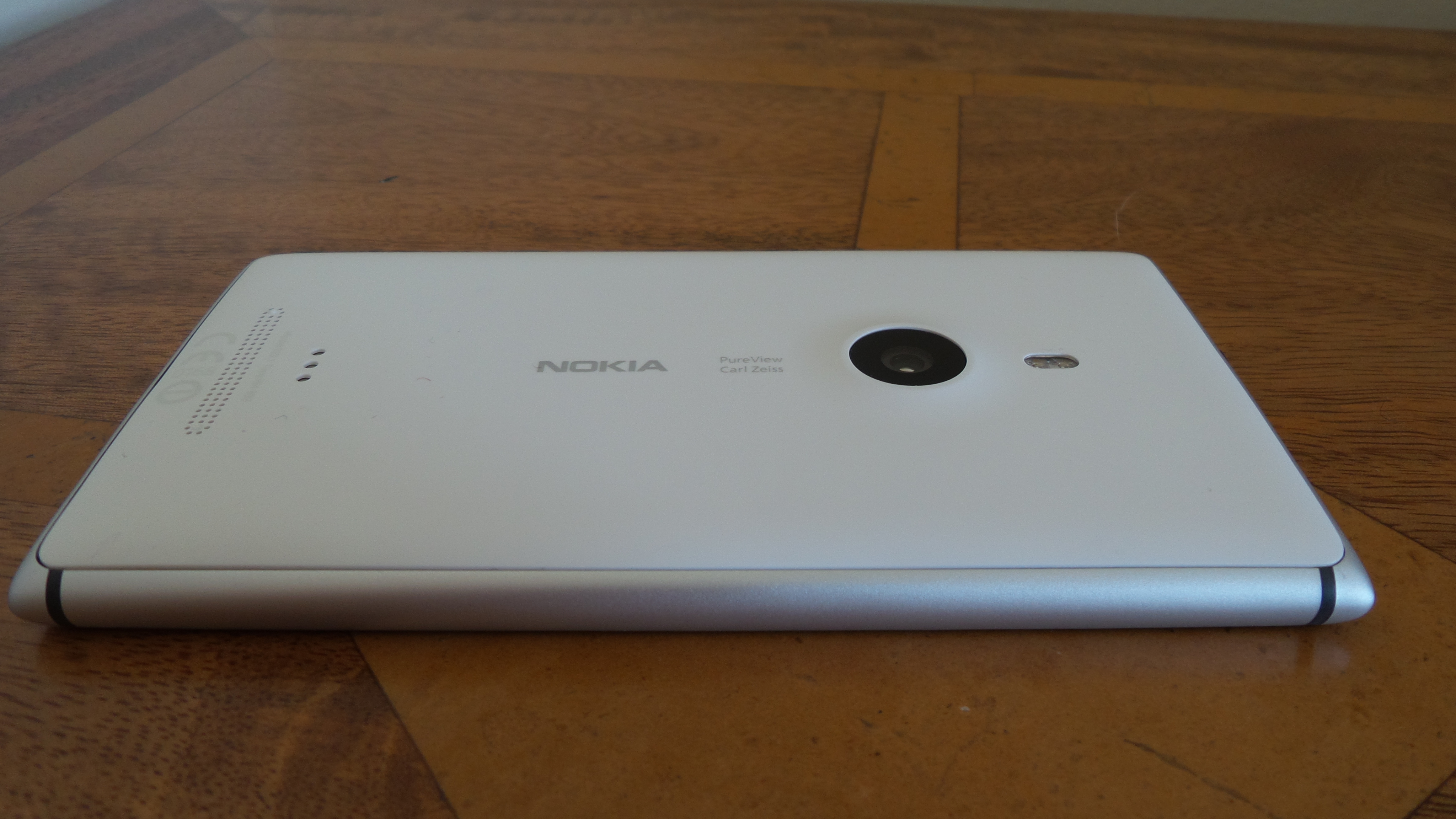
Turning it over and looking at the back, you get to see the Carl Zeiss Camera optics.
20130807_111641
On the right hand side the Lumia 925 has the on/off button, volume keys and dedicated camera button.
20130807_111655
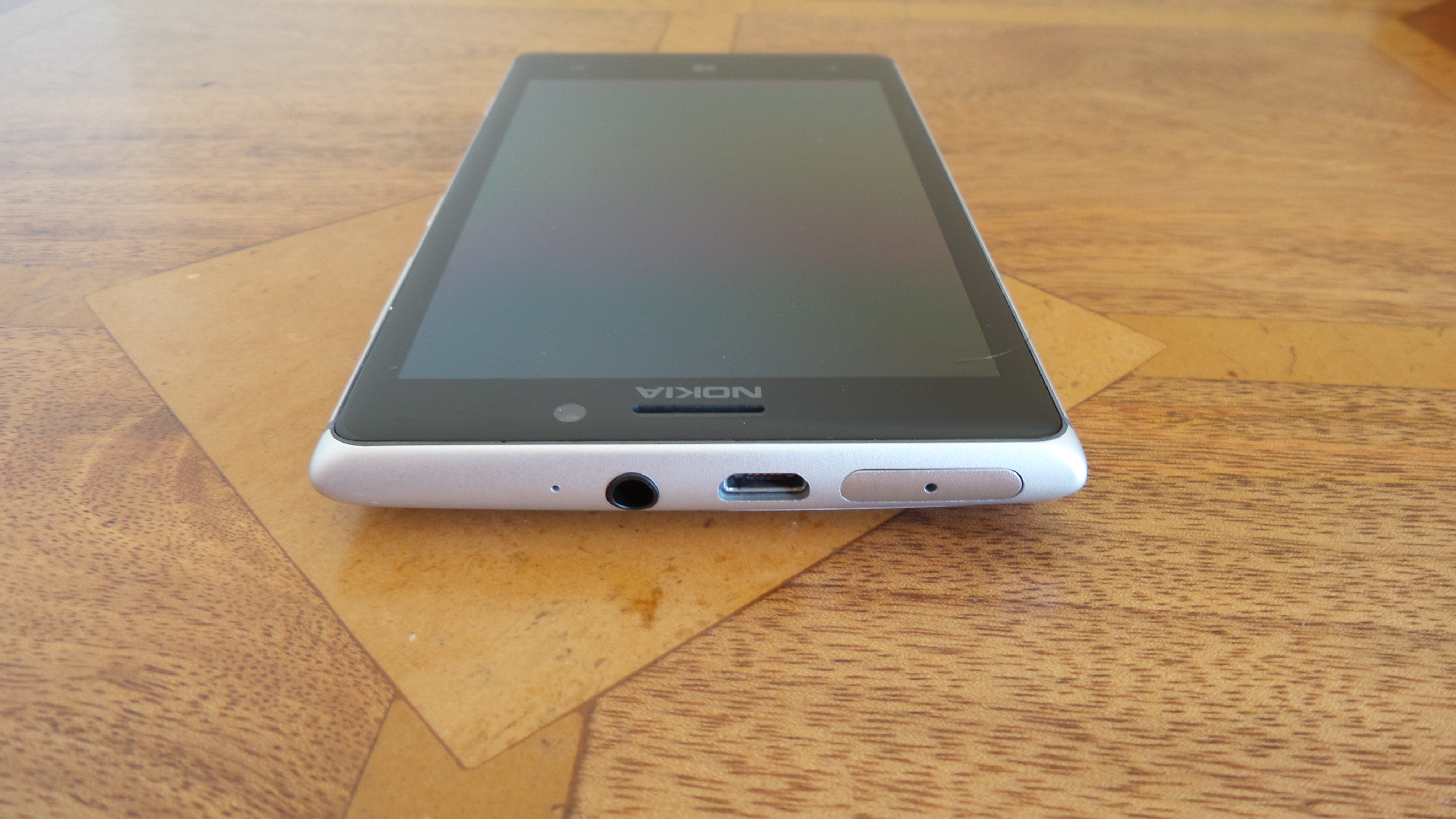
The left side has no buttons, as well as the bottom of the device. At the top you have the sim tray, headphone socket and micro usb port.
20130807_111705

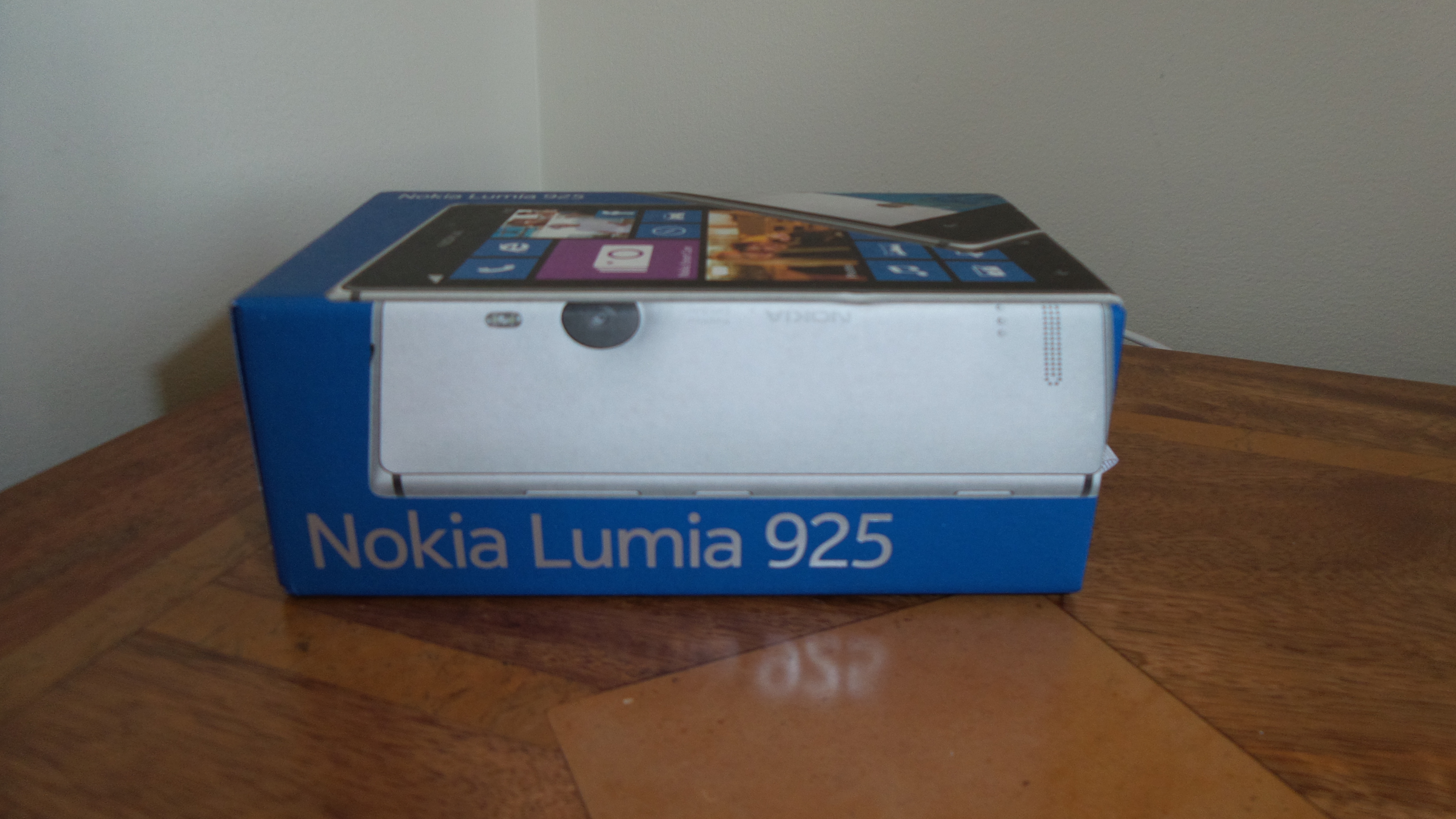
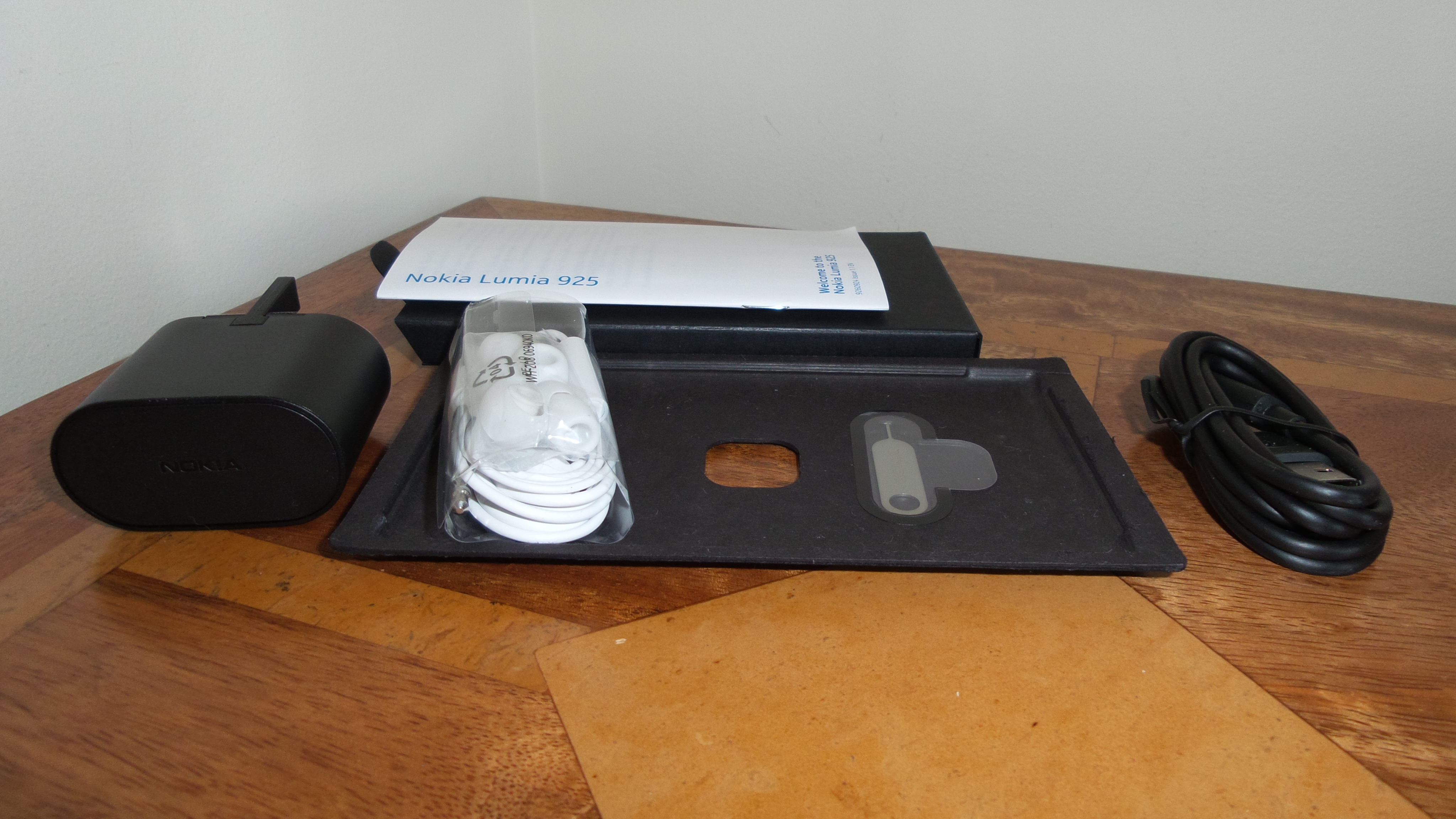
Photo of box and contents. Contents include micro sim ejector tool, guide, usb lead, headset and UK adapter as well as the Lumia 925.
20130807_111105
20130807_111231

The official official hardware specifications of the Lumia 925 are –

Dimensions – 129 mm x 70.6 mm x 8.5 mm, Weight: 139 g

Screen – 4.5 inch, WXGA (1280 x 768) with PureMotion HD+, ClearBlack, Brightness control, Orientation sensor, High brightness mode, Refresh rate 60 Hz, Corning® Gorilla® Glass 2, Sculpted glass, Easy to clean, Lumia Color profile, Wide viewing angle, Sunlight readability enhancements
Display colours -TrueColor (24-bit/16M)
Aspect ratio – 15:9
Pixel density – 334 ppi
Display technology – AMOLED
Touch screen technology – Super sensitive touch

Sensors – Ambient light sensor, Accelerometer, Gyroscope, Proximity sensor, Magnetometer

Operating keys – Volume keys, Camera key, Power/Lock key

SIM card type – Micro SIM
Charging connectors – Micro-USB
AV connectors – 3.5 mm audio connector
System connectors – Micro-USB-B

Connectivity – USB – USB 2.0, Bluetooth – Bluetooth 3.0
Bluetooth profiles – Object Push profile (OPP) 1.1, Hands-free profile (HFP) 1.5, Advanced Audio Distribution Profile (A2DP) 1.2, Audio/Video Remote Control Profile (AVRCP) 1.4, Phone Book Access Profile (PBAP) 1.1
Wi-Fi – WLAN IEEE 802.11 a/b/g/n
WLAN Security – WPA2 (AES/TKIP), WPA, WPA-Personal, WEP, WPA2-Personal, WPA-Enterprise, WPA2-Enterprise, PEAP-MSCHAPv2, EAP-SIM, EAP-AKA
NFC – Secure NFC for payment, Sharing, Pairing, Tagging
Other wireless connectivity – Wi-Fi Channel bonding

Data Network – LTE network bands3, 1, 3, 7, 8, 20, LTE max data speed DL 100 Mbps
LTE max data speed UL 50 Mbps
WCDMA network: 900 MHz, 2100 MHz, 1900 MHz, 850 MHz
WCDMA max data speed DL: HSDPA – 42.2 Mbps
WCDMA max data speed UL: HSUPA – 5.76 Mbps
GSM network: 850 MHz, 900 MHz, 1800 MHz, 1900 MHz
GSM max data speed DL: EGPRS 236.8 kbps
GSM max data speed UL: EGPRS 236.8 kbps

Power – Battery BL-4YW , Battery capacity: 2000 mAh
Battery voltage 4.2 V,Removable battery: No
Maximum standby time 18 days,Talk time (2G), 18.3 h,Standby time (3G) 440 h
Talk time (3G) 12.8 h, Maximum cellular network browsing time 6 h
Music playback time 55 h,Video playback time 6.6 h
Maximum Wi-Fi network browsing time 7.2 h
Wireless charging with accessory cover

Processor – Qualcomm Snapdragon™ S4, Dual-core 1.5 GHz Dual-core 1.5 GHz
User data storage, In device, SkyDrive cloud storage
RAM 1 GB ,Mass memory5, 16 GB or 32 GB, Free cloud storage: 7 GB

In part 2 of my first impressions, I will cover the software included as standard with this phone. And it is like an army of extra software that Nokia include with their Windows Phone devices.

So I turned the Lumia 925 on for the first time (after inserting my micro sim card) and then sat back admiring the gorgeous screen. It is not the highest ppi but at 334ppi on a 4.5 inch screen, with Nokia’s Puremotion HD+ and ClearBlack technology, it is simply stunning. The other aspect that is noticeable is the comfort when holding the Lumia 925. With the gentle curve of the back it is a joy to hold. It reminded me of the solid and comfortable feeling when holding my Lumia 620. In addition the Windows Phone experience of oversizing menus etc is simple, clever and effective. It makes reading and using the device so much easier. The on screen keyboard is probably the best I’ve used on any device.

The other interesting part of the Lumia 925 is the wireless charging. With the official protective back cover, this also allows the Lumia 925 to be charged wirelessly. I wish more phones provided this functionality out of the box.

Anyway, I have to now explore the software suite Nokia include and the special camera optics. More tomorrow, with a closer look at the software included.

Saturday Reading – a highlight of reviews on my blog

It is often difficult to find the reviews of devices and accessories I have written about, so below is a quick way to find all the articles for the key reviews. Or use the top right search box to search for anything on my blog.

HTC One

Samsung Galaxy S4 Zoom Review

Sony Xperia Z Tablet

Samsung Note 2 review

Nokia Lumia 620

Audio Technica ATH-AD900x Headphone review

Fiio E12 Headphone Amplifier

Olloclip 3 in 1 Lens review for iPhone 5

Trident iPhone 5 case review

Bluetooth iPad Mini case review

Glif+ for iPhone 5 review

USB Fridge Review

USB Rollup Drum Kit

Samsung Galaxy S4 Zoom – Review Part 6 and panoramic mode update

Over this weekend, I am going to try and start putting the S4 Zoom camera to task.

But before I list all the items, I thought I would mention the dreadfully low resolution panoramic mode photos. I have discovered that if you take them holding the phone vertical the 173kb file size is increase to about 750kb. Still totally unacceptable, but a start in the right direction. Both Samsung and Clove Technology are now investigating this matter urgently so hope to have an update by the end of next week. A quick thanks too for Clove being so helpful in trying to resolve this for me.

As a heads up, here is a list of the features/options I need to test –

– Zoom ring, Camera Voice Commands, 12 filters from Vignette to Fish Eye
– Optical Image Stabiliser
– Face detection, smile shot, blink detection,
– Focus lock, Auto mode, Expert mode – Program, Colour Wizard and Manual options
– Smart mode, smart mode suggest, beauty face, best photo, continuous shot, best face, kids shot,
– Landscape, dawn, snow, macro, food mode, party/indoor, action freeze, rich tone HDR, panorama, waterfall
– Animated photo, drama shot, eraser, sound and shot, silhouette, sunset, night, fireworks, light trace
– My modes
– Options in settings for EV (brightness), ISO, WB, Metering,
– Drive Mode – continuous normal, continuous high, Auto exposure bracketing
– Flash – Auto, OFf, Red Eye, Fill in, Slow Sync, Red Eye Fix
– Focus Area – Centre AF, Multi AF
– Photo size, quality, auto contrast options
– Adjust images for colour, saturation, sharpness or contrast
– Timer
– Video – movie size, motion speed, sound and windcut,
– Sharing options
– Camera volume, beeps, guidelines, descriptions on or off, auto screen off, review, date/time imprint,
– GPS tag, Voice options, Contextual filenames tags, AF lamp, start mode, storage options, reset

That certainly makes for some heavy testing. Wish me luck!

Samsung Galaxy S4 Zoom – Review Part 5

Welcome to part 5 of my review of the Samsung Galaxy S4 Zoom. To recap on the earlier parts click here.

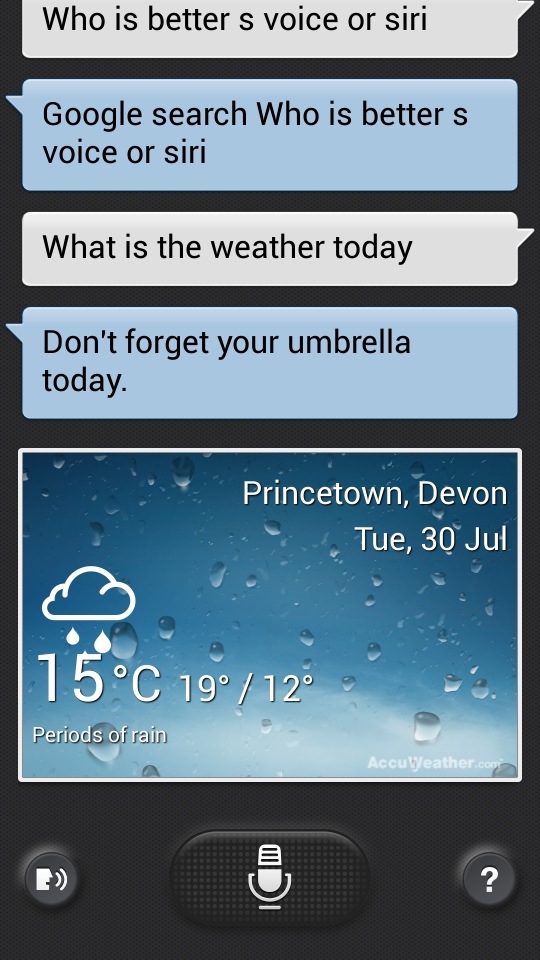
Today, I am looking at S Voice on the S4 Zoom. The camera is being tested over the weekend in more detail, and therefore next week I will publish my findings in the camera aspect of this device.

S Voice is Samsung’s answer to Siri. Except its not. Siri is like a personal assistant. You can move and change appointments with Siri in a much more natural way.

20130730-085806.jpg

20130730-085844.jpg
With S Voice you can request it to undertake basic instructions, from creating new appointments, tasks, memos, reminders, opening apps, navigate to a place or person, set timer, record voice, asking a web search, turn wifi or Bluetooth on or off, set alarms and read the news.

The voice recognition seems to work fairly well and rarely made an error. But it does need an Internet connection. Where Apple’s Siri scores higher is its ability to set a reminder for when you arrive home.

You activate S Voice by either double tapping the home button, pressing the S Voice icon, or by saying “Hi Galaxy” in Drive Mode.

In Drive Mode, S Voice reads out incoming messages and alerts. With messages you can reply using your voice hands free.

It is a handy feature when in the car, but otherwise its quicker to use other methods. Also having S Voice configured to start by double tapping the home button, does very marginally slow down the device.

20130730-090834.jpg