Welcome to part 4 of my Z Tablet review. The other parts can be found here.
Today, I will be looking closer at the settings app and some of the options available.

First up in the power management settings, which provide options to extend the standby time and have a low battery mode. The stamina mode when the screen is off disables wifi and bluetooth and makes most applications inactive. You will still receive SMS/MMS, Sony calendar notifications and downloads will continue until finished. Low battery mode allows you to set a battery percentage, and then decide for custom screen brightness and timeout, and has options to turn off wifi, gps, bluetooth and auto sync. You can also decide to have the battery level in the status bar, and examine which services and apps are using the battery and their percentage usage.

Under the More settings you get options for Airplane mode, VPN, Media Server settings, NFC and android beam.
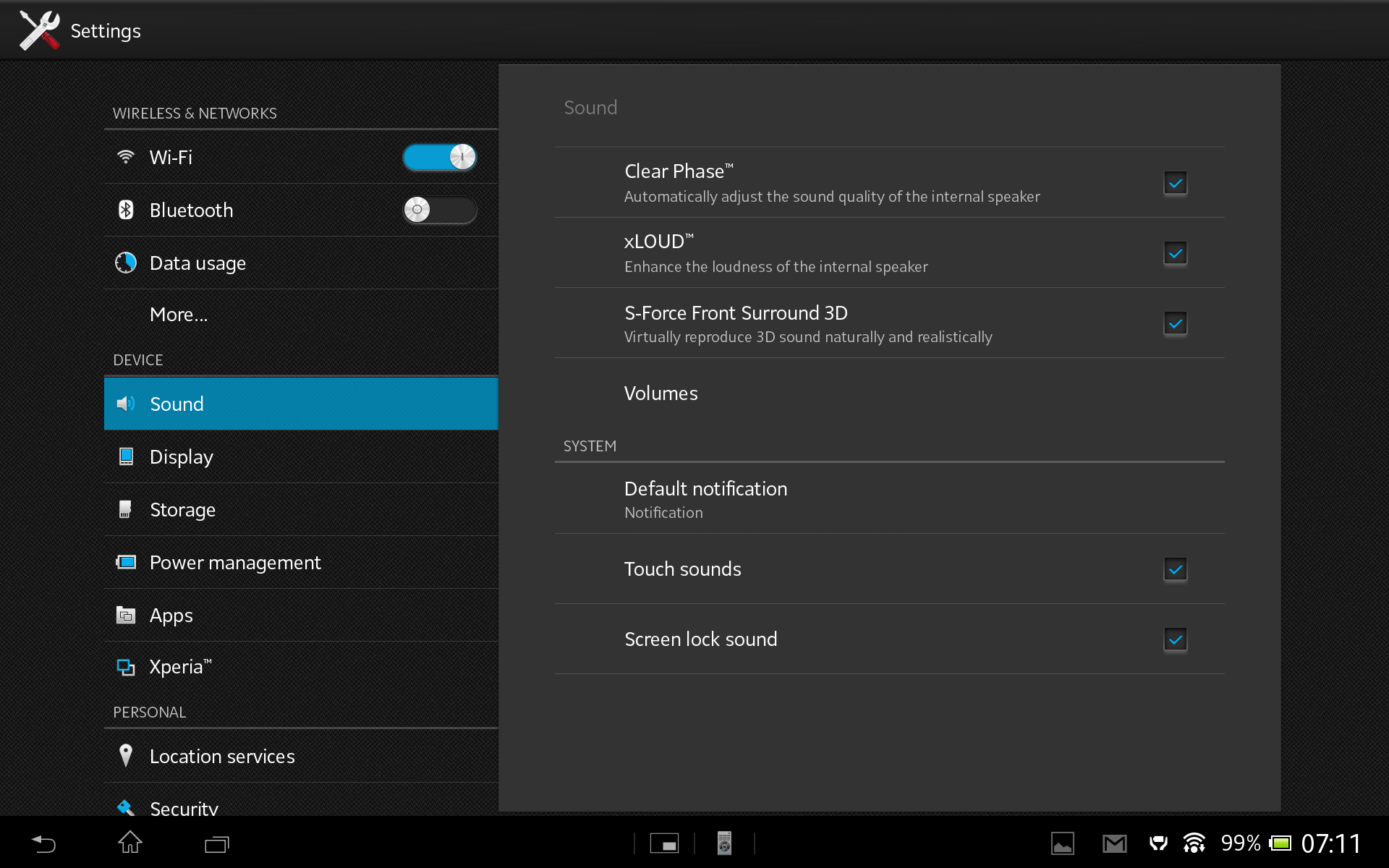
The sound menu has a few options to tweak the loudspeaker sound, similar to HTC that comes with Beats audio, although the Sony has far more options. However, the speakers lack bass but do go rather loud. You can also set the default notification sound of which there are loads. And some awesome ones too.

The display menu provides options for the screen image enhancer using the Mobile Bravia Engine 2. However, you can turn on double tap the screen to turn on. This is an excellent feature. The Z does also have a sleep magnet, so if you had a compatible case you can turn on or off the screen using this method. You also have the options for the notification light.
Out of the 32gb you get 25.68gb available. After installing around 80 apps/games I have used 7gb.
The Xperia menu settings is rather interesting.

From within this menu you can setup a PS3 Dual Shock Controller, check its battery level too. You can turn on screen mirroring, throw media to other devices, and select USB connection mode between mass storage and media transfer mode.
The other menu options are all pretty self explanatory, but should you have any questions please let me know.
 Gavin's Gadgets & Photography
How can I change notification sounds so new emails sounds are different from updates etc
Regards Ken
LikeLike