
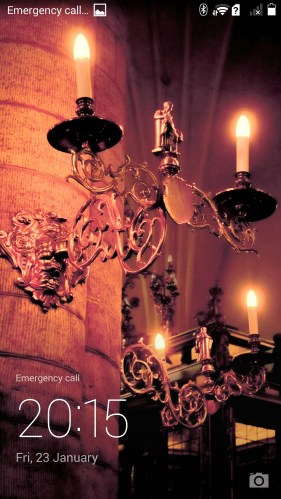
Yesterday, I posted my first impressions on the Honor 6. So today I am going to take a closer look at the software and options. The first view is the lock screen. This has a magazine style photo that changes every time you unlock the phone. It changes instantly too. I tried turning the phone on and off several times.
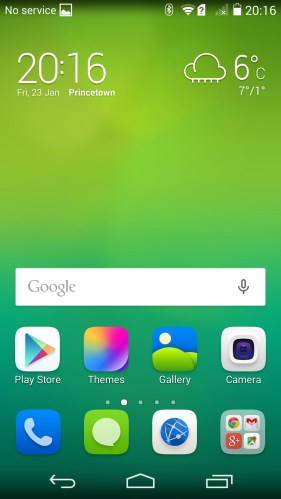
Once passed the lock screen you are taken straight to the main screen. The Honor 6 has skinned icons and a bespoke theme all the way through the phone. This is called Emotion UI. The other aspect of this skin is it removes the app tray. So you will have to use folders on a home screen. Personally I do not see any issue with this. There is a new version of Emotion UI v3 available soon, which offers a flatter and cleaner experience.
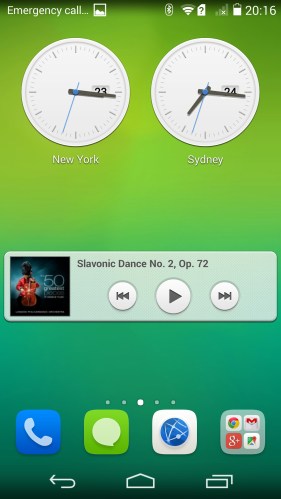
The Honor 6 has its own set of widgets for a number of apps. Here you can see the music player and world clocks widgets.
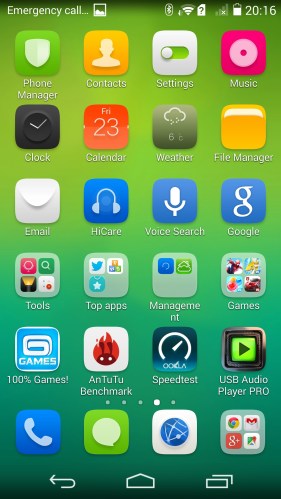
I have taken screen shots to show you all the available apps. I have added Speedtest, USB Audio Player Pro and AnTuTu to help with my review. Not shown is Chromecast, Smart Controller and WeMo all of which work just fine. Chromecast screen mirroring worked fine for me too. The Smart Controller app is the only app made by Huawei that operates the inbuilt Infra Red Blaster. I found this app over at XDA Developers Forum. For some reason the IR Blaster is not documented in any of the manuals or quick start guide, but it is present at the top of the device.
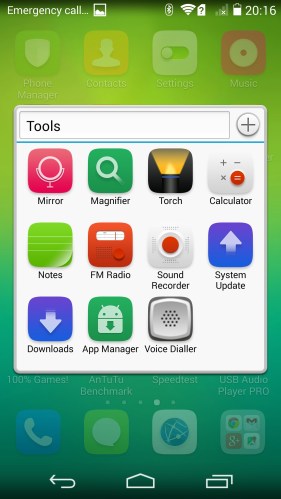
In the tools folder is a good selection of apps from Torch, calculator and even the FM Radio which is not found on many phones e.g. Note 4.
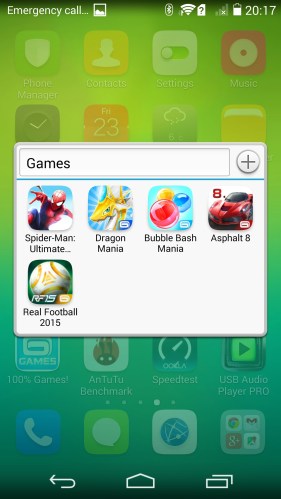
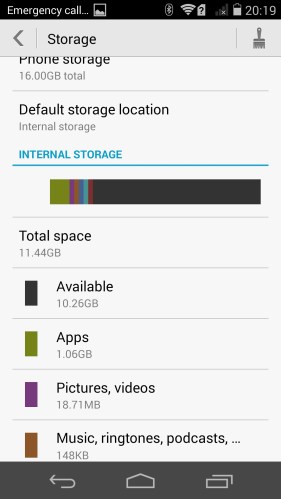
Then there is a games folder which includes trials of a number of Gameloft apps. Best idea is to delete these and create some more storage space. Talking of storage space the Honor 6 had about 10.5gb free out of the 16gb.
Again another app for the Backup and Bitcasa which you again might want to uninstall. So apart from Bitcasa and the Gameloft trial games there was no other bloatware.

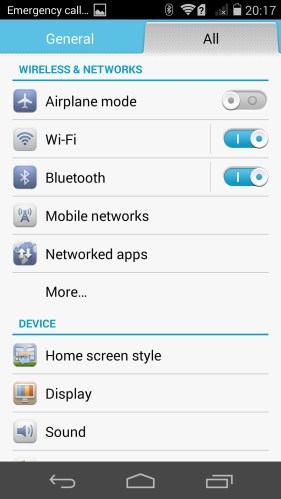
So lets go and have a look at the settings. Opening the settings up reveals all the usual suspects. Clicking one more brings up the data usage, default sms app, tethering and portable hotspot and VPN options. Within the mobile networks option is a toggle for LTE Cat 6 CA, network mode selections and a few other standard options. Tapping on wifi brings up all the usual wifi options and a button for WiFi direct. The WiFi direct when turned on brings up a message which then fades away, saying on Huawei to Huawei devices supported for WiFi direct. So I proceed to connect my Note 4 and Samsung Tab S tablet via WiFi direct and send files across with no issues. I have repeated this many times! There is also an option called Networked Apps and this shows you which apps are connecting to the internet and whether they are using wifi or mobile data and the usage for each. You can turn restrict background data on each app too. You can en masse turn off access via wifi or mobile internet.
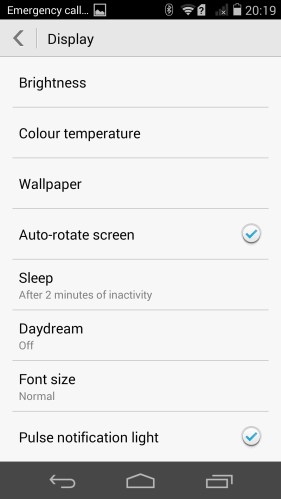
Various screen shots of all the menus below.
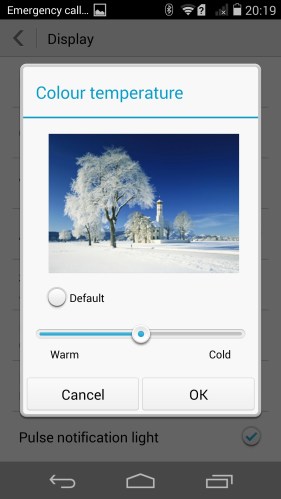
As you will see from all the various menus, the Honor 6 caters for everything.
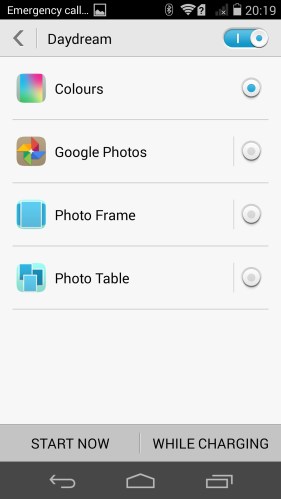
The Homescreen style enables an optionally easy mode with 7 big buttons on the screen. Ideal for some people and fairly well designed too. Tapping on the display menu gives options for brightness, colour temperature, wallpaper, daydream, font size, pulse notification light and more.
No surprises in the storage menu. Options for SD card, USB OTG storage and option to choose default storage option. The Battery menu shows all the usual stats and has a toggle for the battery percentage on or off for the status bar.
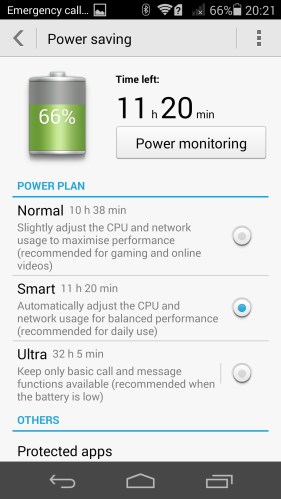
The Honor 6 comes with a number of Power Saving options from normal, smart and Ultra Power saving mode. With 79% battery left, normal was showing 13h 23m, smart 14h 18m and ultra 40h 22 mins. In Ultra mode you basically have a dumb phone. Protected apps allow you to control which apps run in the background. The last option shows you any particular apps that consume heavy amounts of battery in the background. A decent set of options. The Notification manager is another set of controls for each app to restrict, deny or allow the app from sending push messages to the notification panel.

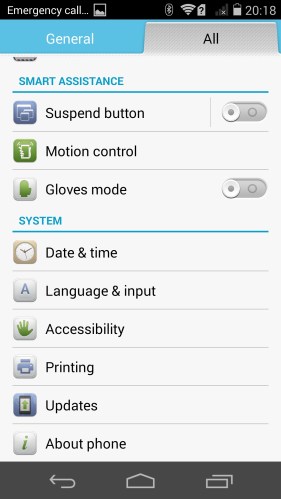
You will see there are motion options from flip to mute, pick up to reduce ring volume, raise to ear to answer or make calls and more. Gloves mode is also included.

It may not have lollipop yet, but it does include a Do Not Disturb mode.
Within the sound menu is the option for DTS. I recommend keeping this on. It adds depth and extra bass to your music but its not overkill either. I enjoyed the sound using this mode.

Another surprise for me was the builtin keyboard. It is SwiftKey. No pretending to be rebadged. It states its Swiftkey and asks you to sign into your account if you have one. Hence typing is great on this phone.

The drop down toggles are handy and include a range of useful options.

All in all, the included apps, settings, software and hardware are all fairly comprehensive. The screen is a decent 1080p affair with an option in the settings to drop it to 720p to save on battery. A soft reset happens every time you change between the resolutions.
Tomorrow is all about the camera. Stay tuned until then.
 Gavin's Gadgets & Photography
How does it compare audio quality and volume wise to the HTC Desire Eye? Does it support apt-x?
LikeLike
Tomorrow’s post covers the audio in more depth and there is a comparison vs the Eye. Yes I believe it does support APT-X?
LikeLike